How to Flip an Image in Photoshop: Layer and Canvas
Flip an image in Photoshop using Image Rotation or the Transform tool. Works for full canvas flips and single-layer flips on any Photoshop version.
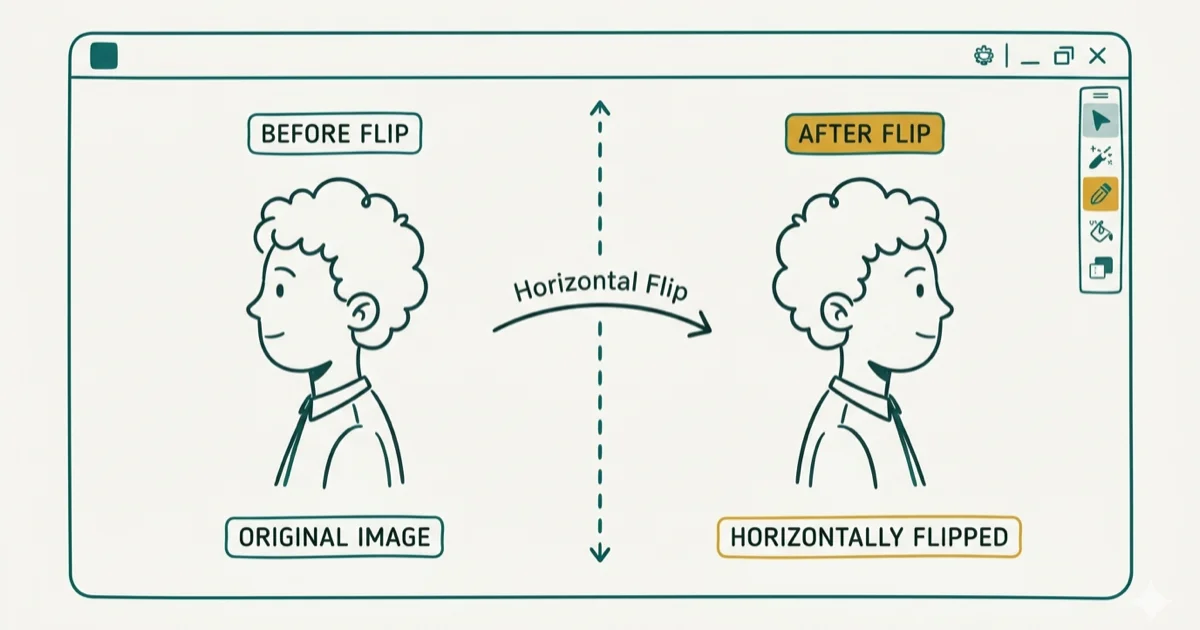
Quick AnswerGo to Image, then Image Rotation, and select Flip Canvas Horizontal or Flip Canvas Vertical. To flip a single layer instead, select the layer and use Edit, Transform, then Flip Horizontal or Flip Vertical.
Flipping an image in Photoshop takes only a few clicks once you know where the option lives. The menu path changed slightly across Photoshop versions, so we’ll cover the exact steps for both the full canvas flip and the single-layer flip.
- Flip an entire canvas through Image, Image Rotation, then Flip Canvas Horizontal or Vertical
- Flip one layer without affecting others through Edit, Transform, then Flip Horizontal or Vertical
- Press Ctrl+T (Windows) or Cmd+T (Mac) to open Free Transform, then right-click for flip options
- Undo any accidental flip instantly with Ctrl+Z (Windows) or Cmd+Z (Mac)
- Flipping mirrors the image along an axis while rotating changes its angle by degrees
#How Do You Flip an Entire Image in Photoshop?
Flipping the entire canvas mirrors everything on every layer at once. Use this when your photo has no separate layers or you want the whole composition reversed.
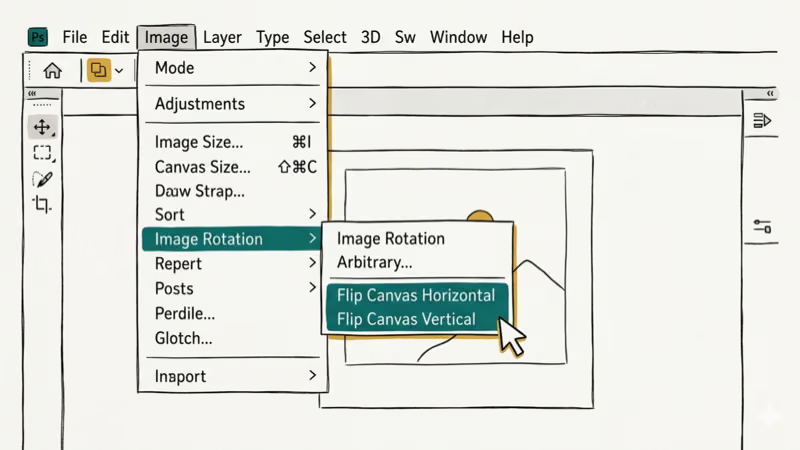
Step 1. Open your image in Photoshop.
Step 2. Go to Image > Image Rotation.
Step 3. Select Flip Canvas Horizontal to mirror left-to-right, or Flip Canvas Vertical to mirror top-to-bottom.
That’s it. Three clicks. The flip applies to the full document rather than just the active layer.
According to Adobe’s official documentation, the Image Rotation menu affects the entire document, including all layers, selections, and paths. Keep in mind that if your image has text layers, the text will appear reversed after a horizontal flip. Flip those text layers back individually to keep them readable.
#Flipping a Single Layer Without Affecting the Rest
When you’re working on a multi-layer composition, flipping the entire canvas would ruin everything else. Instead, you can target just one layer.
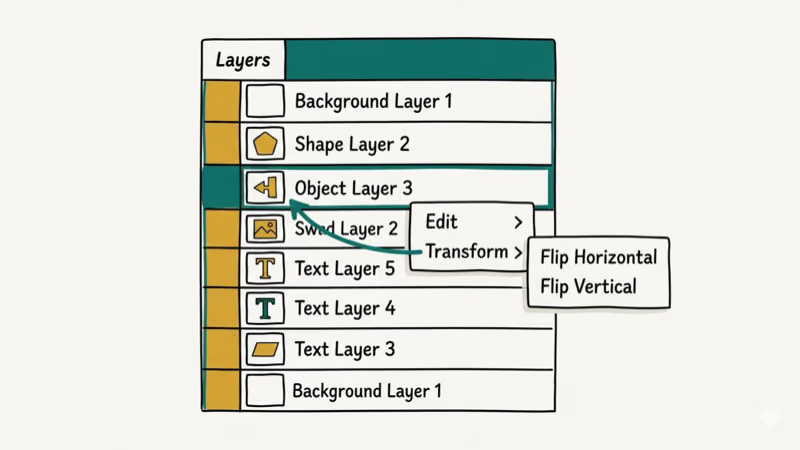
#Method 1: Edit Menu
Select your layer, then go to Edit > Transform > Flip Horizontal (or Vertical).
#Method 2: Free Transform
Select your target layer and press Ctrl+T (Windows) or Cmd+T (Mac) to enter Free Transform mode. Right-click anywhere inside the transform bounding box and choose Flip Horizontal or Flip Vertical from the context menu. Press Enter to confirm.
Adobe’s Free Transform documentation confirms that this method lets you apply multiple transformations in a single operation before committing the change. This is especially useful when resizing and flipping a layer at the same time.
#Method 3: Flip a Selection Within a Layer
Sometimes you only need to flip part of an image rather than the entire layer. Use the Marquee tool or Lasso tool to select the exact area you want to mirror, then go to Edit > Transform > Flip Horizontal. Only the selected pixels will flip while everything outside the selection stays untouched, which makes this approach perfect for mirroring specific elements in composite design work where you need just one section reversed.
#What Is the Difference Between Flipping and Rotating?
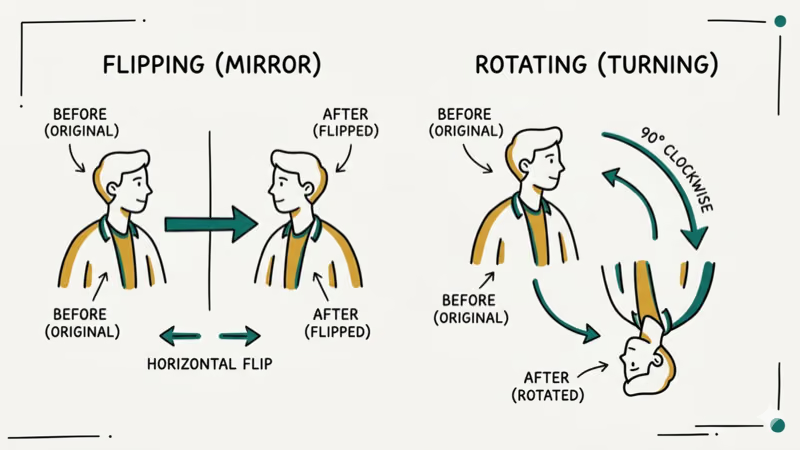
These two operations look similar in the menu but produce very different results.
| Action | Result | Path |
|---|---|---|
| Flip Horizontal | Mirrors left-to-right | Image Rotation > Flip Canvas Horizontal |
| Flip Vertical | Mirrors top-to-bottom | Image Rotation > Flip Canvas Vertical |
| Rotate 90 CW | Turns clockwise | Image Rotation > 90 Clockwise |
| Rotate 180 | Upside down | Image Rotation > 180 |
A horizontal flip creates a mirror image. If someone in the photo is holding a cup in their right hand, it’ll appear in their left hand after the flip. A 180-degree rotation turns the photo upside down, but the spatial relationship between left and right stays the same.
According to Adobe’s transform objects guide, both operations are non-destructive when applied through Smart Objects.
#Common Problems When Flipping Images (and Fixes)
#The Flip Option Is Grayed Out
The background layer is probably locked. Double-click it in the Layers panel to convert it to a regular layer, then try again.
#Text Appears Backwards After Flipping
If you flip the entire canvas and your design has text, every character reverses. The fix: select each text layer individually and flip it back using Edit > Transform > Flip Horizontal. This reverses the text while keeping the rest of the canvas flipped. For designs with many text layers, consider grouping them first so you can flip the group in one step instead of flipping each layer separately.
#Faces Look Unnatural After Flipping
Human faces aren’t perfectly symmetrical. Flip a portrait horizontally and something looks “off.”
If you need the composition benefit of a flipped portrait, try flipping only the background layer while keeping the subject layer unflipped. This preserves natural facial appearance while still giving you the left-to-right visual flow that works better for Western audiences.
#You Flipped the Wrong Direction
Press Ctrl+Z (Windows) or Cmd+Z (Mac) to undo. You can also open the History panel through Window > History and click any previous state to jump back multiple steps at once.
#Keyboard Shortcuts for Flipping in Photoshop
Photoshop doesn’t have a default one-key shortcut for flipping, but you can create one or use Free Transform as a workaround.
Quick flip using Free Transform: Select your layer, press Ctrl+T (Cmd+T on Mac), right-click inside the bounding box, and click Flip Horizontal or Flip Vertical. Press Enter to apply. Five keystrokes total.
Creating a custom shortcut: Go to Edit > Keyboard Shortcuts and expand Image > Image Rotation. Click next to Flip Canvas Horizontal, press your desired key combination, then click Accept and OK. According to Adobe’s keyboard shortcuts reference, you can view and customize all shortcut assignments from this same panel. A custom shortcut is faster than opening the menu each time if you flip images often.
For related editing tasks, check out how to remove watermarks from video or remove glare from photos using different tools.
#Practical Uses for Flipping an Image
Flipping isn’t just a correction tool. Designers and photographers use it strategically.
Composition improvement. The “rule of reading” suggests viewers scan images left-to-right. A PCMag guide on photo editing techniques found that 7 of the top 10 editing apps include one-tap flip tools because mirroring is among the 5 most common edits photographers make. Flipping a photo so the subject faces right improves visual flow, which is why this technique shows up often in photo editing for social media.
Creating symmetrical designs. Duplicate a layer, flip the copy, and align both halves. Done.
Correcting selfie mirror effect. Front-facing cameras capture a mirrored image by default. Import a selfie into Photoshop and flip it horizontally to get the “real” non-mirrored version. You can also add text to photos before or after the flip.
Fixing scanned images. Flatbed scanners sometimes produce reversed images if the original was placed face-down incorrectly. A quick horizontal flip fixes this without rescanning.
#Bottom Line
Flipping an image in Photoshop takes two clicks: Image > Image Rotation > Flip Canvas Horizontal for the whole canvas, or Edit > Transform > Flip Horizontal for a single layer. Use Ctrl+T for the fastest layer flip. If you’re working with multi-layer files, always double-check which layer is selected before flipping.
#Frequently Asked Questions
Can you flip an image in Photoshop without flattening layers?
Yes. Use Edit > Transform > Flip Horizontal on individual layers to flip them one at a time. Each layer flips independently without affecting others. This preserves your layer structure completely.
Does flipping an image reduce its quality?
No. Flipping rearranges pixel positions without resampling, so quality stays identical.
Can you flip multiple layers at once in Photoshop?
Yes. Hold Ctrl (Windows) or Cmd (Mac) and click each layer in the Layers panel, then go to Edit > Transform > Flip Horizontal. All selected layers flip together.
How do you flip an image in Photoshop on iPad?
Open your image in Photoshop for iPad and tap the Transform tool in the toolbar. Tap the flip icon at the bottom of the screen to choose horizontal or vertical. The interface looks different from the desktop version, but the result is identical.
What is the shortcut to flip an image in Photoshop?
No default shortcut exists. Use Ctrl+T, then right-click for flip options.
Can you flip just a selection instead of the entire layer?
Yes. Make a selection using any selection tool (Marquee, Lasso, etc.), then go to Edit > Transform > Flip Horizontal. Only the selected pixels flip while everything outside stays put.
Does flipping affect Smart Object contents?
Flipping a Smart Object flips it non-destructively. You can double-click the Smart Object to open the original contents, which remain unflipped. The flip only applies to how the Smart Object appears on the canvas, not to its internal data.
How do you reset a flipped image back to its original orientation?
Press Ctrl+Z (Cmd+Z on Mac) immediately after flipping to undo it. If you’ve made other edits since the flip, open the History panel (Window > History) and click the state before the flip was applied. You can also flip the image again in the same direction to return to the original.

Google Messages Error 3100: Why RCS Is Broken on Galaxy
Google Messages RCS error 3100 hits Galaxy owners after phone or carrier switches. Google told 9to5Google a fix is coming. Here's what actually helps.

Is This Bank App Real? Spot a Fake App on Your Home Screen
A bank app can land on your home screen from a web page with no install warning. Learn the checks that tell a real banking app from a phishing web app.

Apps Crashing After iOS 27 Update? Fix Order (2026)
Apps crashing after the iOS 27 update? Update the app in the App Store first, then offload and reinstall to clear stale cache, then restart. The fix order.

Do AI Translation Earbuds Work Offline? What to Know
Do AI translation earbuds work offline? A few do with downloaded language packs, but most need the cloud. Here's what works offline and what you give up.