How to Clear Instagram Search Suggestions (7 Methods)
Instagram search suggestions won't go away? Here are 7 proven methods to clear search history, remove individual suggestions, and reset the algorithm.
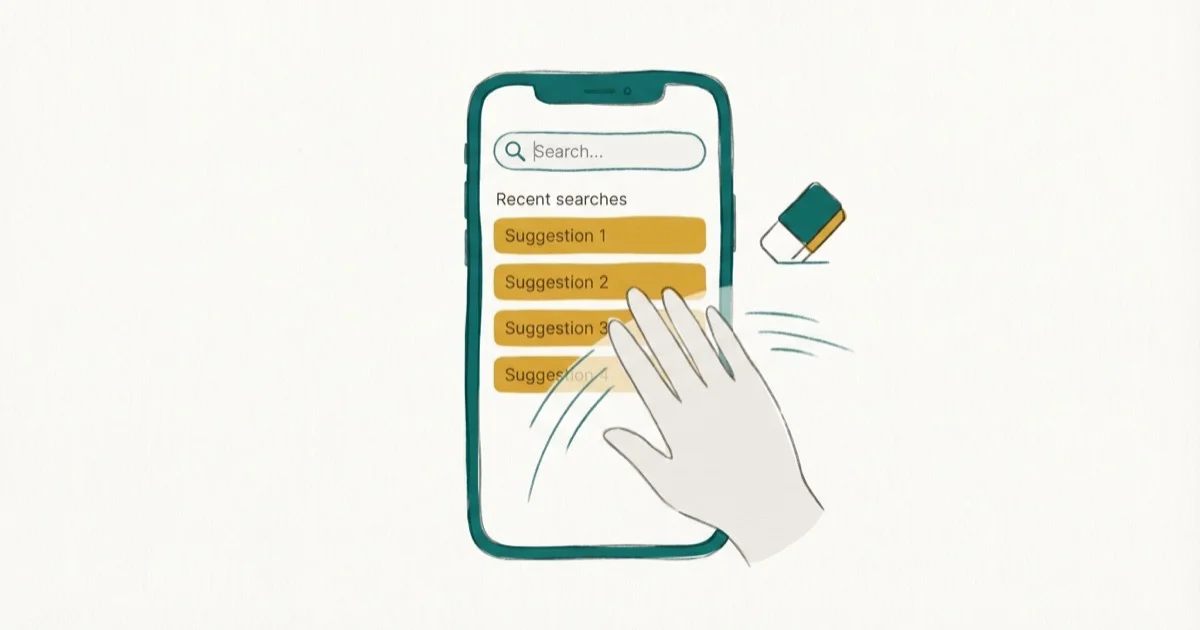
Quick AnswerGo to your Instagram profile, tap Settings > Your Activity > Recent Searches, then tap Clear All to remove all search suggestions at once.
Instagram’s search suggestions can reveal your browsing habits to anyone who picks up your phone. Whether you’re cleaning up old searches or trying to reset what Instagram recommends, there are several ways to wipe those suggestions clean.
- Clear all search history at once through
Settings>Your Activity>Recent Searches>Clear All, which removes every saved query instantly - Individual suggestions can be removed by tapping the X icon next to each one in the search bar without deleting your entire history
- Reinstalling the Instagram app on Android clears the local cache and data that feed the suggestion algorithm
- Instagram’s search suggestions and search history are different because suggestions also factor in your interactions, follows, and engagement patterns
- Clearing your search history won’t affect your Explore page recommendations since those are based on separate engagement signals
#What’s the Difference Between Search History and Suggestions?
Instagram’s search history is a straightforward log of profiles and hashtags you’ve looked up. Suggestions, on the other hand, are algorithm-driven recommendations based on your searches, follows, likes, and direct message activity.

Clearing search history removes the saved search list, but some profiles can still appear as suggestions when you type in the search bar, which confirms that suggestions pull from more data sources than just your search log.
Instagram’s own documentation confirms that the platform tracks over 50 activity signals to generate personalized search recommendations (source). Deleting history alone doesn’t always eliminate every suggestion you see.
If you’re also dealing with the Instagram couldn’t refresh feed error, clearing cache (Method 7 below) often fixes both issues at once.
#Clear All Instagram Search History at Once
This is the fastest method and it works on both iOS and Android. It removes every search you’ve made, which also cuts down the number of suggestions Instagram shows you.

- Open Instagram and tap your Profile icon in the bottom-right corner.
- Tap the three-line menu icon in the top-right, then select Your Activity.
- Scroll down and tap Recent Searches.
- Tap Clear All at the top, then confirm by tapping Clear All again in the popup.
After clearing, Instagram won’t show those specific profiles or hashtags in your search bar anymore. The app starts building new suggestions based on your ongoing activity within a few hours though.
You might also want to check how to find saved reels on Instagram if you’re organizing your Instagram activity.
#Remove Individual Search Suggestions
If you don’t want to erase everything, you can remove specific suggestions one at a time. This works well when you only need to hide a few profiles from your search results.
- Open Instagram and tap the Search icon (magnifying glass).
- Tap the search bar at the top to see your recent suggestions.
- Find the suggestion you want to remove and tap the X icon next to it.
The suggestion disappears instantly. Removed suggestions usually don’t come back unless you search for that profile again later.
#How Do You Clear Suggestions From Instagram Desktop?
Instagram’s desktop version gives you another way to manage search data. According to Instagram’s official blog, the platform rolled out expanded activity controls in 2023 that let users manage search history from any device.

- Go to instagram.com in your browser and log in to your account.
- Click your profile picture in the bottom-left sidebar, then click Settings.
- Select Privacy and Security, then click View Account Data under Account Data.
- Click Search History, then View All, and finally Clear Search History at the top.
Desktop clearing syncs with the mobile app, so you don’t need to repeat this on your phone. Changes typically take effect within 2 to 3 minutes across all your logged-in devices.
#Reset Suggestions by Reinstalling Instagram
Reinstalling removes all locally cached data, including the suggestion algorithm’s stored preferences. This method is most effective on Android, where cache clearing is more thorough than iOS.
On Android: Long-press the Instagram icon and select Uninstall. Open the Google Play Store and reinstall Instagram, then log back in.
On iOS: Long-press the Instagram icon and tap Remove App > Delete App. Open the App Store, reinstall Instagram, and log back in.
After reinstalling, Instagram’s search suggestions reset completely. The app rebuilds them from scratch based on your server-side data, which typically takes 1 to 2 days of active use before suggestions start reappearing.
If you run into Instagram stories not working after reinstalling, give the app a few minutes to sync your account data fully.
#Block Accounts That Keep Appearing in Suggestions
Sometimes a specific account keeps showing up no matter how many times you clear your history. Blocking is the most reliable fix that guarantees they won’t appear again.
- Go to the profile that keeps appearing in your suggestions.
- Tap the three dots in the top-right corner and select Block.
- Confirm the block when prompted.
Blocked accounts can’t follow you, message you, or appear in your search suggestions at all. If you later unblock them, they won’t automatically reappear unless you search for them again.
For more privacy controls, check out Instagram parental controls or learn who follows who on Instagram.
#Clear Instagram Cache and Data on Android
Clearing the app’s cache removes temporary files that Instagram uses to speed up loading, including stored search data. According to Google’s Play Store support page, clearing an app’s cache and data resets it to a fresh state without requiring a full uninstall.
- Open your phone’s Settings app and go to Apps (or Application Manager).
- Find and tap Instagram, then tap Storage.
- Tap Clear Cache first. If suggestions persist, tap Clear Data for a complete reset.
Clearing data logs you out, so have your password ready before proceeding. On iOS, there’s no built-in cache clearing option, which is why reinstalling (Method 4) is the iOS equivalent.
You can also check whether Instagram keeps stopping due to cache corruption by clearing data first before trying other fixes. If you’re curious about search-related features, the guide to searching multiple hashtags on Instagram covers advanced search techniques.
#Bottom Line
The quickest way to clear Instagram search suggestions is through Settings > Your Activity > Recent Searches > Clear All. If suggestions persist, try removing them individually, clearing your cache on Android, or reinstalling the app for a full reset. Blocking specific accounts that keep appearing is the most permanent solution. Keep in mind that Instagram rebuilds suggestions based on your ongoing activity, so they’ll start reappearing within a day or two of regular use.
Instagram Tips & Tricks
#Frequently Asked Questions
Will clearing search suggestions delete my Instagram account?
No. Clearing search suggestions only removes the search history and algorithm data stored in the app. Your account, posts, followers, and messages all remain untouched.
Can I stop Instagram from showing search suggestions entirely?
Instagram doesn’t offer a toggle to disable search suggestions completely. The closest workaround is clearing your history regularly and avoiding tapping on profiles you don’t want suggested. Using the app in a browser with private mode also limits suggestion data.
Does clearing search history affect my Explore page?
Clearing your search history doesn’t directly change your Explore page. Instagram’s Explore recommendations are based on a separate set of signals including accounts you follow, posts you like, and videos you watch. Your search history is only one small input.
How often should I clear my Instagram search suggestions?
It depends on your privacy needs. If you share your phone with others, clearing weekly keeps your search activity private. For most users, clearing once a month or whenever you notice unwanted suggestions is enough.
Can I recover search suggestions after clearing them?
No. Once you clear your Instagram search history and suggestions, they’re gone permanently. Instagram doesn’t offer a way to restore previous search data, so make sure you’re ready before tapping Clear All.
Do search suggestions sync across all my devices?
Yes. Search suggestions are tied to your Instagram account, not just the device. If you clear suggestions on your phone, they’ll also disappear when you log into Instagram on a tablet or desktop. The sync usually happens within a few minutes.

Instagram Parental Controls: Family Center Setup (2026)
Set up Instagram Family Center, privacy settings, Hidden Words, content filters, and time limits with your teen's consent on iPhone or Android.

Instagram Notifications Not Working? Quick Fixes (2026)
Instagram notifications not working? Fix push alerts, DMs, likes, and Stories on iPhone and Android in under 5 minutes with proven 2026 steps.

Instagram "We Limit How Often" Error: How to Fix It 2026
Instagram says "we limit how often you can do certain things"? Wait 24-48 hours, slow down likes and follows, then appeal through Help Center.

Instagram Name Checker: Find Available Usernames Fast
Check Instagram username availability instantly with free tools like Namechk and KnowEm. Find perfect handles and avoid the frustration of taken names.