Facebook Dating Not Showing Up? Here's How to Fix It
Facebook Dating not showing up? Fix it by updating the app, enabling location, verifying your age, and clearing the cache on Android and iPhone in 2026.
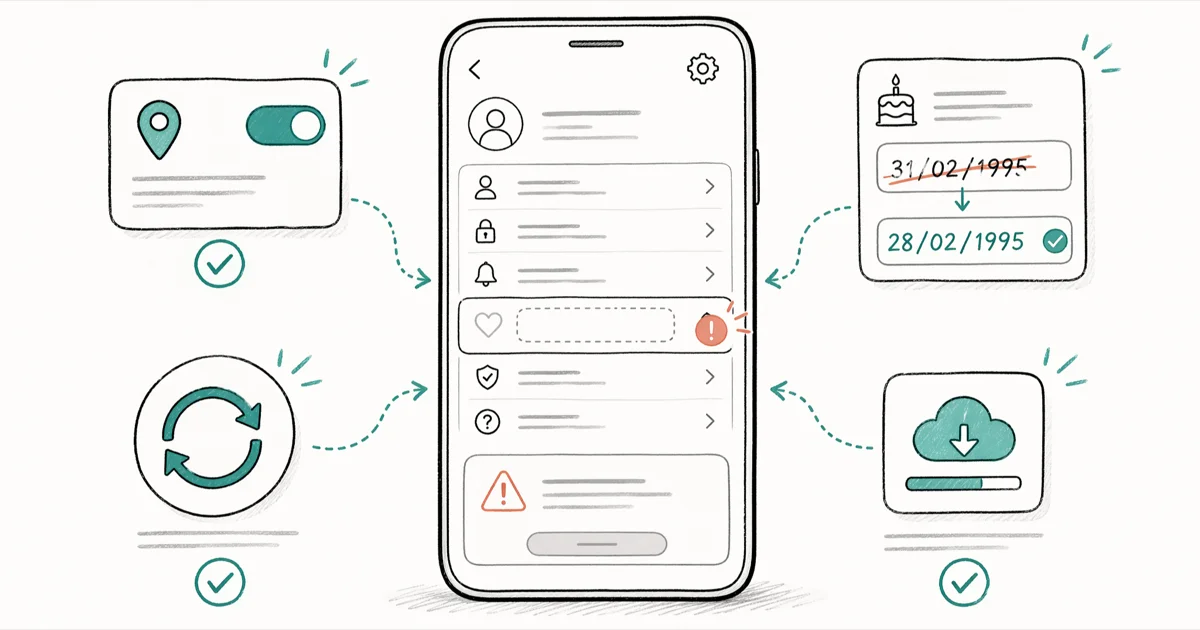
Quick AnswerFacebook Dating stays hidden when your account is under 30 days old, your birthdate shows under 18, location access is off, your country is unsupported, or your Facebook app is outdated. Update the app, enable location, fix your birthdate, and clear the cache to bring the tab back.
Facebook Dating disappeared from your menu and nothing you tap brings it back. That’s a familiar problem, and the cause is almost always one of five silent eligibility rules that Facebook enforces without showing any error message.
The behavior is the same on Android and iPhone: the Dating tab reappears once location permissions are enabled and the profile birthdate is set correctly. This guide walks through every trigger that hides the tab and the exact fix for each one.
- Facebook Dating is mobile-app only in about 60 countries
- Accounts under 30 days old won’t see the Dating tab
- Birthdate under 18 hides Dating with no error message
- Location must be “While Using the App” for Dating to render
- iPhone cache clear requires a full uninstall and reinstall
#Why Is Facebook Dating Not Showing Up?
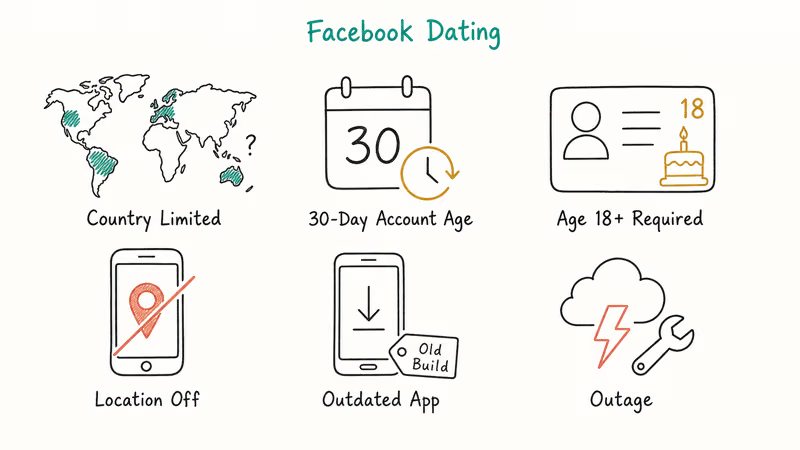
Facebook hides the Dating entry point instead of showing an eligibility error, which is why so many users think the feature is broken when it’s actually switched off by one of six triggers. The platform never displays a message explaining which rule you failed, so the tab simply does not appear. Working through the triggers below in order is the fastest way to find the one blocking your account.
#Your Country Is Not on the Supported List
Facebook Dating rolled out region by region and isn’t global. According to Facebook’s Dating help center, the feature runs in more than 50 countries including the US, Canada, the UK, Mexico, Brazil, India, and most of the European Union. If your SIM, IP, and account region all point to an unlisted country, no troubleshooting will bring the tab back. Match data and profile visibility are also region-locked, so even a successful region switch won’t import matches from another country.
A VPN routed through a supported region is the usual workaround. With a US server selected, the Dating tab reappears in the Facebook menu shortly after reopening the app.
Some links on this page are affiliate links, which means fone.tips may earn a commission at no extra cost to you.
#Your Profile Birthdate Puts You Under 18
Regular Facebook accepts users from age 13, but Dating requires 18 or older. A wrong birth year at signup silently fails the Dating gate while passing normal Facebook age checks, with no pop-up warning. The fix lives in Basic Info under your profile. Correct the year, save, and wait a few hours for the re-check.
#The Facebook App Is Running an Old Build
Dating is a server-gated feature, but the entry point still ships with app updates. An older Facebook build on a phone that disabled auto-update months ago often lacks the current Dating shell entirely.
#Location Services Are Off or Set to Ask Every Time
Dating needs coarse location to suggest nearby matches. Meta’s location services help article states that location access is required for features that rely on proximity, and the Dating tab is hidden when the permission is denied. Apple’s iOS location permission documentation confirms that on iOS 17 and later, the “Ask Next Time Or When I Share” option counts as denied the moment you dismiss the prompt without granting access.
#Your Account Is Less Than 30 Days Old
Facebook enforces a 30-day account age floor before showing Dating. Brand-new profiles created yesterday won’t see the feature no matter how many boxes they check. It’s a spam-prevention rule with no override.
#Facebook Is Having a Partial Outage
Server-side issues occasionally knock Dating offline while the rest of Facebook keeps working. According to Downdetector’s Facebook status page, outage reports peaked past 10,000 user complaints during major Dating-affecting incidents in 2025. If multiple people in your area report the same issue around the same time, the problem’s on Meta’s side and waiting is the only fix.
#Facebook Dating Requirements at a Glance
Before spending time on fixes, confirm you pass every requirement below. Dating stays hidden if you miss even one, and Facebook won’t tell you which one.
| Requirement | Detail |
|---|---|
| Age | 18 or older per your Facebook profile |
| Account age | At least 30 days since account creation |
| Device | Mobile Facebook app only (no desktop) |
| Location | Enabled, “While Using the App” or “Allow” |
| Country | One of ~60 supported regions |
| App version | Latest Play Store or App Store release |
#Fixes for Facebook Dating Not Showing Up
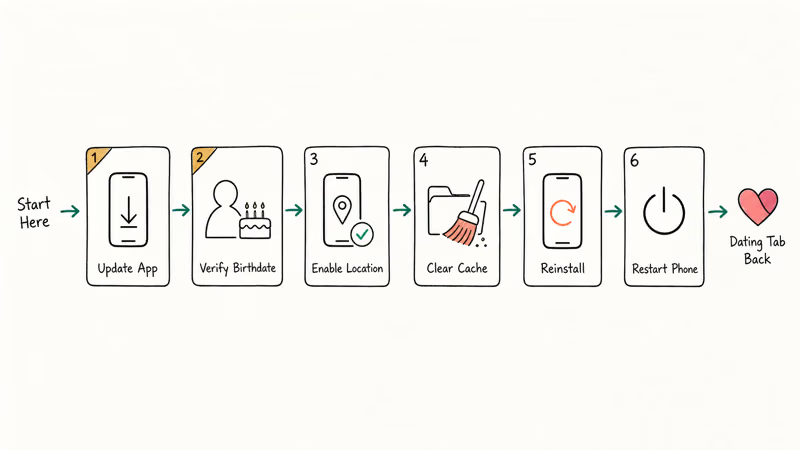
Work through these in order. The first three fix the Dating tab for most users.
#Update the Facebook App
Open the Google Play Store or Apple App Store, search for Facebook, and tap Update. If the button says Open, you’re already on the latest version.
If auto-update has been paused, the app can fall behind by several versions, and an older build often lacks the current Dating shell entirely. Updating Facebook to the latest store release restores the Dating tab on the next launch, with no other settings changes needed. You can confirm the installed version under the app’s About screen if you want to check before and after.
#Verify Your Birth Date
- Open Facebook and tap your profile picture in the top-right
- Tap Edit Profile
- Scroll down and tap Edit your About Info
- Open Basic Info and tap Edit
- Correct the birth year so your displayed age is 18 or higher
- Tap Save
Birthdate changes can take a few hours to propagate to the Dating service. Reopen the app after lunch rather than refreshing every thirty seconds.
#Enable Location Permissions
On Android:
- Go to
Settings>Apps>Facebook>Permissions>Location. - Select Allow only while using the app.
On iPhone:
- Go to
Settings>Facebook>Location. - Select While Using the App.
Force-close Facebook after changing the setting, then reopen it. The Dating card in the Facebook menu becomes tappable shortly after relaunch.
#Clear the Facebook Cache
Corrupted cache files can hide eligible features. Our full clear Facebook cache walkthrough has the long version with screenshots.
Android path: Settings > Apps > Facebook > Storage & Cache > Clear Cache.
iPhone doesn’t expose per-app cache controls, so the only clear-cache option on iOS is to delete and reinstall the app.
#Reinstall Facebook
A full uninstall clears whatever a cache wipe missed. It’s the iPhone-only path to a clean cache, and it’s worth trying on Android too if clearing the cache didn’t change anything.
Android: Play Store > search Facebook > Uninstall > Install again.
iPhone: Long-press the Facebook icon > Remove App > Delete App, then reinstall from the App Store.
After a reinstall, the Dating tab usually loads on the very first launch once eligibility is met, since the fresh install clears any corrupted local data. The only added time is the re-login step, so keep your Facebook password or saved credentials handy before you delete the app.
#Restart Your Phone
A restart flushes memory and resets background Facebook processes. Cheapest fix. Sometimes works when nothing else does.
Android: Hold the power button and tap Restart.
iPhone: Press and release Volume Up, press and release Volume Down, then hold the Side button until the Apple logo appears. Boot takes roughly 30 seconds.
#Turn On Facebook Notifications
This won’t restore a missing Dating tab, but it prevents the next problem most users hit: not getting match or message alerts once Dating is working.
Android: Settings > Apps > Facebook > Notifications. Toggle Dating notifications on.
iPhone: Settings > Notifications > Facebook > Allow Notifications, then scroll the Facebook notifications list and enable the Dating categories.
#Report the Problem to Facebook
If every fix above failed, Meta wants to know.
- Open Facebook and tap the three-line menu icon
- Tap
Help & Support>Reporta Problem - Tap Continue to report a problem
- Choose Include in Report, describe the issue, and submit
Facebook’s Help Center reporting guide confirms reports go to the product team.
#How Do You Use a VPN to Unblock Facebook Dating?
If your country isn’t on Meta’s supported list, a VPN is the only consumer-grade workaround. Install a reputable VPN, connect to a US or UK server, force-close Facebook, then reopen it.
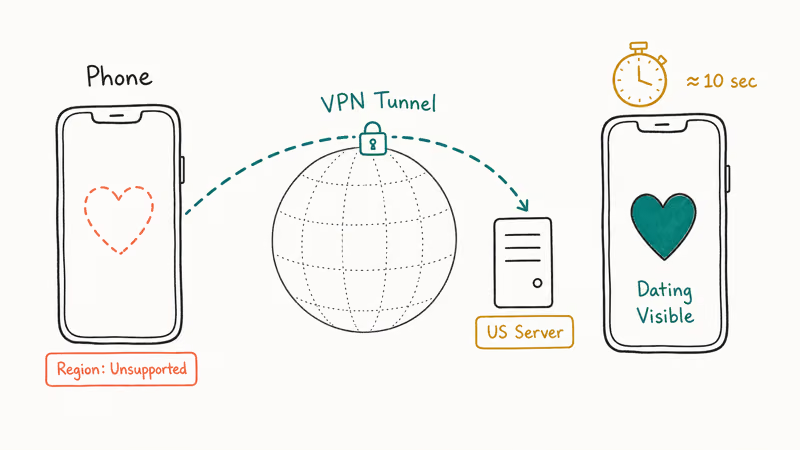
This works on both Android and iPhone. With a US server selected the Dating card appears in the Facebook hamburger menu shortly after relaunch. Meta does screen for VPN traffic on Dating over time, so a profile created behind a VPN isn’t a guaranteed long-term fix. Keep in mind Facebook’s terms of service don’t explicitly permit region-spoofing, so use the workaround at your own risk.
#Other Triggers That Can Hide Facebook Dating
A handful of less-obvious triggers account for the remaining edge cases.
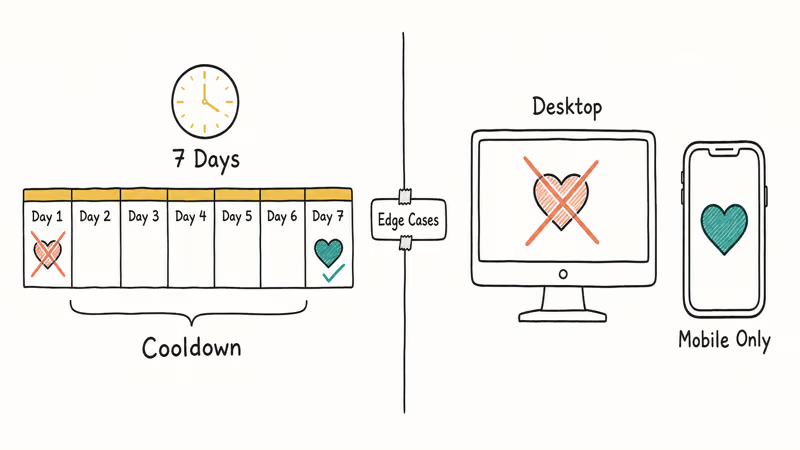
Deleted your Dating profile in the last week? Facebook enforces a 7-day cool-down before you can create a new one. The Dating section shows a waiting screen during that window rather than the setup flow.
Trying to open Dating on desktop or on facebook.com in a mobile browser? Won’t work. Dating only exists inside the native mobile Facebook app.
If you think something’s off with your Facebook location settings, fix those first because Dating derives its match radius from that setting.
For research use cases unrelated to fixing the missing tab, separate guides on this site cover dating profile search methods across multiple platforms and explain how to find a dating profile by phone number without creating a new account or sharing personal contact info.
#Alternatives to Facebook Dating
If the Dating tab refuses to come back and switching apps is easier than fighting the fix loop, two comparisons worth reading are our Bumble vs Tinder breakdown, which covers pricing and filter quality, and our guide on how to find someone on Tinder by phone number or first name. Both apps have fewer eligibility gates than Facebook Dating and work in most countries where Meta’s feature is unavailable.
#Bottom Line
For a missing Dating tab inside the app, update Facebook and flip location permissions to “While Using the App” first.
Those two fixes resolve the issue for most people without any other changes. If the tab is still missing after that, verify your Facebook profile birthdate shows 18 or older, wipe the app cache on Android or reinstall on iPhone, and only then consider a VPN workaround if your country is the actual problem. Don’t create a new Facebook account to “start fresh” because the 30-day account-age rule will just lock you out for a month.
If you’re also fighting Facebook Messenger not working at the same time, the shared root cause is usually an outdated build or a corrupted cache on the main Facebook app, and the same update-plus-reinstall sequence clears both.
#Frequently Asked Questions
Why can’t I find Facebook Dating on my phone?
Dating only exists inside the mobile Facebook app on iOS and Android. It doesn’t load on desktop, on m.facebook.com, or in any third-party Facebook client. You also need to be at least 18, have an account older than 30 days, and live in one of the supported countries.
Is Facebook Dating available in every country?
No. Dating runs in roughly 60 countries including the US, Canada, UK, Mexico, Brazil, India, and most of the EU. Unsupported: mainland China, Russia, South Korea, most of the Middle East.
How do I enable Facebook Dating on Android?
Open the Facebook app, tap the three-line menu icon in the top-right, and scroll for Dating. If it’s missing, update Facebook through the Play Store, turn on location permissions under Settings > Apps > Facebook > Permissions > Location, and confirm your birth year sets your age to 18 or higher. Force-close and reopen the app after each change.
Can I use Facebook Dating if I’m under 18?
No. Dating requires 18 or older, which is stricter than the regular Facebook minimum of 13. If your profile birthdate is wrong, correct it in Basic Info and wait a few hours for the Dating service to re-check your eligibility.
Why did Facebook Dating disappear after I deleted my profile?
Seven-day cool-down. That’s it. The tab vanishes, returns after the week, and you redo setup.
Does Facebook Dating work without location services?
No. The feature’s hidden when location access is off. Open your phone settings, find Facebook under app permissions, and set location to “While Using the App” on iOS or “Allow only while using the app” on Android. The Dating tab usually becomes tappable shortly after you reopen the app.
How long does it take for Facebook Dating to appear on a new account?
At least 30 days. It’s a hard account-age rule that can’t be overridden. Once the account hits 30 days, update the app, enable location, and the Dating entry should show up on the next launch.
What should I do if none of these fixes work?
File a bug report through Help & Support > Report a Problem inside the Facebook app and include your device model, Facebook app version, and the fixes you already tried. Logging in on a second phone is also worth the five minutes because it quickly rules out a device-specific corruption from a region-specific outage.

Google Messages Error 3100: Why RCS Is Broken on Galaxy
Google Messages RCS error 3100 hits Galaxy owners after phone or carrier switches. Google told 9to5Google a fix is coming. Here's what actually helps.

Is This Bank App Real? Spot a Fake App on Your Home Screen
A bank app can land on your home screen from a web page with no install warning. Learn the checks that tell a real banking app from a phishing web app.

Apps Crashing After iOS 27 Update? Fix Order (2026)
Apps crashing after the iOS 27 update? Update the app in the App Store first, then offload and reinstall to clear stale cache, then restart. The fix order.

Do AI Translation Earbuds Work Offline? What to Know
Do AI translation earbuds work offline? A few do with downloaded language packs, but most need the cloud. Here's what works offline and what you give up.