How to Change Your Location on Facebook: 3 Methods That Work
Change your Facebook location by updating your profile, pinning a Messenger location, or using iAnyGo to spoof GPS. Step-by-step guide for iOS and Android.
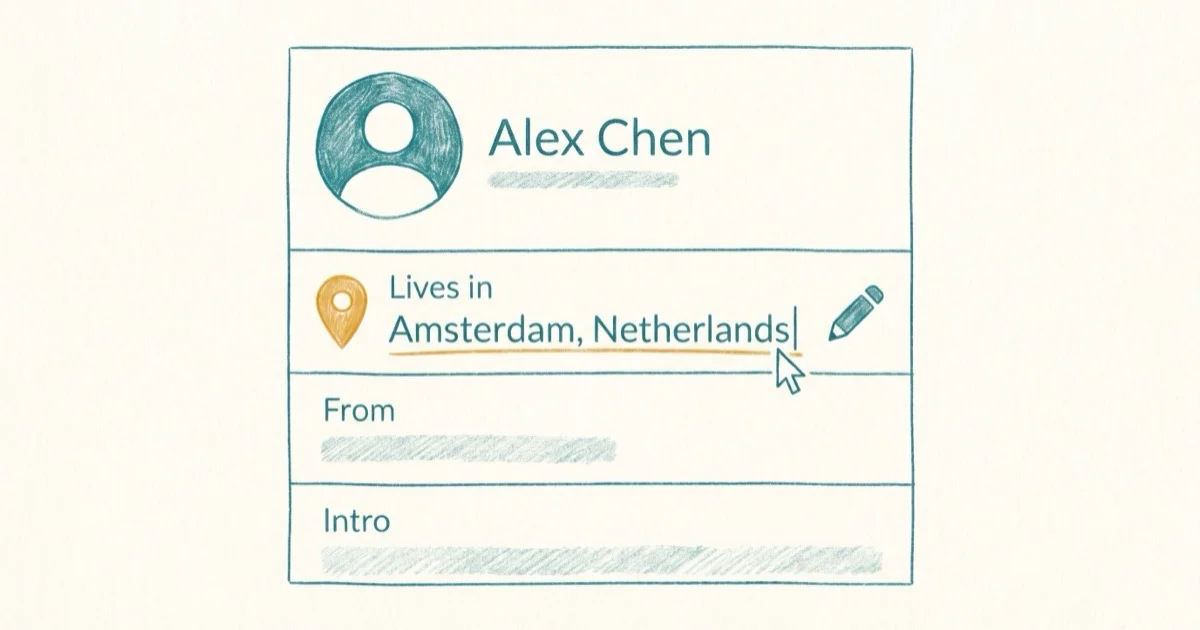
Quick AnswerYou can change your location on Facebook by updating your profile city, sending a pinned location in Messenger, or using a GPS spoofing tool like Tenorshare iAnyGo to send a fake live location. Profile location changes take effect immediately after saving.
Facebook uses your location in 3 different ways: your public profile city, your Messenger location pin, and your device’s live GPS. Each location surface serves a different purpose.
- Your Facebook profile city can be updated manually at any time from profile settings
- Messenger lets you send any pinned map location, not just your current position
- Sending a fake live location requires a GPS spoofing tool on your iOS device
- GPS spoofing with iAnyGo works on your own device and changes location for all apps at once
- Location changes on Facebook don’t affect your account security or privacy settings
#Updating Your Facebook Profile Location
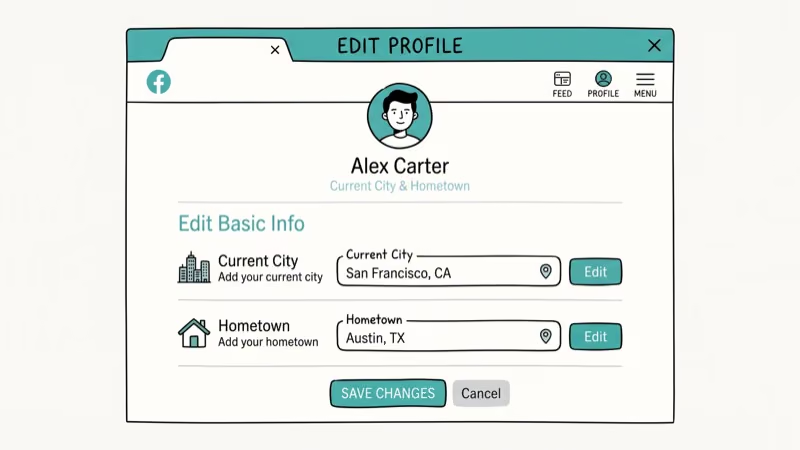
The simplest location change is updating your profile’s “Current City” field. This is what appears on your public profile and affects local ads and event recommendations. It’s not connected to your device’s GPS chip at all.
Steps to change profile city:
- Open Facebook and go to your profile
- Tap Edit Profile
- Scroll to the Current City section
- Type a new city and tap Save
The change takes effect immediately. Anyone who views your profile will see the updated location. Facebook’s Help Center confirms that profile location updates are instant and available to change unlimited times — you’re not limited to a set number of edits per year. You can review these rules at Facebook’s Help Center.
The saved profile city appears on your profile without restarting the app.
#How Do You Send a Pinned Location in Messenger?
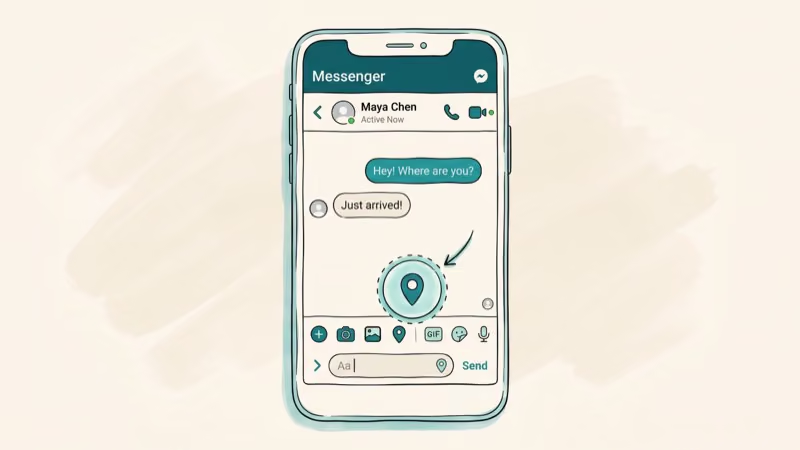
Facebook Messenger lets you send any map location to a contact, not just where you physically are. This is one of Messenger’s built-in features and requires no third-party tools.
Steps to send a pinned location:
- Open Messenger and tap the conversation you want
- Tap the Plus (+) icon at the bottom left
- Select Location
- Drag the map pin to any location you want, or use the search bar to type a city or address
- Tap Send Pin to share it
The recipient sees the location on a map in the chat. They can tap it to open it in their maps app of choice.
Search method: In step 3, instead of dragging the pin, type any location into the search bar at the top. The pin snaps to that address automatically. This is faster for specific addresses. If you need to track a cell phone number on Google Maps as an alternative, that’s a separate process.
#Sending a Fake Live Location in Messenger
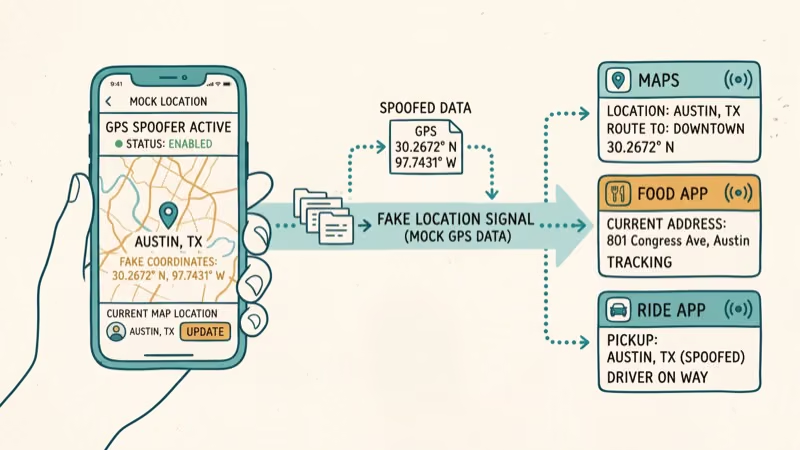
Messenger live location shares your real GPS continuously. To fake it, change your phone’s reported GPS; Tenorshare iAnyGo can do that on your iPhone.
Legal and privacy note: Only use GPS spoofing on your own device. Using it to deceive others for harmful purposes or to mislead emergency services is illegal in many jurisdictions. The methods below are for privacy protection and legitimate personal use on your own device.
#Using Tenorshare iAnyGo to Fake Live Location
Tenorshare iAnyGo connects to your iPhone via USB and changes the GPS coordinates that every app reads, including Facebook Messenger.
Some links on this page are affiliate links, which means fone.tips may earn a commission at no extra cost to you.
- Download and install iAnyGo on your Windows or Mac computer
- Connect your iPhone via USB and tap Trust when prompted
- Select Change Location mode in iAnyGo
- Search for your target location or enter GPS coordinates
- Click Start to Modify
Once active, open Messenger and start a live location share. Facebook Messenger reads the spoofed GPS coordinates and broadcasts that location to your contact. Messenger then reads the spoofed coordinates while iAnyGo remains active.
To restore your real location, restart your iPhone. The spoofed coordinates clear on reboot. Read more about changing your iPhone location for other GPS spoofing methods.
#Reasons to Manage Your Facebook Location
There are several legitimate reasons to manage your Facebook location. Privacy-focused users turn off location tracking to reduce the data Facebook collects. Travelers update their profile location to reflect where they actually are. App developers and QA testers change GPS to verify that location-dependent features work correctly.
Privacy consideration: According to Facebook’s Privacy Policy, the platform collects location from at least 4 independent sources: your device GPS, Wi-Fi networks, IP address, and manually entered profile information. Read the full details at Facebook’s Privacy Policy. Changing one source doesn’t necessarily remove all location signals. For comprehensive location privacy, disable Location Services for the Facebook app entirely: go to Settings > Privacy & Security > Location Services > Facebook > Never.
If you want to change your iPhone location without jailbreak for broader app privacy, there are several desktop tools that handle this cleanly.
#Can Facebook Tell if You’re Using a Fake Location?
Facebook’s ad system is sophisticated. According to PCMag’s analysis of social media ad targeting, the platform cross-references location from at least 4 data sources: GPS, Wi-Fi networks, IP address, and user-entered profile location.
Changing your GPS with iAnyGo affects the GPS and potentially the Wi-Fi signal (if you’ve moved devices), but your IP address still reflects your physical location unless you also use a VPN. Facebook may show ads based on your IP location even if your profile city and GPS say otherwise.
For comprehensive location management, combine GPS spoofing with a location spoofer approach and VPN simultaneously.
#VPN and GPS Together for Full Location Privacy
For the most thorough location change, combine GPS spoofing with a VPN. The GPS spoofer changes what your device reports to apps like Facebook. The VPN changes your IP address, which Facebook uses as a secondary location signal.
This two-layer approach means Facebook’s ad system sees both a different GPS coordinate and a different country-level IP. Using both tools together can reduce mismatched location signals, while either method alone may leave Facebook with conflicting GPS or IP data.
#Bottom Line
To change your Facebook location, pick the right method for your goal. Update your profile city for public display changes. Use Messenger’s built-in pin feature to send any map location to a contact. Use Tenorshare iAnyGo on your own iPhone to spoof live GPS for Messenger’s live location feature. Restart your phone to restore your real GPS anytime.
#Frequently Asked Questions
Does changing my Facebook location affect my privacy settings?
No. Changing your profile city or sending a different location in Messenger doesn’t modify your privacy settings. Your friends list, post visibility, and account security settings remain exactly as configured.
Can I change my Facebook Marketplace location?
Yes. Facebook Marketplace uses your profile location to show local listings. Update your profile city, and Marketplace updates its radius automatically. You can also set a different delivery radius within Marketplace settings.
Will my contacts know when I change my Facebook location?
Profile city changes can appear in your friends’ news feeds as an activity update, depending on your privacy settings. You can disable this by setting the city change post to “Only Me” before saving, or deleting the auto-generated post afterward.
How often can I change my Facebook location?
There’s no published limit. Facebook allows profile location changes as frequently as you want. However, very frequent changes may reduce the accuracy of location-based features like event recommendations and ad targeting.
Does Facebook track my GPS even if I update my profile location?
If you’ve granted Facebook location access on your device, yes. Profile location and device GPS are separate systems. To stop GPS tracking, go to your phone’s settings and set Facebook’s location permission to “Never.”
Can I change my location on Facebook for one specific app feature?
Not directly. Location changes in your profile apply globally. GPS changes via tools like iAnyGo affect all apps simultaneously. To restrict Facebook’s GPS access to just the profile (not real-time tracking), set location permission to “Never” in your device settings.
Is it against Facebook’s terms to send a fake location?
Facebook’s Terms of Service prohibit using the platform to deceive or mislead others in harmful ways. Sending a fake location as a harmless prank to a friend is generally tolerated. Using it to commit fraud, establish false alibis, or harm others crosses into terms violation and potentially illegal territory.
What’s the fastest way to change my Facebook location?
The fastest method is updating your profile city: open Facebook, tap your profile, edit city, save. Profile edits and Messenger pins are quick built-in flows. GPS spoofing with a desktop tool takes a separate initial setup step.

Pixel 11 vs Pixel 10: What Changed and Who Should Upgrade
Pixel 11 vs Pixel 10: same screen and camera resolution, new Tensor G6, 25W wireless, and Gemini Intelligence. Here is who should actually upgrade.

Verizon Not Receiving Texts? How to Fix It in 9 Steps
Verizon not receiving texts? Fix it in 9 steps: check Message Blocking in My Verizon, reset network settings, deregister iMessage, and call support.

Pixel Battery Drain: What Google's July Fix Really Covers
Google marked the Pixel idle battery drain bug fixed in July, but only some phones got the patch. Here is who is covered, who is not, and what to try.

iPhone Stuck on EDGE? How to Get 5G or LTE Back (2026)
iPhone stuck on EDGE with crawling data? Here's why the E icon appears, which settings force 5G or LTE back, and when the problem is your carrier.