Discord Screen Share Black Screen: 9 Fixes That Work
Fix the Discord screen share black screen on desktop, browser, and mobile. Toggle hardware acceleration, update drivers, and switch capture modes fast.
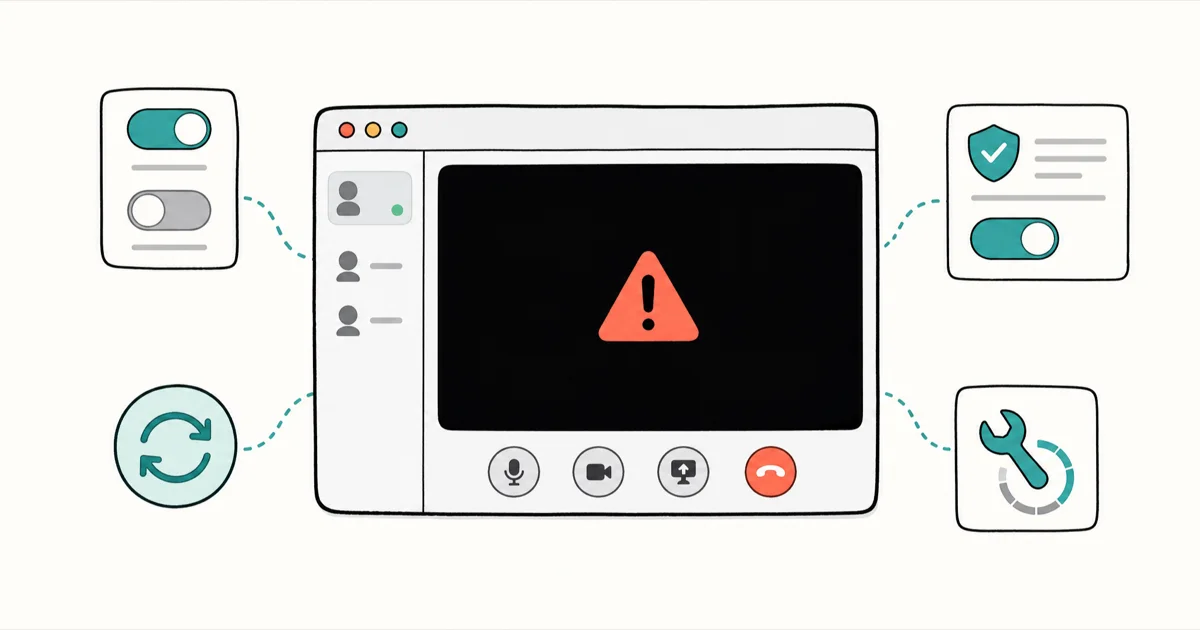
Quick AnswerA Discord screen share black screen is a GPU or capture conflict, not broken hardware. Toggle Hardware Acceleration off, update your graphics driver, and switch the stream to windowed mode. One of those clears it for most people.
Your Discord screen share goes black the moment you click Go Live, yet your audio still works and viewers see nothing. This is a capture conflict between Discord and your GPU. Your card is fine. The fixes below start with the settings most likely to restore video quickly on desktop and browser.
- The black screen is a GPU or permission conflict, not hardware damage, so your card is fine
- Toggling Hardware Acceleration off forces CPU encoding and clears most desktop cases
- Outdated or unstable graphics drivers are the second most common trigger
- Sharing Netflix, Disney+, or other DRM-protected video shows black by design and won’t ever be fixed
- Browser screen share has its own separate hardware acceleration toggle you also need to check
#Why Does Discord Show a Black Screen When I Share My Screen?
A black screen means Discord launched the stream but failed to capture the actual pixels. Audio routes through a different pipeline. That’s why your mic and game sound keep working while viewers stare at a black box.
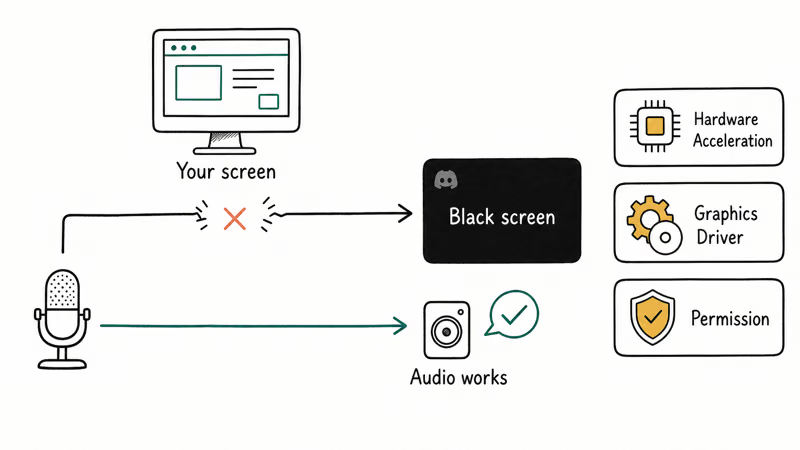
Three culprits cause almost all of these failures. The first is hardware acceleration, where Discord hands video encoding to your GPU and the driver refuses to cooperate. The second is an outdated or buggy graphics driver. The third is a permission mismatch, usually when a game runs as administrator and Discord doesn’t.
There’s also one black screen you can’t fix. Discord’s support team confirms that screen sharing protected content like Netflix or Hulu produces a black screen on purpose because of digital rights management. No setting changes that. If you only see black when sharing a streaming-video tab and everything else captures fine, this is why, and it’s working as intended.
#Turn Off Hardware Acceleration in Discord
This is the single most effective fix. Hardware Acceleration tells Discord to use your GPU for rendering and encoding, and that handoff is exactly where the capture breaks.
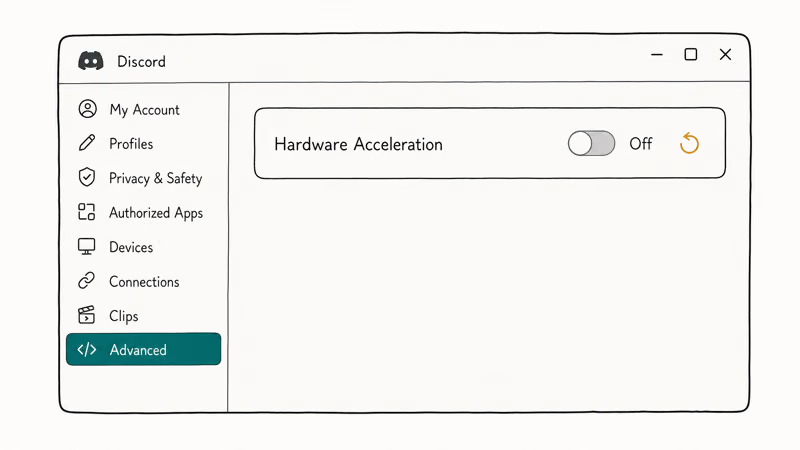
Open Discord and click the gear icon next to your username. Go to Advanced in the left sidebar, then toggle Hardware Acceleration off. Discord restarts. When you stream again, encoding runs on your CPU instead, sidestepping the driver conflict entirely.
This change can restore a stream that stays black because the GPU capture path is failing. The trade-off is slightly higher CPU load during streams, which any modern processor handles without a noticeable hit. Older Discord builds tuck this toggle under Appearance instead of Advanced, so check both spots.
#Update or Roll Back Your Graphics Driver
If hardware acceleration was already off, a bad driver is the next suspect. Discord depends on the GPU driver to read frames from your screen, and an outdated or freshly broken driver silently fails that read. This shows up most often right after a Windows feature update or a fresh GPU driver install, when the new driver and Discord’s capture path haven’t been tested together yet, and it can also follow a driver that was interrupted mid-install.
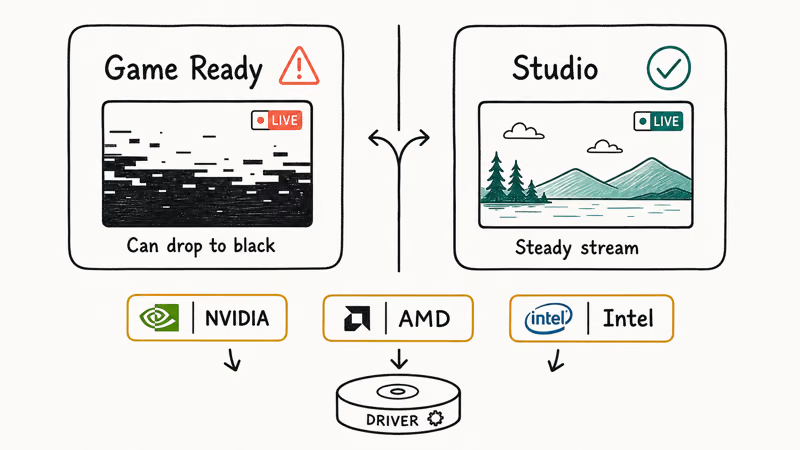
Download the latest driver straight from the manufacturer rather than through Windows Update. NVIDIA, AMD, and Intel all post current drivers on their own sites. Then reboot.
There’s a twist worth knowing in 2026. According to NVIDIA’s Game Ready Driver release notes, each release publishes its own known-issues list, and certain recent Game Ready builds have shown instability during Discord captures, including stutters and full black frames mid-stream. If your share went black right after a driver update, the timing is the tell, and the fix is counterintuitive because the newest driver is the problem rather than the cure.
Roll back the driver, or switch to NVIDIA’s Studio branch. Studio drivers are usually the steadier option for repeated Discord streaming, while Game Ready drivers prioritize launch-day game tuning.
#Should I Disable Hardware-Accelerated GPU Scheduling in Windows?
Yes, if you’re on Windows 11 24H2 and the Discord toggle alone didn’t help. Windows has its own acceleration feature separate from Discord’s, and a recent update made it fight with streaming apps. Microsoft’s support team states that Windows 11 24H2 introduced compatibility problems between Hardware-Accelerated GPU Scheduling and apps like Discord.
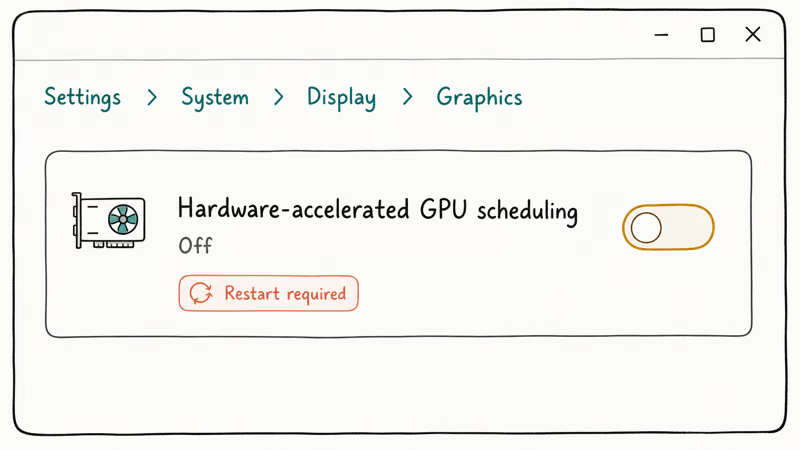
To turn it off, go to Settings > System > Display > Graphics, click Change default graphics settings, and toggle Hardware-accelerated GPU scheduling off. Restart the computer afterward, because the change only takes effect on a fresh boot, and then go live again to confirm the picture comes through.
This one matters most after you’ve already disabled Discord’s own acceleration without luck. The two settings are independent, so check both.
#Switch the Stream to Windowed Mode
Full-screen applications are notorious for black-screening in Discord. A game running in true fullscreen takes exclusive control of the display, and Discord’s capture can’t reach into it. The fix is fast.
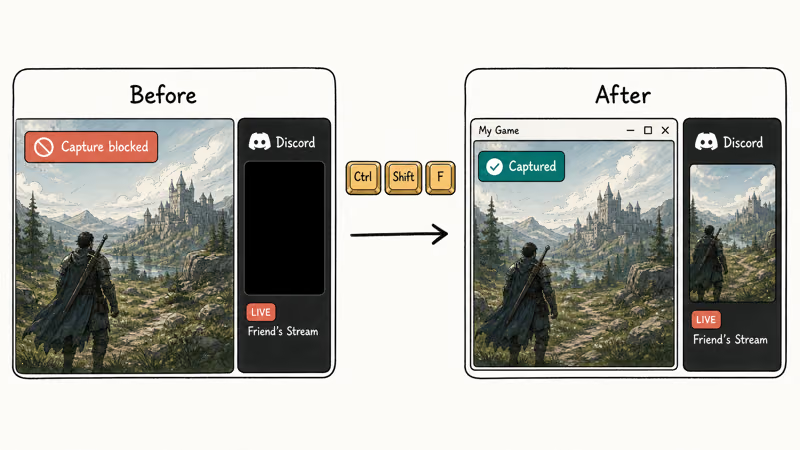
Inside the game, press Ctrl + Shift + F to drop it into borderless windowed mode. On a Mac, try Command + F. The picture usually snaps back instantly.
Borderless windowed looks identical to fullscreen for most games and costs almost no performance, so this is a safe permanent change rather than a temporary workaround. You can leave the game in this mode all the time and never hit the black screen from fullscreen capture again.
#Run Discord as Administrator and Use Legacy Capture
If a game launches with elevated privileges and Discord doesn’t, Windows blocks the capture for security reasons. Close Discord, right-click its icon, and choose Run as administrator so both run at the same privilege level.
For older games or apps that still go black, switch Discord’s capture method. Open Settings > Voice & Video, scroll to the screen share section, and turn off the latest technology to capture your screen option, which falls back to the legacy capture path. Legacy mode is slower but reads frames from stubborn apps the modern method can’t. If your overlay also misbehaves during this, our guide on the Discord overlay not working covers the related capture-permission fixes.
#Fix a Black Screen in the Browser or on Mobile
The desktop fixes don’t all apply to the browser app, which has its own acceleration setting. In Chrome, go to Settings > System and turn Use graphics acceleration when available off, then relaunch the browser before sharing again. That browser-side toggle can restore video without changing anything inside Discord.
On mobile, the black screen is rarer. It’s usually a stale session. Force-close the Discord app, clear its cache from your phone’s app settings, and relaunch. If the app refuses to start at all afterward, our Discord not opening walkthrough handles that separately.
Mobile screen share also requires granting Discord on-screen recording permission, which Android and iOS both prompt for the first time you go live.
If your stream connects but never finishes negotiating, that’s a different error covered in our Discord awaiting endpoint fix. Unusual account activity around the same time is worth checking against our Discord got hacked guide.
Need to verify exactly which account you were sharing with? Our Discord ID lookup walkthrough shows how.
#Bottom Line
Toggle Hardware Acceleration off in Discord’s Advanced settings, restart, and test. That clears the black screen for most people in under a minute.
If you’re on Windows 11 24H2 with an NVIDIA card, your specific combination is the HAGS-plus-driver conflict. Disable Hardware-Accelerated GPU Scheduling and move to the Studio driver branch before trying anything else. And if you only see black when sharing Netflix, stop troubleshooting. That one is locked by design.
#Frequently Asked Questions
Why does only the black screen appear but my audio still works?
Audio and video travel through separate pipelines in Discord. The audio pipeline keeps working because it doesn’t depend on screen capture. The video pipeline fails silently when the driver or hardware acceleration blocks the frame grab.
Does disabling hardware acceleration hurt Discord performance?
Not in any way you’ll notice on a modern machine. Turning it off moves video encoding from your GPU to your CPU, which raises CPU usage slightly during a stream. Any processor from the last several years handles that load comfortably. If you stream high-frame-rate gameplay on an older, low-core CPU and see a dip, re-enable acceleration once your driver is current.
Why is my Discord screen share black only when sharing Netflix?
Because it’s supposed to be. Streaming services wrap their video in digital rights management that blocks third-party capture, so Discord deliberately shows black rather than risk piracy. This affects Netflix, Disney+, Hulu, Amazon Prime Video, and similar apps, and no setting, browser flag, or driver update works around it long-term. If your screen captures everything except a streaming-video tab, you’ve confirmed the cause and should stop troubleshooting.
Can outdated graphics drivers really cause a black screen?
Yes, they’re the second most common cause. Install the current driver from NVIDIA, AMD, or Intel directly, then reboot.
Should I use Game Ready or Studio drivers for Discord streaming?
Studio drivers are the safer choice if you stream often. Game Ready drivers prioritize launch-day game tuning and occasionally ship streaming regressions, while the Studio branch favors stability for creator and streaming workflows.
Why does the black screen come back every time I open a fullscreen game?
True fullscreen mode takes exclusive control of the display, and Discord’s capture can’t read inside it. Switch the game to borderless windowed mode with Ctrl + Shift + F on Windows or Command + F on a Mac. The picture returns immediately, and borderless windowed looks the same with almost no performance cost.
Is the black screen a sign my graphics card is failing?
No. It’s a software capture conflict, not a hardware fault. Your card still drives your display fine, which a failing card couldn’t.

Is This Bank App Real? Spot a Fake App on Your Home Screen
A bank app can land on your home screen from a web page with no install warning. Learn the checks that tell a real banking app from a phishing web app.
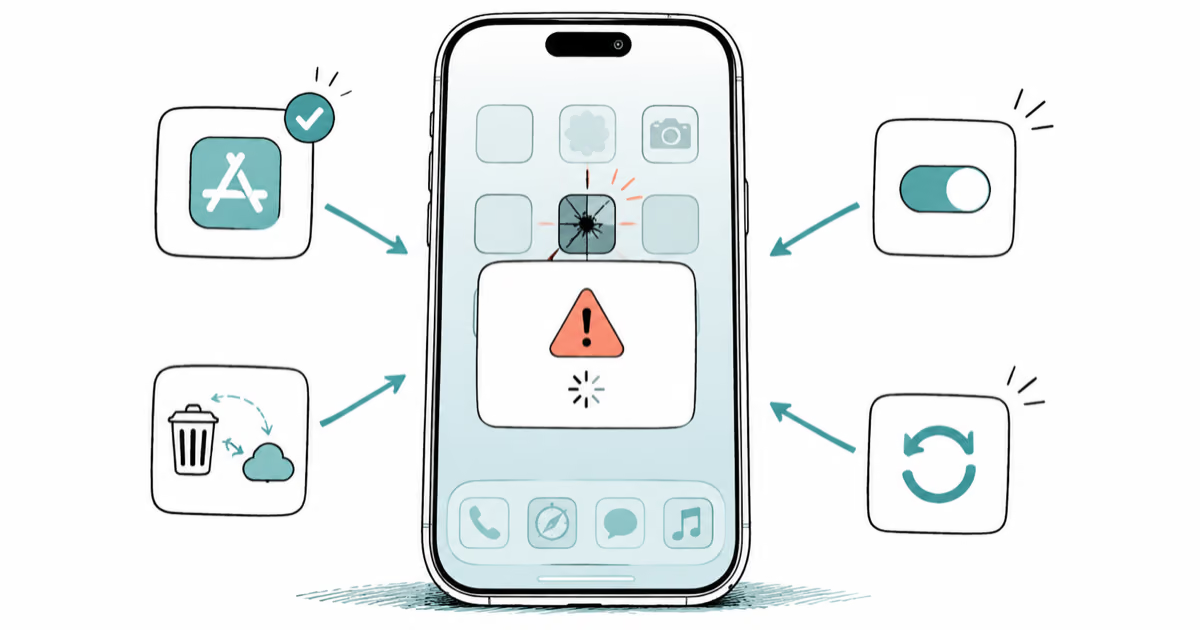
Apps Crashing After iOS 27 Update? Fix Order (2026)
Apps crashing after the iOS 27 update? Update the app in the App Store first, then offload and reinstall to clear stale cache, then restart. The fix order.
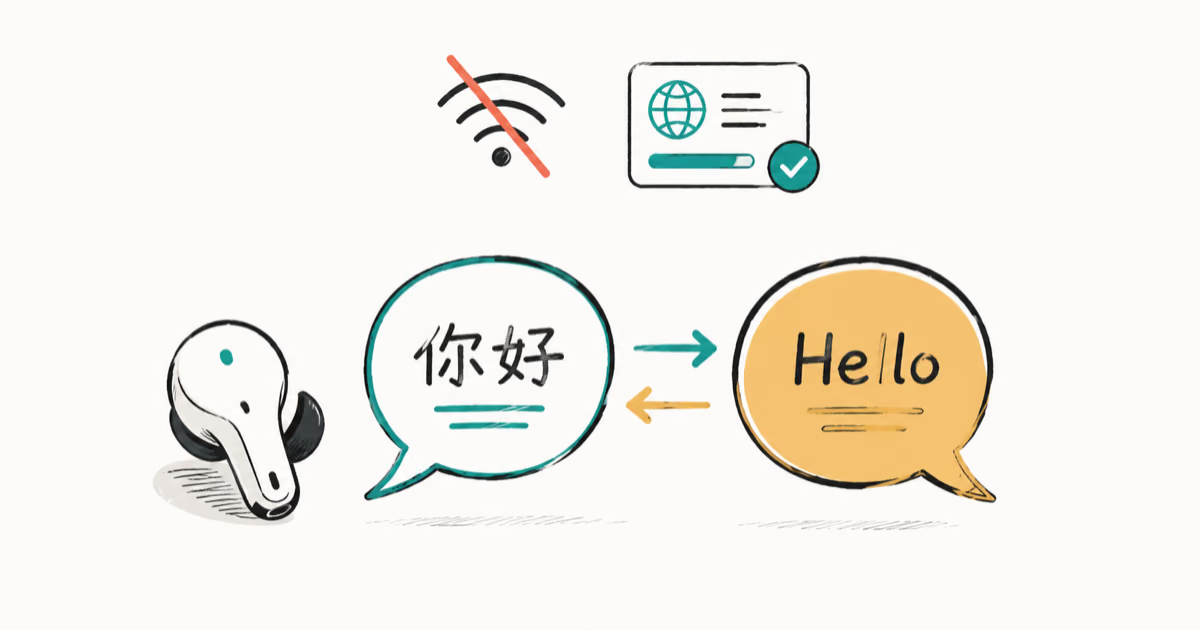
Do AI Translation Earbuds Work Offline? What to Know
Do AI translation earbuds work offline? A few do with downloaded language packs, but most need the cloud. Here's what works offline and what you give up.
How to Set Up Translation Earbuds (Pairing and Modes)
How to set up translation earbuds: charge, install the app, pair over Bluetooth, pick two languages, and choose a mode. A step-by-step first-use guide.