How to Convert MP4 to WAV: 3 Methods That Actually Work
Convert MP4 to WAV with desktop, free, and browser-based tools, plus audio quality tips for Windows, Mac, mobile, batch, and archive workflows.
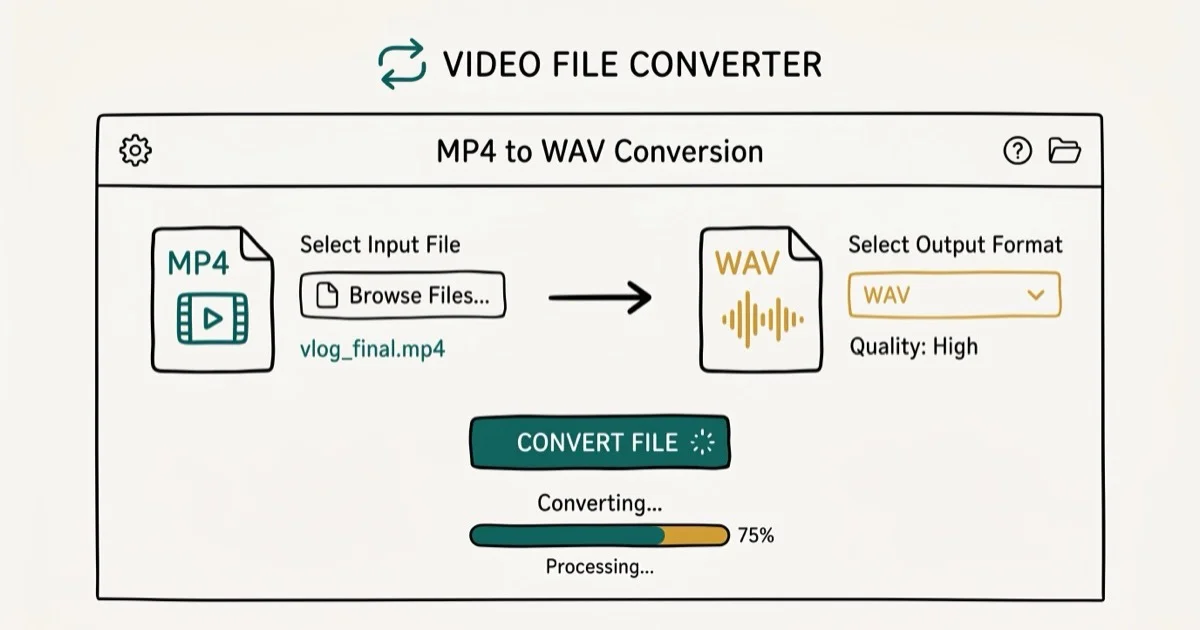
Quick AnswerTo convert MP4 to WAV, use Wondershare UniConverter for the fastest desktop conversion, Wondershare Free Video Converter for a free option, or Online Audio Converter at online-audio-converter.com for browser-based conversion without installing software.
WAV files are the go-to format for audio editing, sampling, and archiving because they store audio without compression. Converting an MP4 to WAV extracts the audio track as a lossless copy, useful when you need to edit audio in a DAW or preserve the original quality.
- WAV files run 5–10x larger than MP3 because WAV stores uncompressed audio samples
- UniConverter converts in batch mode with 1,000+ output formats and hardware acceleration
- The free Wondershare converter handles MP4 to WAV without a paid license
- Online Audio Converter supports 300+ formats and runs entirely in a browser
- Converting to WAV preserves quality exactly as it existed in the MP4 source
#Why Convert MP4 to WAV?
MP4 files combine video and audio into a single container using lossy compression. WAV strips away the video and stores the audio as raw, uncompressed PCM data. That matters in three situations.
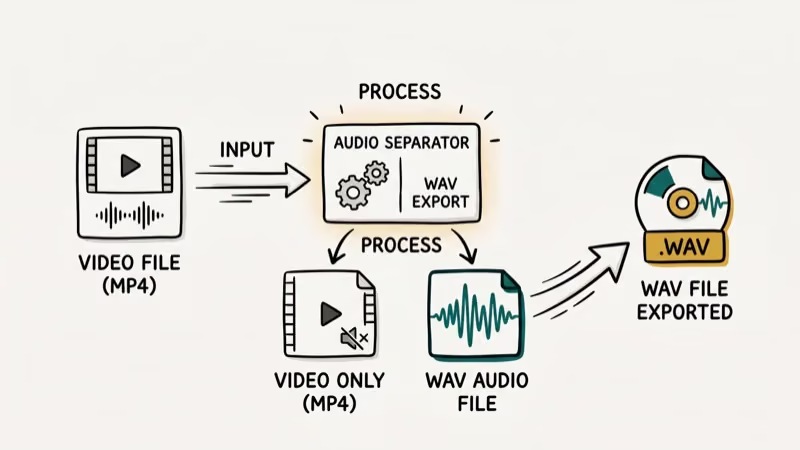
Audio editing. DAWs like Adobe Audition, GarageBand, and Pro Tools work better with uncompressed WAV files. According to Adobe’s audio format guide, WAV is one of Audition’s preferred import formats for professional audio work, supporting bit depths up to 32-bit float. Compressed formats like MP3 sometimes introduce artifacts that affect editing precision.
Sampling and sound design. WAV exports are useful for sample loops because uncompressed audio avoids the extra compression artifacts that can appear in MP3 files. Clean loop points require uncompressed audio. Audacity’s documentation states that WAV files at 44,100 Hz provide the best compatibility across all DAWs.
Long-term archiving. WAV files don’t degrade on re-export. Start from WAV, and every future conversion begins from the original quality.
The trade-off is file size. A 4-minute MP4 with 192 kbps audio might have an audio track under 10 MB. Wikipedia’s WAV article confirms that a CD-quality WAV file at 44,100 Hz 16-bit stereo uses approximately 10 MB per minute, so that same 4-minute audio runs 40–50 MB. If storage is tight, one of the best audio compressors can shrink the finished file afterward.
#Method 1: Convert MP4 to WAV Using Wondershare UniConverter
Wondershare UniConverter is the main desktop option here for MP4 to WAV conversion. UniConverter also supports batch processing, so you can queue multiple files and walk away. Wondershare states the tool processes files at up to 30x the speed of standard converters using GPU acceleration.
Some links on this page are affiliate links, which means fone.tips may earn a commission at no extra cost to you.
#Features of Wondershare UniConverter
- Convert WAV to MP4, and MP4 to WAV and over 1,000 other formats including AVI, MOV, and MPEG
- Hardware-accelerated conversion that’s up to 30x faster than software-only encoding
- Edit video before conversion: crop, trim, rotate, and add watermarks
- Download MP4 files directly from YouTube and other video platforms
- Batch conversion for multiple files simultaneously
- Compatible with Windows 10/11 and macOS 12 and later
- Also handles MP3-to-OGG and other audio format conversions
#How to Use Wondershare UniConverter to Convert MP4 to WAV
Step 1: Install UniConverter, launch it, and drag MP4 files into the main window.
Step 2: Click the output format selector in the top-right corner. Choose Audio, then click WAV to set WAV as the output format.
Step 3: Click Convert All to start the conversion. The progress bar shows each file’s status. When finished, click the Converted tab to find your WAV files.
#Is There a Free MP4 to WAV Converter for Mac and Windows?
Wondershare Free Video Converter is a no-cost alternative that handles MP4 to WAV conversion on both Mac and Windows. It shares the same interface as UniConverter, so the steps are nearly identical.
The free version lacks hardware acceleration and some editing features, but it converts files reliably and supports the same output formats. It also includes a video downloader and can handle tasks like transferring GoPro videos to iPhone.
#How to Use Wondershare Free Video Converter to Convert MP4 to WAV
Step 1: Install Wondershare Free Video Converter and drag your MP4 file onto the main interface.
Step 2: Choose Audio, then select WAV.
Step 3: Click Convert All to begin. Once complete, go to the Converted tab to find and access your WAV files in the chosen output folder.
#Method 3: Online Audio Converter for MP4 to WAV
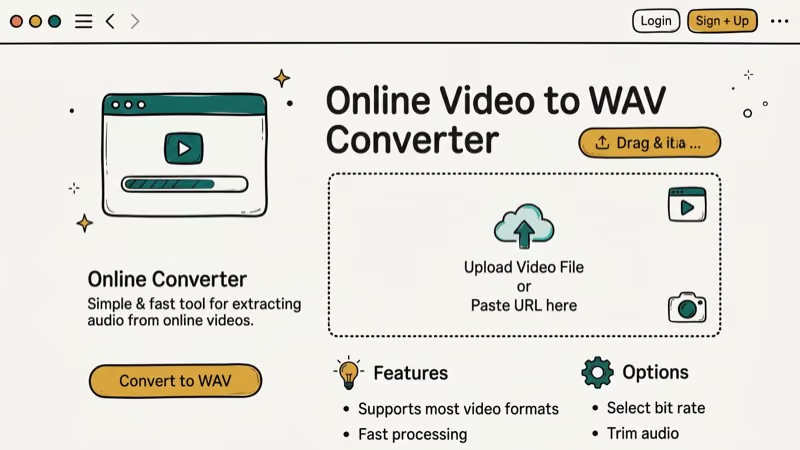
Online Audio Converter at online-audio-converter.com works entirely in your browser with no installation required. It converts files in over 300 audio formats and supports imports from your hard drive, Dropbox, or Google Drive.
This is the best option if you only need to convert one or two files and don’t want to install desktop software. The same workflow covers most other audio format pairs, including the CDA, OGG, and Opus conversions in the section below.
#Key Features of Online Audio Converter
- Convert multiple files simultaneously in the same session
- Extract audio from video files, including MP4
- Adjust output settings: frequency, bitrate, and quality level
- Import from your computer, Dropbox, or a direct URL
- Free to use with no account required for basic conversions
#How to Use Online Audio Converter
Step 1: Open online-audio-converter.com and upload your MP4.
Step 2: Select WAV as the output format. Click Advanced Settings to adjust bitrate, sample rate, or channel settings if needed.
Step 3: Click Convert. When done, download the WAV file to your PC, Google Drive, or Dropbox.
#Converting CDA, OGG, and Opus Files
Here are quick notes for each format.
CDA to MP3 (ripping audio CDs). The .cda files Windows shows on an audio CD are roughly 44-byte shortcut pointers, not actual audio, so you can’t copy them off the disc directly. Rip the CD instead.
In iTunes or Apple Music, set the import encoder to MP3 and click Import CD. On Windows, use Windows Media Player.
MP3 to OGG. OGG Vorbis is an open, royalty-free format that game engines and some streaming stacks prefer. VLC converts MP3 to OGG through the same Media > Convert/Save dialog described above, and UniConverter handles it in batch. Keep in mind both MP3 and OGG are lossy, so converting between them always re-encodes; keep the bitrate at or above the source to limit further loss.
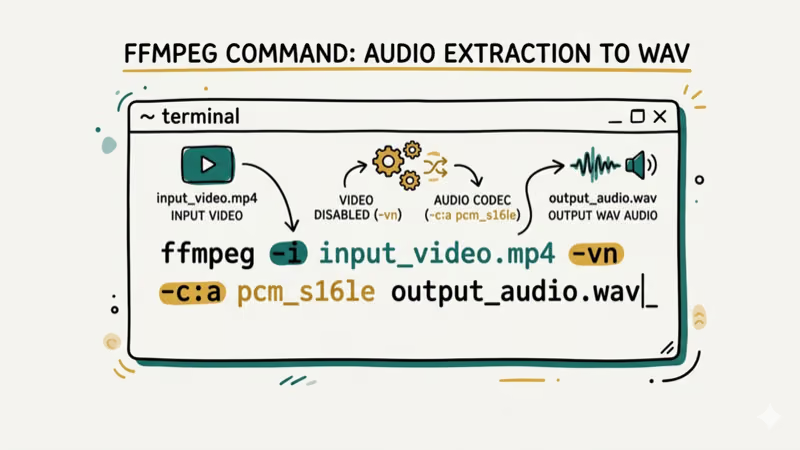
Opus to MP3. WhatsApp voice messages and Discord recordings often arrive as Opus files, which many car stereos and older players reject. FFmpeg converts one in a single command: ffmpeg -i input.opus -c:a libmp3lame -b:a 192k output.mp3. VLC and Audacity work too if you prefer a GUI. For playback errors with unusual codecs, see our guide on audio codec not supported errors.
For MIDI work, which is a different beast since MIDI stores notes rather than audio, see converting MP3 to MIDI.
#Safe Converting: Tips to Protect Audio Quality
Use the highest quality source you have. If the MP4 was recorded at a high bitrate, the WAV output preserves all of that. If the source is already low quality, no converter can improve it. Stick to reputable tools whether desktop or online.
#Choosing the Right MP4 to WAV Converter
For most people, Online Audio Converter is the quickest path: no install, free, and handles occasional conversions without hassle. If you convert files regularly or need batch processing, Wondershare UniConverter is worth the license for its speed and format support. The free video converter is a solid middle ground if you want a desktop app without paying.
Stick to reputable converters whether you go online or desktop. Random online tools with no track record can introduce malware or silently reduce audio quality.
#Bottom Line
All three methods convert MP4 to WAV. For occasional use, Online Audio Converter requires no install. For regular batch work, UniConverter is the most efficient choice thanks to hardware acceleration. The free converter sits between the two in capability and cost.
#Frequently Asked Questions
Can I convert MP4 to WAV without losing audio quality?
Yes, with one important caveat. WAV is a lossless format, so the conversion itself doesn’t degrade the audio. However, if the original MP4 used heavy audio compression, that quality loss already happened at the source and can’t be recovered by converting to WAV.
Why is the WAV file so much larger than the MP4?
WAV stores every sample of audio data without compression. A standard CD-quality WAV file (44.1 kHz, 16-bit stereo) uses about 10 MB per minute. An equivalent MP3 at 192 kbps uses about 1.4 MB per minute.
Can I convert MP4 to WAV on my smartphone?
Yes. Apps like Wondershare UniConverter for iOS and several free Android converters handle MP4 to WAV. Alternatively, mobile-friendly online converters like Convertio work in a mobile browser.
Can I batch convert multiple MP4 files to WAV?
Yes. Both Wondershare UniConverter and the free converter support batch processing. Add multiple MP4 files to the interface, set WAV as the output, and click Convert All.
How long does it take to convert MP4 to WAV?
Conversion time depends on file size, hardware acceleration, upload speed, and the converter you choose. Desktop apps avoid upload time, while online converters may take longer for large MP4 files.
Is it legal to convert MP4 to WAV?
Yes, as long as the MP4 is your own content or you have permission from the copyright holder. Converting your own videos, screen recordings, or licensed content for personal use is legal in most jurisdictions.

Google Messages Error 3100: Why RCS Is Broken on Galaxy
Google Messages RCS error 3100 hits Galaxy owners after phone or carrier switches. Google told 9to5Google a fix is coming. Here's what actually helps.

Is This Bank App Real? Spot a Fake App on Your Home Screen
A bank app can land on your home screen from a web page with no install warning. Learn the checks that tell a real banking app from a phishing web app.

Apps Crashing After iOS 27 Update? Fix Order (2026)
Apps crashing after the iOS 27 update? Update the app in the App Store first, then offload and reinstall to clear stale cache, then restart. The fix order.

Do AI Translation Earbuds Work Offline? What to Know
Do AI translation earbuds work offline? A few do with downloaded language packs, but most need the cloud. Here's what works offline and what you give up.