Can You Play Genshin Impact on PC? Full 2026 Setup Guide
Yes, Genshin Impact runs natively on PC. This 2026 guide covers system requirements, download steps, beginner tips, and how to run it via Android emulator.
Quick AnswerYes, you can play Genshin Impact on PC. Download the launcher from the official Genshin Impact website at genshin.hoyoverse.com, install it on Windows (7 or later), and create or log in with your HoYoverse account. The game is free to play and supports cross-save with mobile.
Genshin Impact runs natively on PC — no emulator needed. The game launched on Windows in September 2020 alongside its mobile release, and the PC version remains the best way to play thanks to higher frame rates and better visual settings. Here’s everything you need to know to get started.
- Genshin Impact is free to download and play on Windows 7 and above
- Minimum PC specs require an Intel Core i5, 8GB RAM, and NVIDIA GT 1030 GPU
- The game takes roughly 30GB of storage and receives updates every 6 weeks
- Cross-save lets you continue progress on PC, mobile, and PlayStation with one account
- BlueStacks 5 supports Genshin for playing via an Android emulator if needed
#PC System Requirements for Genshin Impact
HoYoverse publishes two tiers of system requirements. Meeting the recommended specs gives you noticeably smoother performance at higher visual settings.
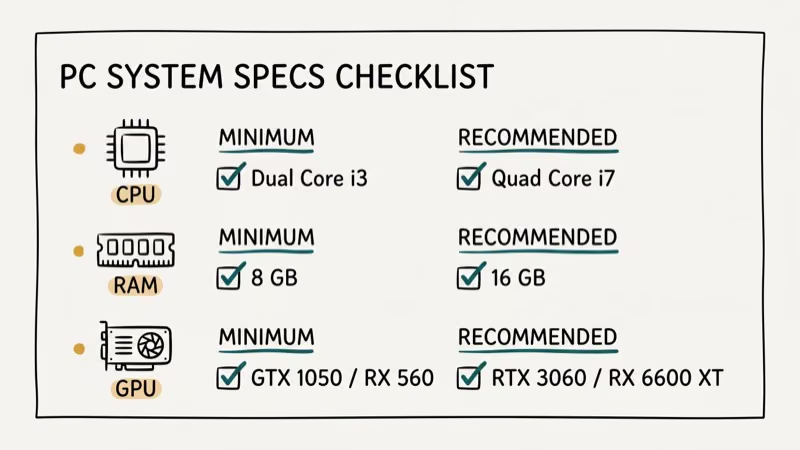
Minimum requirements:
- CPU: Intel Core i5 or AMD equivalent
- RAM: 8 GB
- GPU: NVIDIA GeForce GT 1030 (2 GB VRAM)
- DirectX: Version 11
- Storage: 30 GB free space
- OS: Windows 7 SP1 64-bit or later
Recommended requirements:
- CPU: Intel Core i7
- RAM: 16 GB
- GPU: NVIDIA GeForce GTX 1060 (6 GB VRAM)
- Storage: 30 GB free space (SSD preferred for faster loading)
According to HoYoverse’s official PC system requirements page, Genshin Impact runs on Windows 7 and above but states that 64-bit systems are required for all configurations. Players on 32-bit Windows can’t install the native PC client.
On hardware near the recommended tier, Genshin Impact should run at higher visual settings than the minimum-spec experience. Combat-heavy scenes with multiple elemental reactions can still be more demanding than normal exploration.
#How to Download and Install Genshin Impact on PC
The download takes 10-20 minutes on a standard connection, and the initial installation occupies about 30GB.
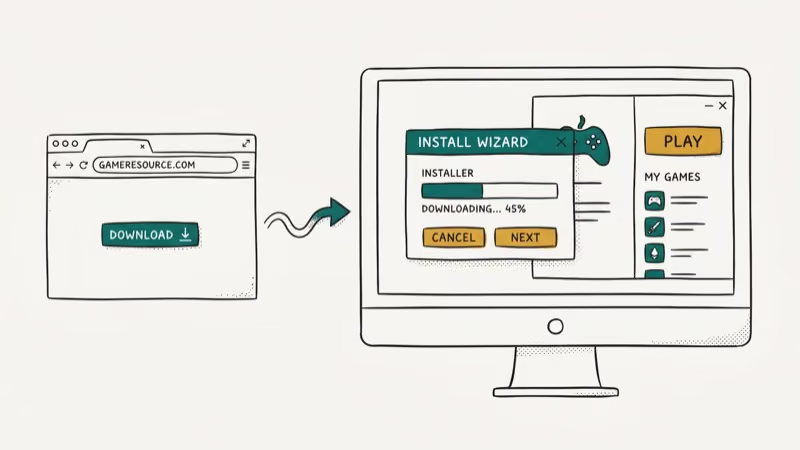
Installation steps:
Go to genshin.hoyoverse.com in your browser and click the Windows download button. This downloads a small launcher file (about 1MB). Run the launcher, choose an installation folder with at least 30GB free, and click Install. The launcher downloads and installs the full game automatically.
When installation finishes, open the launcher and click Play to start. Create a free HoYoverse account or log in with an existing one. The game launches directly to the main menu.
First-time download size: Roughly 14 GB compressed, which expands to about 30 GB installed. Updates after major version releases average 3-4 GB each.
#Is Genshin Impact Free to Play on PC?
Yes. The game is completely free to download and play on PC, just as it’s on mobile and PlayStation. The monetization is based on the gacha system (Wishes), where you can spend in-game currency or purchased Primogems on character and weapon banners.
You don’t need to spend money to complete the main story or explore the open world. The free currency from quests and events provides regular opportunities to pull new characters without purchases. PCMag’s Genshin Impact review found that 15 to 20 free Wishes per month are achievable through daily logins and quests alone, without any purchases.
#Beginner Tips for Playing Genshin Impact on PC
A few early PC mechanics aren’t obvious from the tutorial:
Sprint technique: Press the sprint button in short taps rather than holding it continuously. Holding drains your stamina bar quickly; tapping and releasing lets you maintain speed longer without depleting stamina. This matters especially during timed challenges and climbing.
Wish in groups of ten: The guaranteed 4-star rule kicks in on every 10th Wish on a banner. Pulling individually costs the same total Primogems but means you can sometimes get all 4-star weapons before hitting the pity. Pulling in groups of 10 confirms you hit that milestone in one session.
Switch characters in combat: Elemental reactions (Freeze, Melt, Vaporize, Overloaded) require hitting an enemy with 2 different elements in sequence. Build a rotation around at least 2 characters so you can trigger reactions instead of relying on one damage source.
Use the pin system on the map: You get 99 map pins. Mark all Waypoints as you discover them, and use colored pins for resources you want to revisit. This saves significant time during daily quests and farming runs.
#How Do You Play Genshin Impact on PC Using an Emulator?
If you want to run the mobile version on PC for any reason, the only currently working emulator option is BlueStacks 5. BlueStacks 4 does not support Genshin Impact due to anti-cheat requirements.
As noted in BlueStacks’ official compatibility list, Genshin Impact confirmed support starting with BlueStacks 5 version 5.9 and above. The Android version via emulator offers a different control experience compared to the native PC client and runs at slightly lower performance.
The native PC client is recommended over emulation in almost every case. The native version supports higher resolutions, better anti-aliasing, and PC-optimized controls with mouse and keyboard out of the box.
For similar open-world RPGs, see our roundup of games like Genshin Impact. If you want another mobile title with a PC version, check Mini World on PC.
For other popular games on the same emulator, our BlueStacks for Pokemon Go guide walks through setup. Cross-platform options are covered in our Android emulator for iOS guide.
For a similar mobile-to-PC gaming setup, see how to play War Robots on PC.
#Cross-Save, Co-op, and Account Setup on PC
Genshin Impact uses HoYoverse accounts for cross-platform save synchronization. One account works across PC, iOS, Android, and PlayStation — your Adventure Rank, characters, Primogems, and story progress carry over automatically.
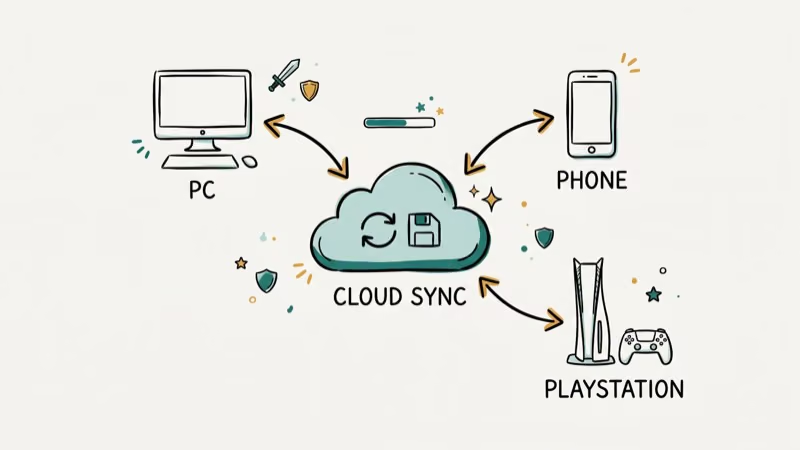
Co-op unlocks at Adventure Rank 16. HoYoverse’s patch notes announced that 4 players can join the same world simultaneously in co-op mode. In co-op mode, up to 4 players can explore the open world together, but story quests are solo-only. You can join co-op sessions with players from any supported platform.
To link your mobile and PC accounts, log into the same HoYoverse account on both platforms. If you started the game as a guest on mobile, you’ll need to bind a HoYoverse account in the mobile app’s settings before the progress transfers.
#Bottom Line
Genshin Impact runs natively on PC and is free to download. For most players, the recommended specs (Core i7, GTX 1060, 16GB RAM) provide the best experience. The minimum specs work but limit you to lower settings and 30fps. Use BlueStacks 5 only if you specifically want the Android version; the native PC client is better in every measurable way.
#Frequently Asked Questions
Is Genshin Impact free on PC?
Yes, Genshin Impact is completely free to download and play on PC, iOS, Android, and PlayStation. The game uses an optional gacha monetization system, but all main story content and exploration is accessible without spending money.
Can I use my mobile account on PC?
Yes. Genshin Impact uses cross-save through your HoYoverse account. Log in with the same account on PC, mobile, or PlayStation and your progress, characters, and currency carry over automatically.
How much storage does Genshin Impact take on PC?
The initial installation requires approximately 30 GB of free space. Major version updates (released every 6 weeks) add 3-4 GB each. After 1 year of updates, total installation size is typically around 50-55 GB.
Does Genshin Impact support controllers on PC?
Yes. The PC version natively supports Xbox controllers and PlayStation DualShock/DualSense controllers via USB or Bluetooth. You can also remap keyboard and mouse controls in the settings.
Can I play Genshin Impact on a Mac?
Not natively. There is no official macOS version. Some players run it through CrossOver (a paid Wine implementation) or Parallels on Apple Silicon Macs, but these setups require additional configuration and are not officially supported by HoYoverse.
Is BlueStacks safe to use for Genshin Impact?
BlueStacks itself is a legitimate application used by millions. However, running Genshin through BlueStacks creates performance limitations and occasionally triggers anti-cheat flags in the game’s security system. For the smoothest and safest experience, use the official native PC client from genshin.hoyoverse.com.
Does Genshin Impact run on Windows 11?
Yes. The game is fully compatible with Windows 11. HoYoverse confirmed Windows 11 support in 2021 shortly after Microsoft released the OS. No compatibility settings or workarounds are needed.

Fortnite Stuck on the Loading Screen? Fix It in 2026
Fortnite stuck on the loading screen? Check server status, fix the Windows N Media Pack and DirectX 11 on PC, clear the console cache, and verify files.

Minecraft Keeps Crashing? Java and Bedrock Fixes (2026)
Minecraft keeps crashing on startup or mid-game? Update your GPU driver, remove mods on Java, and reinstall Gaming Services on Bedrock. Fixes for both.

Pokemon GO Not Loading? Fix the Loading Screen 2026
Pokemon GO not loading or stuck on the Pokeball? Check server status, fix automatic date and time, grant location permission, clear the cache, and update.

PS5 Controller Not Charging? 9 Fixes That Work (2026)
DualSense not charging? Swap the cable, use a rear port in Rest Mode, clean the USB-C port, and check power settings. 9 fixes for a dead PS5 controller.