Pokemon GO on BlueStacks: Why Spoofing Risks a Ban
Can you play Pokemon GO on BlueStacks safely? Learn why GPS spoofing risks account strikes, what Niantic says, and which official options to use.
Quick AnswerBlueStacks can run Android apps, but using it with Pokemon GO is unsupported and location spoofing is defined as cheating. Use a supported phone and official game features instead.
Pokemon GO on BlueStacks isn’t a safe substitute for playing on a supported phone. BlueStacks can run Android apps, but changing the emulator’s location for Pokemon GO crosses into GPS spoofing and can put your game account at risk.
- BlueStacks is an Android emulator, but Pokemon GO’s supported-device list covers phones rather than PC emulators
- A BlueStacks location setting doesn’t make falsifying your Pokemon GO position acceptable
- Niantic’s official policy names GPS location spoofing as cheating
- Account action can escalate from a warning to suspension or permanent termination
- The compliant option is to use the official app on a supported phone with real Location Services
#Can You Play Pokemon GO on BlueStacks?
BlueStacks can install many Android apps on Windows, but that doesn’t make it an officially supported Pokemon GO device. According to BlueStacks’ system requirements, BlueStacks 5 runs on Windows PCs that meet its processor, memory, storage, and graphics requirements.
According to the official Pokemon GO supported-device list, the game requires an iPhone or Android phone with GPS and Location Services. Desktop emulators aren’t listed.
That leaves two separate questions. BlueStacks may be able to open or install the app, while Pokemon GO may still reject the environment, fail at sign-in, lose the GPS signal, or stop working after an update. Installation isn’t proof of support.
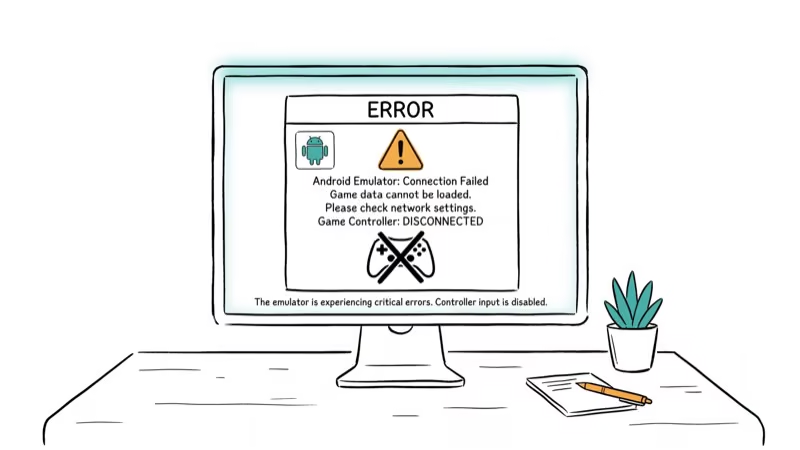
#Why Emulator Compatibility Is Not Game Approval
BlueStacks has controls, app installation, and a location picker because many Android apps need them.
According to BlueStacks’ preferred-location guide, you can select a current or custom location inside BlueStacks 5.
That documentation explains a BlueStacks feature. It doesn’t say that Pokemon GO approves custom locations, emulator play, automated movement, modified game clients, or third-party add-ons. Treating the location picker as permission from the game operator is the key mistake in older BlueStacks Pokemon GO guides.
Even on your own computer and account, ownership doesn’t make location spoofing compliant with the game’s rules.
Don’t install Fake GPS apps, Lucky Patcher, modified APKs, joystick tools, or paid location changers to get around a Pokemon GO login or location check. We also don’t recommend trying older emulator builds to avoid newer checks. Those are instructions for bypassing the game’s rules, not fixes for a supported-device problem.
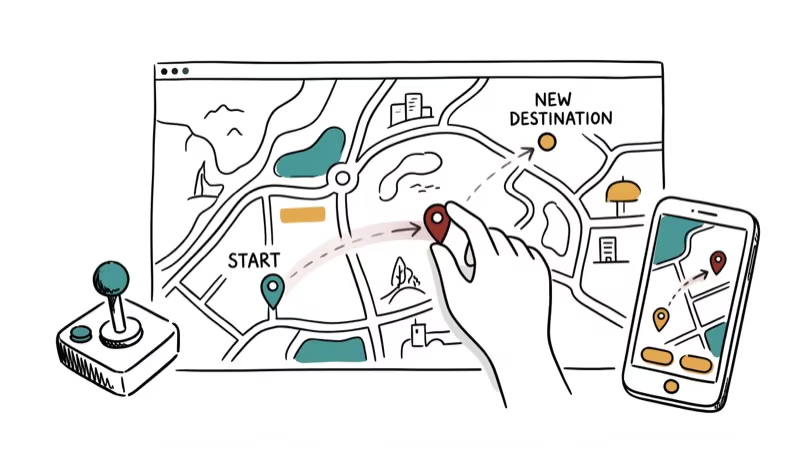
#How the Official Cheating Policy Treats GPS Spoofing
According to Niantic’s official Gameplay Fairness Policy, cheating includes “falsifying location (GPS location spoofing)” and accessing game clients “in an unauthorized manner.” It also includes third-party software or add-ons. The policy is explicit.
This is an account-rule issue, not proof that all location-changing software is illegal. Local laws can differ.
#What the Three-Strike Policy Actually Does
| Stage | Stated action | Stated duration |
|---|---|---|
| First strike | Warning and degraded gameplay | Approximately 7 days |
| Second strike | Account suspension | Approximately 30 days |
| Third strike | Permanent account termination | Permanent |
Three strikes aren’t guaranteed. The same official policy says some misconduct can lead to immediate account termination without a prior warning. It also provides a ban-appeal route for a termination believed to be an error, though an appeal isn’t a promise that access will be restored.
#What Should You Do if BlueStacks Won’t Log In?
Stop at the failed login. It isn’t a cue to add another bypass. The cause may be an unsupported environment, a service issue, bad cached data, incorrect time settings, or a problem with the login provider.
Use this order instead:
- Return to a supported phone. Install the official Pokemon GO app from your phone’s app store. Google Play’s official Pokemon GO listing states that the Android app is optimized for smartphones. Don’t use a modified APK.
- Remove rule-breaking tools from the test path. Close the emulator and don’t run a fake-location app, movement automation, or modified client against the account.
- Check ordinary app health. If the official phone app stalls, work through the Pokemon GO loading fixes before changing account settings.
- Restore real location access. Turn on Location Services and precise location for the official app. For a real reception error, use the GPS signal troubleshooting steps.
- Use the official appeal route when appropriate. If the app says the account was terminated and you believe that decision is wrong, submit a ban appeal through the Pokemon GO Help Center.
Don’t create a new account to test the same setup. The fair-play policy applies to behavior, and repeating the method doesn’t turn it into supported play.
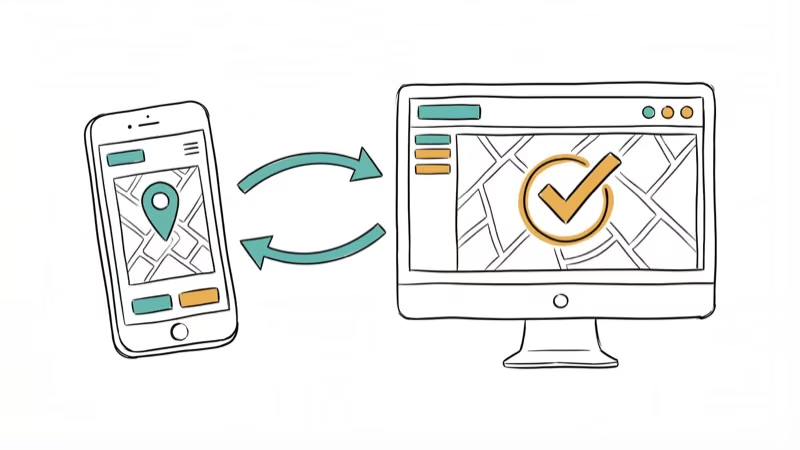
#Compliant Ways to Keep Playing
Use the official app. The safest replacement isn’t another location changer; it’s supported phone hardware with real Location Services.
#Use a Supported Phone at Your Real Location
An iPhone or Android phone with GPS and Location Services is the documented route. Keep the operating system and Pokemon GO app updated, allow the required location permission, and sign in with your existing login provider. Your game progress belongs to the account, so returning to the official phone app doesn’t mean starting over.
#Fix Location Errors Instead of Replacing the Location
If your real position is wrong on an iPhone, use these iPhone location fixes.
The Adventure Sync troubleshooting guide also covers legitimate permission and fitness-data problems when distance isn’t updating.
#Use a Larger Display Without Moving the Game Client
If your goal is a larger view, use your phone’s built-in screen-mirroring feature while the official game continues to run on the phone. Mirroring a display isn’t the same as installing Pokemon GO in a PC emulator. If the display connection fails, use the AirPlay mirroring fixes instead of moving the game client. Avoid macros, automated taps, movement scripts, or tools that change the client’s behavior.
#Bottom Line
BlueStacks’ ability to run Android apps or set a custom location isn’t approval to use those features with Pokemon GO. Niantic defines GPS location spoofing as cheating, so use the official app on a supported phone and fix real location or login errors through normal troubleshooting.
Pokémon GO Guide
#Frequently Asked Questions
Does Pokemon GO work on BlueStacks?
BlueStacks may install or open the app, but Pokemon GO doesn’t list PC emulators as supported devices. Login, GPS, or compatibility failures can happen even when installation succeeds.
Is BlueStacks itself banned by Niantic?
The official fairness policy doesn’t name BlueStacks. It does prohibit falsifying a device’s location and unauthorized access to game clients, including third-party software or add-ons, while the supported-device page lists phones rather than desktop emulators.
Can I use BlueStacks’ custom location with Pokemon GO?
You shouldn’t. BlueStacks documents the feature, but Niantic’s Pokemon GO policy classifies falsifying location as cheating. A feature in an emulator doesn’t override the game’s account rules.
Is Pokemon GO spoofing illegal?
Location spoofing isn’t automatically a crime in every setting, and laws depend on the place and conduct. Within Pokemon GO, however, it violates the official cheating policy and can lead to account discipline.
Does every violation get three strikes?
No. The policy describes escalating warning, suspension, and termination stages, but it also says some misconduct may result in immediate termination without a prior warning.
Can I appeal a Pokemon GO ban?
You can submit a ban appeal if you believe a termination was an error. The official policy says the operator investigates appeals, but it doesn’t guarantee that a terminated account will be restored.
Does a VPN make Pokemon GO spoofing safe?
No. A VPN changes the network route and visible IP address; it doesn’t make a false GPS position compliant with Pokemon GO’s rules.
Pokemon GO GPS Signal Not Found: 7 Proven Fixes (2026)
Pokemon GO GPS signal not found? Seven ordered fixes for Android and iPhone covering precise location, permissions, mock-location, and more.
TweakBox Pokemon GO Review: Does It Still Work in 2026?
TweakBox Pokemon GO usually fails. Learn why, what Niantic's ban policy means for your account, and which official alternatives to use instead.
How to Auto Walk in Pokemon GO: Safe and Risky Methods
Learn how Pokemon GO Adventure Sync credits real activity, why fake-step and GPS tools risk account strikes, and which official options to use.
How to Find Magikarp Nests in Pokemon GO (2026 Guide)
Find Magikarp nests in Pokemon GO using community maps, water biomes, and rainy weather boosts. Plus candy farming tips to evolve Gyarados fast.