BitLocker Recovery Key Not Working? 2026 Fix Guide
BitLocker recovery key not working or missing? Find it in your Microsoft or work account, match the Key ID, and stop a recovery loop the official way.
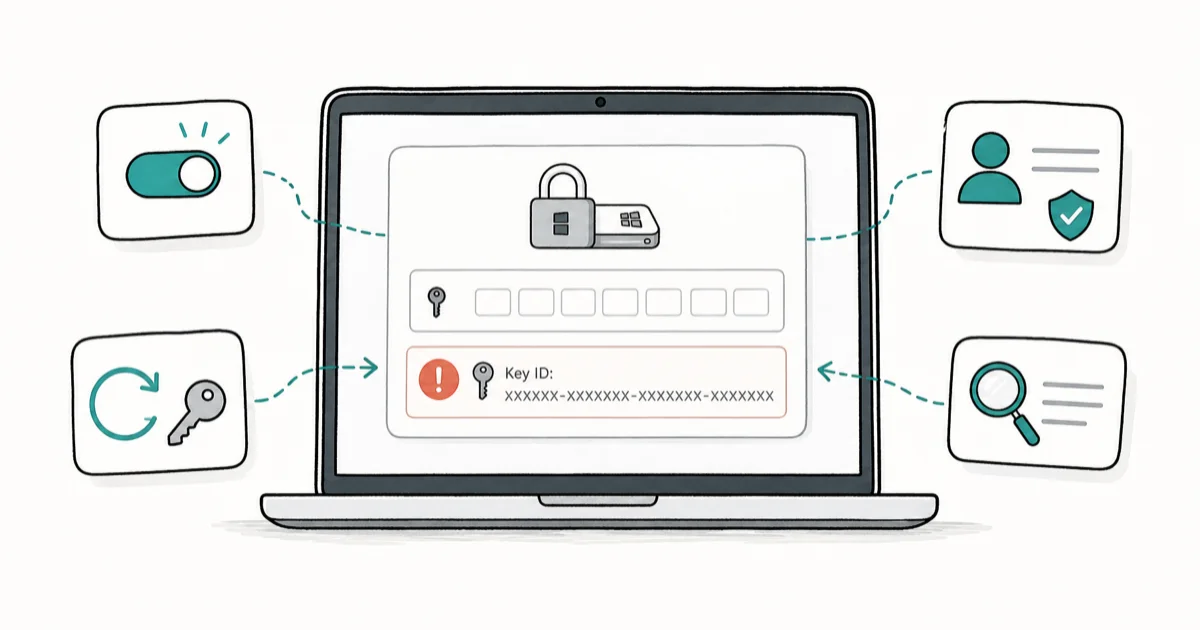
Quick AnswerA BitLocker recovery key usually fails because it belongs to a different device or Key ID, or it is stored in an account or printout you have not checked. Match the key to the on-screen Key ID and sign in to the right account.
A BitLocker recovery key not working is usually a key-matching problem, not a sign your data is lost. This guide covers your own device or one you administer. The most common reason a key is rejected is that it belongs to a different drive or Key ID than the one on your recovery screen. We walk through where the correct key lives and how to match it, using Microsoft’s official methods.
- Each BitLocker key is tied to a specific Key ID, and the first 8 characters on screen must match.
- Your key lives in one of 4 official places: a Microsoft account, a work account, a printout, or a saved file or USB.
- A rejected key almost always means you’re entering the key for a different device or drive.
- A recovery loop after every boot points to a firmware or boot change, not a wrong key.
- Without the correct key there is no legitimate bypass. Contact your administrator or Microsoft support.
#Why Is My BitLocker Recovery Key Not Working?
When a key is rejected, the cause is almost always a mismatch. People save several BitLocker keys over the years and grab the wrong one. The screen shows a Key ID for a reason: only the matching key works.
The other frequent cause is the right kind of key for the wrong scope. A key saved for your C: drive won’t unlock a secondary encrypted drive, and one from your old laptop will never open your new one, because each is a separate 48-digit key bound to its own distinct Key ID that the recovery screen checks before it accepts anything you type.
This article assumes the device is yours or one you manage. According to Microsoft’s recovery overview documentation, the key is matched to the drive by its unique identifier. A saved key only works when it matches the recovery screen’s Key ID.
#Find Your BitLocker Recovery Key in 4 Places
There are four official storage locations, and the correct key is in one of them. First, your Microsoft account: if you signed in to Windows with a personal Microsoft account, the key was likely saved online automatically, so go to account.microsoft.com/devices/recoverykey on a phone or another computer and sign in to see every key linked to that account listed with its own Key ID for easy matching.
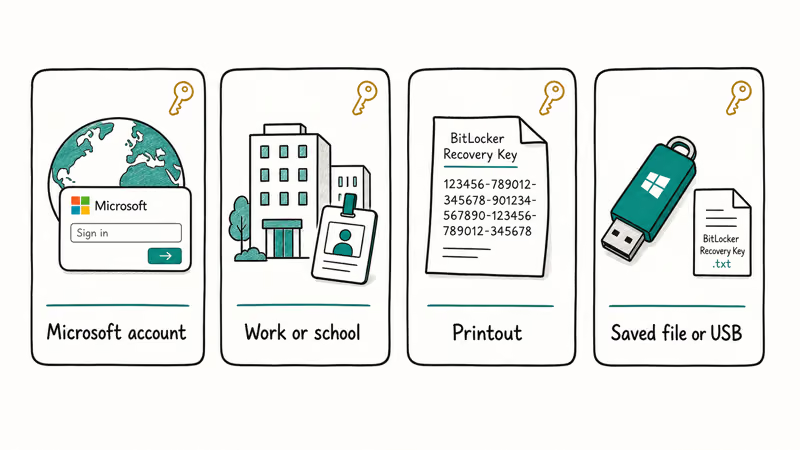
Second, a work or school account. If your PC is managed by an employer or school, the key is usually stored in their system, not your personal account. You may need to ask your IT administrator to look it up.
Third, a printout, since BitLocker offers to print the key during setup. Fourth, a saved file or USB drive, often a .txt file with a long identifier in the name.
Microsoft’s official guide to finding the key confirms that these are the only places Windows offers to store it, and if you secure accounts with modern methods, our walkthrough on how to set up passkeys pairs well with keeping recovery keys somewhere you can actually reach when you’re locked out and need them most.
#Match the Key to the Correct Key ID
This is the step that fixes most rejected keys. Your recovery screen displays a Recovery Key ID, and the first 8 characters identify the right key. Each key in your account is listed next to its own ID.
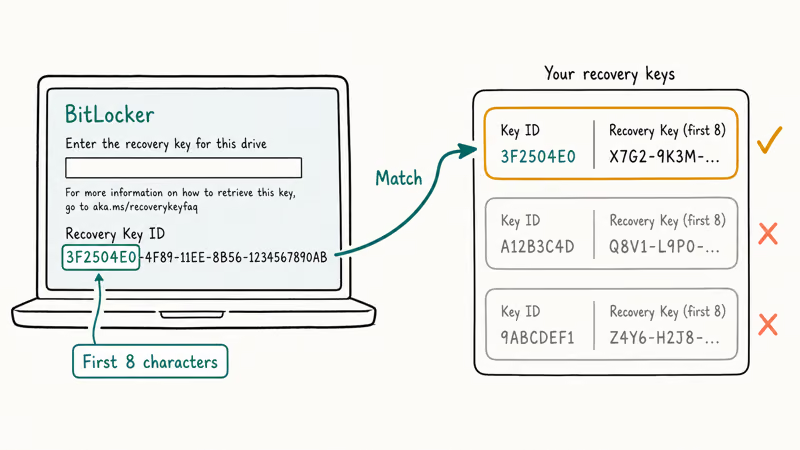
Compare the Key ID on your screen to the Key IDs in your account list and find the one whose first 8 characters match exactly, since that is the only key that will unlock this drive. Enter that key’s full 48-digit value, typed carefully, and double-check each block of digits before you submit because the recovery screen rarely tells you a single character is off.
If none of the Key IDs match, the correct key is stored elsewhere. Don’t keep retrying mismatched keys, since they all fail.
Key ID matching matters: a saved key only works when it matches the recovery screen. Our iPhone privacy checklist is a good model for tracking where your sensitive data lives across devices.
#Fix a Recurring BitLocker Recovery Loop
Your key works but Windows asks for it again on every boot? The key is fine, and something else is triggering recovery. BitLocker enters recovery when it detects a change it considers suspicious, such as a firmware update, a TPM reset, a Secure Boot change, or new hardware that wasn’t there before.
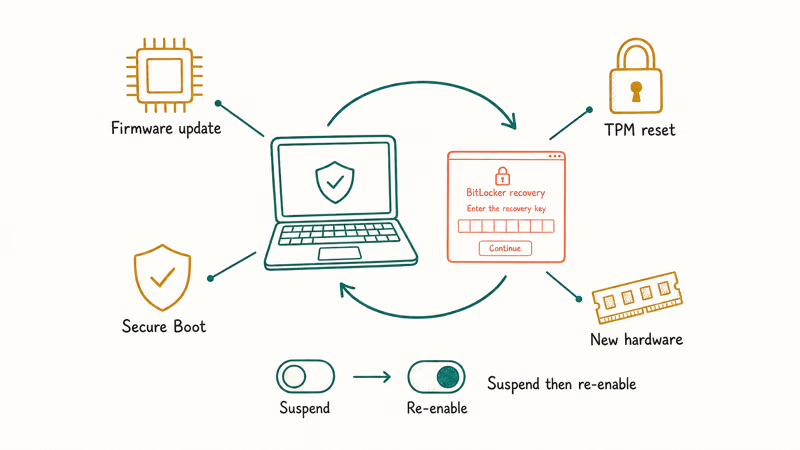
Once you’re signed in, run manage-bde -protectors -disable C: from an elevated Command Prompt to suspend BitLocker. Then fix Secure Boot, pending firmware, or boot order.
After the change is settled, re-enable protection with manage-bde -protectors -enable C:. A laptop can keep prompting on every boot until a stalled firmware update finishes. A boot loop can overlap with other startup failures, and our Windows 11 BSOD fix covers the broader boot repairs if the machine won’t start cleanly even after the key is finally accepted at the recovery screen.
#When Should You Contact Your Admin or Support?
There’s a clear line where self-help ends. If the device is managed by an employer or school, the key is held by that organization, so contact your administrator first. Trying every key you can find won’t help.
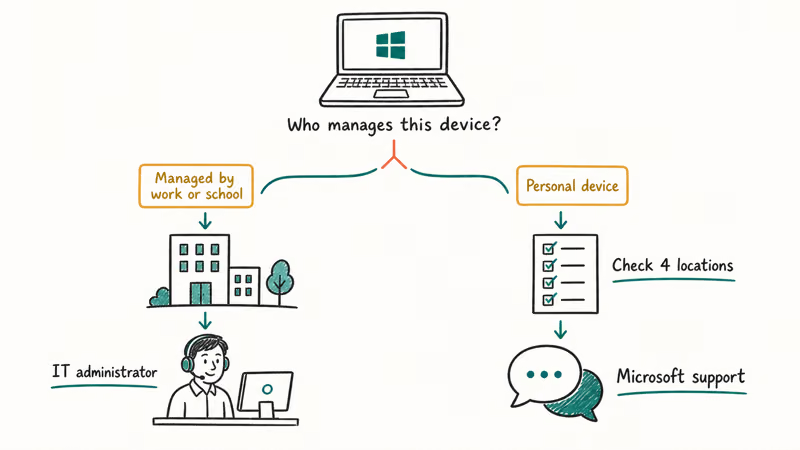
If the device is yours but you’ve checked all four locations and still can’t find a key whose Key ID matches the screen, the honest answer is that the data can’t be opened without it. That’s the entire point of BitLocker, and it’s why there is no legitimate bypass. Paid “recovery tools” that claim to crack BitLocker can’t do so, and you should avoid them.
Respect the boundary here. Trying to open a drive that isn’t yours can be illegal and a privacy violation, so the official paths exist to protect data owners. Microsoft’s BitLocker management documentation recommends keeping recovery keys backed up to your account precisely so this lockout never happens, and Microsoft support can confirm whether any key is linked to your account that you may have missed.
#Last-Resort Options Without the Key
If no key exists anywhere and the device is yours, you can reset the PC and start fresh. This erases the encrypted data but returns the machine to working order, and it’s the only path forward when the correct key is truly gone.
A reset on an encrypted drive without the key means the data is gone for good, so back up anything you can still reach first. Our guide on how to factory reset Windows 11 explains the process, though note that the keep-files option still depends on Windows being able to read the drive.
Before any reset, do a final search for the key across every device, email account, and USB stick you own. A surprising number of “lost” keys turn up in an old email or a forgotten printout. If you also want to harden your devices against future lockouts, our guide on how to tell if your phone is hacked and a habit of saving recovery keys in your password manager go a long way.
#Bottom Line
Start with the Key ID match, since a rejected key is almost always the wrong key for that drive. Match the on-screen Key ID to the correct recovery key, then retrieve that key from the right place: your Microsoft account, your work or school account, a printout, or a saved USB or file.
If recovery keeps recurring, suspend BitLocker after you get in, then fix the firmware or boot change that triggered it. There’s no legitimate bypass, so without the matching key for your own device, your only real options are Microsoft support, your administrator, or a full reset that erases the drive entirely.
#Frequently Asked Questions
Why is my BitLocker recovery key not working?
It’s almost always the wrong key for that drive. Each key is tied to a Key ID, and only the one whose first 8 characters match the on-screen ID will unlock it.
Where do I find my BitLocker recovery key?
In one of four official places: your Microsoft account at account.microsoft.com/devices/recoverykey, a work or school account held by your IT admin, a printout from setup, or a saved file or USB drive. Check each until you find the key whose ID matches your screen.
How do I match the key to the Key ID?
Look at the Recovery Key ID on the BitLocker screen and note its first 8 characters. When you list keys in your Microsoft account, each appears next to its own Key ID, so find the one whose first 8 characters match exactly, then enter that key’s full 48-digit value carefully because the screen rarely flags a typo until you submit.
Why does BitLocker keep asking for the key?
A repeating prompt with a key that works means the key is fine, but something keeps triggering recovery, such as a firmware update, a Secure Boot change, a TPM reset, or new hardware. Suspend BitLocker after signing in, fix the change, then re-enable protection.
Can I bypass BitLocker without the key?
No. BitLocker is built so encrypted data can’t be opened without the correct key, and there is no legitimate bypass. Tools that claim to crack it don’t work.
When should I contact IT support?
Right away if the device is managed by an employer or school, since they hold the key and you likely can’t retrieve it yourself. For a personal device, contact Microsoft support after you’ve checked all four storage locations and still have no key whose ID matches your recovery screen.

Is This Bank App Real? Spot a Fake App on Your Home Screen
A bank app can land on your home screen from a web page with no install warning. Learn the checks that tell a real banking app from a phishing web app.

Passkeys Not Syncing Between iPhone and Windows? Read This
Passkeys not syncing between iPhone and Windows is by design, not a bug. Here is why iCloud passkeys skip Windows Hello and the three ways to fix it.

VPN Not Working on Snapdragon X? Why It Fails, How to Fix
Your VPN won't install or connect on a Snapdragon X Copilot Plus PC because Windows on ARM can't emulate the network driver. Here are the fixes that work.

How to Check If a Link Is Safe Before You Click It
Learn how to check if a link is safe with official-first steps: read the real domain, use the app instead, and treat scanners as a second opinion only.