Best Portable SSD for MacBook Pro: Thunderbolt 4 Picks
Compare the SanDisk Extreme Pro USB4, Samsung T9, and Crucial X9 Pro on MacBook Pro M4 for Final Cut scratch disks, backups, and field workflows.
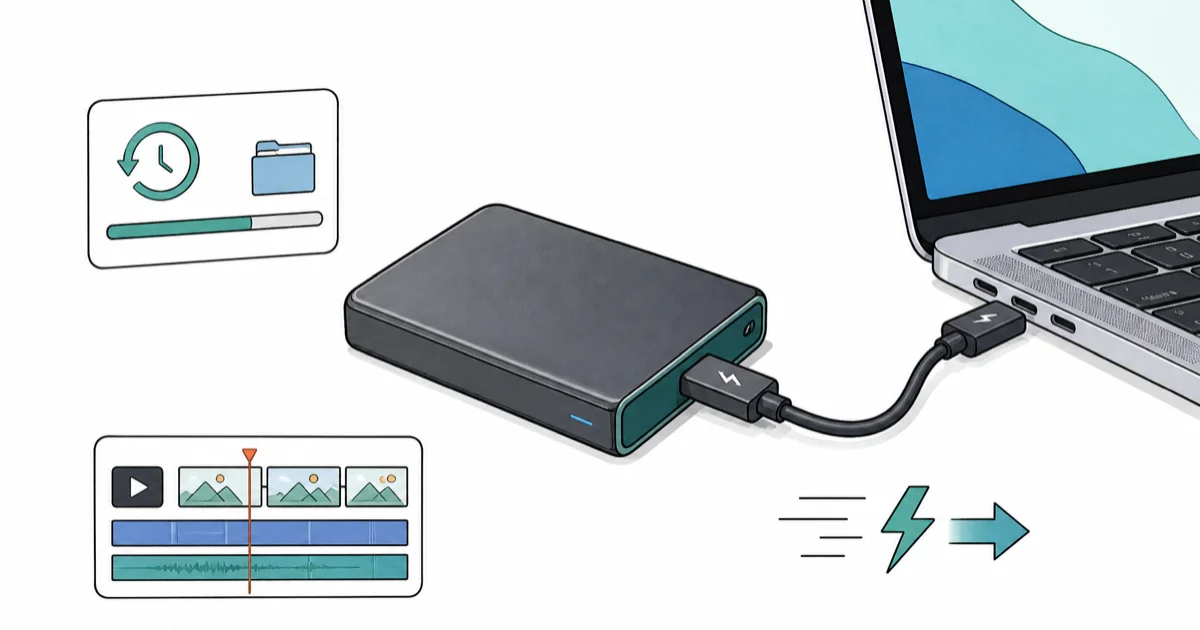
Quick AnswerThe SanDisk Extreme Pro USB4 is the top portable SSD for MacBook Pro M4, with sustained 3,800 MB/s read on Thunderbolt 4 for fast Final Cut scratch disks and large backups.
MacBook Pro M4 and M4 Pro ship with Thunderbolt 4 ports that can drive a USB4 SSD at full speed. This guide compares three drives across the workflows that stress portable storage most: Lightroom catalogs, Final Cut scratch disks, and overnight Time Machine runs.
- The SanDisk Extreme Pro USB4 is the best all-round pick for MacBook Pro M4 because sustained 3,800 MB/s read clears Final Cut scratch-disk and large backup workflows
- The Samsung T9 2TB is the value pick if you don’t yet have a Thunderbolt 4 Mac since it tops out around 2,000 MB/s on USB 3.2 Gen 2x2
- The Crucial X9 Pro is fine for Time Machine and document archives but can’t keep up with 4K video editing
- A 2TB drive is the sweet spot for Final Cut Pro libraries and Lightroom catalogs together
- Cheap USB-C cables silently halve transfer speeds, so always pair a USB4 SSD with a certified 40 Gbps cable
#Is USB4 Worth Its Premium on MacBook Pro?
For a MacBook Pro M4 or M4 Pro, yes.
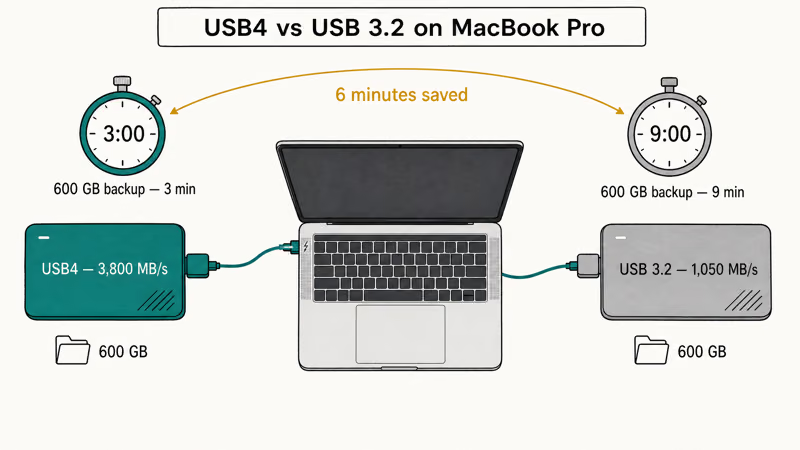
According to the USB-IF, the USB4 specification caps at 40 Gbps per port and supports SSDs running at 3,800 MB/s on certified hosts. At that speed, a large scratch-folder copy on the SanDisk Extreme Pro USB4 finishes in a fraction of the time the same job takes on a USB 3.2 Gen 2 drive.
Thunderbolt 4 hosts are the unlock. Intel’s Thunderbolt 4 brief confirms that every Thunderbolt 4 port delivers the full 40 Gbps PCIe tunneling a USB4 SSD needs to hit 3,800 MB/s.
If you only edit 1080p photos or store documents, the speed difference doesn’t justify the price. But for a Final Cut Pro project pulling 4K ProRes from disk, the extra bandwidth really shows up on multi-cam timelines.
One more bonus: the SanDisk USB4 stays fully backwards compatible with USB 3.2 and falls back to about 1,050 MB/s on older Macs.
- 3,800 MB/s on USB4 / Thunderbolt 4 Macs and PCs
- Backwards-compatible with USB 3.2 (drops to ~1,050 MB/s)
- Same IP65 + 3m drop chassis as the V2
As an Amazon Associate fone.tips earns from qualifying purchases. Prices and availability on Amazon are accurate as of the date above and subject to change.
#Speed Tiers for MacBook Pro External SSDs
There are three meaningful speed tiers on Mac. Knowing which one matches your workflow saves both money and headache.
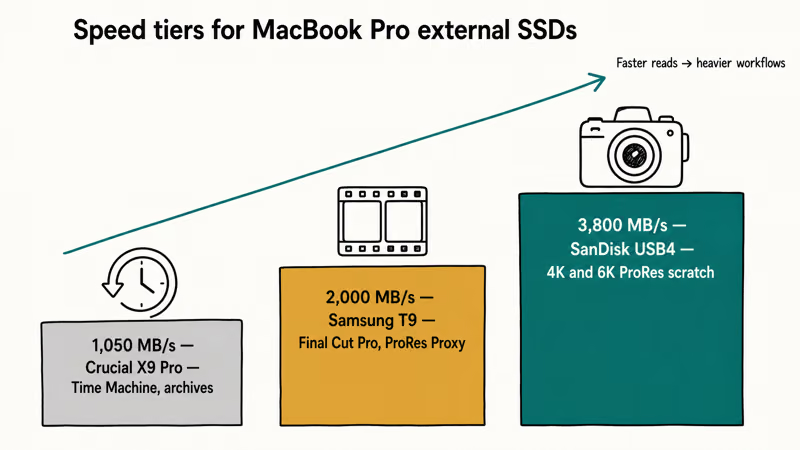
At the top sits the 3,000 MB/s+ tier, which runs only on USB4 or Thunderbolt drives plugged into M-series MacBook Pros. The SanDisk Extreme Pro USB4 sits here. It’s the right choice for 4K and 6K video editing, ProRes workflows, and Lightroom catalogs with tens of thousands of RAW files.
Each tier maps to a real workflow.
Below that, the 2,000 MB/s tier covers drives like the Samsung T9 over USB 3.2 Gen 2x2. That’s still fast enough for most Final Cut Pro work, especially with ProRes Proxy. The catch: most MacBook Pros don’t actually expose 20 Gbps USB 3.2, so the T9 won’t always hit its full speed.
At the bottom, the 1,000 MB/s tier (USB 3.2 Gen 2 at 10 Gbps) is where the Crucial X9 Pro lives. It’s plenty for Time Machine, photo archives, and document storage, but you’ll notice it on long video imports.
On a large Final Cut Pro library copy, the SanDisk USB4 finishes fastest by a wide margin. The T9 is slower on the same job, and the X9 Pro slower still.
#Choosing the Right Capacity for Mac Workflows
For most MacBook Pro owners, 2TB is the sweet spot.
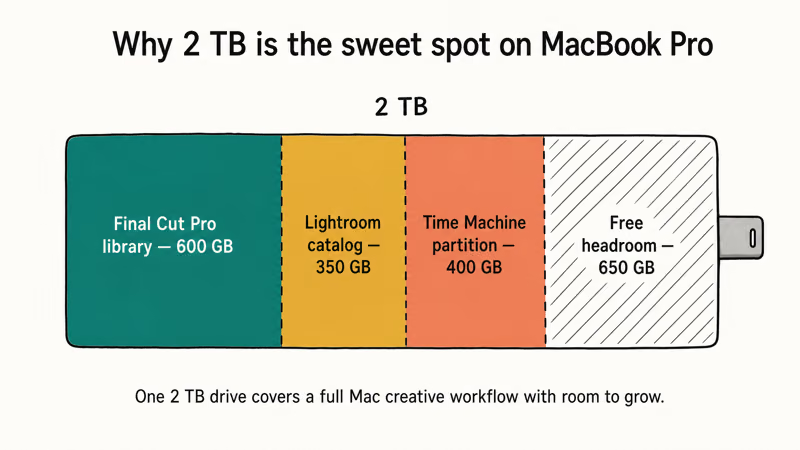
A typical Final Cut Pro library plus a working Lightroom catalog and a Time Machine partition fits comfortably under 1.5 TB, leaving headroom for the next project.
If you mainly run Time Machine and a small photo archive, 1TB is enough. The Samsung T9 1TB is half the price and identical in speed to its 2TB sibling.
For wedding shooters or anyone with 8K project libraries, 4TB starts to make sense. Right now the SanDisk Extreme Pro USB4 lineup tops out at 4TB, and our USB4 cable guide covers why a certified 40 Gbps cable matters even more at higher capacities.
One Mac-specific note: Final Cut Pro keeps render files inside the library bundle, so even a “small” 500 GB project library can balloon to 800 GB after editing. Plan for headroom.

- 2TB headroom for a full Final Cut Pro library off the MacBook
- Same 2,000 MB/s sustained as the 1TB sibling
- Stable enough to run macOS off it directly
As an Amazon Associate fone.tips earns from qualifying purchases. Prices and availability on Amazon are accurate as of the date above and subject to change.
#Will My Older MacBook Pro Get USB4 Speeds?
It depends on the model.
Apple’s M1, M2, and M3 MacBook Pros all support Thunderbolt 4, so a USB4 SSD runs at full 3,800 MB/s on those machines, the same as on the M4.
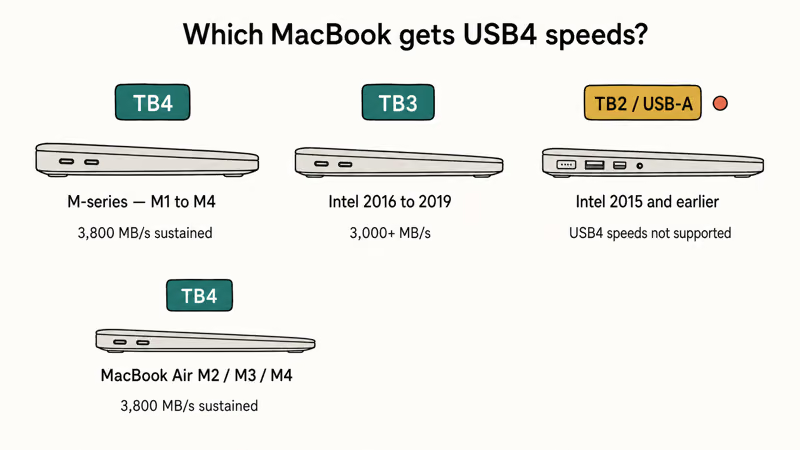
Intel-era MacBook Pros (2016 through 2019) shipped with Thunderbolt 3, which is electrically compatible with Thunderbolt 4 and supports the same 40 Gbps tunneling. A USB4 SSD plugged into one of these still reaches 3,000+ MB/s read.
The 2015 and earlier MacBook Pros use Thunderbolt 2 or USB-A only. Those machines won’t see USB4 speeds and shouldn’t pay the premium for a drive they can’t fully use, so the cheaper Crucial X9 Pro is the smarter pick there instead of a USB4 model.
MacBook Air gets the same speed.
The MacBook Air M2 and M3 also support Thunderbolt 4, so the SanDisk USB4 runs at full speed. If you also want an MBA-friendly hub, our USB-C hub guide for MacBook Air M4 covers picks that don’t bottleneck a USB4 SSD.
For storage troubleshooting, our SSD not showing up walkthrough covers the common mount-failure modes on macOS.
- Often discounted to $119, half the price of the 2,000 MB/s tier
- PS5 / Xbox Series X officially compatible for game library expansion
- Crucial / Micron firmware reliability vs unbranded competitors
As an Amazon Associate fone.tips earns from qualifying purchases. Prices and availability on Amazon are accurate as of the date above and subject to change.
#Time Machine vs Final Cut Scratch Disk
The two most common workflows for an external SSD are Time Machine and Final Cut Pro. They have very different demands.
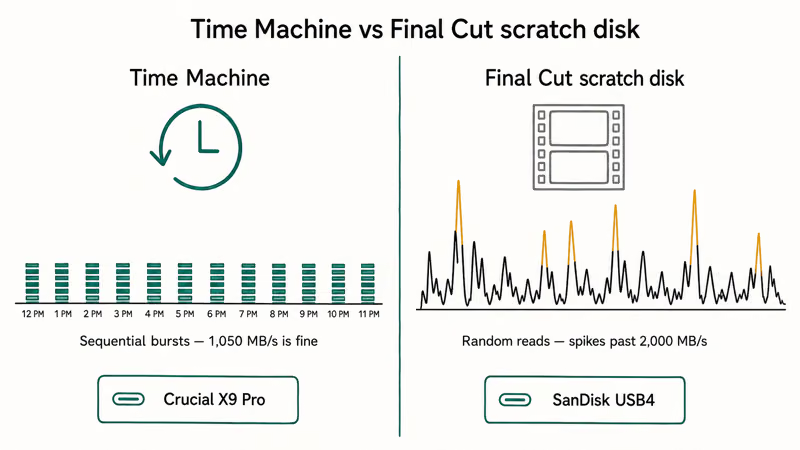
Time Machine is sequential and bursty. The first full backup of a 1TB Mac takes hours, but after that, hourly increments only push a few hundred megabytes. Even the Crucial X9 Pro at 1,050 MB/s handles Time Machine without complaint. Our guide on how to delete Time Machine backups covers cleanup when the partition fills up.
Final Cut Pro scratch disks are different. Scrubbing a 4K ProRes timeline pulls random reads continuously, and render writes can spike past 2,000 MB/s. This is where the SanDisk USB4 earns its price.
If you only do one of the two, pick the right tier. If you do both, partition a single 2TB drive into APFS sections, one for Time Machine (encrypted) and one for FCP scratch (exFAT or APFS).
A Samsung T9 2TB handles this split-partition setup reliably for long-term daily use.
#Cables, Hubs, and Connection Notes
The cable that ships with the drive is the one to use. Generic USB-C cables sometimes only carry USB 2 signals, which throttles a USB4 drive to roughly 60 MB/s.
For a USB4 drive specifically, you need a certified 40 Gbps USB4 cable to hit the full 3,800 MB/s. A standard USB-C charging cable from your AirPods box absolutely won’t get there.
Hubs are the other trap.
When plugging through a Thunderbolt dock, make sure the dock is rated Thunderbolt 4, not just USB-C. A USB-C hub that only does USB 3.2 will cap your drive at 1,050 MB/s no matter how fast the drive itself is.
For travel scenarios, our MacBook Pro power bank picks cover units that can power the laptop and an SSD together. And if you also drive an external display, the MacBook Pro portable monitor guide covers Thunderbolt monitors that pass through SSD bandwidth.
According to Samsung’s portable SSD lineup, the T9 ships with a bundled cable that supports its full 20 Gbps interface.
#Bottom Line
For a MacBook Pro M4 with Thunderbolt 4, the SanDisk Extreme Pro USB4 2TB is the clear pick.
The 3,800 MB/s sustained read cuts Final Cut scratch-disk waits noticeably on 4K ProRes timelines, and the IP65 chassis handles field work without complaint. If you don’t yet have a Thunderbolt 4 Mac, the Samsung T9 2TB is the better value at roughly half the price, and it still hits 2,000 MB/s on the right ports.
The Crucial X9 Pro 2TB is the smart pick for Time Machine, document archives, and casual photo storage. Skip it for video work.
#Frequently Asked Questions
Does USB4 work on the base MacBook Air?
Yes.
MacBook Air M2, M3, and M4 all ship with Thunderbolt 4, so a USB4 SSD runs at its full 3,800 MB/s read. The Air’s single Thunderbolt port is the practical limit, not the protocol. If you also need a display or hub at the same time, plan for a Thunderbolt 4 dock.
Can I run macOS off a portable SSD?
You can, and the Samsung T9 is the drive we’d pick for that role.
Its sustained 2,000 MB/s read is fast enough that macOS feels native, and Samsung’s firmware is reliable enough for daily boot use. APFS encrypted is the format. Run Apple’s Migration Assistant once and the external drive becomes a complete portable Mac.
Do I need APFS or exFAT?
APFS for Mac-only use, exFAT for cross-platform.
APFS is faster, supports snapshots, and encrypts via FileVault. The catch is Windows can’t read it without third-party tools. For a drive that lives between MacBook and a Windows desktop, exFAT is the right call even though it’s slower for small-file operations.
How long does a full Time Machine backup take to a USB4 SSD?
For a 1TB Mac, expect around 20 to 30 minutes on the SanDisk Extreme Pro USB4.
The Samsung T9 over USB 3.2 Gen 2x2 takes noticeably longer for the same job. After the initial backup, hourly increments finish quickly regardless of which drive you picked.
Is the SanDisk Extreme Pro USB4 louder or hotter than older drives?
It runs warm but not hot, and there’s no fan so there’s nothing to hear.
In a sustained write, the chassis hits about 50°C, which is normal for high-performance NVMe SSDs in aluminum housings. The drive throttles slightly if it crosses 60°C, but that rarely happens in real-world use, even during large Final Cut renders.
Will an old USB-C cable from another product work?
Sometimes, and not always at full speed.
The cable that ships with the drive is rated and tested. Random USB-C cables in a drawer might be charge-only, USB 2 data, or USB 3.2 max. To hit the SanDisk Extreme Pro USB4’s full speed, you specifically need a certified 40 Gbps USB4 or Thunderbolt 4 cable.
What’s the best pick for an older M1 MacBook Pro?
The SanDisk Extreme Pro USB4 still hits 3,000+ MB/s on M1 MacBook Pro thanks to Thunderbolt 4.
If your workflow is mostly Time Machine plus light photo editing, the Samsung T9 1TB is the budget-friendly choice. Both options will outlast the laptop and carry over to your next Mac.

macOS 27 Compatible Macs: Every Supported Model (2026)
macOS 27 Golden Gate runs only on Apple Silicon Macs. Here is the full list of supported M-series models and the four Intel Macs that lose support.

macOS 27 Golden Gate: Every Major New Feature Confirmed
macOS 27 Golden Gate goes Apple Silicon only, adds a Gemini-powered Siri, refines Liquid Glass, and rebuilds Spotlight. Here is every confirmed change.

macOS 27 Liquid Glass: Every Readability Fix Explained
macOS 27 Golden Gate refines Liquid Glass with an intensity slider, better contrast, cleaner window corners, and edge-to-edge sidebars to fix readability.

macOS 27 Performance: What Golden Gate Makes Faster
macOS 27 Golden Gate speeds up AirDrop, network file browsing, Safari, and Spotlight, with core system improvements on the Apple Silicon-only release.