Best USB-C Hub for MacBook Air M4 (2026): 3 Proven Picks
Best USB-C hub for MacBook Air M4 in 2026. Compare direct-mount and cabled hubs for HDMI 4K, power passthrough, SD card speed, and travel use.
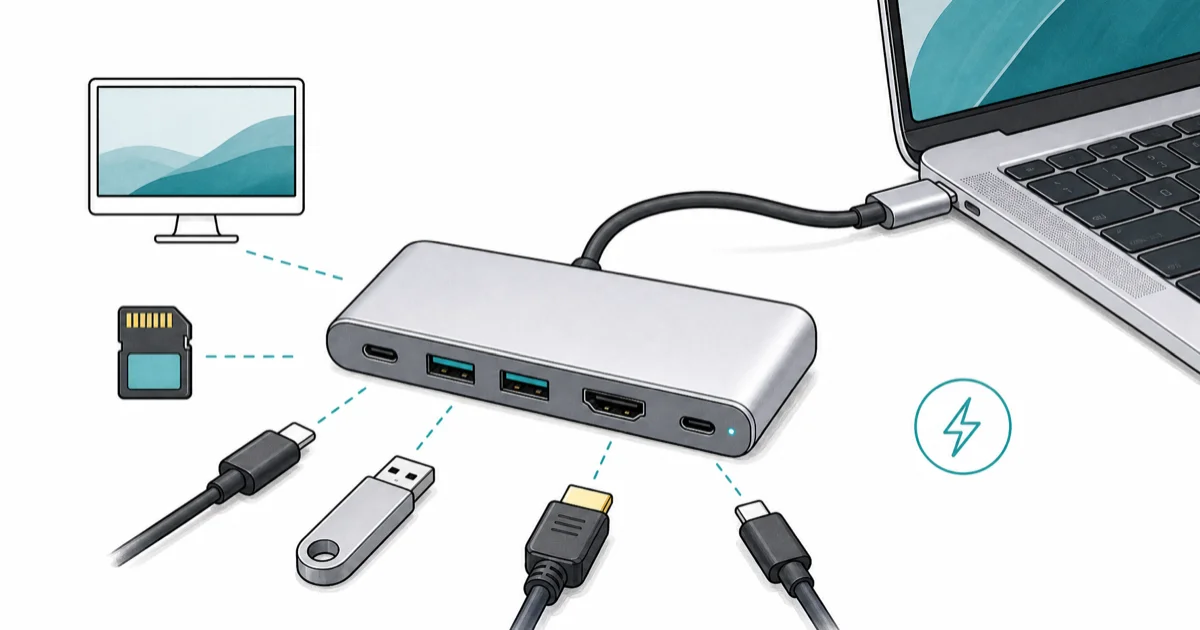
Quick AnswerFor the MacBook Air M4 with only 2 USB-C ports, the Anker 547 7-in-2 is the cleanest direct-mount pick. The UGREEN Revodok Pro 6-in-1 wins on value, the Hiearcool 7-in-1 is the budget choice.
The MacBook Air M4 ships with just two USB-C ports, and one of them usually carries the power cable on travel days. A USB-C hub is how you get a monitor, an SD card reader, and a wired keyboard back without juggling dongles. This guide compares three popular picks for the M4 Air across daily-use scenarios.
- MacBook Air M4 has 2 USB-C / Thunderbolt 4 ports and supports one external display up to 6K at 60Hz via DisplayPort Alt Mode
- Direct-mount hubs that clip into both USB-C ports beat cabled hubs for desk tidiness, but cable-pendant style is the only option when MagSafe accessories block the right-side port
- 4K at 60Hz HDMI requires a hub with DisplayPort 1.4 internals; cheaper 4K at 30Hz hubs feel choppy on text scrolling
- Power passthrough on a hub caps below the wall brick: an 85W rated port typically delivers 70W to the laptop after hub overhead
- MacBook Air M4 supports dual external displays in clamshell mode but only a single external monitor with the lid open
#Why the MacBook Air M4 Needs a Hub
Apple shipped the M4 Air with the same two-port layout the Air has used since 2018, and that constraint is what a hub solves.
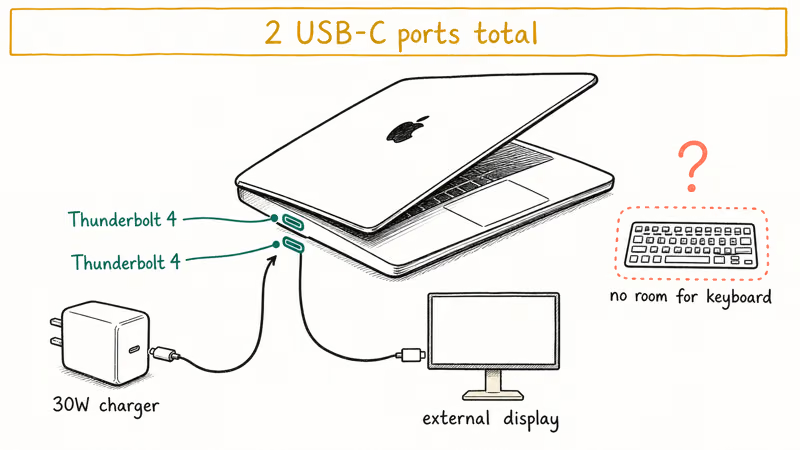
Both ports are USB-C with Thunderbolt 4 silicon underneath. Each carries charging, video, and data on a single cable. You only get two. According to Apple’s MacBook Air M4 tech specs, the laptop supports up to one external display at 6K at 60Hz over DisplayPort Alt Mode, plus an additional display in clamshell mode with the lid closed.
On the M4 Air, the bottleneck is rarely raw I/O speed. It’s the count of ports. Plug in the wall brick on the left, an external monitor on the right, and both ports are gone before the keyboard joins.
A direct-mount hub clips into both USB-C ports as a single unit. It frees up the keyboard area around the laptop and gives you HDMI, SD, microSD, plus extra USB ports without dangling cables. A cabled hub hangs off one port with a short pigtail and works the same logically, but sits on the desk instead of attached to the laptop. Each form factor has a clear use case (more on that below).
For a deeper look at what an M-series MacBook draws under load, our best GaN charger for MacBook Pro breakdown applies equally to the M4 Air. The 70W bundled brick is the speed floor you want to match.
#Best Direct-Mount Hub: Anker 547 USB-C Hub 7-in-2
For an M4 Air owner who wants the hub attached to the laptop and out of the way, the Anker 547 7-in-2 is our top pick. It mounts directly into both USB-C ports on the left side, leaves the MagSafe accessory area clear, and delivers 4K at 60Hz HDMI on a single tidy unit.
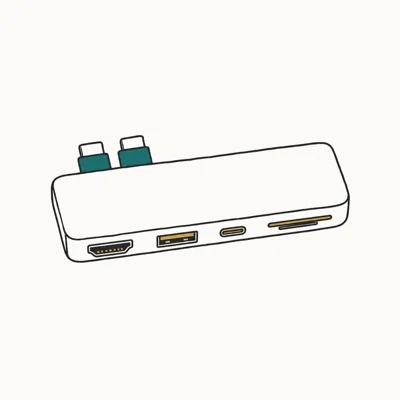
- Clips into both MacBook Air USB-C ports as one tidy unit, no dangling cable on the desk
- HDMI port runs 4K at 60Hz for smooth text scrolling on an external monitor
- Multi-function USB-C port supports up to 100W passthrough plus 5K display
Last updated on May 27, 2026
As an Amazon Associate fone.tips earns from qualifying purchases. Prices and availability on Amazon are accurate as of the date above and subject to change.
The direct-mount form factor is the killer feature on the Air. According to Anker’s 547 product page, the hub was engineered to avoid blocking the MagSafe charging port on newer MacBooks. The rigid dual-port connector keeps it firmly seated rather than wobbling on a cable. Its HDMI port is rated for 4K at 60Hz, smooth enough for text scrolling on a high-resolution external monitor.
Direct mount wins on tidiness.
One trade-off worth knowing. Because the hub occupies both ports, you charge through the hub’s multifunction USB-C port instead of directly. The 100W rated input drops to about 85W delivered to the laptop after passthrough overhead.
Still beats the 70W bundled brick.
#Best Value Hub: UGREEN Revodok Pro 6-in-1
The UGREEN Revodok Pro 6-in-1 is the cabled pick that gets closest to the Anker on feature parity, usually at a lower price. It runs a short USB-C pigtail to the laptop and sits on the desk with 4K at 60Hz HDMI, two 10Gbps USB-C 3.2 ports, two 10Gbps USB-A 3.2 ports, and 100W PD passthrough.
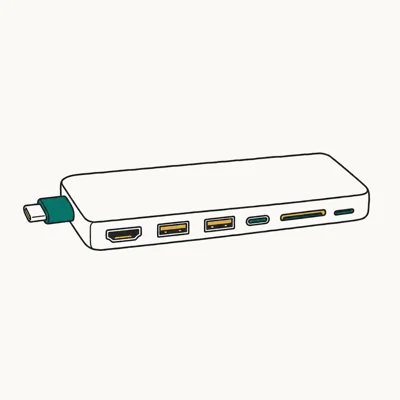
- 10Gbps USB-A and USB-C 3.2 Gen 2 ports beat the typical 5Gbps you find at this price
- 4K at 60Hz HDMI matches the Anker pick for video output quality
- Short pigtail cable lets you tuck the hub behind the laptop or monitor stand
Last updated on May 27, 2026
As an Amazon Associate fone.tips earns from qualifying purchases. Prices and availability on Amazon are accurate as of the date above and subject to change.
The 10Gbps USB ports are the spec that pushes the Revodok Pro past most $35-ish hubs in this category, which still ship 5Gbps USB-A. A 10Gbps data port can copy a large folder from an external SSD at close to the drive’s full speed, matching what the SSD does plugged directly into the laptop. A 5Gbps port would be roughly half as fast.
10Gbps is the sleeper spec.
The trade-off versus the direct-mount Anker is the cabled form factor. One of your USB-C ports always has the hub pigtail in it, so you can’t use that port for anything else.
The pigtail is the price of admission for cabled hubs.
#Best Budget Hub: Hiearcool USB-C Hub 7-in-1
For an M4 Air owner who needs HDMI and a card reader without spending more than the cost of a nice dinner, the Hiearcool 7-in-1 is the honest budget pick. The compromise is 4K at 30Hz instead of 60Hz, which is fine for static external monitors but feels choppy if you scroll text or move windows fast.
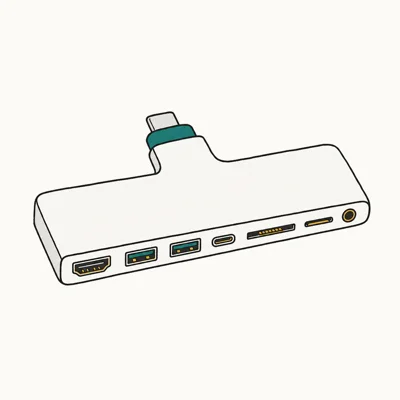
- One of the cheapest hubs that still includes 100W passthrough charging
- Aluminum body dissipates heat better than the plastic competitors at this price
- SD and microSD card readers run at 5Gbps, fast enough for camera offloads
Last updated on May 27, 2026
As an Amazon Associate fone.tips earns from qualifying purchases. Prices and availability on Amazon are accurate as of the date above and subject to change.
The 4K at 30Hz limit on HDMI is the honest compromise. On a 4K display the cursor feels less smooth than at 60Hz, which is noticeable during extended scrolling.
Cheap, with one honest trade.
For hotel-TV travel days at 1080p, the Hiearcool covers the basics.
#Direct-Mount or Cabled: Which Form Factor Wins?
Choosing between direct-mount and cabled hubs is mostly about desk aesthetics and travel posture, not raw performance.
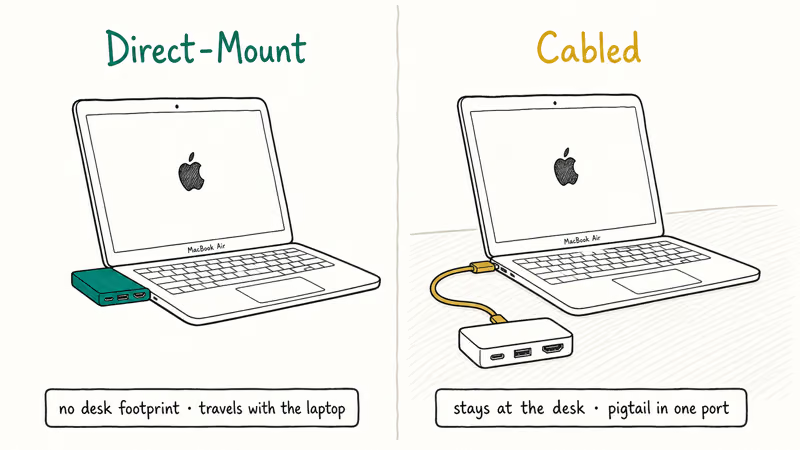
Direct-mount wins for travel.
Direct-mount hubs like the Anker 547 attach to the laptop as a single unit. The hub goes wherever the laptop goes, no extra packing, no cables to coil. The flip side is the hub adds about 4 inches of width to the right side of the laptop, so a tight backpack pocket may not fit anymore.
Cabled hubs like the UGREEN Revodok Pro sit on the desk and connect via a short pigtail, which leaves the laptop’s travel footprint untouched but means buying a hub for every desk you regularly work from.
The direct-mount Anker suits traveling salespeople and coffee-shop workers who change locations daily. The cabled UGREEN suits hybrid workers with a fixed home desk plus an occasional office day, since the home hub stays put. Our best portable monitor for MacBook Pro roundup pairs naturally with either form factor if a hotel TV won’t cut it.
If your desk also includes a tablet, our guide to USB hubs that work with iPad Pro Thunderbolt ports covers which adapters actually expose HDMI, Ethernet, and storage.
#How Many Ports Does a MacBook Air M4 Hub Really Need?
The temptation with hubs is to count ports and pick the highest number, but more ports past a certain point are dead weight on the M4 Air.
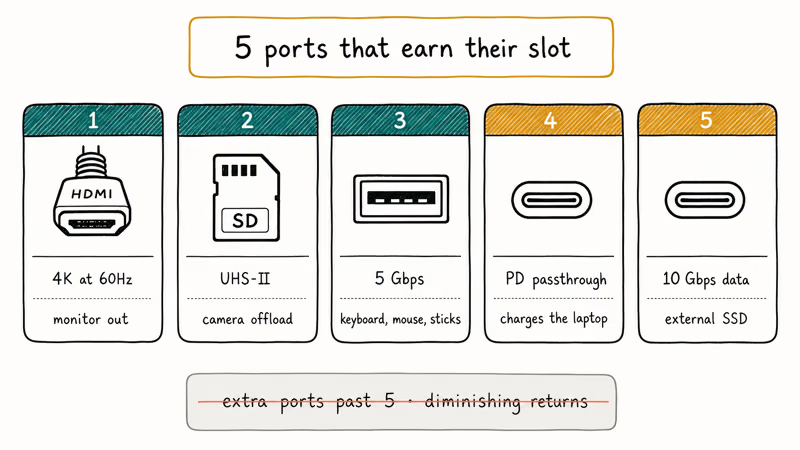
Two ports on the laptop becomes a hard ceiling for displays and data. The Air supports only one external display with the lid open, so a hub with two HDMI ports gets you nothing extra. Apple’s MacBook Air external display documentation confirms the single-display limit applies to all M-series Air models in lid-open mode.
What actually moves the needle:
- One 4K at 60Hz HDMI (or DisplayPort)
- One full-size SD card slot (for camera offloads)
- At least one USB-A (for older keyboards, mice, USB sticks)
- One passthrough USB-C for charging
- One extra USB-C data port (for fast external SSDs)
That’s 5 ports of real value. Anything past that is convenience, not necessity. Our best USB-C cable guide covers the cable side of this equation; the wrong cable will throttle the hub’s USB-C data port to USB 2.0 speeds.
#Cable Requirements for Hub Performance
Even with a great hub, the cable connecting it to your monitor matters as much as the spec sheet.
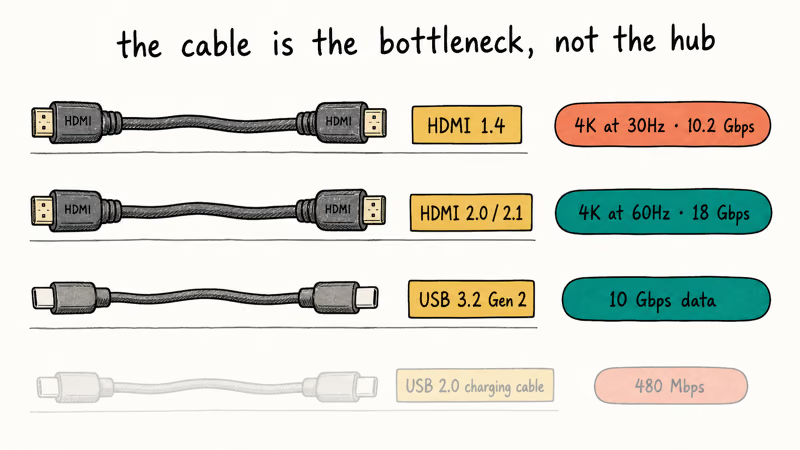
For 4K at 60Hz over HDMI, you need an HDMI 2.0 or 2.1 cable rated for 18Gbps. The HDMI specification states that 1.4 cables cap at 4K 30Hz, which makes a fancy 60Hz hub feel like a 30Hz hub. Cable choice is also where 4K at 60Hz can silently downshift on a misconfigured monitor. Our best HDMI 2.1 monitor roundup explains which displays expose the right input modes.
USB-C-to-USB-C cables matter for the data ports too. If you plan to push the hub’s 10Gbps USB-C 3.2 port at full speed with an external SSD, the cable between the SSD and the hub must also be rated for 10Gbps. A standard charging cable will pass data at 480Mbps (USB 2.0), no matter what the SSD or hub support. Our best USB4 cable for external SSD breakdown explains how to read the rating stamp and which cables actually deliver.
#Bottom Line
Most MacBook Air M4 owners want the Anker 547 USB-C Hub 7-in-2.
The direct-mount form factor keeps the desk tidy, the 4K at 60Hz HDMI matches what the laptop deserves, and the 7-port count covers every real-world need on a 2-port laptop without dead-weight ports.
Value-conscious buyers should pick the UGREEN Revodok Pro 6-in-1, which delivers identical HDMI quality with 10Gbps data ports at a typical $10-$20 lower price than the Anker, and pairs especially well with hybrid workers who keep a fixed home desk plus an occasional office stop, since the home hub stays put while the laptop travels light. The trade is one always-occupied laptop port.
Budget travelers can go with the Hiearcool 7-in-1 at the lowest price of the three. Fine for hotel TVs at 1080p, choppy on a 4K home monitor.
#Frequently Asked Questions
Will a USB-C hub damage my MacBook Air M4?
No. USB-C ports negotiate safe wattage at connect time.
Can a USB-C hub drive two external monitors on a MacBook Air M4?
Only in clamshell mode with the lid closed. Lid open, the Air supports a single external display.
What’s the difference between 4K at 30Hz and 4K at 60Hz?
The Hz number is how many times per second the monitor redraws the image. At 30Hz each frame stays on screen for 33ms and cursor motion feels noticeably sticky. At 60Hz each frame is 16ms and motion looks smooth.
Does the MacBook Air M4 support full Thunderbolt 4 docks?
Yes. Both USB-C ports run Thunderbolt 4 silicon and negotiate a true 40Gbps link with any compliant TB4 dock.
Can I use any USB-C charger with a hub’s passthrough port?
The charger needs to match the laptop’s wattage, not the hub’s. The MacBook Air M4 ships with a 30W or 35W brick, and the hub passes that through with small overhead loss. A 100W GaN charger gives you headroom for accessories drawing power from the hub. Undersized chargers tend to surface as slow battery climb rather than outright errors.
Will a USB-C hub slow down my external SSD?
Only if the hub’s USB-C port is rated below the SSD’s speed.
Do I need a hub if I only use one external monitor?
A simple USB-C-to-HDMI adapter plus the charger on the second port covers the basic single-monitor case without a hub. The hub becomes worth it when you add a keyboard, mouse, SD card reader, or external SSD into the mix, since each of those adds a port count the Air doesn’t have. For a clean single-monitor desk with Bluetooth peripherals, a $15 adapter beats a $40 hub. The hub starts paying off once you cross three accessories.

Pixel 11 vs Pixel 10: What Changed and Who Should Upgrade
Pixel 11 vs Pixel 10: same screen and camera resolution, new Tensor G6, 25W wireless, and Gemini Intelligence. Here is who should actually upgrade.
Best Power Bank for iPad in 2026: Pro, Air, and Mini
Best power bank for iPad in 2026. Compare mAh tiers and USB-C PD wattage for iPad Pro, Air, and mini, plus airline Wh math, cables, and travel tips.
Best Power Bank With Built-In Cable: Top 2026 Picks
Best power bank with built-in cable picks for 2026. Compare single USB-C, multi-connector, and retractable laptop banks, plus airline Wh math.

Best Apple Watch Band for Working Out: Proven Picks
The best Apple Watch band for working out handles sweat and stays put on your wrist. Compare silicone, nylon, and titanium picks for runs and lifts.