Fix Account Action Required Notification on Android
Fix the "Account Action Required" notification on Android with 5 proven methods. Works on Android 10 through 15. Step-by-step guide included.
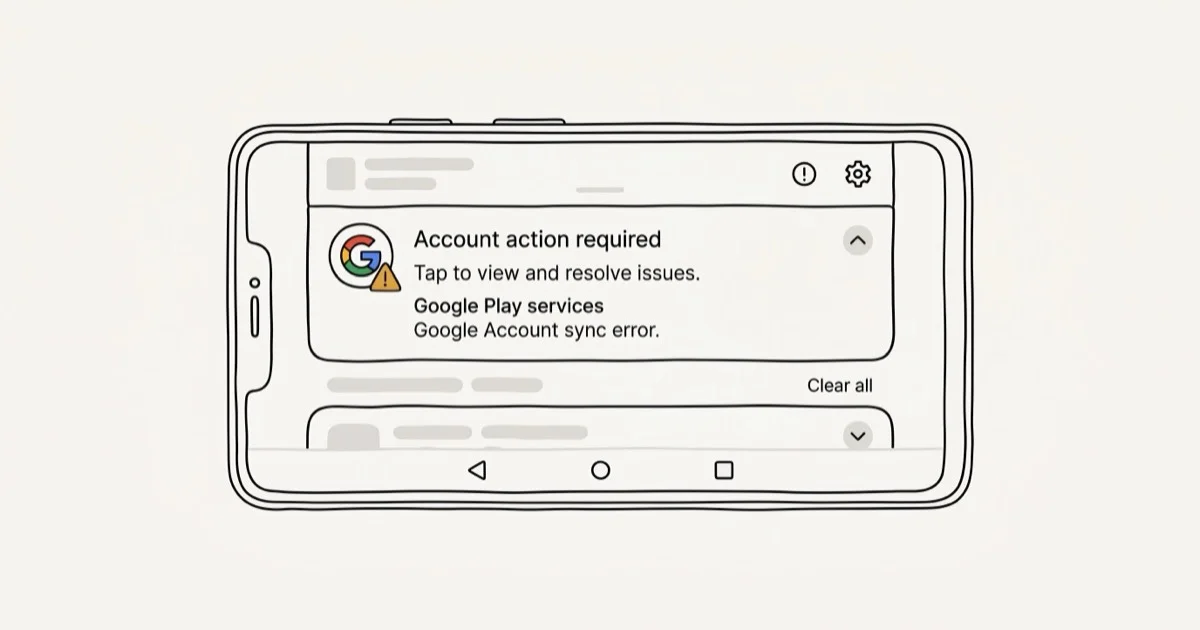
Quick AnswerThe "Account Action Required" notification on Android means Google Play Services lost sync with one of your Google accounts. Tap the notification and re-enter your password to fix it in under a minute.
“Account Action Required” keeps popping up on your Android phone because Google Play Services can’t sync one of your Google accounts. The fixes below work on Android 10 through 15. Re-entering the account password clears the notification quickly in most cases.
These steps are for your own device and account. Accessing someone else’s Google account without consent violates privacy laws in most countries.
- Google Play Services triggers this notification when it can’t verify a Google account on your device
- Re-entering your Google password fixes the problem in most cases
- Clearing the Google Play Services cache forces a fresh connection when password re-entry fails
- Removing and re-adding the affected Google account resolves persistent cases without deleting data
- The notification often starts after a password change, 2FA update, or Android system update
#What Causes the Account Action Required Notification?
Google Play Services sends this notification when it detects an authentication problem with a Google account on your device. It won’t stop until you fix the underlying sync issue.
Password mismatch. You changed your Google password on a computer or another phone, and your Android device still holds the old credentials. This triggers the notification more than any other cause by a wide margin.
Two-factor authentication changes. Switching from SMS verification to an authenticator app or revoking app-specific passwords breaks the existing session on your phone.
Deleted or suspended account. You removed a Google account through the web but didn’t remove it from your phone.
Sync failure after a system update. Android OS updates occasionally reset authentication tokens, which forces Google Play Services to re-verify your account credentials from scratch. According to a Google Account Community thread, this issue appears across all Android versions and every major device brand from Samsung to Pixel to OnePlus.
Watch out for phishing. Not every “Account Action Required” message actually comes from Google. Scammers send fake emails that mimic real alerts. Legitimate notifications come from no-reply@accounts.google.com.
#How Do You Fix Account Action Required on Android?
Start with Method 1. It resolves the issue for most people in under 60 seconds.
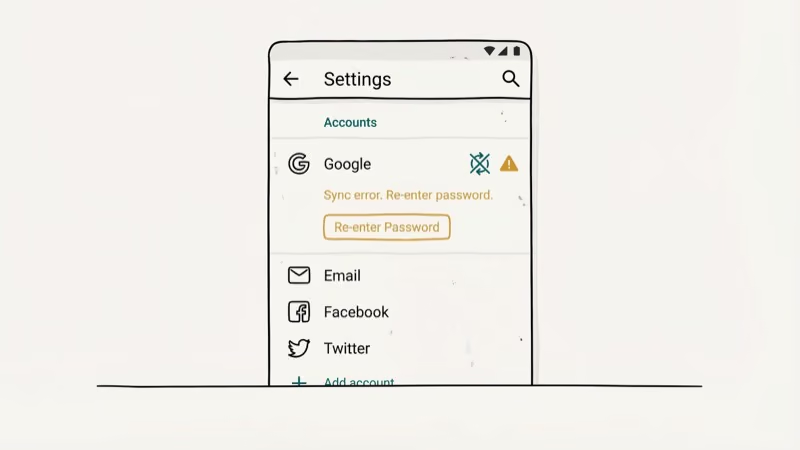
#Method 1: Tap the Notification and Re-Enter Your Password
The notification itself is the fix in most cases. Tapping it opens a Google sign-in prompt for the affected account.
- Pull down the notification shade and tap “Account Action Required”
- Enter your current Google account password and complete any 2FA prompts
- Wait for the sync to finish (10-30 seconds)
This clears the notification right away on most phones. If the notification returns within a few hours, try Method 2.
#Method 2: Clear Google Play Services Cache
Old cached data can block Google Play Services from authenticating properly. Clearing it forces a fresh connection.
- Open
Settings>Apps, tap the three-dot menu, and select Show system apps - Find Google Play Services, tap it, then go to Storage & cache
- Tap Clear cache (not Clear storage)
Takes about 15 seconds. This step is particularly effective after Android system updates.
If you’re seeing broader performance problems, you can also clear cache on other Android apps.
#Method 3: Remove and Re-Add the Google Account
When the first two methods don’t work, removing the account entirely and re-adding it forces Android to build a fresh connection with Google’s servers. You won’t lose emails, contacts, or Drive files because those live on Google’s servers, not on your phone.
- Go to
Settings>Accounts(orSettings>Passwords &accounts on Android 13+) - Tap the Google account showing the error, then tap Remove account
- Restart your phone, then go to
Settings>Accounts>Addaccount > Google and sign in again
Your phone re-downloads synced data automatically after you sign back in, and the whole process takes about 2 minutes.
If you’ve forgotten your Android password, recover the account through Google’s recovery page first.
#Performance Impact of a Broken Account Sync
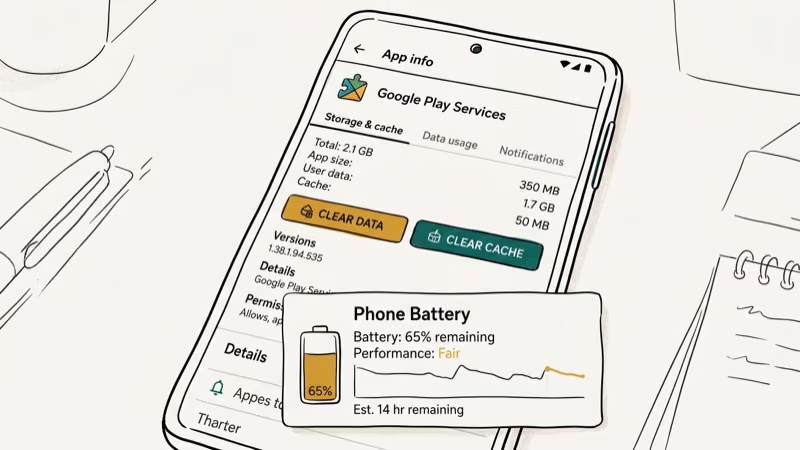
The notification itself doesn’t slow your phone down. But the broken sync behind it causes real problems over time: Gmail stops fetching new emails, Google Drive won’t sync, and Play Store apps tied to the affected account won’t update.
When the sync error persists for more than a week, Google Play Services keeps stopping on many phones. The system retries the connection every few minutes, which drains battery noticeably faster than normal.
If you’re seeing delayed notifications on Android for Gmail or Calendar, the account sync failure is likely the root cause.
#Advanced Fixes for Persistent Cases
#Method 4: Update Google Play Services
An outdated version of Google Play Services can cause authentication failures. It updates automatically, but sometimes the update gets stuck.
- Open
Settings>Apps>Showsystem apps and find Google Play Services - Tap the three-dot menu and select Uninstall updates
- Open the Google Play Store and let it auto-update (takes 1-3 minutes)
Google’s developer team reported that 8 or more major Play Services releases ship annually to maintain authentication compatibility. An outdated version can cause it to use deprecated token-validation methods, which triggers the “Account Action Required” notification even when your password is correct. Google’s Play Services release notes track each version’s authentication changes.
#Method 5: Turn Off the Notification (Last Resort)
If the notification is tied to a deleted account you don’t plan to recover, you can silence it permanently. This doesn’t fix the sync issue but stops the alert from appearing.
- Open
Settings>Apps>Showsystem apps and find Google Play Services - Tap Notifications
- Toggle off Account Action Required or Account alerts
Turning off these notifications means you won’t see legitimate security alerts from Google either.
#Troubleshooting Persistent Notifications
Some users report the notification returning even after completing every fix above. This usually points to a deeper issue.
Multiple Google accounts. Check all accounts under Settings > Accounts. The problem might not be your primary account. Remove any you no longer need.
Work or school accounts. Managed Google Workspace accounts have stricter security policies controlled by your organization’s IT department. You might need app-specific passwords, a VPN connection, or company-approved device enrollment before the account will sync. Contact your IT helpdesk with the exact error message you’re seeing.
Factory Reset Protection lock. If you bought a used phone or did a factory reset, the previous owner’s Google account might still be linked through FRP. You’ll need the original account credentials or a Samsung FRP tool to resolve this.
According to an Android Community support thread, persistent cases often involve Work Profile configurations that need to be removed through the device’s admin settings.
#Preventing Future Account Action Required Alerts
Three habits keep this notification from showing up again.
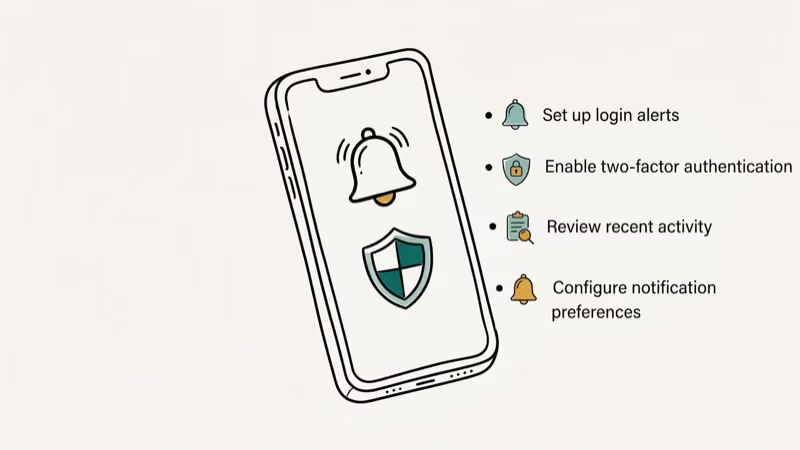
Update passwords on all devices immediately. When you change your Google password on one device, open every other device and sign in with the new password right away. Don’t wait until the notification appears.
Keep recovery options current. Go to myaccount.google.com and verify your recovery phone number and email address are up to date. If either one is outdated, you could get locked out after a security change. Google’s account security page recommends reviewing these settings every 6 months.
Remove unused Google accounts from your phone. Old accounts you no longer use are the most common source of recurring sync failures — and each one generates its own authentication refresh cycle. Go to Settings > Accounts, review every listed account, and remove any you haven’t actively used in the past 3 months.
If you’re running into related Google payment errors, check our guide on fixing OR-IEH-01 errors. For other restricted access issues on Android, we’ve got a separate troubleshooting guide.
#Bottom Line
Tap the “Account Action Required” notification and re-enter your password. That fixes it for most people in under a minute. If the notification keeps returning, clear the Google Play Services cache or remove and re-add the affected Google account. For phones with FRP lock issues tied to a previous owner, you’ll need to handle the Google account verification separately.
#Frequently Asked Questions
What does “Account Action Required” mean on Android?
It means Google Play Services detected an authentication problem with one of the Google accounts on your device. The most common cause is a password change that hasn’t been updated on your phone. The notification keeps appearing until you re-authenticate or remove the account.
Can I just ignore the notification?
You can, but the affected Google account stops syncing entirely. Gmail won’t fetch new emails, Drive files won’t update, and Play Store apps tied to that account won’t download updates. Fixing it only takes a minute, so it’s worth doing.
Is the “Account Action Required” notification a scam?
The real notification comes from Google Play Services on your phone and appears in the notification shade. If you received an email with this subject line, check the sender address. Legitimate Google emails come from domains ending in google.com. When in doubt, go directly to myaccount.google.com instead of clicking any links.
Will removing my Google account delete my emails and photos?
No. Your emails, contacts, photos, and Drive files live on Google’s servers. Removing the account from your phone disconnects the local sync. Adding it back re-downloads your data in about 2-5 minutes.
Does clearing Google Play Services cache delete my apps?
No. Clearing the cache only removes temporary authentication files. Your installed apps, app data, saved passwords, and settings stay completely untouched.
How do I fix this on a Samsung phone?
Same fixes, slightly different menus. On Samsung One UI, go to Settings > Accounts and backup > Manage accounts. For cache clearing: Settings > Apps > Google Play Services > Storage > Clear cache.
Can a factory reset fix this error?
Yes, but it’s overkill for this problem. A factory reset wipes everything on your phone and should be an absolute last resort. Try all five methods in this guide first. If nothing works, a factory reset followed by signing in with a fresh Google account will clear the error permanently.
Does this notification appear on tablets and Wear OS devices?
Yes. Any device running Google Play Services can show this notification. That includes Android tablets, Wear OS smartwatches, and Android TV devices. The fix is the same: re-authenticate or remove the affected Google account through the device’s settings.

Pixel 11 vs Pixel 10: What Changed and Who Should Upgrade
Pixel 11 vs Pixel 10: same screen and camera resolution, new Tensor G6, 25W wireless, and Gemini Intelligence. Here is who should actually upgrade.

Verizon Not Receiving Texts? How to Fix It in 9 Steps
Verizon not receiving texts? Fix it in 9 steps: check Message Blocking in My Verizon, reset network settings, deregister iMessage, and call support.

Pixel Battery Drain: What Google's July Fix Really Covers
Google marked the Pixel idle battery drain bug fixed in July, but only some phones got the patch. Here is who is covered, who is not, and what to try.

iPhone Stuck on EDGE? How to Get 5G or LTE Back (2026)
iPhone stuck on EDGE with crawling data? Here's why the E icon appears, which settings force 5G or LTE back, and when the problem is your carrier.