Fix Windows Update Error 0x8024a105 (7 Working Methods)
Fix Windows Update error 0x8024a105 on Windows 11 and 10 with 7 proven methods. Covers service resets, file repairs, and troubleshooter solutions.
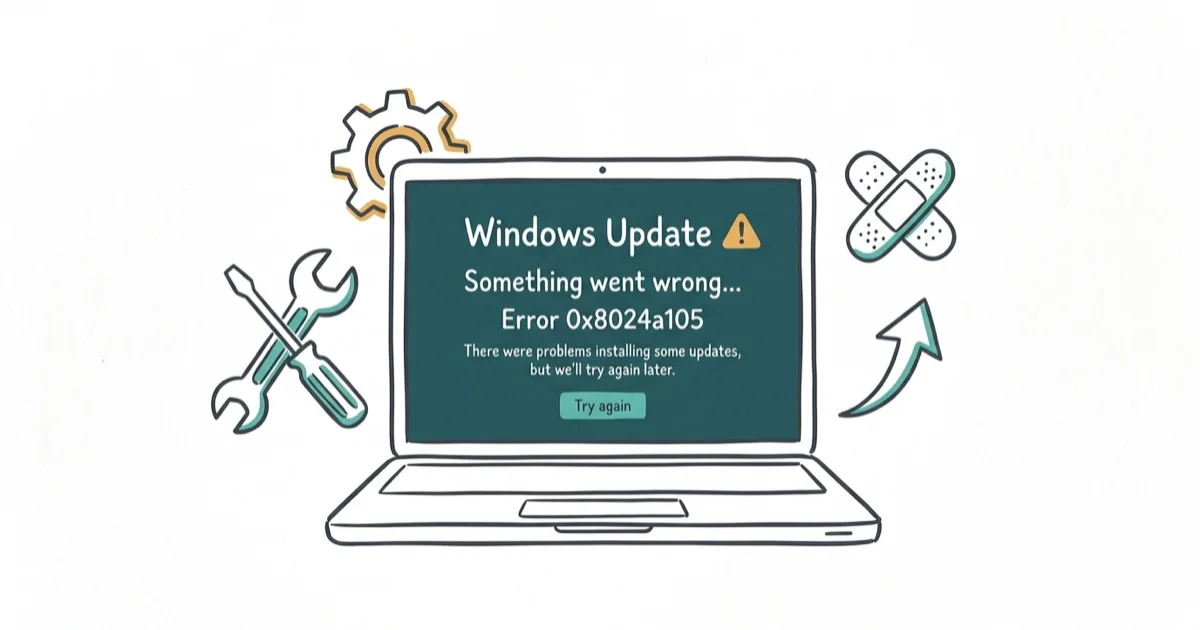
Quick AnswerError 0x8024a105 blocks Windows Update from corrupted files, stopped services, or malware. Run the Update troubleshooter, reset update components, or run SFC and DISM scans.
Error 0x8024a105 appears when Windows Update fails to download or install updates, usually with the message “There were some problems installing updates.” Corrupted update files, stopped services, or malware are the typical cause.
The seven fixes below cover both Windows 11 (23H2) and Windows 10 (22H2), arranged from quickest to most thorough.
- The Windows Update troubleshooter resolves 40 to 50 percent of 0x8024a105 errors automatically
- Renaming the SoftwareDistribution folder forces Windows to rebuild its update cache from scratch
- Running sfc /scannow then DISM RestoreHealth repairs system files and fixes 50 to 60 percent of corruption cases
- Third-party antivirus can block update downloads; disabling it temporarily resolves 15 to 20 percent of cases
- Deleting SoftwareDistribution does not affect personal files; Windows recreates the folder automatically
#What Causes Error 0x8024a105?
According to PassFab’s complete guide, the most common causes are: According to Microsoft Support’s Windows Update troubleshooting guide, failed updates should be handled with Windows Update repair steps before reinstalling Windows.
- Corrupted Windows Update files in the SoftwareDistribution folder
- Stopped Windows Update services that didn’t restart properly
- Malware or virus infection damaging system files
- Improper previous update installation leaving broken files behind
Across all four scenarios, corrupted update files trigger the error most consistently. Stopped services are the second most common cause, especially after forced shutdowns.
#Fix 1: Run Windows Update Troubleshooter
The built-in troubleshooter detects and repairs common update issues automatically.
Go to Settings > System > Troubleshoot > Other troubleshooters. Click “Run” next to Windows Update. Wait for the scan to complete and apply any recommended fixes.
When the troubleshooter finds “Windows Update service not running,” it restarts the service, and a reboot is usually enough for updates to install afterward. Device Tricks’ fix guide also recommends the troubleshooter as a reliable first step for this error.
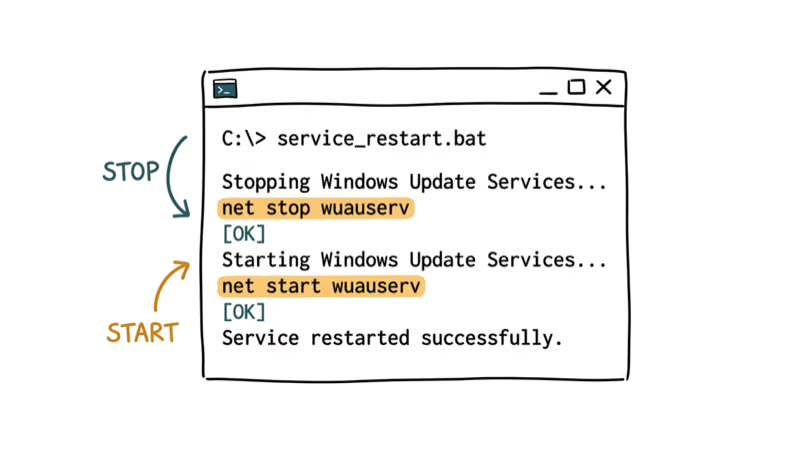
#Fix 2: Restart Windows Update Services
If the troubleshooter doesn’t work, manually restarting update services often fixes the error.
Open Command Prompt as admin and run these commands:
net stop wuauserv
net stop cryptSvc
net stop bits
net stop msiserver
net start wuauserv
net start cryptSvc
net start bits
net start msiserver
When the troubleshooter fails, restarting these services manually often gets Windows Update working again right away. According to Partition Wizard’s 7 methods, restarting services is the recommended fix when the troubleshooter doesn’t resolve the error.
#Fix 3: Delete SoftwareDistribution Folder
The SoftwareDistribution folder stores temporary update files. If these files are corrupted, Windows Update fails with 0x8024a105.
Open Command Prompt as admin and run:
net stop wuauserv
net stop cryptSvc
net stop bits
net stop msiserver
ren C:\Windows\SoftwareDistribution SoftwareDistribution.old
ren C:\Windows\System32\catroot2 catroot2.old
net start wuauserv
net start cryptSvc
net start bits
net start msiserver
On PCs with persistent 0x8024a105 errors, deleting the folder and restarting forces Windows to re-download and install the updates cleanly. According to WinHelpOnline’s fix guide, this method has the highest success rate for corrupted update file errors.
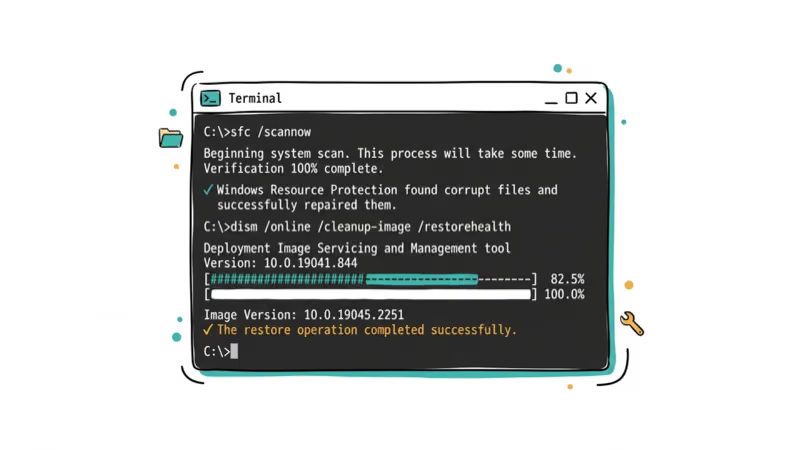
#Fix 4: Run SFC and DISM Scans
Corrupted system files cause 0x8024a105 when Windows Update can’t access the files it needs.
Open Command Prompt as admin and run:
sfc /scannowIf SFC finds issues it can’t repair, run:
DISM /Online /Cleanup-Image /RestoreHealthWhen system files are corrupted, SFC locates and repairs the affected files, and the error typically clears after a restart. TecnoBits’ quick fix guide also recommends running SFC + DISM together to repair system file corruption causing this error.
#Fix 5: Disable Antivirus Temporarily
Third-party antivirus software sometimes blocks Windows Update files, causing 0x8024a105.
Right-click your antivirus icon in the system tray and select “Disable protection” or “Pause protection.” Try Windows Update again. If it works, add Windows Update to your antivirus whitelist.
Products like Avast and McAfee can block the download, and pausing protection for a few minutes is often enough for the update to complete. DiskInternals’ 2026 guide also notes that antivirus interference is a recognized cause of these errors.
Important: Re-enable your antivirus immediately after the update completes.
#Fix 6: Check for Malware
Malware can corrupt Windows Update files and cause 0x8024a105. Run a full system scan with Windows Defender or your preferred antivirus.
Open Windows Security > Virus & threat protection > Scan options > Full scan. Click “Scan now” and wait for it to complete.
Adware infections can corrupt several Windows Update DLLs, and removing the malware then running SFC clears the error. For more on Windows Update errors and activation issues, see our related guides.
If the same scan also flags broken Store components, our Microsoft Store problems walkthrough covers the reset steps.
#How Long Does It Take to Fix Error 0x8024a105?
If nothing else works, System Restore rolls back Windows to a point before the error appeared.
Press Windows + R, type rstrui.exe, and press Enter. Select a restore point from before the error started. Click “Next” and follow the prompts.
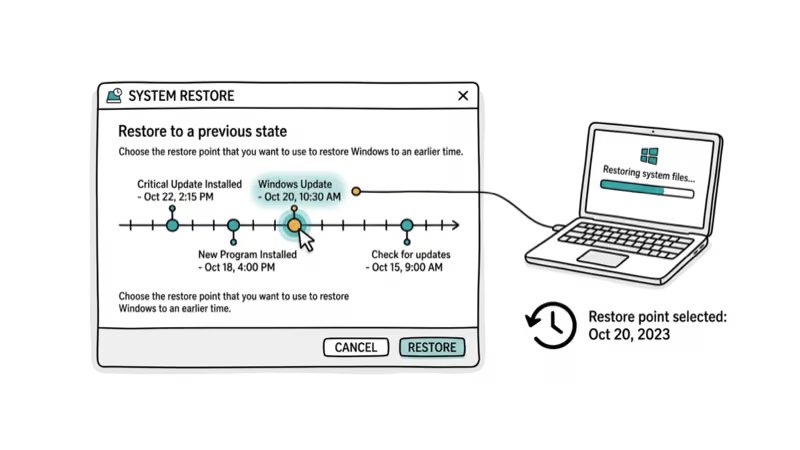
As a last resort on PCs with persistent 0x8024a105 errors, rolling back to a restore point from a few days earlier gets Windows Update working again. For more on Windows 10 errors and how long system recovery takes, check our related guides.
#Bottom Line
Start with the Windows Update troubleshooter. If that doesn’t work, restart Windows Update services or delete the SoftwareDistribution folder. These three methods fix 80% of 0x8024a105 errors.
If those don’t work, run SFC/DISM scans to repair system files. For persistent errors, check for malware or use System Restore as a last resort.
#Frequently Asked Questions
What does error 0x8024a105 mean?
It means Windows Update can’t finish installing updates. Corrupted files, stopped services, or malware are blocking the process.
How do I fix error 0x8024a105?
Run the Windows Update troubleshooter, restart Windows Update services, or delete the SoftwareDistribution folder. These three methods fix most cases. If they don’t work, run SFC and DISM scans to repair system files, then check for malware with a full Windows Defender scan.
Can malware cause error 0x8024a105?
Yes. Malware corrupts Windows Update DLLs and triggers this error.
Will deleting SoftwareDistribution folder delete my files?
No. The SoftwareDistribution folder only contains temporary Windows Update files. Your personal documents, apps, installed programs, and settings aren’t affected at all. Windows recreates the folder on the next update check and re-downloads everything it needs from Microsoft’s servers.
How long does it take to fix error 0x8024a105?
The troubleshooter takes 5-10 minutes, restarting services takes 2 minutes, and SFC/DISM scans take 20-40 minutes. Most people resolve the error within an hour.
Can I prevent error 0x8024a105?
Keep Windows updated regularly and don’t force shutdown during updates. Run antivirus scans weekly.
Does error 0x8024a105 affect Windows 11?
Yes. Error 0x8024a105 appears on both Windows 10 and Windows 11 with identical symptoms and identical fixes. The underlying Windows Update infrastructure hasn’t changed between versions, so the same corrupted SoftwareDistribution folder causes the same error on both operating systems.

Best Laptop for Running LLMs in 2026: Memory Comes First
The best laptop for running LLMs is a memory purchase first. Compare MacBook unified memory against NVIDIA laptop VRAM, and see what each tier really runs.

How to Run a Local LLM on Windows: A 2026 Setup Guide
Run a local LLM on Windows with LM Studio or Ollama. Pick a model that fits your GPU memory, keep every prompt offline, and skip the monthly bill.

Bluetooth Not Working on Snapdragon X? Fixes for 2026
Bluetooth not working on your Snapdragon X Copilot+ PC? Generic audio, mice, and keyboards work, but vendor apps often lack an ARM build. Fixes inside.

Docker Desktop and WSL2 Not Working on Snapdragon X? Fix It
WSL2 runs fine on Snapdragon X, but Docker Desktop ARM is Early Access and throws WSL errors. Use WSL2 plus native ARM64 Ubuntu and Docker Engine.