Fix Windows Update Error 0x800706ba (RPC Server Unavailable)
Fix Windows Update error 0x800706ba (RPC server unavailable) on Windows 11 and 10. Learn RPC service fixes, firewall configuration, and system repairs.
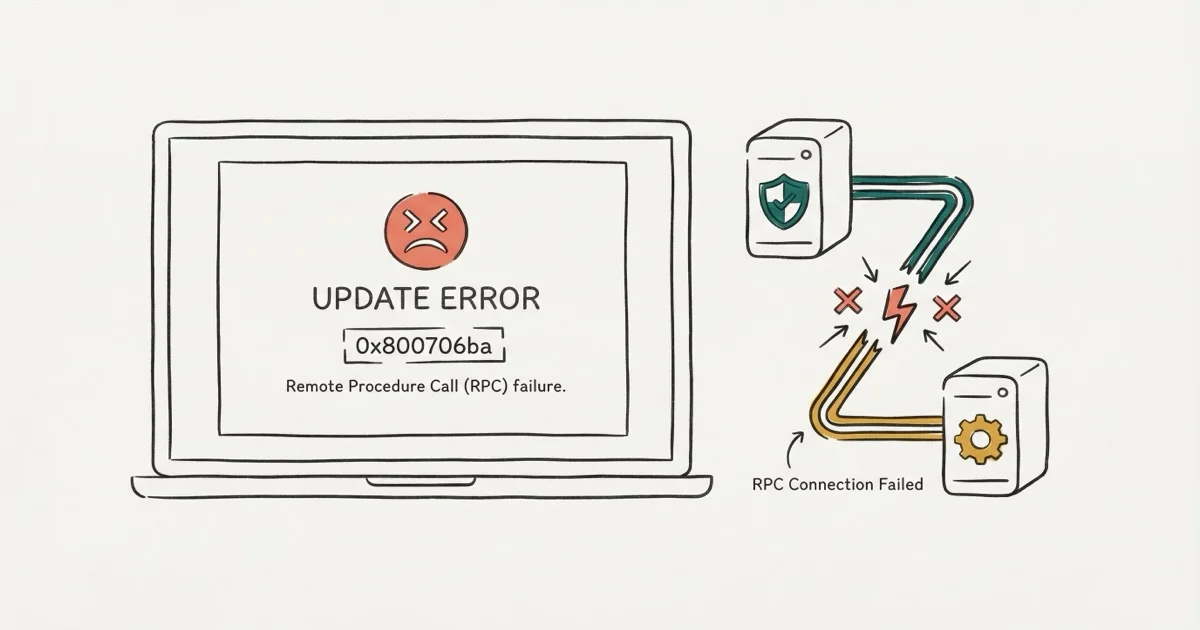
Quick AnswerError 0x800706ba appears when Windows Update cannot connect to the RPC (Remote Procedure Call) server. Fix it by starting the RPC service, running SFC/DISM scans, resetting Windows Update components, or configuring firewall settings. Disabled RPC service is a common cause.
Error 0x800706ba appears during Windows Update with the message “The RPC server is unavailable” or “Windows could not search for new updates. Error code: 0x800706ba.” This error occurs when Windows Update can’t communicate with the Remote Procedure Call (RPC) service, which is required for updates to download and install. The error blocks both feature updates and cumulative updates.
The fixes below cover the main RPC, firewall, system-file, update-component, network, DCOM, and recovery paths for this update error.
- A disabled or stopped RPC service is the most common cause of error 0x800706ba, and starting it in Services fixes the error immediately.
- Windows Firewall blocking RPC communication is the next most frequent culprit; allowing svchost.exe through the firewall resolves it.
- Running SFC and DISM scans repairs corrupted system files that prevent the RPC service from functioning.
- Third-party firewall software from Norton or McAfee can block RPC; temporarily disabling it confirms whether the firewall is the culprit.
- Resetting Windows Update components clears stuck update queues that can trigger this error even when RPC is running correctly.
#What Causes Error 0x800706ba?
According to Microsoft’s Windows Update troubleshooting page, this error occurs when the RPC service is not running or is blocked. The most common causes are:
- Disabled RPC service - Remote Procedure Call service not running (the most common cause)
- Firewall blocking RPC - Windows Firewall or third-party firewall blocking RPC communication
- Corrupted system files - Damaged Windows files preventing RPC operations
- Network connectivity issues - DNS or network problems blocking update servers
A disabled RPC service is a direct match for this error because Windows Update depends on RPC.
#Fix 1: Start the RPC Service
This fixes many error 0x800706ba cases. The Remote Procedure Call service must be running for Windows Update to work.
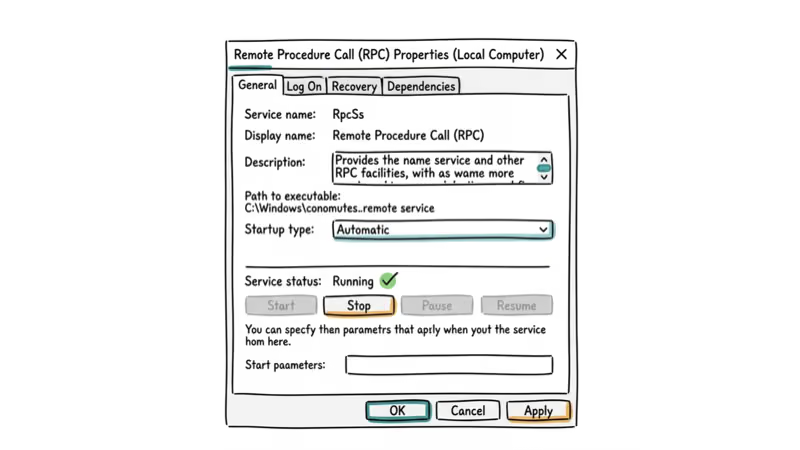
Press Windows + R, type services.msc, and press Enter. Find “Remote Procedure Call (RPC)” in the list, right-click it, and select “Properties.” Set “Startup type” to “Automatic.” If “Service status” shows “Stopped,” click “Start.” Click “Apply” and “OK.”
Also check these related services and set them to Automatic:
- DCOM Server Process Launcher
- RPC Endpoint Mapper
- Windows Update
If RPC is set to Manual or stopped, Windows Update can fail with error 0x800706ba. Set RPC to Automatic and start it before trying heavier repairs.
#Fix 2: Configure Windows Firewall for RPC
Windows Firewall can block RPC communication, causing error 0x800706ba. Allowing RPC through the firewall fixes this issue.
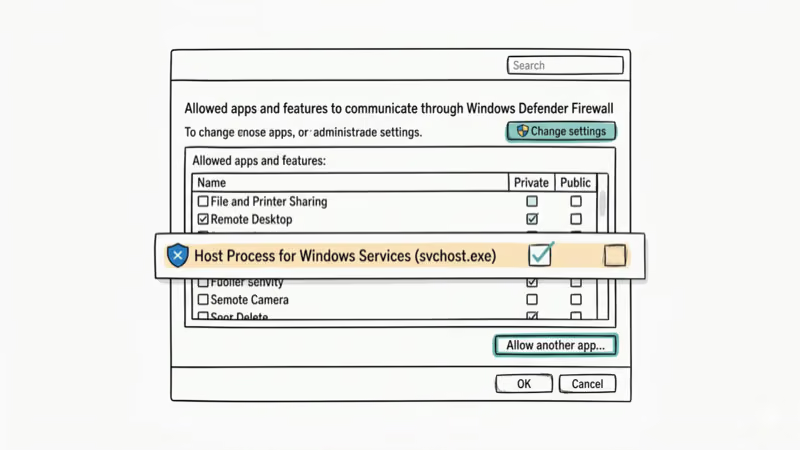
Go to Control Panel > System and Security > Windows Defender Firewall > Allow an app or feature through Windows Defender Firewall. Click “Change settings,” then “Allow another app.” Browse to C:\Windows\System32\svchost.exe and add it. Make sure both “Private” and “Public” are checked.
If Windows Firewall is blocking RPC, allowing svchost.exe through the firewall can restore Windows Update communication.
#Disable Third-Party Firewall Temporarily
If you use third-party firewall software (Norton, McAfee, ZoneAlarm), temporarily disable it to test if it’s blocking RPC.
If Windows Update works with the third-party firewall temporarily disabled, configure that firewall to allow RPC instead of leaving it off.
#Fix 3: Run SFC and DISM Scans
Corrupted system files can prevent the RPC service from functioning properly. SFC and DISM repair these files.
Open Command Prompt as admin and run:
sfc /scannowIf SFC finds issues it can’t repair, run:
DISM /Online /Cleanup-Image /RestoreHealthThen run SFC again:
sfc /scannowMicrosoft’s SFC documentation explains that System File Checker scans protected system files, so run SFC and DISM when corrupted Windows files may be blocking RPC.
#Fix 4: Reset Windows Update Components
If the RPC service is running but Windows Update still fails, update components might be corrupted. Resetting them can fix error 0x800706ba.
Open Command Prompt as admin and run these commands:
net stop wuauserv
net stop cryptSvc
net stop bits
net stop msiserver
ren C:\Windows\SoftwareDistribution SoftwareDistribution.old
ren C:\Windows\System32\catroot2 catroot2.old
net start wuauserv
net start cryptSvc
net start bits
net start msiserver
If RPC is running but updates still fail, resetting update components can clear a stuck SoftwareDistribution or catroot2 state.
#Fix 5: Run Windows Update Troubleshooter
The built-in troubleshooter can detect and fix common update issues that cause error 0x800706ba.
Go to Settings > System > Troubleshoot > Other troubleshooters. Click “Run” next to Windows Update. Wait for the scan to complete and apply any recommended fixes.
The troubleshooter can detect a stopped Windows Update service and restart it automatically. Reboot after applying its fixes.
#Fix 6: Check Network Connectivity
Network issues can prevent Windows Update from connecting to Microsoft servers, causing error 0x800706ba. Check your internet connection and DNS settings.
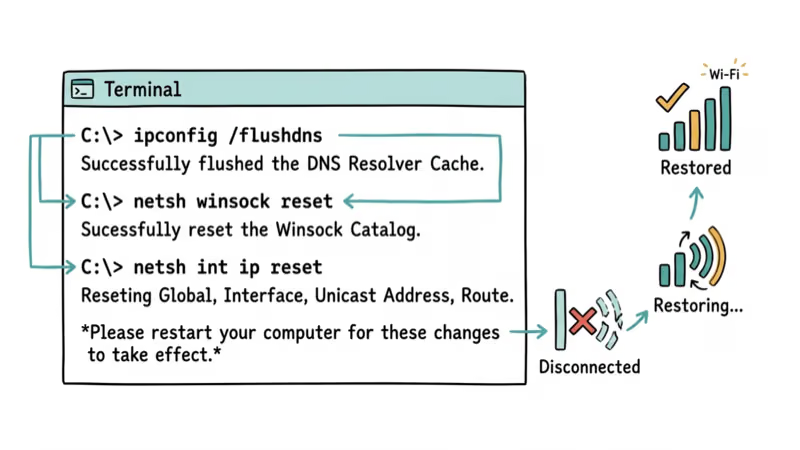
Open Command Prompt as admin and run:
ipconfig /flushdns
netsh winsock reset
netsh int ip reset
Restart your PC and try Windows Update again.
DNS and Winsock resets can clear stale network state before another Windows Update attempt.
#Fix 7: Modify DCOM Permissions
Incorrect DCOM (Distributed Component Object Model) permissions can block RPC communication and cause error 0x800706ba.
Press Windows + R, type dcomcnfg, and press Enter. Expand “Component Services” > “Computers” > “My Computer.” Right-click “My Computer” and select “Properties.” Go to “COM Security” tab. Under “Access Permissions,” click “Edit Limits.” Add “ANONYMOUS LOGON” and “Everyone” with “Local Access” and “Remote Access” permissions. Click “OK” and restart.
Restricted DCOM permissions can be a rare cause of RPC errors.
For more on other Windows Update errors and firewall issues, check our related guides.
If your system shows other symptoms, see our guides on boot problems and activation errors.
We also cover upgrade failures for users running into install loops.
#What If Error 0x800706ba Persists?
If none of the above fixes work, try these advanced solutions:
#Perform System Restore
If the error started recently, restore your system to a point before the error appeared. Search for “Create a restore point” in Start menu, click “System Restore,” and select a restore point from before the error occurred.
System Restore can help when the error started right after installing third-party software.
#Perform In-Place Upgrade
As a last resort, perform an in-place upgrade using Windows installation media. This reinstalls Windows while keeping your files and apps.
Download the Media Creation Tool from Microsoft’s website. Run it and select “Upgrade this PC now.” Follow the prompts to reinstall Windows.
An in-place upgrade is the last resort for persistent update errors that survive the safer repairs above.
#Bottom Line
Go to services.msc and make sure Remote Procedure Call (RPC) is set to Automatic and running. That fixes half of all 0x800706ba errors. If RPC is already running, check your firewall settings and run SFC/DISM scans to repair corrupted system files.
#Frequently Asked Questions
What does error 0x800706ba mean?
Error 0x800706ba means “The RPC server is unavailable.” It indicates that Windows Update can’t communicate with the Remote Procedure Call service, which is required for updates to download and install.
How do I fix error 0x800706ba in Windows Update?
Open services.msc, find “Remote Procedure Call (RPC),” and set the startup type to Automatic. Click Start if the service is stopped. This single change fixes half of all cases. If the error persists after starting RPC, run SFC/DISM scans to repair corrupted files, then reset Windows Update components as a fallback.
Can firewall cause error 0x800706ba?
Yes. Both Windows Firewall and third-party options (Norton, McAfee, ZoneAlarm) can block RPC communication.
Why does error 0x800706ba keep coming back?
Recurring errors usually mean the RPC service keeps reverting to Manual startup, or your firewall policy resets after reboots. Set RPC to Automatic (Delayed Start) and add a permanent firewall exception for svchost.exe. If you use group policy in a work environment, ask your IT admin to check the RPC service policy.
Is error 0x800706ba dangerous?
The error itself isn’t dangerous. It just prevents Windows updates from installing. Not installing updates can leave your system vulnerable to security threats, so fix the error to keep your system secure.
Can malware cause error 0x800706ba?
Yes. Malware can disable the RPC service or modify firewall settings to block Windows Update. Run a full system scan with Windows Defender or Microsoft Safety Scanner to check for malware.
How long does it take to fix error 0x800706ba?
Starting the RPC service takes under 5 minutes. SFC/DISM scans run 20-40 minutes. Most cases are fixed within 1 hour total.

Best Laptop for Running LLMs in 2026: Memory Comes First
The best laptop for running LLMs is a memory purchase first. Compare MacBook unified memory against NVIDIA laptop VRAM, and see what each tier really runs.

How to Run a Local LLM on Windows: A 2026 Setup Guide
Run a local LLM on Windows with LM Studio or Ollama. Pick a model that fits your GPU memory, keep every prompt offline, and skip the monthly bill.

Bluetooth Not Working on Snapdragon X? Fixes for 2026
Bluetooth not working on your Snapdragon X Copilot+ PC? Generic audio, mice, and keyboards work, but vendor apps often lack an ARM build. Fixes inside.

Docker Desktop and WSL2 Not Working on Snapdragon X? Fix It
WSL2 runs fine on Snapdragon X, but Docker Desktop ARM is Early Access and throws WSL errors. Use WSL2 plus native ARM64 Ubuntu and Docker Engine.