Zoom Microphone Not Working? 8 Fixes That Actually Work
Fix Zoom microphone not working by testing the mic in Zoom, checking meeting mute and the selected device, then OS permissions and Bluetooth conflicts.
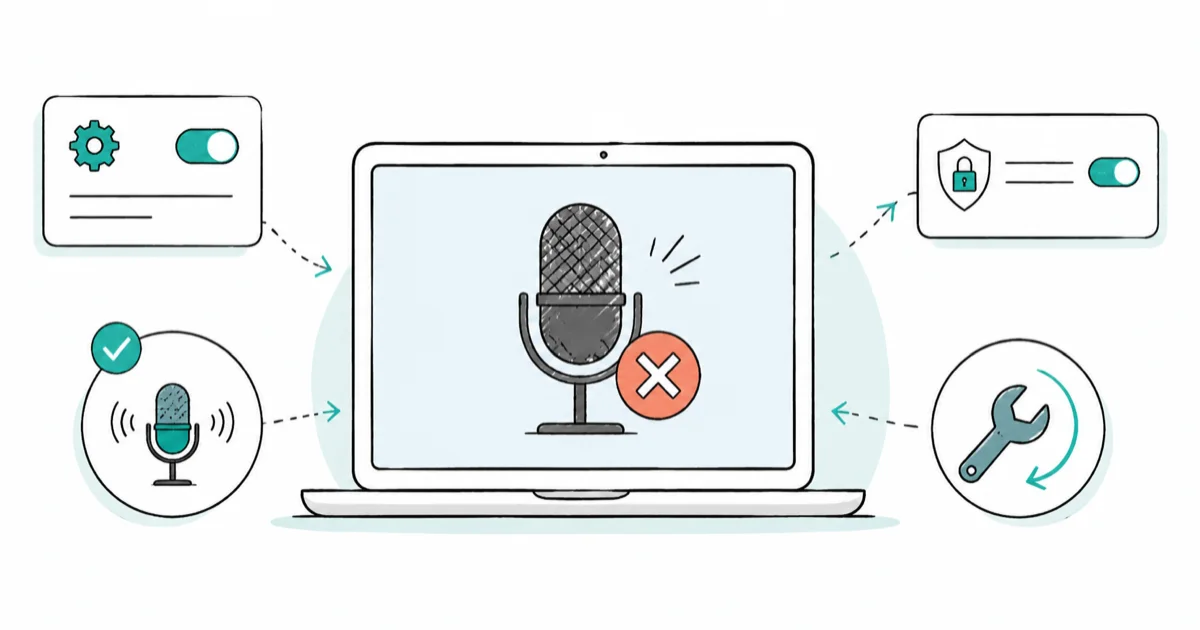
Quick AnswerUse Zoom's Test Mic before changing anything. If Zoom sees your input there, the problem is meeting mute or the wrong device. If it sees nothing, fix the OS or browser permission instead.
Zoom microphone not working almost always comes down to one of three things: the wrong microphone is selected, you’re muted by the meeting or host, or the operating system never gave Zoom permission. The fastest way to tell them apart is Zoom’s own Test Mic, before you touch a single driver. The checks below work through Zoom first, then OS and browser permissions.
- Zoom’s Test Mic shows whether Zoom sees any input at all, which splits the problem in seconds
- If Zoom sees input but no one hears you, you’re muted or sending to the wrong device
- If Zoom sees nothing, the OS or browser blocked microphone permission for Zoom
- A Bluetooth headset that switched to its low-quality call mode is a common, confusing culprit
- Testing the browser version against the desktop app isolates a corrupt Zoom install fast
#Why Is Your Zoom Microphone Not Working?
The mic chain has several links: the physical microphone, the OS permission, the selected input device in Zoom, the meeting’s mute state, and the host’s audio controls. A break anywhere produces the same silent result, so the trick is to find which link failed before you start changing settings.
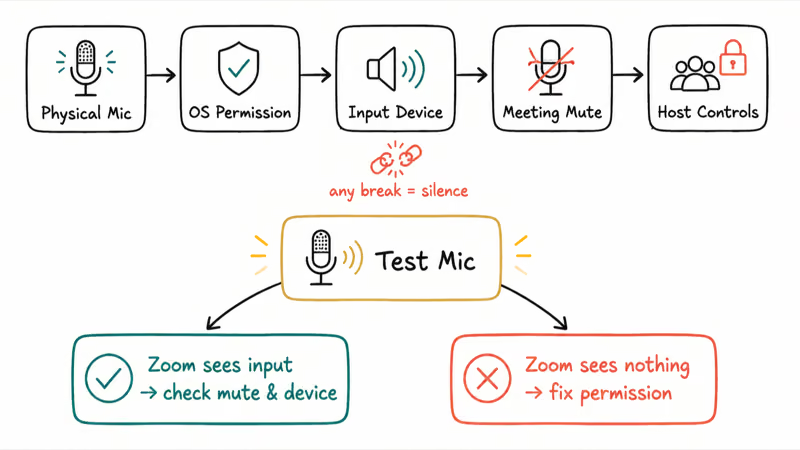
The single most useful test is Zoom’s built-in mic check, because it answers one yes-or-no question: does Zoom see your voice at all? Everything branches from that answer.
| Symptom | Likely cause | First action |
|---|---|---|
| Test Mic shows input, others can’t hear you | Meeting mute or wrong output | Unmute, check selected mic |
| Test Mic shows no input | OS or browser permission | Grant Zoom mic permission |
| Mic works in other apps, not Zoom | Wrong device selected in Zoom | Pick the right input device |
| Headset audio is quiet or muffled | Bluetooth call-mode profile | Reconnect or use wired |
| Works in browser, not the app | Corrupt Zoom install | Reinstall the desktop app |
Run the Test Mic first. It points you straight to the right row.
#Select the Right Microphone and Test It in Zoom
Open Zoom, click your profile picture, choose Settings, then the Audio tab. According to Zoom’s support page on testing your audio settings for Zoom meetings, you click Test microphone in the Microphone section, and the Input volume bar moves when Zoom is picking up audio.
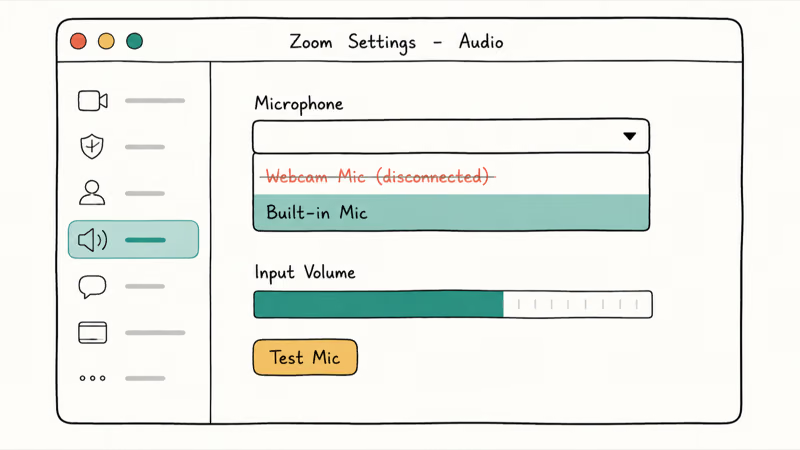
That bar is your answer. If it moves when you talk, the problem is downstream: mute, the host, or output routing. If it stays flat, Zoom isn’t getting input at all.
While you’re there, check the Microphone drop-down. Zoom’s guidance on troubleshooting speaker or microphone issues recommends selecting the microphone you want to use from this menu, because Zoom often defaults to the wrong device after you plug in a headset or dock.
If Zoom has switched to a disconnected webcam mic, choose the built-in mic or the headset you actually use.
#Check Meeting Mute, Host Controls, and Original Sound
If Test Mic works but people still can’t hear you, you’re almost certainly muted somewhere. Look at the bottom-left of the meeting window for the Mute/Unmute button, and click it if there’s a red slash through the mic icon.
There are layers of mute, though. The host can mute you, and on some meetings you can’t unmute yourself until the host allows it. A physical mute switch on a headset or a USB mic also overrides everything Zoom does.
Zoom’s join settings add one more trap. If you joined without computer audio, your mic isn’t connected to the meeting at all, which silently dooms every other fix you might try, so click Join Audio or the audio button in the meeting controls and choose Join with Computer Audio before assuming the microphone itself is broken.
Background noise suppression and Original Sound only matter in specific cases, so don’t change them first. If your voice cuts out or sounds gated, lowering noise suppression can help, but it’s rarely the root cause of a fully dead mic.
#What If Zoom Has No Microphone Permission?
When Test Mic shows no input even with the right device selected, the OS is blocking Zoom. This is the most common cause of total silence.
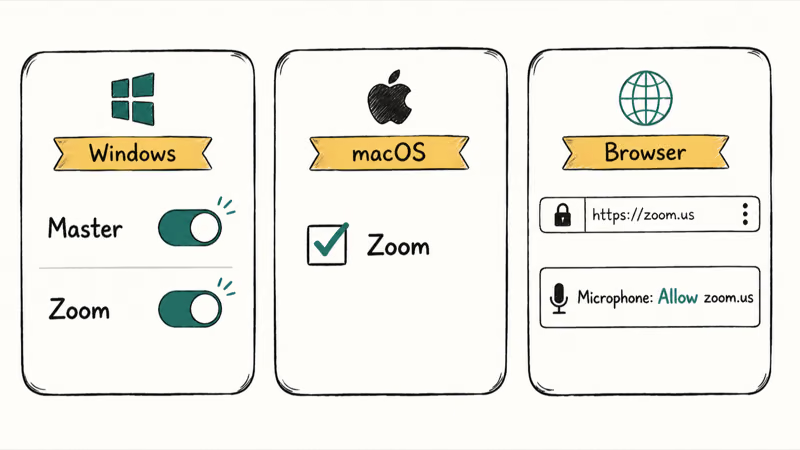
On Windows, Microsoft’s guidance on managing app permissions states that 2 toggles gate access, the master switch and the per-app one, so both must be on. You can follow the official steps for managing app permissions for your camera and microphone. Open Settings > Privacy & security > Microphone and make sure both the master toggle and Zoom’s entry are enabled.
On macOS, open System Settings > Privacy & Security > Microphone and tick the box next to Zoom. macOS blocks the mic by default until you approve each app, so a fresh Zoom install often needs this one toggle.
In a browser, permission lives in the site settings. Click the lock or tune icon in the address bar, find Microphone, and set it to Allow for zoom.us. A browser that denied the mic once will keep denying it silently until you change this. The same permission logic applies system-wide, which our windows 11 microphone not guide covers for every app, not just Zoom.
#Fix Bluetooth Headset and Driver Conflicts
Bluetooth headsets cause a specific, confusing failure. When a headset switches into its hands-free call profile, the mic works but audio quality drops sharply, and sometimes the mic drops out entirely while music-quality playback keeps working.
The clean fix is to disconnect and reconnect the headset after the meeting starts, which forces it to negotiate the call profile correctly. If quality stays bad, a wired headset or the built-in mic sidesteps the whole Bluetooth profile problem. Our airpod mic not guide digs into this profile-switching behavior in detail.
On the desktop, a driver conflict can also block the mic. If Zoom sees nothing and OS permission is granted, check that the input device works in another app first. A mic that’s dead everywhere is a system problem, not a Zoom one, and our windows 11 no sound guide covers the audio-stack side.
A repeating crash mid-call points somewhere else entirely, which our computer crashes during zoom guide addresses separately.
#Try Browser vs App to Isolate the Problem
This is the cleanest single test in the whole guide. Join a Zoom test meeting in your browser, then in the desktop app, and compare.
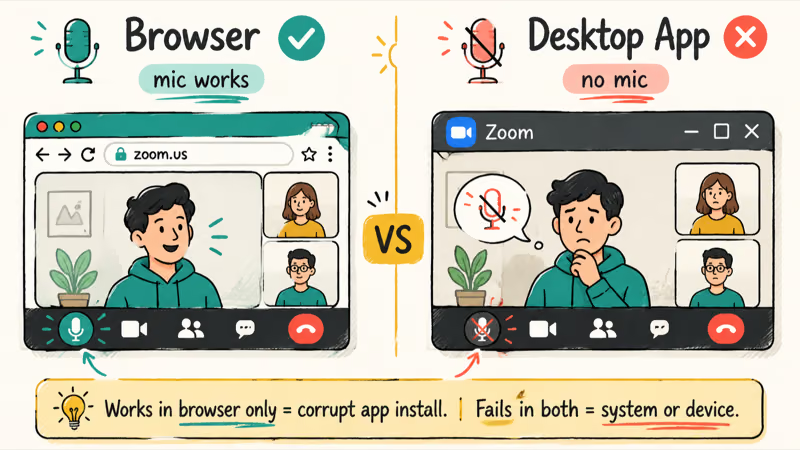
If the mic works in the browser but not the app, the desktop app’s audio config or install is corrupt. Reinstalling Zoom, or resetting its audio settings, fixes that without touching anything system-wide.
If the mic fails in both, the problem is below Zoom: the device, the OS permission, or the hardware itself. That rules out a Zoom-specific bug and sends you to the permission and device steps above. On a phone, the equivalent check is testing your mic in a different app like the voice recorder, and similar app-level mic faults show up in our facetime not working guide.
Browser-versus-app testing takes two minutes and saves you from reinstalling Zoom when the real fault was a denied OS permission, or from chasing OS settings when a quick reinstall would have fixed it.
#Bottom Line
Use Zoom’s Test Mic before you change drivers or settings. If Zoom sees your input there, the problem is meeting mute, the host, or a wrong selected device, so fix those first. If Zoom sees nothing, grant the OS or browser microphone permission and confirm the right input device. Testing the browser against the desktop app is the fastest way to separate a corrupt Zoom install from a system-wide microphone problem.
#Frequently Asked Questions
Why is my Zoom microphone not working?
It’s usually one of three things: the wrong microphone is selected, you’re muted by the meeting or host, or the OS never gave Zoom permission. Zoom’s Test Mic tells you which.
What should I check first?
Open Zoom’s audio settings and click Test microphone. A moving input bar means Zoom hears you, so check mute and output routing next. A flat bar points at the wrong device or a blocked OS permission, which sends you to a completely different fix than a mute problem would.
Can this be caused by an update?
Yes, often. A Windows, macOS, or Zoom update can reset audio permissions or swap the default input device, leaving Zoom with no mic access. If your mic stopped right after an update, recheck the OS permission and selected device first.
Will resetting Zoom settings delete anything?
Resetting Zoom’s audio settings or reinstalling the app doesn’t delete your account, contacts, or chat history, since those live online in your Zoom account rather than on your device. It only clears local preferences like your saved device choices and noise-suppression level, which take a few seconds to set again, so a reinstall is a safe early move when the desktop app’s audio config looks corrupt.
When should I contact official support?
Reach out to Zoom support when the mic fails in both the browser and the app, OS permission is clearly granted, and the same mic works in other apps. That points to an account or server-side issue.
How do I prevent this from happening again?
Set your preferred microphone as the default in Zoom’s audio settings so it stops switching to a webcam or dock mic, leave OS microphone permission granted for Zoom, and prefer a wired headset for important calls to avoid Bluetooth profile surprises. Running Test Mic before a big meeting catches most problems before anyone joins.

Is This Bank App Real? Spot a Fake App on Your Home Screen
A bank app can land on your home screen from a web page with no install warning. Learn the checks that tell a real banking app from a phishing web app.

Apps Crashing After iOS 27 Update? Fix Order (2026)
Apps crashing after the iOS 27 update? Update the app in the App Store first, then offload and reinstall to clear stale cache, then restart. The fix order.

Do AI Translation Earbuds Work Offline? What to Know
Do AI translation earbuds work offline? A few do with downloaded language packs, but most need the cloud. Here's what works offline and what you give up.
How to Set Up Translation Earbuds (Pairing and Modes)
How to set up translation earbuds: charge, install the app, pair over Bluetooth, pick two languages, and choose a mode. A step-by-step first-use guide.