FaceTime Not Working? 10 Proven Fixes for iOS 26 (2026)
FaceTime not connecting or ringing? Try the toggle, Date & Time, Screen Time, System Status, cellular settings, and the iOS 26 dual-SIM fix for iPhone.
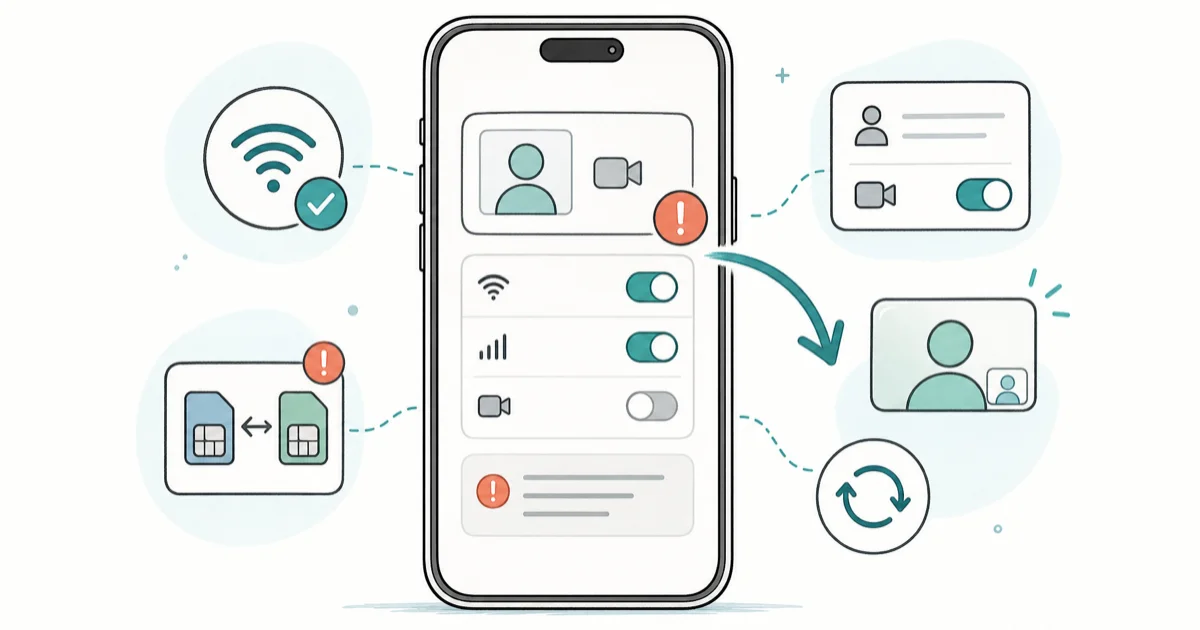
Quick AnswerStart with a quick split: if FaceTime works on Wi-Fi but not cellular, the problem is your data settings. If it fails on both, check Apple ID, Date & Time, and Screen Time. After iOS 26, a dual-SIM conflict is the most common cause.
FaceTime not working usually traces back to one of three things: a blocked setting, an Apple ID glitch, or a connection problem. The fastest path is to figure out which one you’ve got before you start toggling everything.
- Run the Wi-Fi-vs-cellular test first; if FaceTime works on one but not the other, the fix is your data settings, not the app.
- A common iOS 26 cause is a dual-SIM conflict, fixed by removing the inactive SIM before any reset.
- A wrong Date & Time setting silently breaks FaceTime activation, so set it to update automatically.
- Screen Time can block FaceTime and Camera under Allowed Apps without any obvious warning.
- Check Apple’s System Status page before deep fixes, so you don’t chase an outage on Apple’s side.
#Why Is FaceTime Not Working on Your iPhone?
FaceTime is more fragile than a regular phone call. It leans on Apple’s servers, your Apple ID, and a steady internet connection all at once, so when any one of those slips, calls fail to connect, refuse to ring, or drop in the middle. That dependence is also why the fix is rarely “restart and hope,” and more often a specific setting you can point to once you know which layer broke.
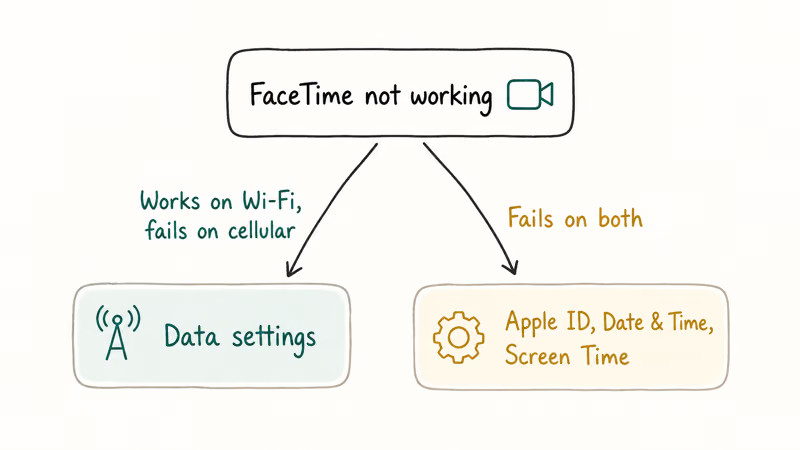
Start by sorting the symptom. Wi-Fi-only failures point at data settings. Everywhere-failures point at Apple ID, Date & Time, or Screen Time.
According to Apple’s FaceTime troubleshooting page, the official checklist covers updating your device, confirming the connection, toggling FaceTime, checking Screen Time, and setting the time automatically. We follow that order below, with the iOS 26 fix layered in.
#Confirm FaceTime Is Enabled and Your Connection Is Strong
First, make sure FaceTime is actually on. Go to Settings, find FaceTime, and check the toggle. Already on? Turn it off and back on to force a fresh registration.
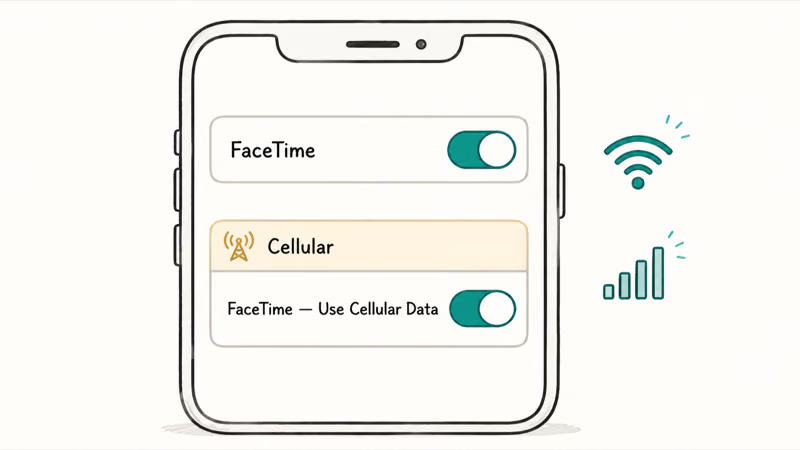
A weak connection is the next most common cause. FaceTime needs solid broadband Wi-Fi or, on cellular, the Use Cellular Data switch turned on for FaceTime specifically. If your Wi-Fi itself is flaky, our guide on when your iPhone won’t connect to Wi-Fi sorts that first.
If FaceTime works on Wi-Fi but not cellular, the data toggle is almost always the culprit. Open Settings > Cellular, scroll to FaceTime, and make sure it’s allowed to use cellular data. Some carriers gate FaceTime over cellular on cheaper plans, and a few throttle video calls during congestion even when the toggle is on, so a stubborn cellular-only failure is sometimes the plan rather than the phone.
#Fix Date & Time and Screen Time Restrictions
A wrong clock can break FaceTime activation. Go to Settings > General > Date & Time and turn on Set Automatically.
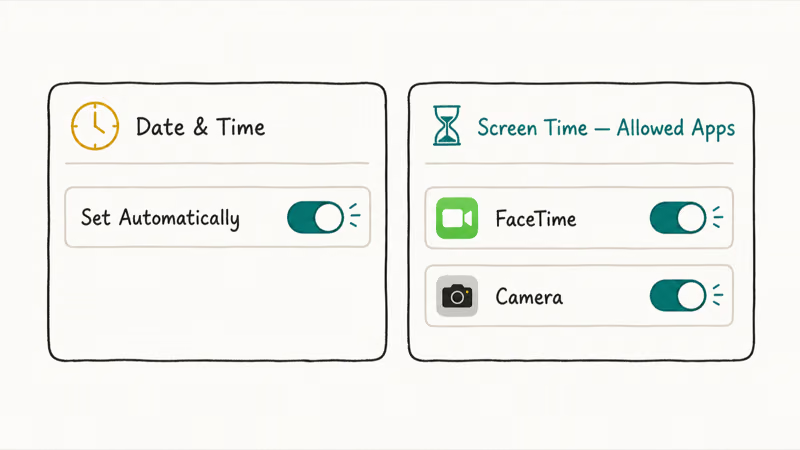
Screen Time is the other silent blocker. Go to Settings > Screen Time > Content & Privacy Restrictions > Allowed Apps and make sure both FaceTime and Camera are switched on. Apple’s support page confirms that 2 of these toggles, FaceTime and Camera, can hide the app entirely when restricted.
Screen Time restrictions can make FaceTime disappear even though the app has not been deleted. If the camera image itself is the problem during a call rather than the connection, our fix for FaceTime camera not working is the better starting point.
#Check Apple’s System Status for an Outage
Before you reset anything, rule out Apple’s side. No amount of toggling helps during a server outage.
Open Apple’s System Status page and look for the FaceTime row. According to Apple’s status dashboard, a green dot means the service is up, while an amber or red marker means Apple is having problems and you just need to wait it out.
If FaceTime fails across multiple Apple devices at the same time, an Apple-side outage is more likely. If only your device is affected, move on to the fixes below.
#How Do You Fix the iOS 26 Dual-SIM Registration Bug?
This is the headline fix for 2026. After updating to iOS 26, many dual-SIM iPhones hit a registration conflict where FaceTime can’t decide which line to register your number on, and calls quietly fail with no error message. It’s easy to misread as a network problem, but the tell is that everything else, including regular calls and texts, keeps working fine while only FaceTime and sometimes iMessage break.
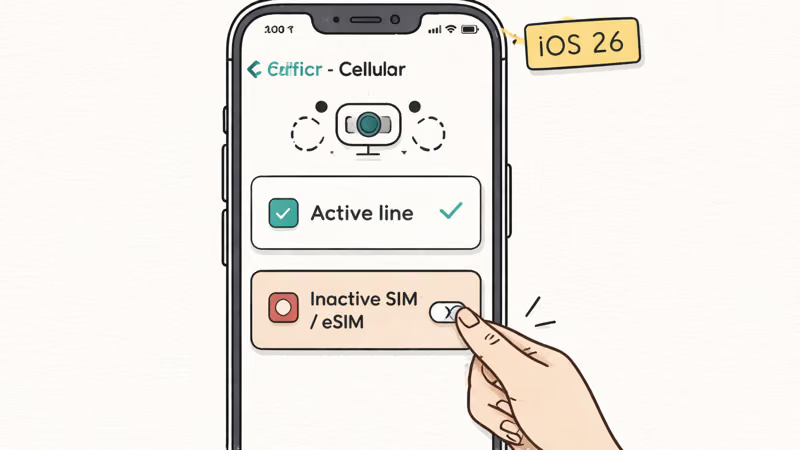
The fix is to remove the inactive SIM or eSIM. Go to Settings > Cellular, tap the line you’re not actively using, and either turn it off or delete it. Then toggle FaceTime off and back on so it re-registers cleanly on the remaining line.
Apple Community threads tracking the rollout, including this iOS 26 FaceTime discussion, report a wave of activation and SIM-related failures right after the update. Try this before resetting network settings, because it solves the specific conflict without wiping anything.
If activation hangs on a single line instead, that’s a different issue. Our guide on FaceTime waiting for activation covers the stuck-activation loop in detail.
#Sign Out of Apple ID, Reset Network, and Disable VPN
When the targeted fixes fail, work through the reliable last resorts. Sign out of your Apple ID under Settings > your name, restart, then sign back in to re-establish FaceTime’s link to your account. This clears stale registration tokens that survive a normal restart, which is why it works when a simple reboot didn’t, and it’s worth doing before the more disruptive network reset below.
A VPN can block the FaceTime handshake, so disable any active VPN and test again. Corporate and privacy VPNs can break FaceTime while leaving other internet access online.
If nothing else works, reset your network configuration via Settings > General > Transfer or Reset iPhone > Reset > Reset Network Settings. This clears Wi-Fi passwords and cellular config but leaves your photos and apps untouched. Should the update itself have stalled and triggered all this, our fix for an iOS 26 update stuck handles that separately, and a broken FaceTime often travels with a broken iMessage since both share the same activation system.
#Bottom Line
Run a quick diagnostic before deep fixes. If FaceTime works on Wi-Fi but not cellular, the problem is your data settings, not the app. If it fails on both, the cause is usually Apple ID, Date & Time, or Screen Time. After the iOS 26 update, a dual-SIM conflict is a common culprit, so remove the inactive SIM before resetting anything and check Apple’s System Status first.
#Frequently Asked Questions
Why did FaceTime stop working after I updated to iOS 26?
The most common cause is a dual-SIM registration conflict introduced by the update. Go to Settings > Cellular and remove or disable the inactive SIM, then toggle FaceTime off and on. Installing the latest 26.x point release often clears any remaining activation bug too.
Why does FaceTime work on Wi-Fi but not cellular?
Because FaceTime over cellular is a separate permission. Open Settings > Cellular, scroll to FaceTime, and make sure it’s allowed to use cellular data. Some budget and prepaid plans also restrict it.
Does the wrong date and time really break FaceTime?
Yes. Apple’s activation servers reject FaceTime when your clock is wrong, even by a time zone. Set Settings > General > Date & Time to update automatically and the issue usually clears.
Is FaceTime down right now, or is it just me?
Check Apple’s System Status page for the FaceTime row. A green dot means the service is fine and the problem is on your device. An amber or red marker means Apple is having an outage, and the only fix is to wait. A quick tell is whether FaceTime fails on more than one of your Apple devices at once.
Why is FaceTime missing from my Settings?
Screen Time has probably hidden it. Go to Settings > Screen Time > Content & Privacy Restrictions > Allowed Apps and switch FaceTime and Camera back on. The app reappears immediately once the restriction is lifted.
Is FaceTime blocked in some countries?
Yes, FaceTime isn’t available everywhere, and some carriers in certain regions disable it. If you bought your iPhone in one country and traveled to another, regional availability can be the reason, and there’s no setting that overrides a carrier or country restriction.

Apple Siri Settlement: Who Qualifies and How to Claim
Apple's $250 million Siri settlement covers iPhone 15 Pro and iPhone 16 models bought June 2024 to March 2025. See who qualifies and how claims work.

iOS 26.6.1 Security Update: What Apple Fixed and Who Gets It
Apple released iOS 26.6.1 on August 17 with 29 security fixes, including an IPSec interception bug. See what it patches, who gets it, and how to update.

iPhone Adaptive Power: How It Works and When to Use It
Learn how iPhone Adaptive Power works, which models support it, what it changes, and when Low Power Mode is still the better battery-saving choice.

How to Transfer Data to a New iPhone Without iCloud
Move everything to your new iPhone without iCloud: Quick Start device-to-device transfer, wired migration, and encrypted Finder or iTunes backups.