Windows 11 Microphone Not Working? 8 Quick Fixes (2026)
Mic not working on Windows 11? Select the right input, fix privacy permissions, enable the device, and update drivers. 8 proven fixes for calls and games.
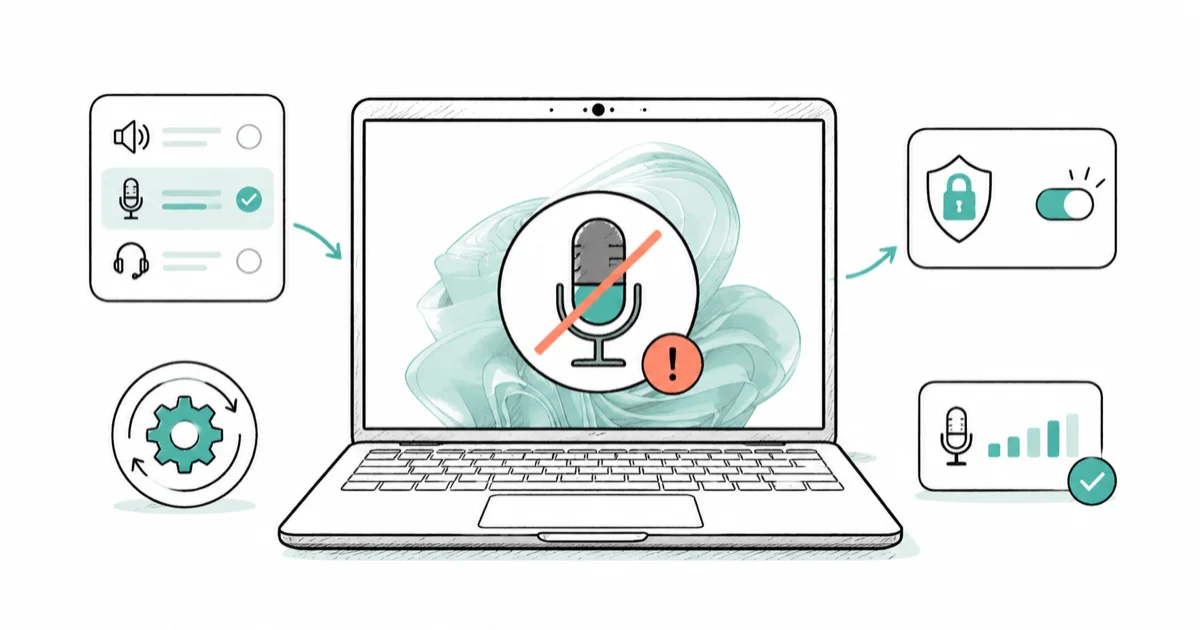
Quick AnswerTest your mic on another device first to rule out hardware. If it works elsewhere, the cause is almost always the wrong input device or a microphone privacy permission, so select the correct mic and turn on access in Settings.
A Windows 11 microphone not working is the kind of problem that always strikes at the worst time, usually right before a Teams or Zoom call. Nobody can hear you, the meeting is starting, and Windows insists everything is fine. Most of the time the fix is a settings check once you know where to look.
The steps below are ordered from the fastest checks to the deeper driver fixes because the same handful of settings cause most Windows 11 microphone failures.
- Test the mic on a second device first, since that single step tells you whether the fault is hardware or software
- The wrong input device selected and microphone privacy permissions being off are the two most common software causes
- A disabled microphone in the Recording devices list is hidden by default and trips up a surprising number of people
- Exclusive control lets one app monopolize the mic, which is why a microphone works in one program but not another
- If the mic is dead on every device after a driver reinstall, the hardware itself has failed
#Why Is Your Microphone Not Working on Windows 11?
A mic failure on Windows 11 nearly always comes down to a software setting, not a broken microphone.
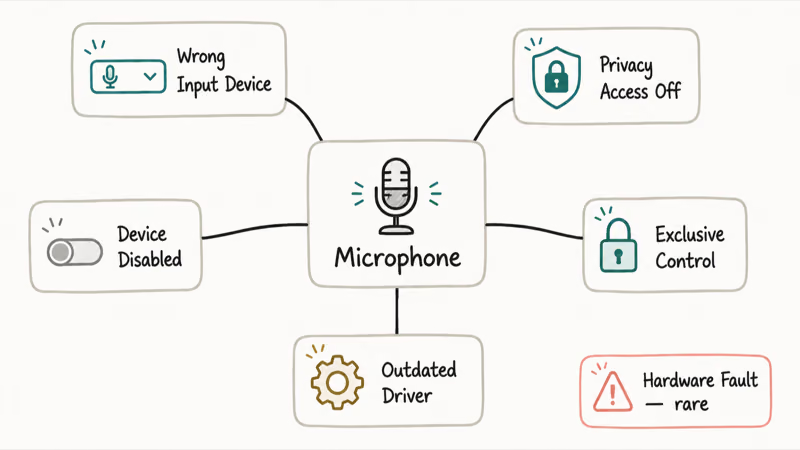
The usual suspects are the wrong input device being selected, microphone access turned off in privacy settings, the device sitting disabled in the Recording list, an app holding exclusive control, or an outdated audio driver. Hardware faults do happen, but they’re rarer than people assume. The single fastest way to tell the two apart is the second-device test in the next section.
Knowing which category you’re in saves time. If the mic works on another device, you have a software problem and can skip straight to input selection and permissions. If it’s dead everywhere, you’re looking at hardware or a driver-level issue.
#Check the Connection, Mute Switch, and a Second Device
Before touching any settings, rule out the obvious physical causes.
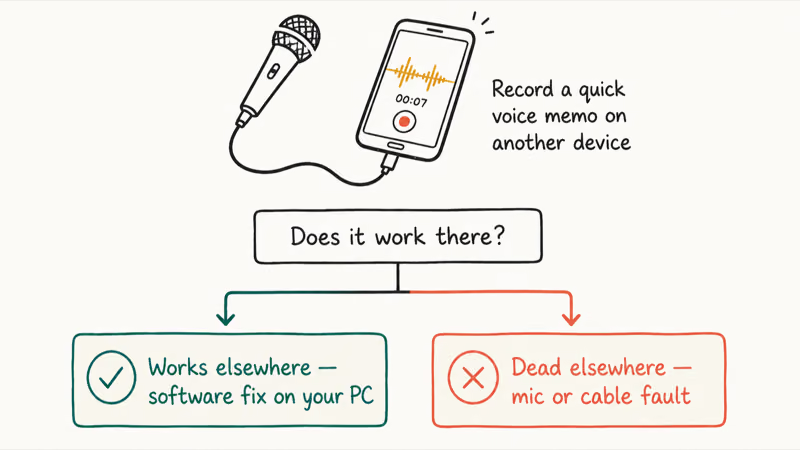
Many headsets and USB mics have a physical mute switch on the cable, the earcup, or the mic body, and it’s easy to bump without noticing. Check it first. Then confirm the mic is fully seated in its port, and if it’s USB, try a different port directly on the PC rather than a hub. An unpowered hub can make a USB mic fail silently.
Now the decisive test: plug the mic into a phone or another computer and record a quick voice memo. If it works on the other device, the fault is software on your Windows 11 PC. If it’s dead there too, the problem is the mic or its cable. For wireless earbuds with a flaky mic, the guide to an AirPods mic not working covers the Bluetooth causes.
#Select the Correct Input and Fix Privacy Permissions
This section fixes the two most common software causes, so start here once hardware is ruled out.
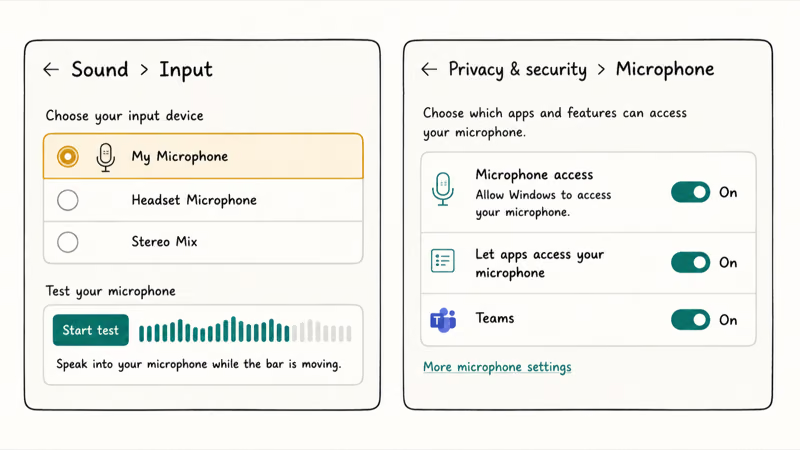
Go to Settings > System > Sound > Input and confirm the correct microphone is selected. Windows often defaults to the wrong one, especially after you plug in a headset. Pick your mic, then use the “Start test” button and speak; the volume bar should move. Microsoft recommends selecting the right input device and watching the test bar as the first software step, as covered in its fix-microphone-problems page.
Next, check permissions. Go to Settings > Privacy & security > Microphone and turn on both Microphone access and Let apps access your microphone, then scroll down and confirm the specific app, like Teams or Zoom, has its own toggle enabled. App-level toggles are easy to miss after updates, so check the exact app before reinstalling drivers. The Windows 11 no sound guide covers the playback side.
#Enable a Disabled Microphone and Raise the Volume
If the correct device isn’t even showing up, it may be disabled and hidden.
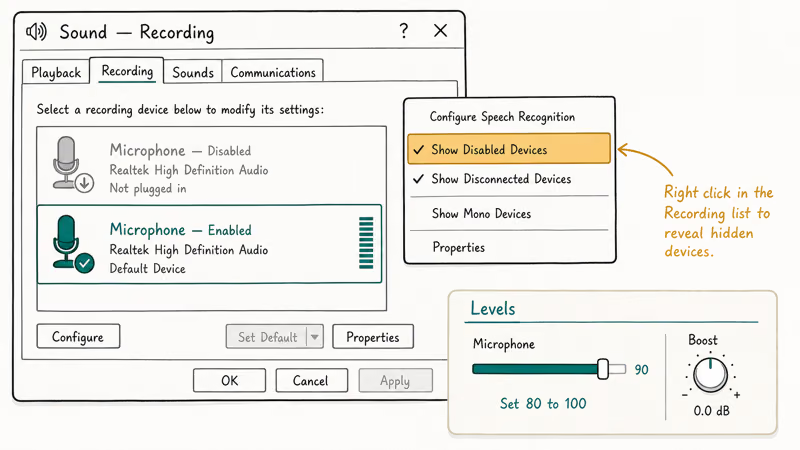
Open the old Sound control panel by running mmsys.cpl, click the Recording tab, then right-click an empty area and tick Show Disabled Devices. If your mic appears greyed out, right-click it and choose Enable. A disabled device is invisible in the modern Settings app, which is why this trips up so many people.
While you’re there, double-click the mic, open the Levels tab, and raise the input volume. A mic that’s technically working but set to a low level sounds like it isn’t working at all on a call. Set it around 80 to 100 and add a small microphone boost only if you’re still too quiet, since too much boost adds hiss.
#Why Does One App Grab the Mic From Everything Else?
If your microphone works in one program but goes silent in another, the cause is almost always exclusive control.
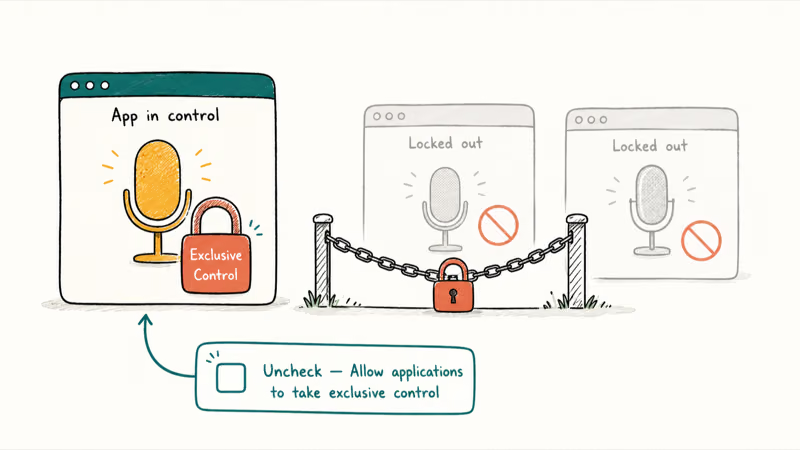
Exclusive control is a Windows setting that lets a single application take full ownership of the microphone, locking out everything else. To turn it off, open mmsys.cpl, go to Recording, double-click your mic, open the Advanced tab, and uncheck “Allow applications to take exclusive control of this device.” Restart the apps that were failing. According to Microsoft’s guide for a Teams mic that isn’t working, check the in-app picker too, under Settings > Devices > Audio settings.
This is the fix the device-specific mic guides rarely mention because it’s an OS-level setting, not a hardware one. Guiding Tech states that disabling exclusive control resolves cases where the mic works in some apps but not others.
#Update Drivers and Run the Recording Troubleshooter
If permissions and device selection are correct, the audio driver is the next suspect.
Open Device Manager, expand Audio inputs and outputs, right-click your microphone, and choose Update driver. If that finds nothing, download the audio driver for your exact model from your PC or mic maker’s site. For a corrupt driver, uninstall the device, then restart so Windows reinstalls a clean copy. The Windows 11 driver fixes guide covers deeper recovery if a driver caused crashes.
A Bluetooth headset that keeps dropping can also kill the mic mid-call. The Windows 11 Wi-Fi that keeps disconnecting guide covers the wireless-stack causes that hit Bluetooth too.
Finally, run the built-in helper. Go to Settings > System > Sound > Input, scroll down, and run the input troubleshooter, which resets common audio glitches automatically.
One caveat: a plain AUX-to-USB adapter usually won’t carry a working mic signal, since it lacks a sound card. If background noise is your real complaint, the guide to reducing background noise on a mic helps there.
#Bottom Line
Test the mic on a second device first, because that one step tells you whether you have a hardware fault or a software problem. If it works elsewhere, the cause is almost always the wrong input or a privacy permission. The two most-missed culprits are a disabled device and the exclusive-control setting that lets one app monopolize the mic, so check both before reinstalling drivers. If the mic is dead everywhere after a driver reinstall, it’s hardware.
#Frequently Asked Questions
Why does Windows 11 say no microphone is detected?
Usually the mic is disabled or its driver failed to load. Open mmsys.cpl, go to Recording, right-click, and enable Show Disabled Devices to see if it’s hidden. If it’s still missing, reinstall the audio driver from Device Manager. A loose or faulty USB connection can also stop detection, so try another port.
Why does my mic work in one app but not another?
That’s the classic sign of exclusive control. Open mmsys.cpl, double-click your mic, go to the Advanced tab, and uncheck “Allow applications to take exclusive control.”
What is exclusive control and why does it mute my mic?
Exclusive control lets a single program take complete control of an audio device. It exists for low-latency apps, but it can lock your mic away from everything else. Turn it off in the Recording device’s Advanced tab.
My headset plays sound but the mic doesn’t work, why?
The headset likely connected as an output-only device, or you’re using a plain AUX-to-USB adapter that lacks a sound card. Confirm the headset’s mic is selected as the input in Settings > System > Sound.
Do I need to update my audio driver?
Often yes. An outdated or corrupt audio driver frequently causes a mic that stops being detected after a Windows update. Update it through Device Manager, or grab the exact driver from your PC maker’s site. If that fails, uninstall the device and restart so Windows reinstalls a clean copy automatically, which clears most corruption-related detection problems in one step.
Why is my microphone so quiet on Windows 11?
The input level is probably set too low. Open mmsys.cpl, double-click your mic, and on the Levels tab raise the volume toward 80 to 100. Add a small microphone boost only if you’re still quiet, because heavy boost introduces background hiss. Sitting closer to the mic also helps more than cranking the gain.

Best Laptop for Running LLMs in 2026: Memory Comes First
The best laptop for running LLMs is a memory purchase first. Compare MacBook unified memory against NVIDIA laptop VRAM, and see what each tier really runs.

How to Run a Local LLM on Windows: A 2026 Setup Guide
Run a local LLM on Windows with LM Studio or Ollama. Pick a model that fits your GPU memory, keep every prompt offline, and skip the monthly bill.

Bluetooth Not Working on Snapdragon X? Fixes for 2026
Bluetooth not working on your Snapdragon X Copilot+ PC? Generic audio, mice, and keyboards work, but vendor apps often lack an ARM build. Fixes inside.

Docker Desktop and WSL2 Not Working on Snapdragon X? Fix It
WSL2 runs fine on Snapdragon X, but Docker Desktop ARM is Early Access and throws WSL errors. Use WSL2 plus native ARM64 Ubuntu and Docker Engine.