Windows 11 No Sound? Fix Missing Audio Fast in 2026
Windows 11 no sound? Select the correct output device, run the audio troubleshooter, restart the audio service, and roll back the driver after updates.
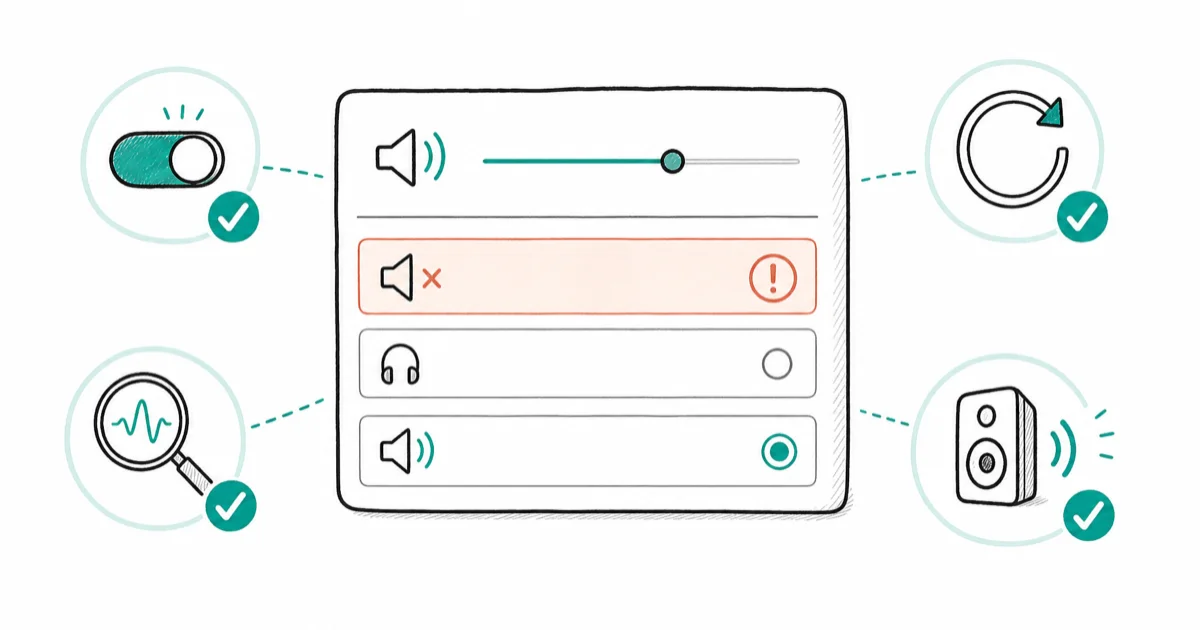
Quick AnswerWindows 11 usually has no sound because the wrong output device is selected or an audio driver broke after an update. Pick the correct output device and run the built-in audio troubleshooter first.
Windows 11 no sound is almost always a software problem, not a broken speaker. The wrong output device is selected, or a driver broke after a Windows update. Selecting the correct output device is the fastest first check.
- The most common cause is the wrong output device selected after plugging in headphones or a monitor.
- Audio that breaks right after a Windows update points to a bad driver. Roll it back.
- The built-in audio troubleshooter resolves device and format conflicts automatically.
- The Windows Audio service must be running and set to Automatic, or nothing plays.
- Suspect hardware only after the same headphones work on another device.
#Why Does Windows 11 Have No Sound?
Silent audio comes from a short list: the wrong output, a swapped driver, a stopped audio service, or a mismatched format. Real hardware failure is last on that list.
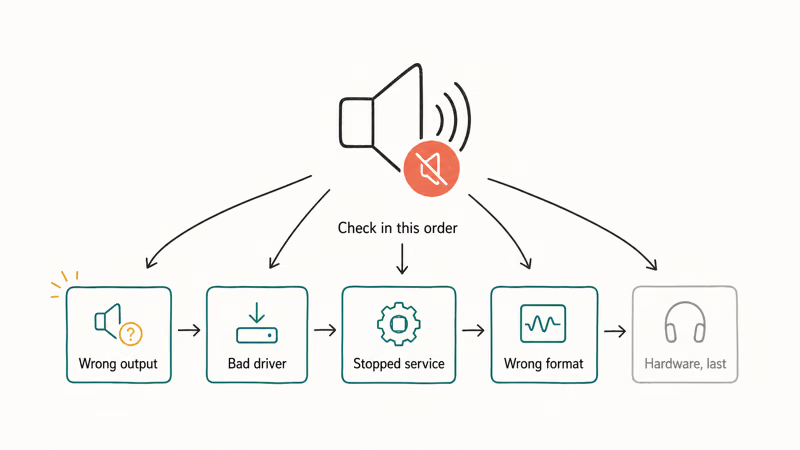
Knowing which group you’re in saves time. Sound gone the moment you plugged in a monitor points to an output-device issue, while sound gone after a reboot following Windows Update is almost certainly a driver. A red X on the volume icon means the device or service may be disabled.
According to Microsoft’s audio troubleshooting guide, the first checks should be the output device and volume mixer, then the troubleshooter, then drivers. That official order is used below because it catches the easy wins first.
#Is the Correct Output Device Selected?
This is the fix most people skip, yet it works most often. Connect an HDMI monitor, a dock, or Bluetooth headphones, and Windows can quietly switch the default output to that device instead of your speakers, and if the new target has no speakers of its own you end up with total silence even though everything is technically working as designed.
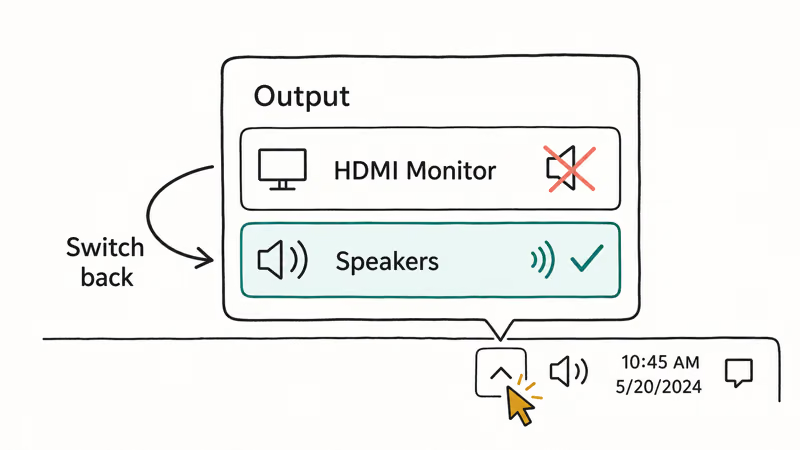
Click the speaker icon in the taskbar, then the small arrow next to the volume slider. Pick the output you actually want, such as your laptop speakers or headphones, and test sound right there. If audio is routed to an HDMI monitor with no speakers, switching back to “Speakers” can restore playback immediately.
While you’re here, open Settings, System, Sound, and confirm the right device shows under Output with volume above zero.
Sound landing on the wrong device with AirPods? The guide on AirPods audio routing explains how to force the output you want.
#Run the Audio Troubleshooter and Restart the Service
Windows 11 has a built-in audio troubleshooter that resolves format mismatches, disabled devices, and stuck services automatically. It’s faster than poking through menus by hand, and it knows about edge cases most people never check. It can detect a disabled output device, format mismatch, or stuck service without manual digging.
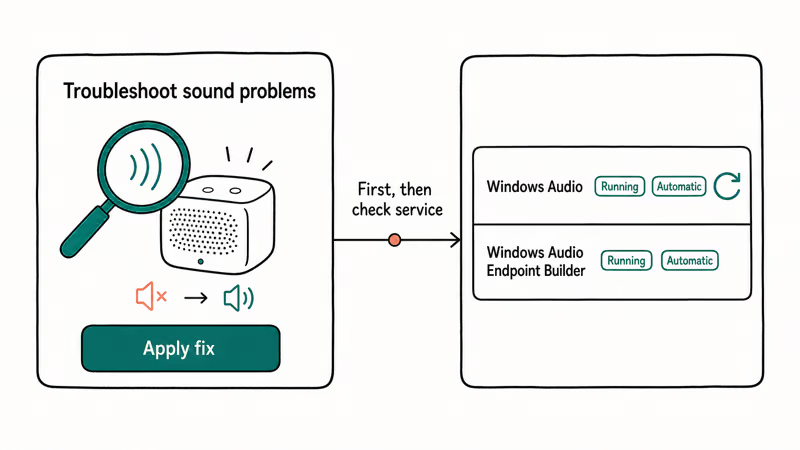
Open Settings, System, Sound, scroll down, and click “Troubleshoot common sound problems.” Let it run and apply any fix it suggests. If it reports no problem but you still have silence, move to the service check.
Press Windows key plus R, type services.msc, and press Enter. Find Windows Audio and Windows Audio Endpoint Builder, which both need to show Running and Automatic. Right-click Windows Audio and choose Restart. A stopped audio service is a classic cause of silence with no error.
Machine also unstable or crashing? The Windows 11 BSOD fix covers the deeper system repairs that can knock audio offline.
#Reinstall or Roll Back the Audio Driver
When sound breaks right after a Windows update, the driver is the prime suspect. Windows sometimes replaces a working audio driver with a generic one that doesn’t get along with your hardware.
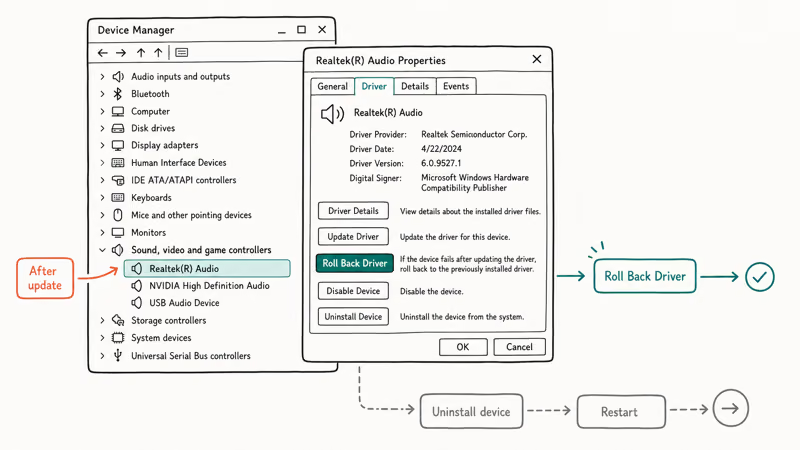
Right-click Start, open Device Manager, and expand “Sound, video and game controllers.” Right-click your audio device, choose Properties, then the Driver tab. If “Roll Back Driver” is available, click it to revert to the version that worked. Microsoft’s audio driver documentation confirms that rolling back is the recommended move when audio stops after a driver change.
Rollback greyed out? Choose Uninstall device, then restart so Windows reinstalls a clean driver. Download the latest audio driver from your PC maker, and avoid paid “driver updater” apps. After a big feature update, a fresh manufacturer driver is often the cleanest fix; the Windows 11 25H2 features overview explains what changed in that release.
#Confirm Whether It Is a Hardware Problem
Hardware failure is real but rare, so confirm it first. Plug the same headphones into a phone. If they work there, suspect software before blaming the PC’s audio hardware.
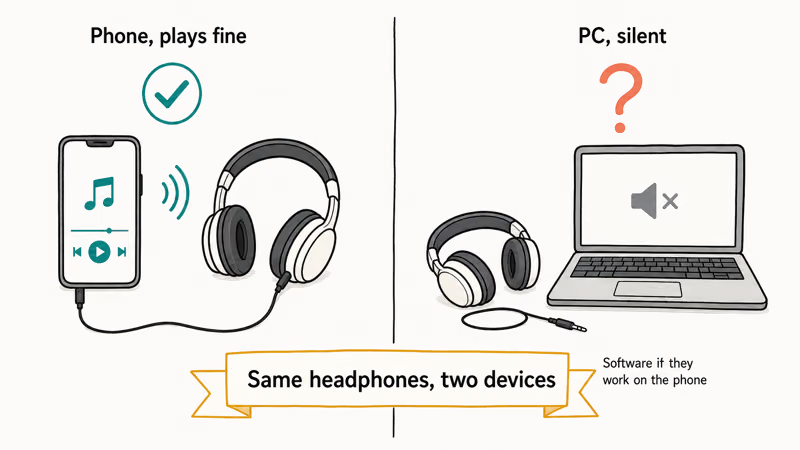
Try a second output too. If your built-in speakers are dead but a USB headset plays fine, the internal amplifier may have failed.
A device missing entirely from the sound settings list usually points to a driver or connection fault rather than a dead chip, so reinstall the driver before assuming the worst about the silent speaker hardware inside your laptop.
Before you conclude hardware, do a final sweep. Check the physical mute button or function-key combo, confirm the headphone jack is fully seated, and make sure no app muted itself in the Volume Mixer.
#Fix the Less Obvious Audio Culprits
A few hidden causes create silence even when the basics check out. Audio enhancements and the wrong default format are common culprits. Audio enhancements can corrupt the output, so open Sound settings, click your device, and turn them off to test.
For the format, set the device to a standard 16-bit, 48000 Hz value under device properties. Microsoft’s no-sound support article confirms that both settings are worth checking.
App-level mute is sneaky. The Volume Mixer lets individual apps mute themselves, so a browser or game can be silent while system sounds play fine. Open the mixer from the speaker icon and confirm nothing sits at zero.
Bluetooth audio has its own failure mode. If the Bluetooth toggle itself is gone, you can’t route sound to wireless headphones at all. The guide on the Bluetooth toggle missing in Windows 11 restores the control before you troubleshoot the sound, and the fix for Windows 11 update error 0x800f0922 clears the bad install that often drags audio down with it.
#Bottom Line
Start with the output device. It’s the fix people overlook the most. Confirm the correct output is selected and run the audio troubleshooter first, since those two steps resolve most silent-PC cases.
If sound broke right after a Windows update, roll back the audio driver and restart the Windows Audio service. Save the hardware diagnosis for last, after the same headphones prove they work elsewhere.
#Frequently Asked Questions
Why does my Windows 11 PC have no sound?
The usual causes are the wrong output device, a broken audio driver after an update, or a stopped Windows Audio service. A red X on the volume icon points to a disabled device or service. Work through output device, then troubleshooter, then driver in that order.
How do I select the correct output device?
Click the speaker icon, then the arrow next to the volume slider, and pick the output you want. You can also set the default under Settings, System, Sound.
Did a Windows update break my audio?
Very likely, if sound stopped right after a reboot following Windows Update. Updates sometimes replace a working driver with one your hardware dislikes, which is one of the most common post-update complaints. Rolling back the audio driver in Device Manager usually restores sound immediately, and a manufacturer driver afterward keeps it stable.
How do I roll back the audio driver?
Open Device Manager, expand Sound, video and game controllers, right-click your audio device, choose Properties, the Driver tab, then Roll Back Driver. If that option is greyed out, uninstall the device instead and restart so Windows reinstalls a clean driver on boot, then grab the latest version from your PC maker’s support page to keep it from happening again.
Why does the audio service keep stopping?
A repeatedly stopping Windows Audio service usually means a driver conflict or a corrupted system file. Set both Windows Audio and Windows Audio Endpoint Builder to Automatic, and run a clean driver reinstall if it keeps dying.
When is my sound hardware faulty?
Suspect hardware only after the same headphones work on another device and a second output also fails on your PC. If the audio device is missing entirely from Device Manager and a clean driver install doesn’t bring it back, the sound chip or jack may have failed.

Best Laptop for Running LLMs in 2026: Memory Comes First
The best laptop for running LLMs is a memory purchase first. Compare MacBook unified memory against NVIDIA laptop VRAM, and see what each tier really runs.

How to Run a Local LLM on Windows: A 2026 Setup Guide
Run a local LLM on Windows with LM Studio or Ollama. Pick a model that fits your GPU memory, keep every prompt offline, and skip the monthly bill.

Bluetooth Not Working on Snapdragon X? Fixes for 2026
Bluetooth not working on your Snapdragon X Copilot+ PC? Generic audio, mice, and keyboards work, but vendor apps often lack an ARM build. Fixes inside.

Docker Desktop and WSL2 Not Working on Snapdragon X? Fix It
WSL2 runs fine on Snapdragon X, but Docker Desktop ARM is Early Access and throws WSL errors. Use WSL2 plus native ARM64 Ubuntu and Docker Engine.