Xiaomi Data Recovery: How to Restore Lost Files (2026)
Recover deleted photos, messages, and contacts from your Xiaomi or Redmi phone using Mi Cloud, Google backups, and trusted Android recovery tools.
Quick AnswerTo recover data on a Xiaomi phone, restore from Mi Cloud or Google backup first, then run a USB-tethered Android recovery tool such as Tenorshare UltData or iToolab RecoverGo. Stop using the device the moment you notice files are missing so the system does not overwrite the storage blocks holding the deleted content.
Xiaomi data recovery starts the moment you stop writing to the phone. Whether you wiped the gallery by mistake, lost messages after a MIUI update, or accidentally tapped “Erase all data,” your files often still sit on the NAND chip until something else overwrites them. The faster you act and the right tool you pick decide whether you walk away with everything back or with empty folders.
- Mi Cloud’s free 5 GB plan stores Xiaomi backups by default once you sign into a Mi Account, and a full gallery restore takes roughly 15 to 30 minutes on a 50 Mbps Wi-Fi link.
- Google Photos auto-uploads every camera shot when Backup is on, and deleted items stay in the Trash for 60 days before permanent removal.
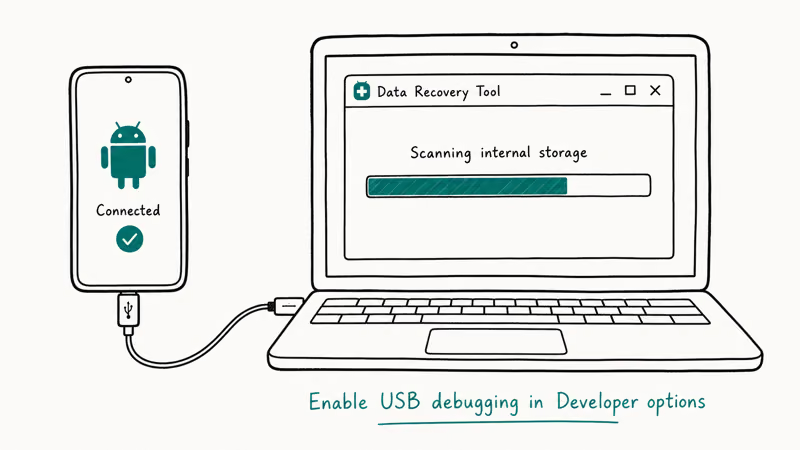
- USB-based Android recovery suites need Developer options unlocked and USB debugging enabled through MIUI’s hidden developer menu before they can scan the device.
- Installing new apps or taking new photos after data loss is the fastest way to overwrite the deleted files you still want back.
- USB-tethered recovery tools can scan for deleted photos, messages, and contacts after cloud backups come up empty.
#How Does Xiaomi Data Recovery Work?
When you delete a photo, video, or contact on a Xiaomi phone, MIUI does not immediately wipe the underlying bytes. It marks the storage blocks as free so the file system can reuse them later. Until that reuse happens, recovery software can read the blocks back and stitch the original file together.
Two factors decide the success rate.
The first is time: every new photo, app install, and OS background task can overwrite the freed blocks. The second is encryption. Phones running Android 10 and newer use file-based encryption by default, so any tool that reads the raw partition without the right key returns garbage. That’s why modern Xiaomi recovery tools work over USB debugging rather than a raw chip-off dump.
The practical takeaway is simple. Power the phone down, or at least put it in airplane mode and stop using it. Then pick the recovery path that matches what’s still on the device: cloud backup, USB-tethered scan, or the recently deleted folder built into MIUI’s Gallery app.
#Restore Lost Files From Mi Cloud Backups First
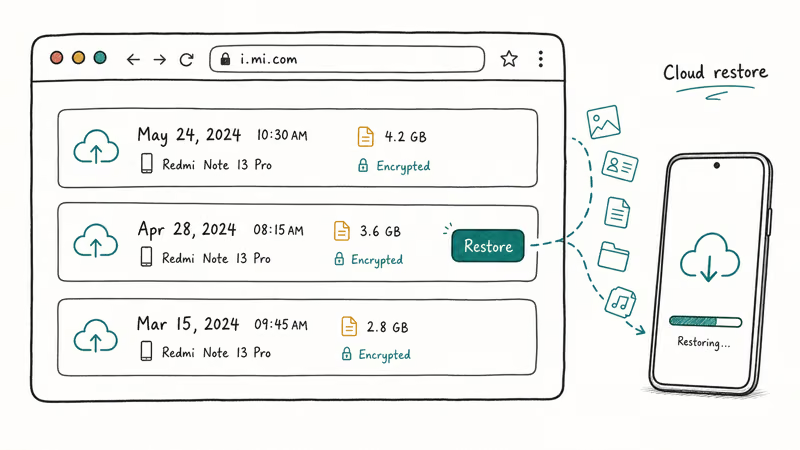
Mi Cloud is the fastest path back to a working phone because it skips the scan step entirely. If you signed into your Mi Account before the data loss, MIUI most likely uploaded a recent device backup along with photos, contacts, notes, and SMS history.
To trigger a restore on the same or a replacement Xiaomi device:
- Open Settings, tap your Mi Account at the top, then choose Xiaomi Cloud.
- Tap Backup & Restore and pick the most recent snapshot. Each entry shows the device model, MIUI version, and backup size.
- Choose which categories you want back (Contacts, Messages, Call History, Notes, Gallery, or System Settings) and tap Restore.
- Keep the phone on Wi-Fi until the progress bar finishes. Large gallery restores can take a while on a typical home connection.
For a deeper walkthrough that covers PC backups and Mi PC Suite as well, see our guide on how to back up and restore Redmi and Xiaomi phones. If your account is locked out of Mi Cloud, the MIUI recovery mode menu can still pull files off the device before a full reset.
#Pull Photos and Files From Google Backups
Google Photos and Google Drive ship preinstalled on every modern Xiaomi phone.
Google’s Photos Help Center confirms that deleted items remain in the Photos Trash for 60 days before permanent deletion. To pull them back, open the Photos app, tap Library → Trash, select the photos, and choose Restore. They return to the same album and date.
Google Drive’s official guide on deleted files states that files moved to the Trash stay recoverable for 30 days. The recovery flow lives at drive.google.com on desktop: open Trash, right-click each file, and pick Restore. Files reappear in their original folder.
If you lost photos that never made it to the cloud, jump to our walkthrough on how to recover deleted photos from Android internal storage. For lost video clips, our guide on recovering deleted videos from phone memory covers MP4 and HEVC files. Both routes assume the Xiaomi handset can still boot normally and accept USB debugging from a paired computer.
#When Should You Use Third-Party Recovery Software?
Cloud backups solve the easy cases. Third-party recovery suites handle everything else.
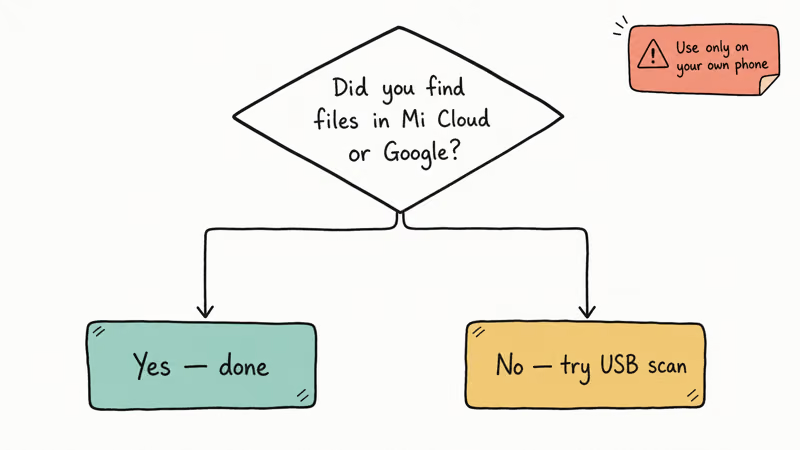
Only run these scans on a Xiaomi phone you legally own; using them on someone else’s device violates privacy laws.
The two tools covered here for Xiaomi devices in 2026 are Tenorshare UltData for Android and iToolab RecoverGo (Android). Both run on Windows and macOS, connect to the phone over USB, and can recover photos, videos, contacts, SMS, call history, and WhatsApp chats without root access on supported MIUI versions.
UltData is the better first stop when you want a deeper scan and a broad preview before paying. RecoverGo is a reasonable second option if you want a quicker scan path and the first tool doesn’t show the missing items.
The table below summarizes how the two compare on Xiaomi hardware.
Table 1: Tenorshare UltData vs. iToolab RecoverGo on Xiaomi devices
| Feature | Tenorshare UltData (Android) | iToolab RecoverGo (Android) |
|---|---|---|
| Scan style | Quick and deep scan modes | Quick and deep scan modes |
| Main recovery categories | Photos, videos, contacts, SMS, WhatsApp | Photos, videos, contacts, SMS, app data |
| Xiaomi connection method | USB debugging | USB debugging |
| Free preview before purchase | Yes | Yes |
| Root required for SMS / chats | No | No |
If you want a side-by-side with the older Wondershare option, our Dr.Fone Android recovery review covers that suite. For readers who already own UltData and want to know if it’s worth keeping, the best alternative to Tenorshare Android recovery post lists the trade-offs.
You can grab the current build of either tool from the publisher’s site: Tenorshare UltData for Android or iToolab RecoverGo for Android.
Some links on this page are affiliate links, which means fone.tips may earn a commission at no extra cost to you.
#How to Run a USB Recovery Scan on a Xiaomi Phone
Both tools follow the same pattern. The setup phase is what trips most readers up because USB debugging is buried inside MIUI’s developer menu.
- Unlock Developer options. Open Settings → About phone, then tap MIUI version seven times. MIUI shows a “You are now a developer!” toast on the last tap.
- Enable USB debugging. Go back to Settings → Additional settings → Developer options. Toggle on USB debugging and Install via USB.
- Install the desktop app on Windows or macOS. The first launch downloads a small driver package on Windows.
- Connect the phone with a data-capable USB-C cable. Cheap charge-only cables silently fail at this step. When MIUI prompts “Allow USB debugging?”, tap Always allow from this computer and confirm.
- Choose Recover Lost Data, pick the file categories you want (Photos, Videos, Contacts, SMS, WhatsApp), and start the scan.
- Preview and recover. Both apps let you check each recoverable item before exporting. Save the recovered files to your computer first, then move them back to the phone after the scan finishes.
Android’s developer documentation on on-device debug options recommends only enabling USB debugging on computers you own and trusting them sparingly, because any trusted machine can issue ADB commands without further confirmation.
If the screen is cracked and you can’t reach Developer options, our guide on how to enable USB debugging on a broken screen covers the OTG mouse trick that still works on MIUI 13. The same workaround restores Find Device toggles on phones with a black display, so you can still locate and lock the device while you pull data off it.
#Tips to Improve Xiaomi Recovery Success
A few habits raise the recovery hit rate sharply:
- Act within the first hour. Recovery rates drop quickly once new photos, OS logs, or background app data write to the same storage area.
- Don’t restart the phone. A reboot triggers MIUI’s TRIM and garbage collection routines, which can mark deleted blocks as truly free.
- Use a real data cable. USB-C cables that ship with cheap chargers are charge-only. Use the cable that came in the box or a known-good brand.
- Charge the phone above 30%. Both UltData and RecoverGo abort scans if the battery dies mid-run, and the partial result can corrupt the recovery cache.
- Save recovered files to your PC, not back to the phone. Writing them straight back can overwrite other deleted files still waiting to be found.
For contacts specifically, our walkthrough on how to recover contacts after a factory reset covers the Google Contacts undo path that works retroactively for 30 days.
#Bottom Line
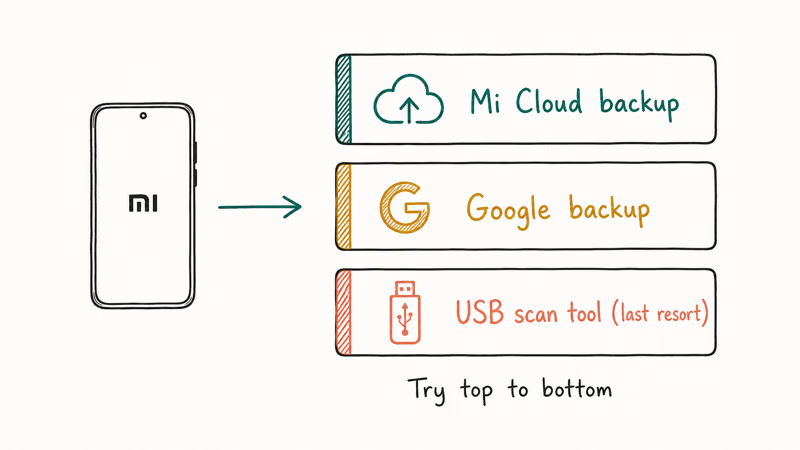
For a Xiaomi or Redmi phone in 2026, the recovery playbook is short. Check Mi Cloud first because it’s free and instant. If the missing items were camera photos, look in Google Photos Trash next.
Only when both come up empty should you reach for a USB-tethered tool. In that case, start with the tool whose preview shows your missing file category before purchase. If the first preview comes up empty, try the other tool before paying for a license.
In every case, stop using the phone the moment you notice the loss. That single decision matters more than the tool.
#Frequently Asked Questions
Can I recover deleted text messages from a Xiaomi phone without a backup?
Yes, but only with a USB-tethered Android recovery suite that supports SMS recovery on MIUI. UltData and RecoverGo can scan the system database for deleted messages as long as the phone has not been wiped or restarted multiple times since deletion.
Does factory resetting a Xiaomi phone erase data beyond recovery?
A standard factory reset wipes the user partition and clears the encryption key. MIUI 12 and newer use file-based encryption, so losing the key makes the underlying bytes unreadable. Recovery tools usually can’t reconstruct photos after that key is gone. The only reliable move is to back up to Mi Cloud or a PC before any reset; if a reset already happened, restore from whatever backup existed before it.
Is Tenorshare UltData safe to install on a Windows PC?
Yes, the official build from tenorshare.com is code-signed and clean on VirusTotal. Avoid third-party download mirrors, which sometimes bundle adware.
How long does Xiaomi keep deleted photos in the recently deleted album?
MIUI’s Gallery keeps deleted photos in the Trash folder for 30 days before permanent deletion. You’ll find it inside Gallery → Albums → Trash. Restoring from there is instant and does not require any third-party software.
Can I recover data from a Xiaomi phone with a broken screen?
Yes, as long as USB debugging was already enabled before the screen broke. If it was, plug into a PC and run UltData or RecoverGo as normal. If USB debugging was off, an OTG mouse can drive MIUI through the cracked display. Our recover data from broken Android devices guide walks through that workaround.
Will USB debugging void my Xiaomi warranty?
No, USB debugging is a stock MIUI feature and turning it on does not touch the bootloader. Warranty issues only come up with unlocking the bootloader or flashing custom ROMs.
Why does my Xiaomi phone show no recoverable data after a deep scan?
A few common reasons. The phone may have been used heavily since deletion, so freed storage blocks got overwritten, or the missing files may live on an SD card that most Xiaomi recovery tools handle separately. A factory reset may have destroyed the encryption key. Try a different file category before giving up; sometimes contacts return when photos don’t.
Should I use free Xiaomi data recovery apps from the Play Store?
Free Play Store apps that scan internal storage without USB debugging rarely work on modern Android because the OS sandboxes them away from raw storage access. They mostly recover items still sitting in app trash folders, which you can reach manually for free. Stick with USB-tethered desktop tools for any real recovery job.

Pixel 11 vs Pixel 10: What Changed and Who Should Upgrade
Pixel 11 vs Pixel 10: same screen and camera resolution, new Tensor G6, 25W wireless, and Gemini Intelligence. Here is who should actually upgrade.

Verizon Not Receiving Texts? How to Fix It in 9 Steps
Verizon not receiving texts? Fix it in 9 steps: check Message Blocking in My Verizon, reset network settings, deregister iMessage, and call support.

Pixel Battery Drain: What Google's July Fix Really Covers
Google marked the Pixel idle battery drain bug fixed in July, but only some phones got the patch. Here is who is covered, who is not, and what to try.

iPhone Stuck on EDGE? How to Get 5G or LTE Back (2026)
iPhone stuck on EDGE with crawling data? Here's why the E icon appears, which settings force 5G or LTE back, and when the problem is your carrier.