MIUI Recovery 5.0: Complete Guide for Xiaomi Owners
MIUI Recovery 5.0 wipes data, fixes stuck Xiaomi phones, and reflashes MIUI safely. Learn how to enter it, use every menu option, and exit cleanly.
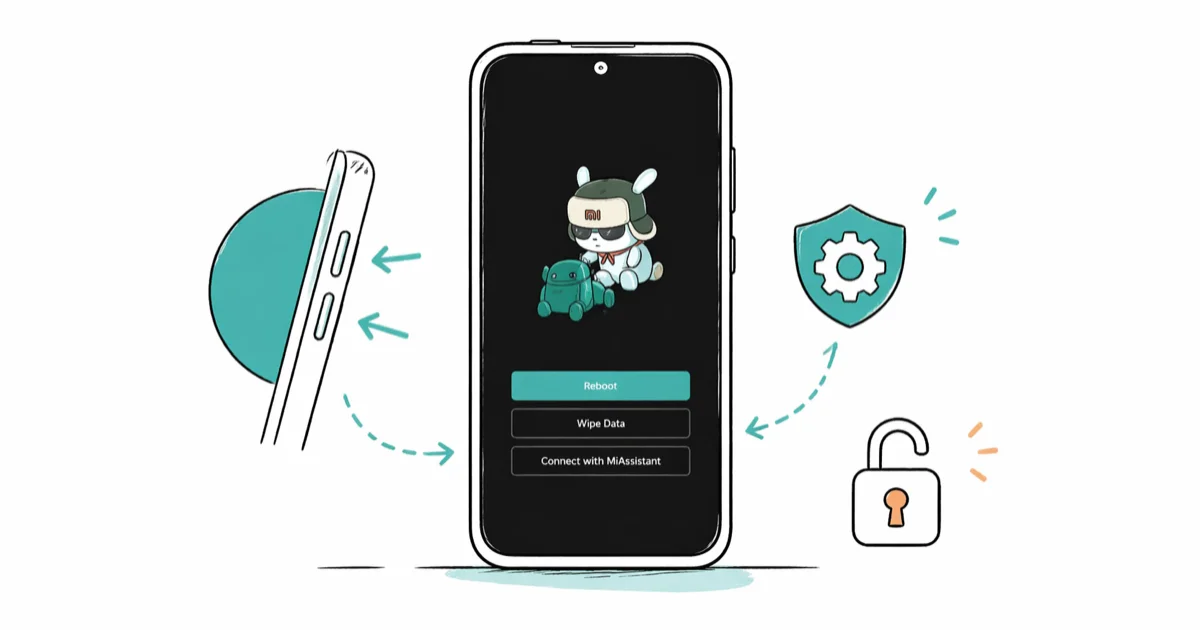
Quick AnswerPress and hold Power plus Volume Up on your powered-off Xiaomi until the Mi logo appears. That boots into MIUI Recovery 5.0. Use Volume keys to scroll and Power to confirm.
MIUI Recovery 5.0 ships with every modern Xiaomi and Redmi phone.
It’s the first place to go when your own device freezes, gets stuck on the Mi logo, or refuses to boot into Android. The standard button path is Power plus Volume Up from a powered-off phone, and Wipe Cache is designed to clear temporary files without touching user data.
- MIUI Recovery 5.0 is Xiaomi’s official stock recovery, built into every phone running MIUI 12 or newer
- Power off the phone, then hold Power plus Volume Up until the Mi logo appears
- The menu has four official options: Connect with MiAssistant, Wipe Data, Wipe Cache, and Reboot to System
- A long Power button hold is the first stuck-recovery fix before any wipe is needed
- Wipe Data deletes everything on the phone, so back up to Mi Cloud or local storage first
This guide covers stock MIUI Recovery on phones you own. It doesn’t cover custom recoveries, bootloader unlocking workarounds, screen-lock bypass, or any third-party unlock service. If your Xiaomi is locked to a previous owner’s account or carrier, contact the seller or Xiaomi support instead of attempting any reset.
#What Is MIUI Recovery and When Should You Use It?
MIUI Recovery is Xiaomi’s dedicated system recovery environment. It runs independently of Android, which means it loads even when MIUI itself is too damaged to start.
The “5.0” label means you’re on a modern Xiaomi running MIUI 12 or later. The menu uses a graphical layout with four numbered options. Older Redmi devices on MIUI 9 or 10 show a simpler text-only screen, but the same options apply.
You’ll reach for it in three common situations. The phone is stuck in a boot loop and never reaches the lock screen. The phone runs but feels sluggish after a recent system update, and a cache wipe is the standard first repair. Or you’re about to resell or hand down your own Xiaomi and want to factory-reset it without going through Settings.
According to Google’s Android factory reset guide, a full reset removes downloaded apps, accounts, and personal files from the internal storage. MIUI Recovery’s Wipe Data option follows the same model. Anything that isn’t backed up will be gone.
The recovery menu is intentionally limited.
With only four options, the chance of accidentally damaging the phone is low compared with experimental tools. That’s why Xiaomi keeps it as the default repair surface for end users.
#How Do You Enter MIUI Recovery on a Xiaomi Phone?
The button combination is the same on every Xiaomi and Redmi phone running MIUI 12 or newer. It works whether the device boots normally or hangs on the Mi logo.
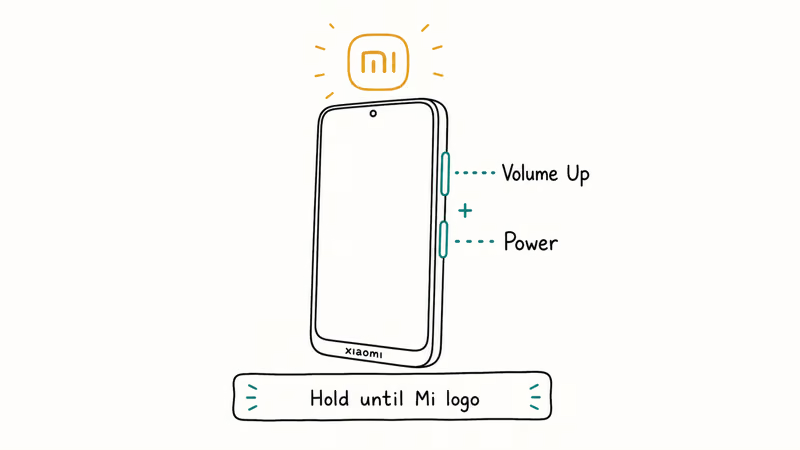
Start with a clean shutdown.
Hold the Power button until the shutdown menu shows, then tap to confirm. Once the screen is fully black and the device has stopped vibrating, press and hold Power plus Volume Up at the same time. Keep both buttons held until the Mi logo appears, then release. The MIUI Recovery 5.0 menu loads within a few seconds, and you navigate it with Volume Down to scroll and Power to confirm a selection.
If nothing happens, release both buttons, wait briefly, and try again. The timing can be finicky if the phone wasn’t fully powered off.
#What If the Menu Won’t Load at All?
A black screen with no Mi logo usually means the phone isn’t actually powered off, or the battery is below the cold-boot threshold. Plug the phone into a charger for at least 15 minutes, then retry the combo. If the phone vibrates but the screen stays dark, the display itself may be damaged and recovery navigation won’t be usable without a working screen.
For wider boot-loop causes outside of MIUI itself, Google’s Android phone won’t turn on guide covers charge-state and hardware checks that apply to any Android phone, not just Xiaomi.
#How Do You Exit MIUI Recovery Without Making Changes?
From the main menu, scroll to Reboot to System with Volume Down. Press the Power button to select. Confirm on the next screen with Power again.
The phone shuts down briefly, then boots back into normal MIUI. Any changes you already made in recovery, including a cache wipe, take effect during this restart. If you haven’t selected anything, Reboot to System is harmless.
#Understanding the MIUI Recovery Menu
The menu has exactly four options. Each one does a single, well-defined thing.
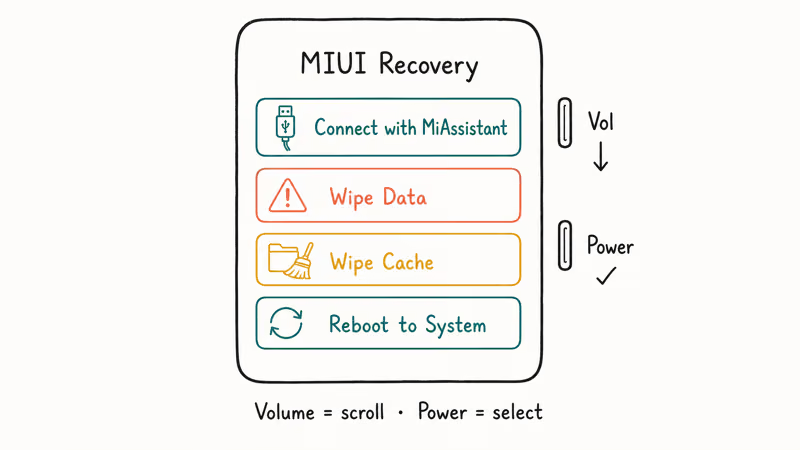
| Option | What It Does |
|---|---|
| Connect with MiAssistant | Connects the phone to the official Mi PC Suite for OTA reflash |
| Wipe Data | Full factory reset of the device, deletes all user data and apps |
| Wipe Cache | Clears the system cache partition without touching personal files |
| Reboot to System | Exits recovery and boots back into normal MIUI |
Wipe Cache is safe. It removes temporary system files that pile up after big updates, but it leaves your photos, contacts, and apps in place.
Wipe Data is permanent. The phone shows a confirmation screen first, but once you confirm, every file on the device is erased. There’s no recover-from-trash equivalent.
Xiaomi’s Mi PC Suite support page states that the desktop client lets you flash the latest official MIUI firmware to a connected Xiaomi or Redmi phone over USB. That’s the path the Connect with MiAssistant option uses, and it’s the official way to reinstall MIUI when the system partition is corrupted but you don’t want to wipe personal data.
Always back up first.
Xiaomi recommends Mi Cloud or local backup before any reset. The Xiaomi phone backup and restore guide walks through both options. The Android app backup and restore guide is a useful second copy outside Xiaomi’s ecosystem.
#Fixing a Stuck or Unresponsive MIUI Recovery
A stuck recovery screen is one of the most common Xiaomi issues. The phone locks in the menu, ignores button presses, or reboots straight back into recovery instead of MIUI. The fixes below are ordered from least to most disruptive. Try them in order, and stop the moment the phone boots normally.
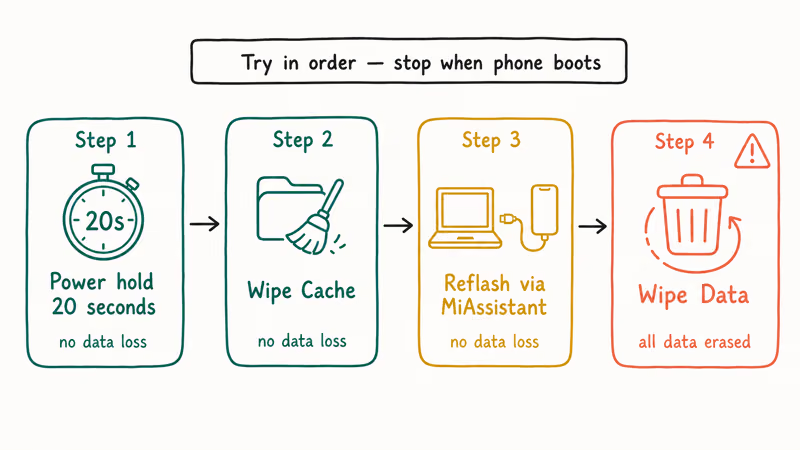
#Fix 1: Force Restart With the Power Button
Hold the Power button for a full 20 seconds. The phone cuts power and reboots from scratch. No computer or cable required.
A force restart can clear recovery loops caused by an interrupted cache wipe. Start here before anything destructive, because many stuck-recovery cases on Xiaomi and Redmi phones clear with a force restart alone.
#Fix 2: Wipe Cache From the Menu
If the recovery menu still responds, scroll to Wipe Cache and press Power to confirm. The wipe usually finishes in under a minute. When it completes, scroll to Reboot to System and confirm with Power.
A cache wipe deletes corrupted temporary files that can stall the boot sequence. Personal data is untouched, and the repair doesn’t require app reinstalls or sign-ins afterwards.
#Fix 3: Reflash MIUI With Mi PC Suite
If the phone still can’t reach Android after a cache wipe, the system partition itself may be damaged. From the recovery menu, select Connect with MiAssistant and plug the phone into a Windows computer over USB.
Open Mi PC Suite, follow the prompts, and the tool downloads the latest official MIUI build for your model and pushes it to the phone. A reflash through MiAssistant reinstalls the MIUI system image without erasing user data, as long as you don’t select a clean flash on the desktop side. It’s the official Xiaomi-supported repair path, so it belongs before any data wipe.
#Fix 4: Wipe Data as a Last Resort
When the cache wipe and a reflash both fail, a full factory reset is the final option. Before you commit, the Xiaomi data recovery guide covers ways to salvage photos and contacts that may still be reachable from a paired computer or a recent Mi Cloud snapshot. The Android data recovery after factory reset guide is also worth a read for the same reason.
In recovery, select Wipe Data, then confirm Wipe All Data on the next screen and confirm again. The wipe may take a short while, so keep the phone powered and don’t interrupt it.
When it finishes, choose Reboot to System. The first boot lands on the MIUI setup screen, just like a brand-new phone.
#When to Use Each Recovery Option
Not every issue calls for a factory reset. Pick the smallest fix that matches the symptom.
| Situation | Best Option |
|---|---|
| Slow performance after a system update | Wipe Cache |
| Phone stuck in a recovery loop | Force restart, then Wipe Cache |
| Boot loop on the Mi logo | Wipe Cache, then MiAssistant |
| Corrupted system partition | Reflash via MiAssistant |
| Preparing your own phone for resale | Wipe Data |
| Forgotten lock-screen PIN on your own device | Contact Xiaomi support first |
If the device isn’t yours, or if it’s locked to a previous owner’s Mi Account, don’t attempt Wipe Data. The Mi Account lock will reactivate on first boot, and the phone will be unusable. Xiaomi or your carrier is the only legitimate path to clearing it.
More boot-loop options outside Xiaomi live in the Android stuck on boot screen guide.
The Android factory reset code reference lists keypad combos for other manufacturers if you also work with non-Xiaomi phones.
#MIUI Recovery vs the Settings App Factory Reset
Both paths end with the phone wiped, but they’re not interchangeable. The Settings app reset only works when MIUI itself can launch. If your phone is stuck on the Mi logo, the Settings app is unreachable, and MIUI Recovery is the only option.
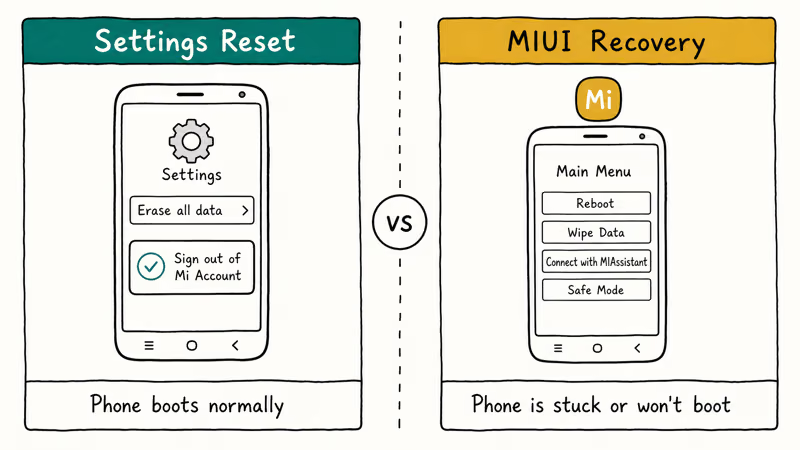
The Settings reset is also gentler in one specific way: it walks through Mi Account sign-out and gives you a clear chance to cancel. Recovery’s Wipe Data jumps from confirm screen to wipe in two button presses. That’s faster, but easier to misclick.
| Path | Use When |
|---|---|
| Settings → Reset | Phone boots normally, you have time to sign out of Mi Account |
| MIUI Recovery | Phone is stuck, won’t boot, or Settings isn’t reachable |
If the phone still boots, go through Settings. Save MIUI Recovery for the cases where Settings is out of reach.
#Bottom Line
For a stuck Xiaomi, start with a 20-second Power button hold. If the phone still reboots into recovery, run Wipe Cache from the menu, then Reboot to System. Move to a MiAssistant reflash next, and only choose Wipe Data when nothing else works and a current backup exists. Don’t attempt MIUI Recovery on a phone that isn’t yours or is locked to someone else’s Mi Account, because the wipe won’t unlock it.
#Frequently Asked Questions
How do I enter MIUI Recovery 5.0?
Power off your Xiaomi, then hold Power plus Volume Up until the Mi logo appears. Release both buttons, and the MIUI Recovery 5.0 menu loads in a few seconds. Use Volume Down to scroll and Power to confirm a selection.
What is the difference between Wipe Data and Wipe Cache?
Wipe Data is a full factory reset that deletes every app, account, and personal file on your Xiaomi. Wipe Cache only clears temporary system files and is safe to run without losing any personal data. Always try a cache wipe first.
Will MIUI Recovery erase everything on my phone?
Only if you select Wipe Data. The other three options leave personal data alone. The Wipe Data flow shows an explicit confirmation screen before anything is deleted.
My Xiaomi is stuck in MIUI Recovery. What should I do?
Hold the Power button for a full 20 seconds to force a restart. That alone clears most stuck recovery loops without touching your data. If the phone reboots straight back into recovery, run Wipe Cache from the menu, then Reboot to System. Move to a MiAssistant reflash before considering Wipe Data, and back up anything you can first.
Does entering MIUI Recovery void my Xiaomi warranty?
No. Entering MIUI Recovery and using its built-in options, including Wipe Cache and Wipe Data, is fully supported by Xiaomi. Standard recovery use doesn’t void the warranty. Modifying the bootloader or flashing unofficial software is a separate situation that this guide doesn’t cover.
Can I install MIUI updates from inside MIUI Recovery?
Yes, through the Connect with MiAssistant option. Plug the phone into a Windows PC over USB while it sits in recovery, then let Mi PC Suite push the official build.
How long does a Wipe Data take in MIUI Recovery?
The wipe itself is usually shorter than the first boot afterward. MIUI needs extra time to rebuild its app database before the setup screen is usable, so keep the phone charged and don’t interrupt the restart.
Why does my older Redmi show a different recovery menu?
Older Redmi devices running MIUI 9 or earlier load a text-only recovery menu instead of the MIUI 5.0 graphical interface. The button combinations and the four core options stay the same. Every fix in this guide applies, just with plain-text labels rather than icons.

Pixel 11 vs Pixel 10: What Changed and Who Should Upgrade
Pixel 11 vs Pixel 10: same screen and camera resolution, new Tensor G6, 25W wireless, and Gemini Intelligence. Here is who should actually upgrade.

Verizon Not Receiving Texts? How to Fix It in 9 Steps
Verizon not receiving texts? Fix it in 9 steps: check Message Blocking in My Verizon, reset network settings, deregister iMessage, and call support.

Pixel Battery Drain: What Google's July Fix Really Covers
Google marked the Pixel idle battery drain bug fixed in July, but only some phones got the patch. Here is who is covered, who is not, and what to try.

iPhone Stuck on EDGE? How to Get 5G or LTE Back (2026)
iPhone stuck on EDGE with crawling data? Here's why the E icon appears, which settings force 5G or LTE back, and when the problem is your carrier.