Windows 11 Update Error 0x800f0922: 2026 Fix Guide
Windows 11 update error 0x800f0922? Fix the .NET, VPN, and reserved-partition causes with a safe official ladder before DISM, SFC, or a repair install.
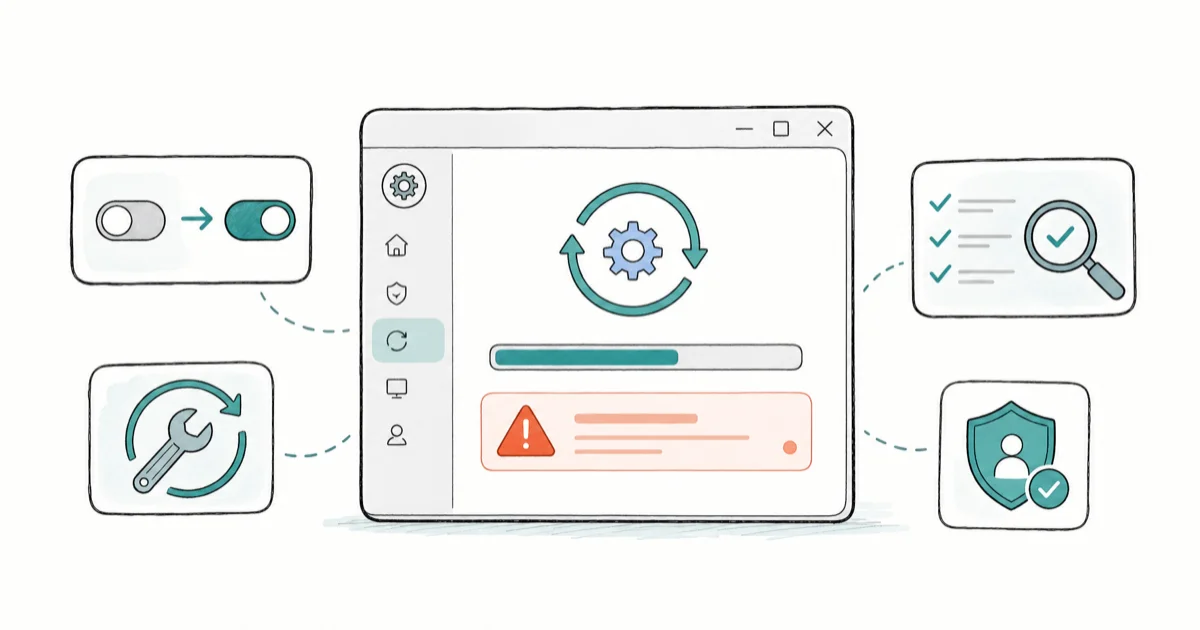
Quick AnswerDisconnect any VPN, then run the Windows Update troubleshooter. If the update still rolls back, repair .NET with DISM and SFC, then clear the SoftwareDistribution cache and retry.
Windows 11 update error 0x800f0922 means an update failed partway and rolled back, usually because a system component, the .NET Framework, or a network block stopped the install. The update history keeps showing the same failed patch.
The smart order matters here. A common cause is an always-on VPN quietly blocking the download, which is quick to rule out. Start with the cheap, reversible checks, then component repair, then a repair install only if nothing else clears it.
- Error 0x800f0922 usually traces to a VPN or proxy blocking the update server, a corrupt .NET Framework, a full reserved system partition, or damaged update components
- Disconnecting a VPN and rerunning Windows Update fixes a large share of cases in under two minutes with no system changes
- DISM and SFC repair the component store and system files, which clears most .NET and component-corruption failures
- Clearing the SoftwareDistribution folder forces Windows to redownload a clean copy of the stuck update
- A repair install is the last resort, keeps your files and apps, and is only worth it after the component repairs fail
#What Does Windows Update Error 0x800f0922 Mean?
The code points at a failed component or feature install, not a hardware fault. Windows starts the update, hits a blocker partway through, then reverses everything to stay bootable. That rollback is why the same patch keeps reappearing in your update history, sometimes several times a day if Windows keeps retrying it on its own schedule.
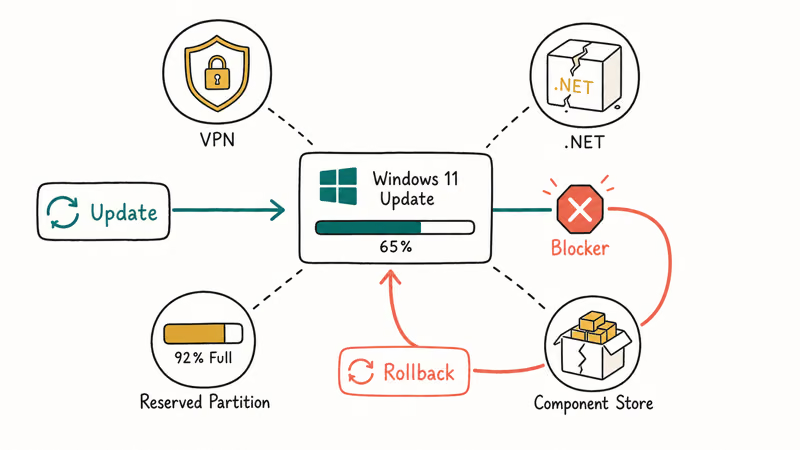
Four causes account for most of these failures: a VPN or proxy blocking Microsoft’s update servers, a damaged .NET Framework, a full reserved partition, or a corrupt component store.
According to Microsoft’s Windows Update troubleshooting guide, the first official step for a stuck update is running the built-in Windows Update troubleshooter, which resets update components automatically before you touch anything manually. That single tool clears a surprising number of these errors.
Worth a quick check first: is this a known issue Microsoft is already tracking? Microsoft’s Windows release health dashboard states that 25H2 known issues and safeguard holds are listed there per affected hardware, so a server-side block could mean the fix is simply to wait for the safeguard to lift.
#Is a VPN or Reserved Partition Blocking the Update?
Start with the network first. A VPN or proxy can route update traffic somewhere Microsoft’s servers reject. Disconnect it completely, then retry Check for updates in Settings > Windows Update.
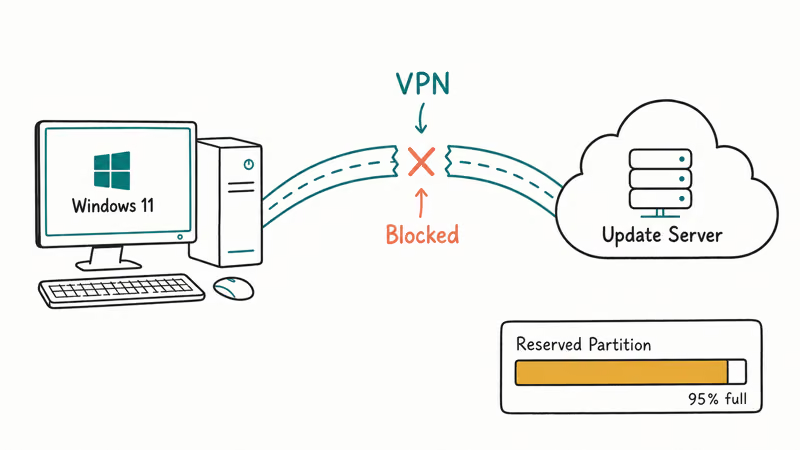
Disconnecting the VPN and retrying often clears 0x800f0922 on the first attempt, with no other change needed, which makes this the cheapest possible check. If your machine is on a managed corporate network, the block may be a firewall rule rather than the VPN itself, and unblocking it usually needs your IT admin rather than anything you can change locally.
The reserved partition is the other quiet culprit. A full one stalls the install, mostly on PCs upgraded from Windows 10.
#How do I check the reserved partition?
Open Disk Management and look for a small EFI or system-reserved partition. If it’s nearly full, that’s a likely cause, but resizing the partition is risky and not a first move. Try the component repairs below first, since they fix the more common cause without touching partitions.
#Run the Safe Windows Update Repair Steps
If the network checks come up empty, reset the update components. This is where most 0x800f0922 errors actually clear, and none of it risks your files.
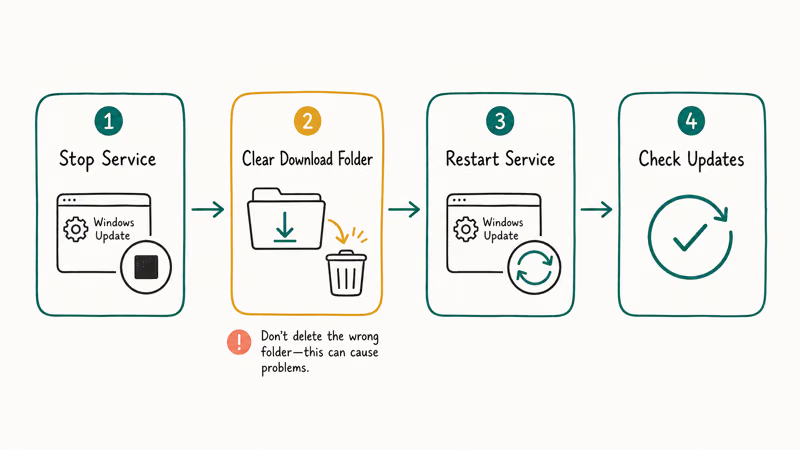
Run the Windows Update troubleshooter first, from Settings > System > Troubleshoot > Other troubleshooters > Windows Update. Let it finish, then retry.
Next, clear the update cache so Windows redownloads a clean copy. Stop the Windows Update service, delete the contents of the C:\Windows\SoftwareDistribution\Download folder, then restart the service and check for updates again. Our companion guide on how to delete Windows update files completely walks through the exact service commands so you don’t remove the wrong folder.
That cache reset alone fixes a lot of stuck patches. Seeing a different code, like the download error in our 0x8024a105 fix? Match the exact code in your update history, since the cure changes with the code. If 0x800f0922 returns, the component store is the next suspect.
#Repair .NET and System Components
A corrupt .NET Framework is the classic 0x800f0922 trigger, and DISM is the tool that fixes it. Open an elevated Command Prompt and run DISM /Online /Cleanup-Image /RestoreHealth. This rebuilds the component store from clean files, and on a healthy internet connection it finishes in a few minutes, though a badly damaged store can push it past ten or even stall at a percentage for a while before it completes.
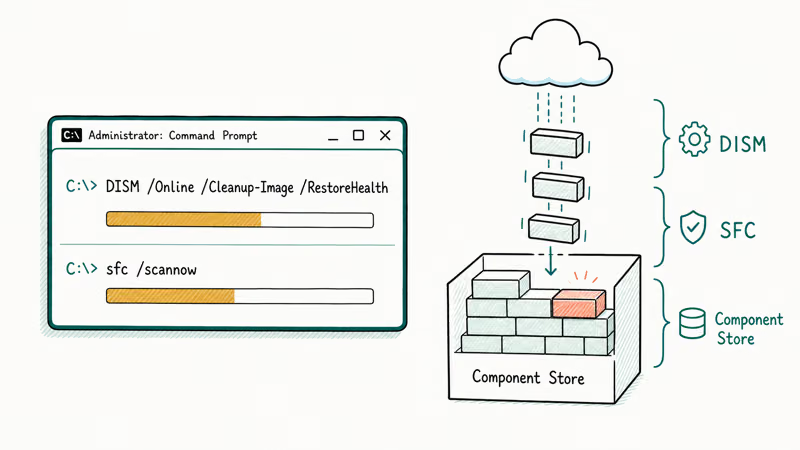
When DISM finishes, run sfc /scannow. According to Microsoft’s DISM repair documentation, the /RestoreHealth switch repairs the store using Windows Update as the source, which is why DISM runs before SFC. Reboot, then retry.
Is .NET itself the named culprit? Repair it directly. The .NET Framework Repair Tool is a small Microsoft utility that resets the framework without a full reinstall, and it’s safe to run before any heavier step, so reach for it whenever the failed-update details specifically name a .NET Framework component rather than a generic update file.
Still failing? You’ve now ruled out the network, the cache, and the component store. A blue screen during the update is a different problem, and our Windows 11 BSOD fix covers that path.
#Using an In-Place Repair Install as the Last Resort
A repair install, also called an in-place upgrade, reinstalls Windows over itself while keeping your files, apps, and most settings. It rebuilds the entire system image, clearing corruption the targeted tools missed. Save it for after the component repairs fail.
To run one, download the official Windows 11 Installation Assistant or ISO from Microsoft, then launch setup.exe from inside Windows and choose Keep personal files and apps. The process takes 30 to 60 minutes depending on your drive. Before you start, confirm your PC still meets the requirements with our guide on how to check if your PC can run Windows 11, since a failed TPM or Secure Boot check can masquerade as an update error.
#Knowing When to Stop and Call Microsoft Support
Know when the trail goes cold. If a repair install fails, or your hardware no longer meets Windows 11’s requirements, your realistic options narrow to a clean install or an older supported version.
Stuck on Windows 10? Our guide on how to enroll in free Windows 10 ESU keeps you patched while you plan the next move. Past the repair-install stage, the right move is to escalate to Microsoft Support rather than guessing at deeper fixes that risk leaving the system unbootable.
#Bottom Line
Disconnect the VPN and rerun Windows Update first. A blocked update server is the single most common cause of 0x800f0922, and it costs nothing to rule out.
If the network check comes up clean, run the troubleshooter, clear the SoftwareDistribution cache, then repair the component store with DISM and SFC before anything heavier. Reserve the in-place repair install for when those targeted fixes all fail, and escalate to Microsoft Support if even that doesn’t clear it.
#Frequently Asked Questions
Windows 11 update error 0x800f0922, what is the first thing to check?
Disconnect any VPN or proxy completely, then rerun Windows Update from Settings. A blocked connection to Microsoft’s update servers is the most common cause, and it clears on the first retry in many cases. If you’re on a corporate network, the block may be a firewall rule that needs your IT admin instead.
Why did this start after a recent update?
A cumulative or feature update can expose a component problem that was already there. A .NET corruption or a full reserved partition sits dormant until the next update fails against it.
Does this require reinstalling Windows?
No. Most cases clear with the VPN check, the troubleshooter, a cache reset, and DISM plus SFC.
What official support page should I check first?
Microsoft’s Windows Update troubleshooting page is the right starting point. Pair it with the Windows release health dashboard to rule out a known issue Microsoft is already addressing.
What should I avoid doing?
Don’t resize or delete the reserved system partition as a first move. It’s risky, rarely the cause, and a mistake there can leave the system unbootable. Work through the network check, the cache reset, and the DISM and SFC repairs first, since they fix the common causes without touching partitions or your files.
When should I contact Microsoft Support?
Contact Microsoft Support once the troubleshooter, a cache reset, DISM and SFC, and an in-place repair install have all failed. At that point the cause is likely outside the usual update-component scope and may need hands-on diagnosis or a known-issue fix that hasn’t shipped yet.

Best Laptop for Running LLMs in 2026: Memory Comes First
The best laptop for running LLMs is a memory purchase first. Compare MacBook unified memory against NVIDIA laptop VRAM, and see what each tier really runs.

How to Run a Local LLM on Windows: A 2026 Setup Guide
Run a local LLM on Windows with LM Studio or Ollama. Pick a model that fits your GPU memory, keep every prompt offline, and skip the monthly bill.

Bluetooth Not Working on Snapdragon X? Fixes for 2026
Bluetooth not working on your Snapdragon X Copilot+ PC? Generic audio, mice, and keyboards work, but vendor apps often lack an ARM build. Fixes inside.

Docker Desktop and WSL2 Not Working on Snapdragon X? Fix It
WSL2 runs fine on Snapdragon X, but Docker Desktop ARM is Early Access and throws WSL errors. Use WSL2 plus native ARM64 Ubuntu and Docker Engine.