Outlook Search Not Working on Windows 11? 8 Fixes (2026)
Outlook search not working on Windows 11? Fix the search index, repair Office, reset your profile, and handle new vs classic Outlook in 2026.

Quick AnswerOutlook search not working on Windows 11 usually traces to the Windows Search index or a corrupted Outlook profile. First confirm whether you're on new Outlook or classic Outlook, then rebuild the search index, repair Office, and reset the profile if results are still missing.
Outlook search not working on Windows 11 almost always comes down to one of two things: a broken Windows Search index or a corrupted Outlook profile. Classic Outlook leans on the Windows Search service to find your mail, so when that index breaks, search returns nothing or only old results. For classic Outlook, rebuilding the index is the first local fix to try before profile repairs.
- Classic Outlook depends on the Windows Search service, so a broken index is the top cause
- New Outlook searches on Microsoft’s servers, so its fixes differ from classic Outlook
- Rebuilding the search index often takes 15 to 30 minutes for a large mailbox
- Repairing Office through Settings fixes most profile and component corruption
- A fresh Outlook profile is the reliable last step when nothing else works
#Why Is Outlook Search Not Working on Windows 11?
Search breaks for a small set of reasons, and the fix depends on which one you hit. The usual suspects are the Windows Search index, a corrupted Outlook profile, a paused index after a Windows update, or a server-side issue with the mailbox itself.
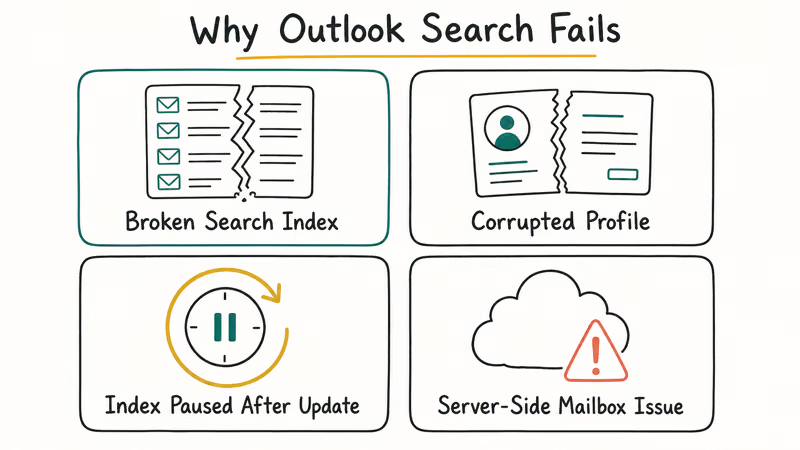
Classic Outlook doesn’t search your mail on its own. It hands the job to the Windows Search service, which builds an index of your messages so results appear instantly. Microsoft confirms that 1 search index serves every app on the PC, so a broken index affects more than just Outlook.
According to Microsoft’s Outlook search guidance, search problems are common right after a Windows 11 upgrade because the index needs to rebuild. Until that finishes, results look broken.
Outlook search symptoms and where to look first
| Symptom | Likely cause | First check |
|---|---|---|
| No results at all | Index disabled or empty | Indexing Options |
| Only old mail found | Index still rebuilding | Wait, then re-check |
| Search broke after update | Index reset by update | Rebuild index |
| New Outlook only | Server-side search | Account status |
For other Outlook problems that overlap with search, like mail simply not arriving, see our guide on how to fix Outlook not receiving emails.
#Are You Using New Outlook or Classic Outlook?
This is the first thing to check, because the two apps search completely differently. Classic Outlook uses the local Windows Search index. New Outlook runs search on Microsoft’s servers instead.
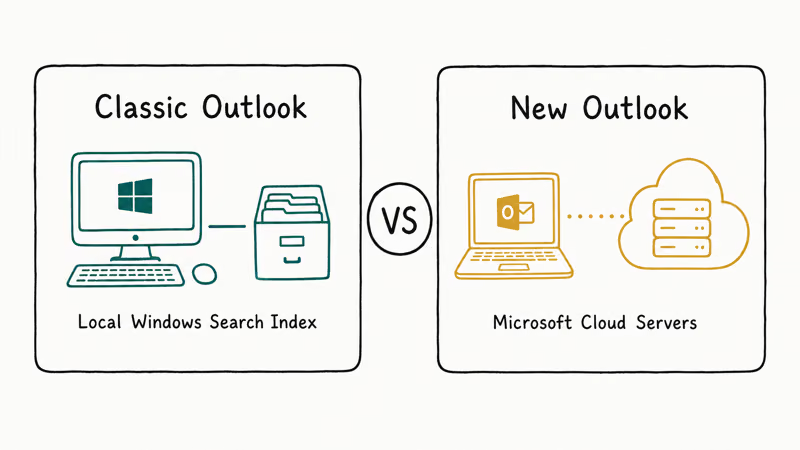
Look at the top right of the window. New Outlook shows a toggle labeled “New Outlook,” while classic Outlook has the traditional ribbon and File menu. Only classic Outlook uses the local Windows Search index, while new Outlook ignores that rebuild path entirely. If you’re on new Outlook and search fails, check your account status and internet connection first, because the work happens in the cloud.
For classic Outlook, the index-based fixes are exactly what you need. Most readers troubleshooting this on a work machine are still on classic Outlook, so the rest of this guide focuses there while flagging new Outlook differences.
#Rebuild Windows Search and Outlook Indexes
Rebuilding the index is the highest-value fix for classic Outlook. It forces Windows to re-catalog every message from scratch.
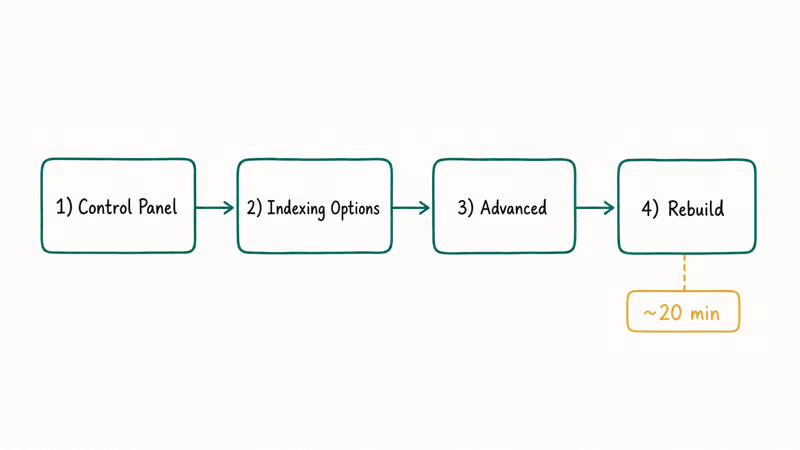
Open Control Panel, go to Indexing Options, click Advanced, then choose Rebuild under Troubleshooting. Confirm that Microsoft Outlook appears in the list of indexed locations. According to Microsoft’s instructions for rebuilding the search catalog, rebuilding can take a while on a large mailbox, and search stays incomplete until it finishes.
Leave the PC on and connected to power while it rebuilds. Searching before the rebuild completes shows partial results, which can look like the fix failed when it’s simply still working. If Outlook itself keeps closing during this process, our Outlook keeps crashing guide covers stability fixes that often clear up alongside search.
#Repair Office and the Outlook Profile
If a full rebuild doesn’t fix it, the problem is likely deeper in Office or your Outlook profile. Repairing Office is the next safe step.
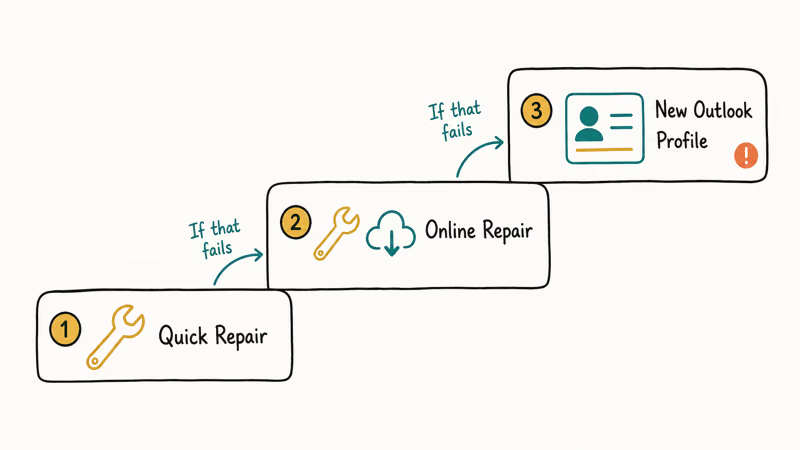
Go to Settings, then Apps, then Installed apps, find Microsoft 365 or Office, choose Modify, and run Quick Repair first. If that fails, run Online Repair, which reinstalls components without touching your mail. Quick Repair usually takes a couple of minutes; Online Repair takes longer because it downloads files.
When repair doesn’t help, create a fresh Outlook profile. Open Control Panel, go to Mail, choose Show Profiles, add a new profile, and set Outlook to use it. A new profile rebuilds the local data structure that search depends on. If your profile hangs on load instead of just failing search, our Outlook loading profile stuck guide handles that specific symptom.
#When the Mailbox or Server Is the Problem
Sometimes the fault isn’t on your PC at all. New Outlook and Outlook on the web both search server-side, so a mailbox or service issue shows up as broken search no matter what you do locally.
Test this by searching the same mailbox in Outlook on the web at outlook.office.com. If search fails there too, the problem is the account or Microsoft’s service, not your Windows install, and local fixes won’t help. Check the Microsoft 365 service health page or contact your IT admin if it’s a work account.
#Restart Outlook the Clean Way
A quick restart clears a surprising number of transient glitches before you go deeper. The catch is that closing the window often leaves Outlook running in the background.
Our how to restart Outlook guide shows the clean way to fully quit, including ending the background process so the next launch starts fresh. If nothing here works and the whole Windows install feels unstable, our factory reset Windows 11 keep files guide is the nuclear option that preserves your documents.
#Bottom Line
Start by confirming whether you’re on new Outlook or classic Outlook, because that decides which fixes even apply. For classic Outlook, rebuild the Windows Search index first, since a broken index causes most of these failures, then repair Office and create a fresh profile if results are still missing. If search also fails in Outlook on the web, the problem is server-side, so stop troubleshooting your PC and contact Microsoft or your IT admin.
#Frequently Asked Questions
Why does Outlook search show no results after a Windows 11 update?
Windows updates can reset or pause the search index, so Outlook temporarily finds nothing until the index rebuilds. Open Indexing Options, rebuild the catalog, and give it time to finish. Results return once the rebuild completes.
How long does rebuilding the Outlook search index take?
It depends on mailbox size. A small mailbox can finish in a few minutes, while a large one with years of mail may take 15 to 30 minutes or more. Keep the PC on and plugged in, and don’t judge the results until the rebuild is fully done.
Does new Outlook use the Windows Search index?
No. New Outlook searches on Microsoft’s servers, so rebuilding the local index won’t help it.
Will repairing Office delete my emails?
No. Both Quick Repair and Online Repair reinstall Office components without removing your mail, which lives in your mailbox or local data file. Repair is safe to run, though Online Repair takes longer because it downloads fresh files.
Should I create a new Outlook profile to fix search?
Only after rebuilding the index and repairing Office both fail. A fresh profile rebuilds the local data structures search relies on, and your mail simply re-downloads.
How do I tell if the problem is my PC or the server?
Search the same mailbox in Outlook on the web. If search works there but not in your desktop app, the problem is local, so focus on the index and profile. If search fails on the web too, the issue is the account or Microsoft’s service.

Is This Bank App Real? Spot a Fake App on Your Home Screen
A bank app can land on your home screen from a web page with no install warning. Learn the checks that tell a real banking app from a phishing web app.

Apps Crashing After iOS 27 Update? Fix Order (2026)
Apps crashing after the iOS 27 update? Update the app in the App Store first, then offload and reinstall to clear stale cache, then restart. The fix order.

Do AI Translation Earbuds Work Offline? What to Know
Do AI translation earbuds work offline? A few do with downloaded language packs, but most need the cloud. Here's what works offline and what you give up.

How to Set Up Translation Earbuds (Pairing and Modes)
How to set up translation earbuds: charge, install the app, pair over Bluetooth, pick two languages, and choose a mode. A step-by-step first-use guide.