How to Take a Screenshot on Windows: 6 Easy Ways (2026)
Take a screenshot on Windows 10 or 11 with PrtScn, Windows + Shift + S, the Snipping Tool, or Game Bar, and find exactly where each one saves.
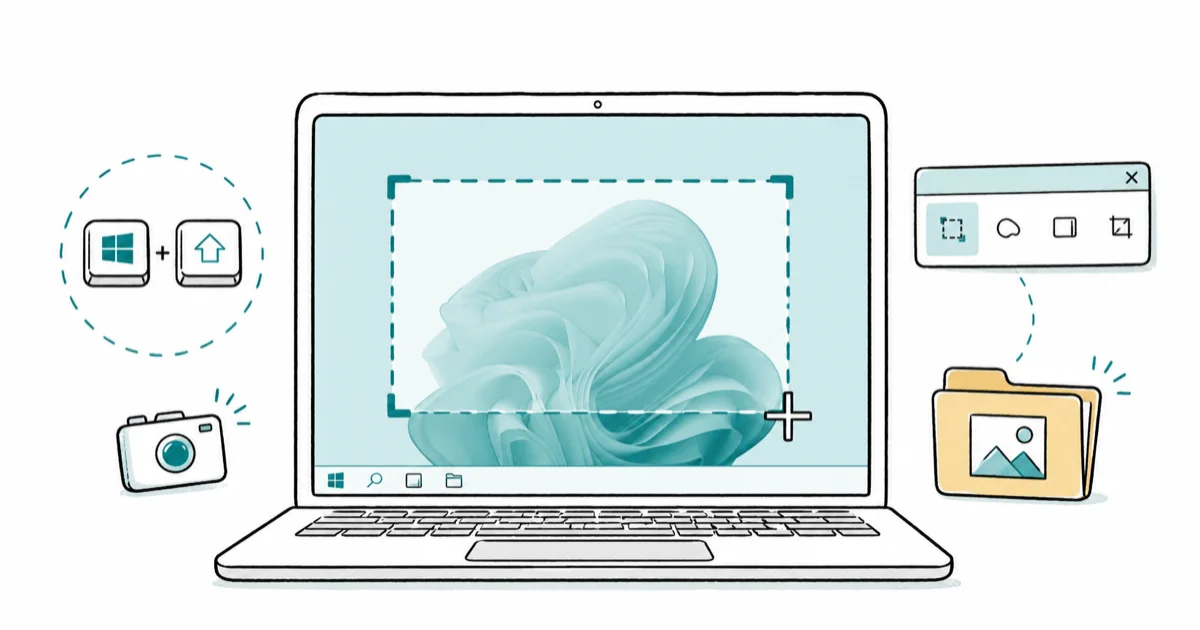
Quick AnswerPress Windows + Shift + S to copy a selected area to the clipboard, or Windows + PrtScn to save a full-screen PNG to Pictures > Screenshots. Both work on Windows 10 and 11.
Windows gives you several built-in ways to take a screenshot. The only thing that trips people up is knowing which keys go where, and whether the result lands on the clipboard or in a file. This guide maps each common shortcut to what it captures and where the image ends up.
- Windows + Shift + S is the fastest way to grab part of the screen on any Windows 10 or 11 machine, and it copies the selection to your clipboard.
- PrtScn alone copies the full screen to the clipboard but saves no file; Windows + PrtScn dims the display and writes a timestamped PNG to
Pictures>Screenshots. - Alt + PrtScn captures only the active window and copies it to the clipboard, which beats cropping a full-screen shot later.
- The built-in Snipping Tool has four capture modes plus a delay timer, so menus that vanish on click can still be caught after a 1 to 5 second countdown.
- Laptops without a dedicated Print Screen key can use Fn key combinations or the On-Screen Keyboard, so a missing PrtScn cap never blocks you.
#The Fastest Way to Take a Screenshot on Windows
Press Windows + Shift + S. That’s it.
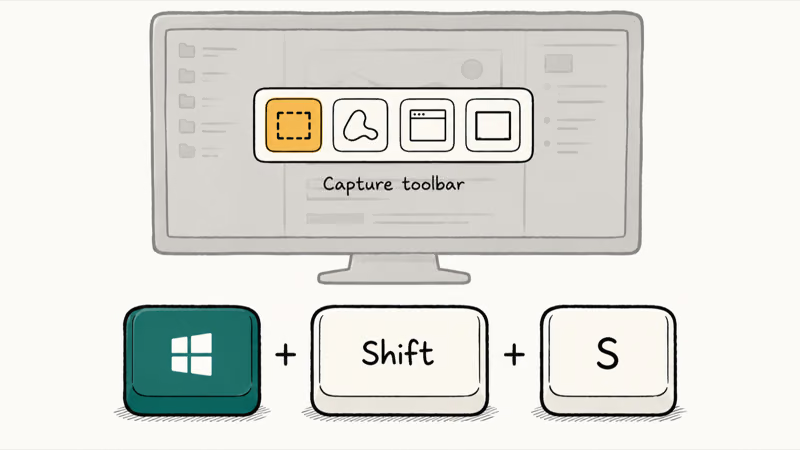
The combo opens a small toolbar at the top of the screen with four capture shapes, dims everything behind it, and waits for you to drag a box. The moment you release the mouse, the snip lands on your clipboard, ready to paste into a chat, a document, or an image editor. Use this method when all you want is to paste something fast without saving a file first.
Want the whole screen instead? PrtScn copies the full display to the clipboard, saving nothing. Windows + PrtScn does the same but also writes a PNG file.
There’s one wrinkle on recent builds. Tapping PrtScn alone may open the Snipping Tool overlay instead of silently copying the full screen. If your key suddenly behaves differently, check Settings > Accessibility > Keyboard for the PrtScn toggle.
Here’s how each built-in method maps to its destination.
| Method | What it captures | Where it goes |
|---|---|---|
| Windows + Shift + S | Selected area, window, or full screen | Clipboard (save manually from the editor) |
| PrtScn | Entire screen | Clipboard only |
| Windows + PrtScn | Entire screen | Pictures > Screenshots (PNG file) |
| Alt + PrtScn | Active window only | Clipboard only |
| Snipping Tool app | Area, window, or full screen, with delay | Clipboard, then save anywhere you choose |
| Xbox Game Bar | Active window or screen | Videos > Captures |
#How Do You Screenshot Just One Window?
Press Alt + PrtScn. This grabs the window that’s currently in focus, ignoring everything else on screen, and copies it to the clipboard. According to Microsoft’s keyboard shortcuts guide, Alt + PrtScn captures the active window and copies it to the clipboard, which saves you from cropping a full-screen shot down to size afterward.
Click the window you want first, so it has the focus, then hold Alt and tap PrtScn. Paste the result into Paint or any chat box to confirm you caught the right window. This is useful for grabbing a single dialog box or browser tab without the taskbar and desktop clutter showing up around it.
If you want the same single-window capture saved as a file instead of sitting on the clipboard, open it in Paint and press Ctrl + S, or use the Snipping Tool’s Window mode covered below.
#Where Windows Actually Saves Your Screenshots
Most Windows screenshots never touch your disk by default. The four clipboard methods (PrtScn, Alt + PrtScn, Windows + Shift + S, and the Snipping Tool’s initial capture) all drop the image on the clipboard, so it disappears the next time you copy something else. You have to paste it somewhere or save it deliberately.
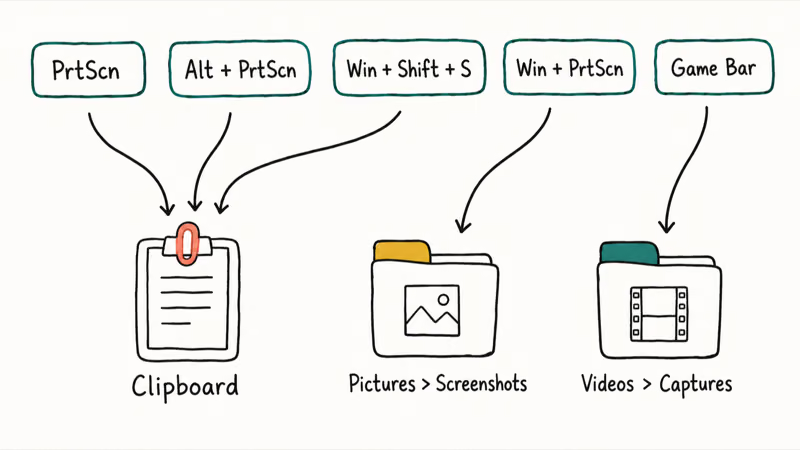
Only one shortcut auto-saves a file: Windows + PrtScn. According to Microsoft’s keyboard shortcuts guide, this combo writes a full-screen PNG to the Screenshots subfolder of your Pictures folder, which lives at C:\Users\YourName\Pictures\Screenshots. Files get timestamped names so they never overwrite each other.
Game Bar clips and screenshots are the exception to the Pictures rule. They land in Videos > Captures instead, which catches a lot of people off guard when they go hunting in the Screenshots folder and find nothing.
#Using the Snipping Tool and Game Bar
The Snipping Tool is the most flexible built-in option. Open it from the Start menu or with Windows + Shift + S.
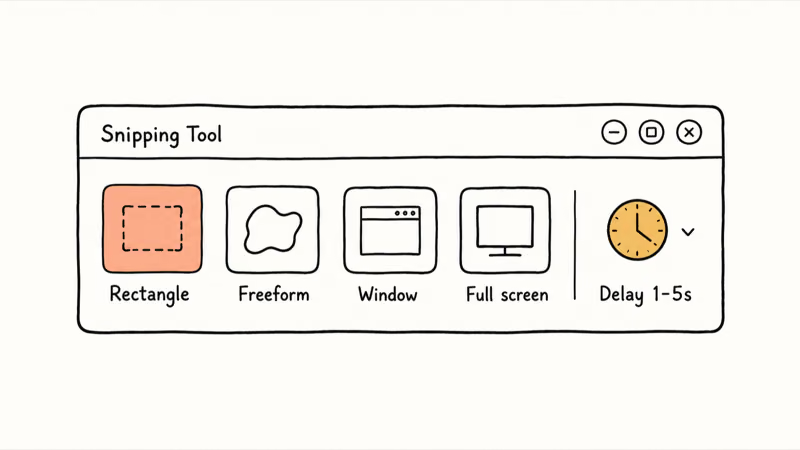
According to Microsoft, the Snipping Tool has 4 capture modes plus a delay timer of 1 to 5 seconds. Those modes are rectangle, freeform, window, and full screen, and you reach the delay with Alt + D, as Microsoft’s Snipping Tool documentation lays out.
That delay is the killer trick. It lets you open a right-click menu or hover tooltip that would normally vanish the instant you touch the keyboard, then capture it after the countdown. The tool also lets you annotate, crop, and record the screen before you save.
Xbox Game Bar is the other built-in capture tool, aimed at games but useful anywhere. Press Windows + G to open it, then click the camera icon to grab the active window, or use Windows + Alt + PrtScn to capture without opening the overlay. Game Bar saves straight to Videos > Captures as a PNG, which is handy when a game runs in full-screen exclusive mode and the normal shortcuts get swallowed by the app.
On a touchscreen device with no keyboard attached, you still have an option. Microsoft’s Windows 11 screenshot guide recommends pressing the Power button and Volume Up together on most Windows tablets, which captures the full screen the same way Windows + PrtScn does.
#How Do You Screenshot on a Laptop Without a PrtScn Key?
Plenty of compact laptops drop the dedicated Print Screen key to save space, but you’re never actually stuck. The cleanest fix is Windows + Shift + S, which needs no PrtScn key at all and works on every Windows 10 and 11 machine. That alone covers most situations.
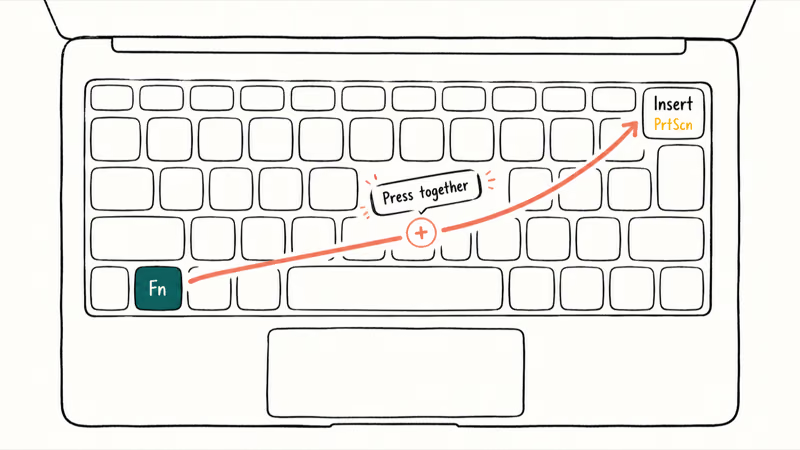
When you specifically need a PrtScn press, check for an Fn layer. Many keyboards print PrtScn as a secondary label on another key (often Insert, End, or a function key), so Fn + that key triggers it. The exact combo varies by manufacturer, so the brand guides for screenshot on an HP laptop and Lenovo or Yoga laptops walk through the specific Fn layouts those models ship with.
The universal fallback is the On-Screen Keyboard. Press Windows + Ctrl + O to bring it up, and it includes a clickable PrtScn button you can use with your mouse. Combine it with the Snipping Tool and you’ll capture anything regardless of what physical keys your laptop has.
#When the Print Screen Key Does Nothing
PrtScn does nothing? Start with the Fn lock. On many laptops the top-row keys default to media controls, so PrtScn only fires when you add Fn or after you press Fn + Esc to release the lock. Try Fn + PrtScn before assuming the key is dead.
The second cause is software grabbing the key. Tools like OneDrive, Dropbox, or third-party screenshot apps can claim PrtScn for their own capture, so check those apps’ settings if your snips are going somewhere unexpected. On a managed work computer, a security policy can block screen capture entirely; if you suspect that, the guide on what to do when a security policy blocks it explains the workarounds and limits.
When none of that helps, fall back to Windows + Shift + S or the Snipping Tool, since neither relies on the physical PrtScn key. A stuck key or a driver glitch can disable PrtScn while leaving those methods perfectly functional. If your machine is sluggish enough that even the Snipping Tool lags, the other Windows fixes cover the performance side.
#Bottom Line
Use Windows + Shift + S for almost everything. It works on every Windows 10 and 11 machine, needs no dedicated PrtScn key, and copies your selection to the clipboard the instant you release the mouse.
The moment you want a saved file instead of a clipboard image, switch to Windows + PrtScn. It writes a timestamped PNG to Pictures > Screenshots with zero extra clicks. Keep the Snipping Tool’s delay timer in your back pocket for menus that disappear on click. On a phone the keys are different, so if you came here for mobile, the guide to screenshot on a Motorola phone covers the Android side.
#Frequently Asked Questions
How do I take a screenshot on Windows 11?
Press Windows + Shift + S to capture a selected area to the clipboard, then paste it wherever you need it. For a saved file instead, press Windows + PrtScn, which writes the full screen to Pictures > Screenshots automatically. Both shortcuts work the same on Windows 10.
Where do my screenshots get saved?
It depends on the method. PrtScn, Alt + PrtScn, and Windows + Shift + S only copy to the clipboard, so nothing is saved until you paste or save it yourself. Windows + PrtScn is the one shortcut that auto-saves, dropping a PNG into Pictures > Screenshots. Game Bar captures go to Videos > Captures instead.
How do I screenshot just one window?
Click the window first, then press Alt + PrtScn. It copies only that window to the clipboard.
How do I screenshot on a laptop without a Print Screen key?
Use Windows + Shift + S, which needs no PrtScn key at all. If you specifically need PrtScn, look for it as a secondary label on another key and press Fn plus that key. The On-Screen Keyboard, opened with Windows + Ctrl + O, also has a clickable PrtScn button.
What’s the difference between PrtScn and Windows + Shift + S?
PrtScn grabs the whole screen in one tap. Windows + Shift + S lets you box off just the part you want.
Why isn’t my Print Screen key working?
The usual culprit is an Fn lock, so try Fn + PrtScn before assuming the key is broken. Another app, like OneDrive or a screenshot utility, may also be claiming the key, and a managed work device might block captures by policy. When in doubt, use Windows + Shift + S, which doesn’t depend on the PrtScn key.
Can I change where screenshots are saved?
Yes, for the Windows + PrtScn auto-save folder. Open the Pictures folder, right-click the Screenshots folder, choose Properties, then the Location tab, and move it wherever you like. The clipboard methods don’t have a save folder to change, since you choose the destination each time you paste or save.

Bluetooth Not Working on Snapdragon X? Fixes for 2026
Bluetooth not working on your Snapdragon X Copilot+ PC? Generic audio, mice, and keyboards work, but vendor apps often lack an ARM build. Fixes inside.

Docker Desktop and WSL2 Not Working on Snapdragon X? Fix It
WSL2 runs fine on Snapdragon X, but Docker Desktop ARM is Early Access and throws WSL errors. Use WSL2 plus native ARM64 Ubuntu and Docker Engine.
Does iTunes Work on Snapdragon X? ARM Windows 11 Guide
Yes, iTunes runs on Snapdragon X laptops through Prism emulation, but the Apple Devices app is the smoother route. Here is what to install on ARM.

Does OBS Studio Work on Snapdragon X? ARM64 Build Guide
Yes, OBS Studio has an experimental ARM64 build since version 31.1, but x64 plugins won't load and hardware encoding is missing. Here is what works.