Windows 11 Wi-Fi Option Missing? Practical 2026 Fix
Windows 11 Wi-Fi option missing? Fix it with a hardware-to-software ladder: physical switch, Device Manager, WLAN service, and driver rollback.
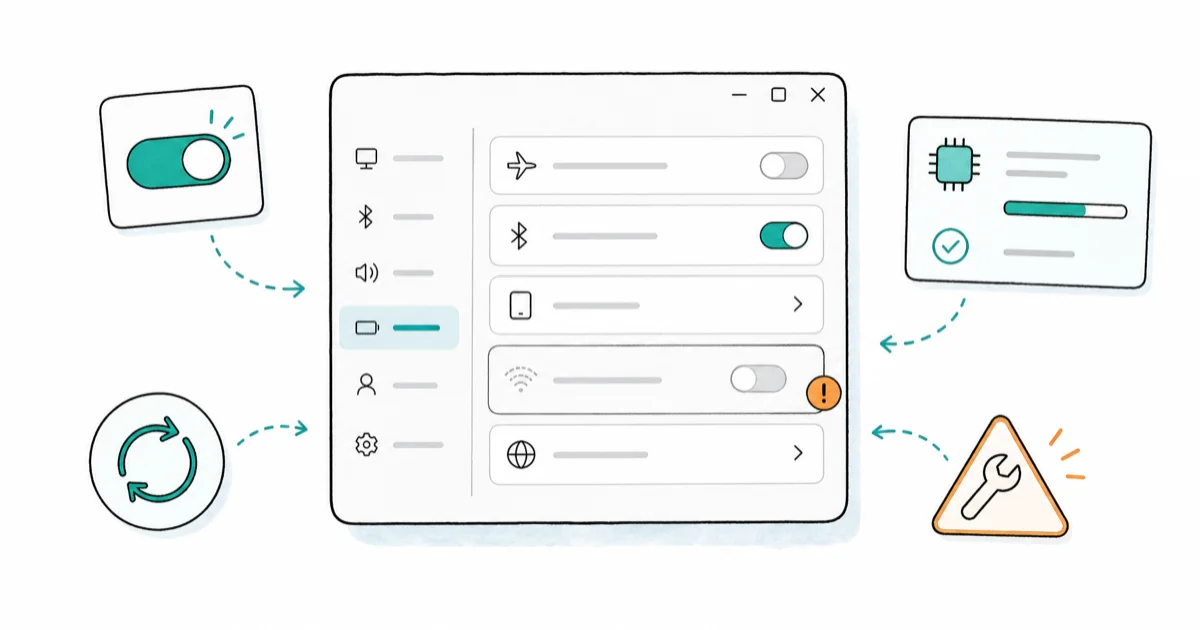
Quick AnswerA missing Windows 11 Wi-Fi option usually means the adapter is disabled, the WLAN AutoConfig service stopped, or a driver broke after an update. Check Device Manager first.
A missing Windows 11 Wi-Fi option is almost always a disabled adapter, a stopped WLAN service, or a driver that broke during an update, not dead hardware. The tile vanishes from Quick Settings and the toggle disappears from Settings, so it looks worse than it really is. Work a hardware-to-software ladder and you’ll find the cause fast.
- Check the physical Wi-Fi switch or Fn key first, since a single accidental keypress can hide the entire toggle.
- If Device Manager still lists your wireless adapter, the hardware is fine and the fix is software, usually the driver or a service.
- The WLAN AutoConfig service must be running and set to Automatic, or Windows shows no Wi-Fi control at all.
- A driver rollback can fix Wi-Fi that vanished right after a Windows update without jumping straight to a reset.
- Run Network reset only as a last resort, because it forgets every saved network and reinstalls all adapters.
#Why Is the Wi-Fi Option Missing in Windows 11?
The Wi-Fi control disappears for one of four reasons, and they stack from easiest to hardest. Knowing which layer broke saves you from running a destructive reset you didn’t need.
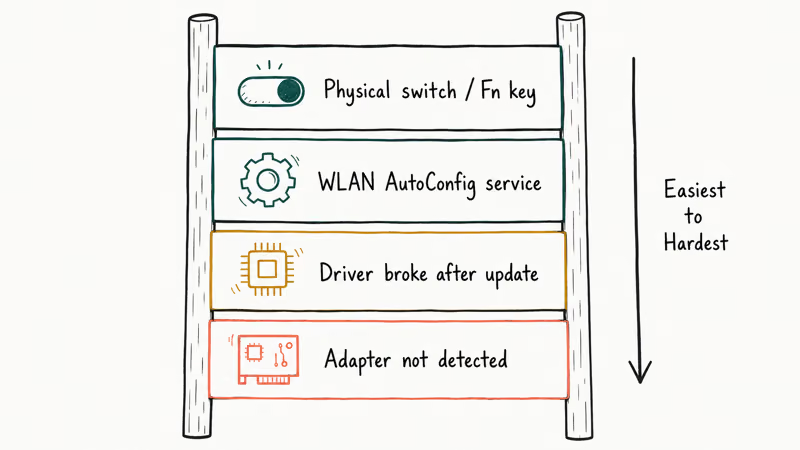
Most of the time it’s the simplest cause. A bumped hardware switch, an accidental airplane mode toggle, or a battery-saver profile can each hide the Wi-Fi tile without touching anything deeper. The next layer up is the WLAN AutoConfig service, which Windows needs running to show any wireless option.
Here’s the ladder to follow, in order.
| Layer | Symptom | Fix difficulty |
|---|---|---|
| Physical switch / Fn key | Tile gone, airplane mode may be on | Quick check |
| WLAN AutoConfig service stopped | No Wi-Fi anywhere, even in Settings | Service check |
| Driver broke after update | Wi-Fi vanished post-update | Driver step |
| Adapter not detected | No adapter in Device Manager | Hardware territory |
The Windows 11 missing-Wi-Fi diagnostic ladder, ordered from quickest to hardest fix.
Start at the top of the ladder: a physical Wi-Fi switch, Fn+wireless key, or airplane-mode toggle can hide the tile before any driver problem is involved.
#Is the Wi-Fi Adapter Still Detected?
Before touching services or drivers, confirm Windows still sees your wireless hardware. This one check splits the whole problem in two. Adapter shows up, your fix is software. Adapter missing, you’re into deeper driver or hardware territory, and the next steps change completely depending on which side of that line you land on.
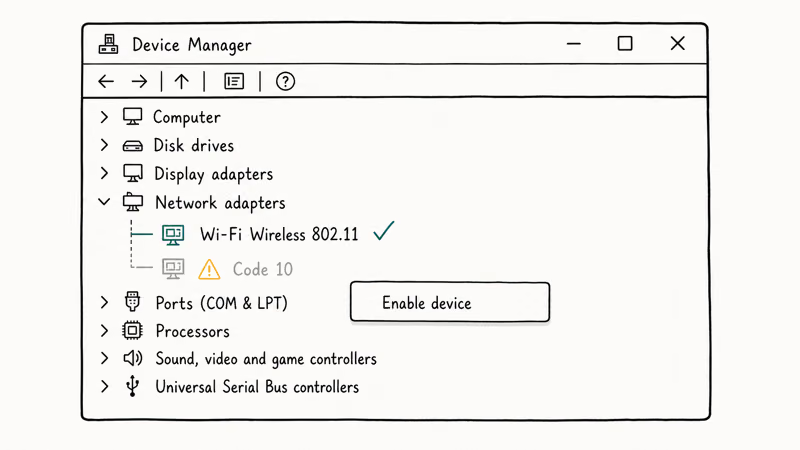
Right-click Start, open Device Manager, and expand Network adapters. Look for an entry named “Wi-Fi,” “Wireless,” or “802.11.” A clean entry with no warning icon means the hardware is healthy.
Now read the icons. A yellow triangle or a “Code 10” error means the driver loaded but failed. A missing adapter entirely, even after View > Show hidden devices, points to a disconnected card or a driver Windows can’t load at all.
If the adapter is present but disabled, right-click it and choose Enable device. That alone restores the Wi-Fi option in many cases.
This won’t help if the adapter is physically loose, which can happen after a laptop is dropped. For that, the fix is hardware service, not settings.
#Fix the WLAN Service and Network Stack
Adapter fine, toggle still gone? Look at the service next.
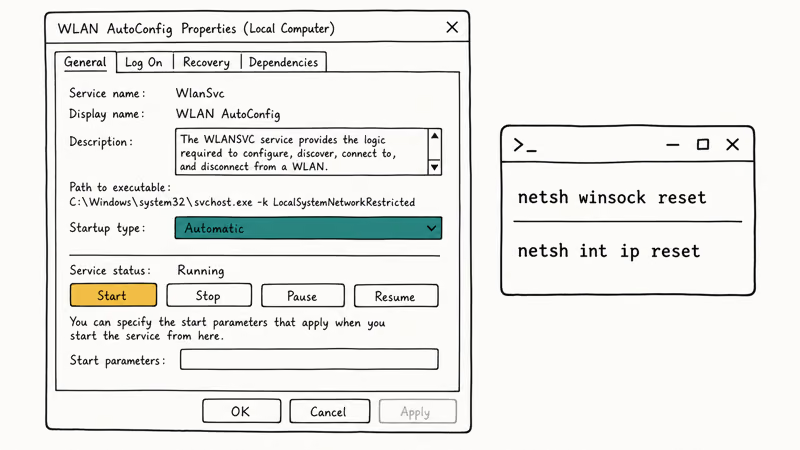
When the adapter is detected but the toggle won’t appear, the WLAN AutoConfig service is usually the culprit. Windows hides every wireless control when it isn’t running.
Press Win+R, type services.msc, and press Enter. Find WLAN AutoConfig, double-click it, set Startup type to Automatic, and click Start if it’s stopped, then reopen Quick Settings to see whether the Wi-Fi tile came back. If the service was already running, that rules this layer out and points you toward the driver.
According to Microsoft’s Wi-Fi troubleshooting guide, the built-in Network and Internet troubleshooter and a modem-router restart belong to the official repair flow before deeper steps. The troubleshooter often re-enables a stalled adapter on its own.
Service running but still no toggle? Refresh the stack.
Open an elevated Command Prompt and run netsh winsock reset, then netsh int ip reset, and restart the PC. These two commands rebuild the TCP/IP and Winsock layers that a bad update or VPN client can corrupt, and they fix cases where the service is healthy but the wireless control still refuses to appear.
There’s a heavier option below that, but save it for later. The built-in Network reset sits a level below the stack commands, and Microsoft’s documentation confirms that Network reset waits about 5 minutes before it restarts your PC and reinstalls every adapter, which is exactly why this one belongs at the bottom of your list rather than near the top.
Two related problems overlap here. Wi-Fi that appears but keeps dropping is covered in the Windows 11 Wi-Fi Keeps Disconnecting guide. A network you reach but can’t authenticate to is handled by the Authentication Error Wi-Fi guide.
#Reinstall or Roll Back the Wireless Driver
Vanished right after a Windows update? Blame the driver. Windows Update sometimes swaps a working wireless driver for a generic one that hides the toggle.
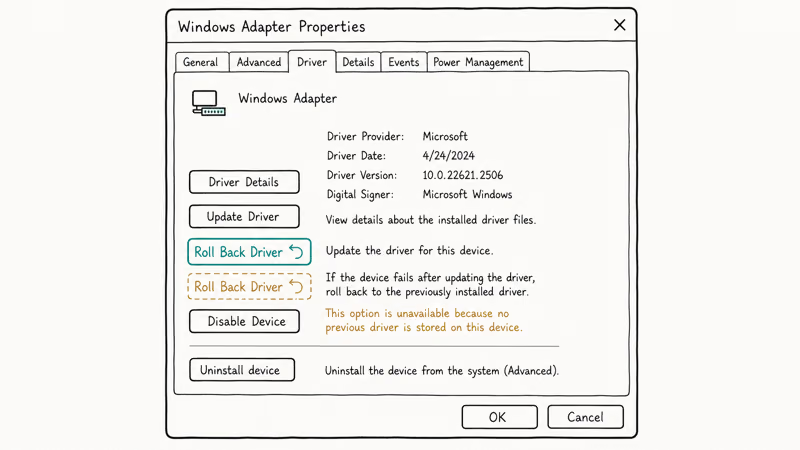
In Device Manager, right-click your wireless adapter, choose Properties > Driver > Roll Back Driver. If the button is grayed out, no previous driver is stored, so move to a clean reinstall instead.
To reinstall, right-click the adapter, choose Uninstall device, check Delete the driver software if offered, then restart. Windows reinstalls a fresh driver on boot.
Rolling back or reinstalling the wireless driver is less disruptive than Network reset because it targets the adapter instead of forgetting saved networks. For the most reliable result, grab the latest driver from your laptop maker’s support page first, because the vendor build usually exposes more controls than the generic Microsoft one.
Microsoft’s network connection guide documents how to manage Wi-Fi settings and confirms that reinstalling the network adapter driver is a standard step when wireless controls misbehave. Keep a wired or hotspot path handy to download a driver while Wi-Fi is down.
One quirk trips people up. Some Intel and Qualcomm adapters expose a “virtual” Wi-Fi Direct adapter that clutters Device Manager, and the Microsoft Wi-Fi Direct Virtual Adapter explainer clears up which of those entries actually matter and which you can safely ignore while you hunt for the real wireless device.
#When a Hardware Fault Is the Real Cause
Hardware is the last thing to suspect, not the first. Once the switch, the service, and the driver all check out, a still-missing toggle points at the physical card.
Look for the physical tells. The clearest hardware signal is a wireless adapter that never appears in Device Manager, even with hidden devices shown and after a driver reinstall. A card that comes and goes between reboots, or only works when you press on the laptop chassis, is another giveaway that the fault is mechanical rather than something a setting can repair.
At that point, stop changing settings. A loose M.2 wireless card, a disconnected antenna cable, or a failed module needs physical service that no software fix can reach, so if your laptop is under warranty, contact the manufacturer before you ever think about opening the chassis yourself.
If you need wireless connectivity immediately while you arrange a repair, a USB Wi-Fi adapter is a fast stopgap. Pick a reliable one from the Best Wi-Fi Router 2026 coverage, which also touches on adapter options for older or failing hardware.
#Choosing Between a Network Reset and a Windows Reset
When every targeted fix fails but the adapter is clearly healthy, the choice narrows to two resets. A Network reset is the lighter one, since it only touches networking and leaves everything else alone. A full Windows reset is far more disruptive and should never be your opening move when the adapter still shows up cleanly in Device Manager.
Start with Network reset. It removes and reinstalls all adapters and forgets your saved Wi-Fi passwords, but leaves files and apps untouched.
Only consider resetting Windows itself if the Wi-Fi option stays gone across a clean driver install, a Network reset, and a fresh user profile. If you go that route, the Factory Reset Windows 11 Keep Files guide shows how to keep your documents while rebuilding the system. Back up first, every time.
#Bottom Line
Climb the ladder in order: physical switch, Device Manager, WLAN AutoConfig service, then driver rollback or reinstall, and only run Network reset if nothing else works. Many missing-Wi-Fi cases are a stopped service or a post-update driver, both of which can be fixed without losing your saved networks.
If the adapter never shows in Device Manager after a reinstall, stop troubleshooting and treat it as hardware. Save the Network reset for last, since it forgets every Wi-Fi password you’ve ever entered.
#Frequently Asked Questions
Windows 11 Wi-Fi option missing, what is the first thing to check?
Check the physical Wi-Fi switch or your laptop’s Fn+wireless key first, then confirm airplane mode is off in Quick Settings. Both of these can hide the entire Wi-Fi toggle, which is why they come before anything in Device Manager. Skip them and you risk a destructive reset for a problem one keypress caused.
Why did the Wi-Fi option disappear after a Windows update?
Windows Update sometimes swaps your working wireless driver for a generic one that doesn’t expose the toggle. Rolling the driver back in Device Manager can restore it without a full network reset.
Does fixing this require a reset or reinstall?
Almost never. Re-enabling the adapter, starting the WLAN AutoConfig service, or rolling back the driver resolves the large majority of cases, and none of those steps erase your saved networks or your files. A full Network reset should sit at the very bottom of your list, since it forgets every Wi-Fi password you’ve entered and reinstalls all of your adapters from scratch.
What official support page should I check first?
Microsoft’s Fix Wi-Fi connection issues page is the source of truth. It walks through the built-in troubleshooter and the adapter steps in order.
What should I avoid doing when the Wi-Fi option is missing?
Don’t jump straight to Network reset, which wipes saved networks for a problem a single service restart often fixes. Avoid random “driver updater” tools, since they frequently push the wrong driver. And don’t open the laptop chassis while it’s under warranty.
When should I contact support or a technician?
Contact your laptop maker or a technician if the wireless adapter never appears in Device Manager after a driver reinstall, if it disconnects when you press on the chassis, or if a fresh vendor driver still shows no Wi-Fi control. Each of those points to a loose card or a failed module that no setting can repair on its own.
Can I use Wi-Fi while the toggle is missing?
Not directly. A USB Wi-Fi adapter gives you connectivity right away and lets you download the right driver, and wired Ethernet or a phone hotspot works as a temporary bridge too.

Best Laptop for Running LLMs in 2026: Memory Comes First
The best laptop for running LLMs is a memory purchase first. Compare MacBook unified memory against NVIDIA laptop VRAM, and see what each tier really runs.

How to Run a Local LLM on Windows: A 2026 Setup Guide
Run a local LLM on Windows with LM Studio or Ollama. Pick a model that fits your GPU memory, keep every prompt offline, and skip the monthly bill.

Bluetooth Not Working on Snapdragon X? Fixes for 2026
Bluetooth not working on your Snapdragon X Copilot+ PC? Generic audio, mice, and keyboards work, but vendor apps often lack an ARM build. Fixes inside.

Docker Desktop and WSL2 Not Working on Snapdragon X? Fix It
WSL2 runs fine on Snapdragon X, but Docker Desktop ARM is Early Access and throws WSL errors. Use WSL2 plus native ARM64 Ubuntu and Docker Engine.