Windows 11 Search Not Working? Fix It Fast in 2026
Windows 11 search not working or blank? Restart SearchHost, run the search troubleshooter, rebuild the index, and check the indexing service in order.

Quick AnswerWindows 11 search usually fails because the SearchHost process hung or the index is corrupt. Restart the search process in Task Manager and run the built-in Search and Indexing troubleshooter first.
Windows 11 search not working is almost always a software fault, not a sign of a failing PC. Start by restarting the search process in Task Manager. The deeper fixes, rebuilding the index and checking the Windows Search service, exist for the cases that restart doesn’t solve.
- A hung SearchHost (search) process causes most blank or unresponsive Start search boxes; ending it forces a clean restart.
- The built-in Search and Indexing troubleshooter resets Windows Search to defaults and fixes many cases automatically.
- Rebuilding the search index can take up to 24 hours, so let it finish before judging whether it worked.
- OS search and Outlook search are separate systems with separate indexes, so fixing one won’t fix the other.
- If the Windows Search service is stopped, no fix sticks until you start it and set it to run automatically.
#Why Is Windows 11 Search Not Working?
Windows 11 search not working shows up in a few ways: the box opens blank, typing returns no results, or the whole panel freezes. All three usually come from one of two layers. Either the process that draws the search UI has crashed, or the index that search reads from is stale or corrupt.
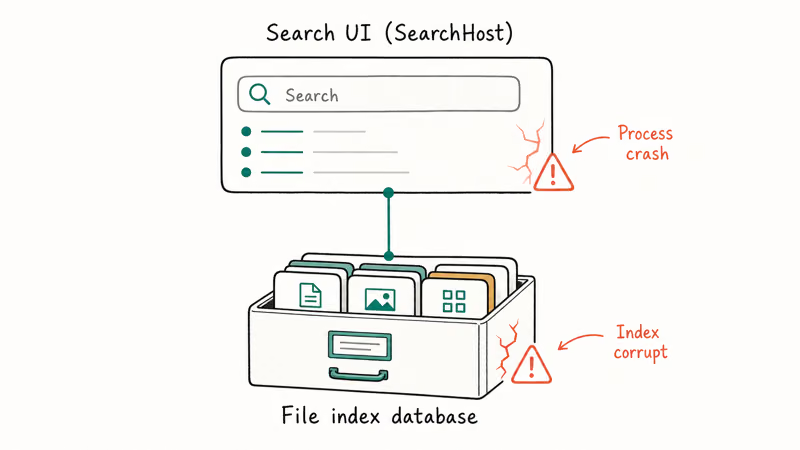
Windows builds a hidden database of your files and apps so results appear instantly. When that index breaks, search returns nothing even though your files are right there. When the process breaks, the panel itself misbehaves.
According to Microsoft’s guide to fixing problems in Windows Search, Windows runs the Search troubleshooter automatically when it detects a fault, and that troubleshooter resets Search to its default state. That auto-reset is your hint that most failures are recoverable without a reinstall.
#Tell the Search Process From the Index
Telling these two apart saves time. Use this quick split before you do anything heavier.
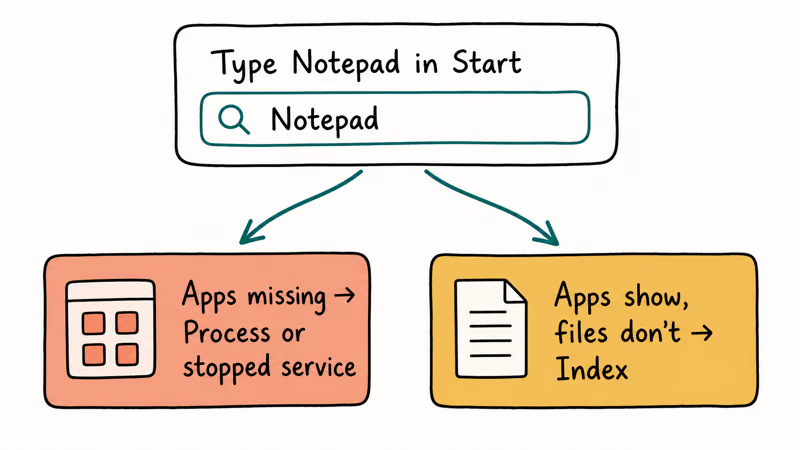
If the search box opens but freezes, shows no UI, or won’t accept text, the problem is the process, and restarting it brings search back. If the box works fine but returns nothing or misses files you know exist, the problem is the index, and rebuilding fixes it.
A fast test: open Start and type Notepad. If even installed apps don’t appear, blame the process or a stopped service. If apps show but your documents don’t, blame the index.
#Restart Search and Run the Troubleshooter
Start with the process restart. It’s the fastest low-risk fix. Press Ctrl+Shift+Esc, find Search (also listed as SearchHost) under Details, right-click, and choose End task. Windows relaunches it for you.
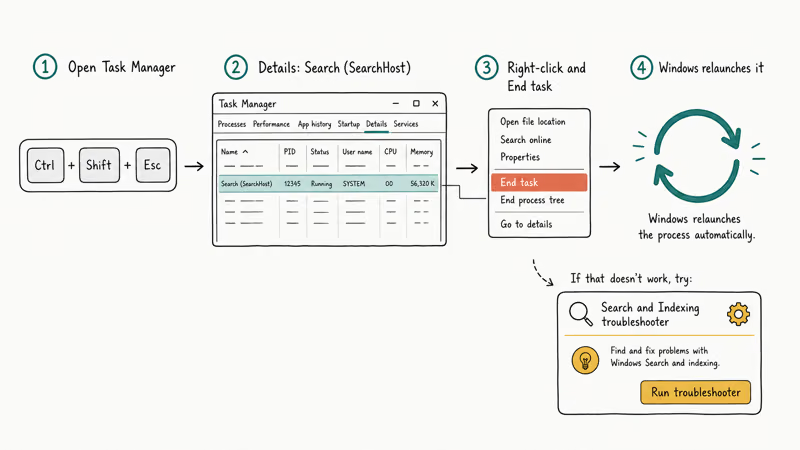
If that doesn’t hold, run the official troubleshooter. On Windows 11, go to Settings, System, Troubleshoot, Other troubleshooters, then run Search and Indexing. Tick the box that matches your symptom, such as files not appearing in results, and let it apply fixes.
Microsoft also notes that restarting the Windows Font Cache Service can clear stubborn search glitches, which sounds unrelated but sits in their official steps. If search keeps breaking after Windows updates, the cause may be a broader system issue covered in the Windows 11 BSOD Fix guide. For update failures that touch many features at once, see Windows 11 Update Error 0x800f0922.
#Rebuild the Search Index
If apps appear but your files don’t, rebuild the index. Open Settings, Privacy and security, Searching Windows, Advanced indexing options, click Advanced, then Rebuild. You can also reach it through Control Panel under Indexing Options.
A rebuild deletes the index database and recreates it from scratch, which is why missing files reappear afterward. According to Microsoft, a rebuild can take up to 24 hours, and in some cases a couple of days, depending on how many files you have. The same advice appears in Microsoft’s documentation on Windows Search indexing, so leave the PC on and plugged in.
During the rebuild, search results stay incomplete, so don’t panic if files are still missing an hour in. Check back once the indexer reports it has finished. If indexing also seems to peg your drive the whole time, the Windows 100% Disk Usage guide explains how to tell normal indexing load from a real disk problem.
#Trim an Oversized Search Index
A bloated index is its own failure mode that no restart can fix. Microsoft’s Windows Search performance guide states that the indexer can handle up to 1 million items, and that performance problems often start once it passes 400,000. A typical PC indexes far fewer, so an index that large usually means a giant folder slipped in. When that happens, search slows, stalls, or returns partial results that look like a total failure even though the engine is just overloaded.
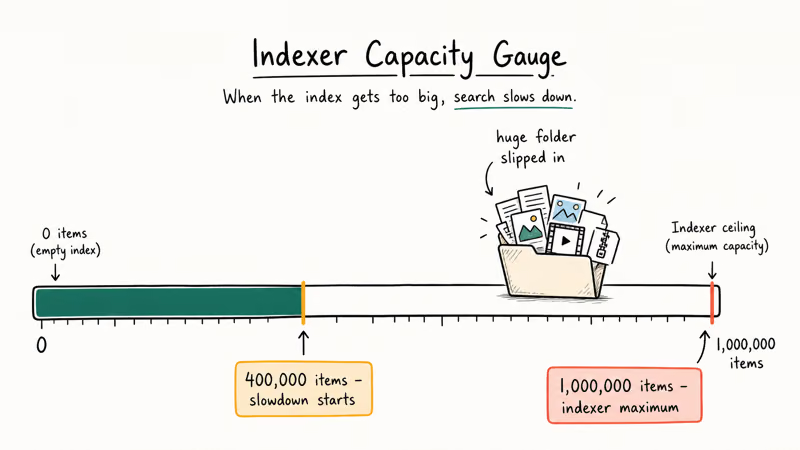
If you index huge folders full of media or archives, excluding a few of them can cure sluggish or failing search faster than a rebuild. Open Indexing Options, select Modify, and deselect locations you don’t need searched. A leaner index responds faster and rebuilds in less time.
#When Should You Check the Indexing Service?
The index can’t rebuild while the Windows Search service sits stopped. This is the step most guides skip, and it’s why some people rebuild forever with no change.
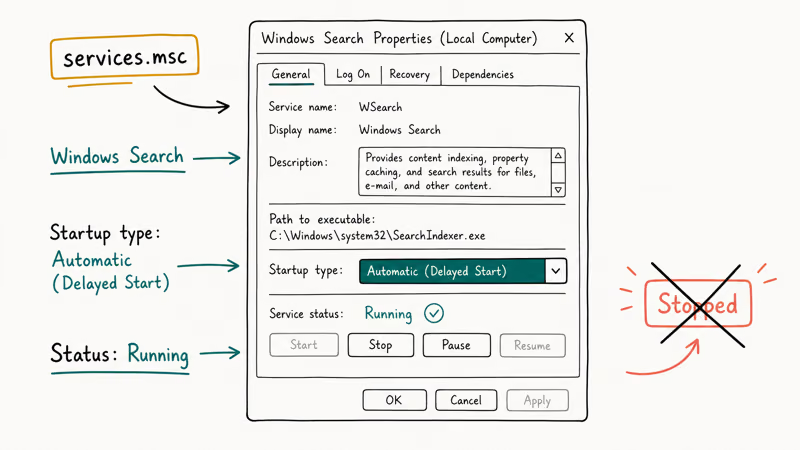
Press Windows+R, type services.msc, and press Enter. Scroll to Windows Search, double-click it, set Startup type to Automatic (Delayed Start), and make sure Status shows Running. If it’s stopped, click Start. With the service running, the troubleshooter and rebuild steps above will actually take effect.
One more boundary to keep straight: this whole process fixes Windows OS search, not the search inside Outlook. They use different indexes. If your email search is the real problem, the Outlook Search Not Working in Windows 11 guide handles that separately. To capture error screens while you troubleshoot, the Screenshot on Windows guide shows the quickest method.
#Bottom Line
Restart the search process in Task Manager and run the Search and Indexing troubleshooter first, because together they clear most blank or frozen search panels in a couple of minutes. If results stay missing while apps still appear, rebuild the index and give it the full time it needs. Before any of that fails to stick, confirm the Windows Search service is set to Automatic and running, since nothing else holds without it.
#Frequently Asked Questions
Why is Windows 11 search not working?
Search fails when its process crashes or its index becomes corrupt. A frozen or blank box points to the process. Missing files point to the index. Restart the process and run the troubleshooter.
How do I restart Windows search?
Open Task Manager with Ctrl+Shift+Esc, switch to the Details tab, right-click the Search process, and choose End task. Windows relaunches it automatically. Search usually responds again on your next keystroke, which makes this the fastest fix to try first.
How do I rebuild the search index?
Go to Settings, Privacy and security, Searching Windows, Advanced indexing options, click Advanced, then Rebuild. Microsoft notes a rebuild can take up to 24 hours, and a very large index can run longer. Leave the PC on and plugged in, because results stay patchy until the indexer reports it’s done. Don’t keep re-triggering the rebuild mid-run, since each restart throws away progress.
Why is the search box blank?
A blank search box almost always means the search process hung. End the Search task in Task Manager so Windows restarts it cleanly. If it stays blank, confirm the Windows Search service is running.
Is this the same as Outlook search not working?
No. Windows OS search and Outlook search use separate indexes. Fixing one does nothing for the other.
When should I check the indexing service?
Check it whenever a rebuild seems to do nothing. If the Windows Search service is stopped, the index can’t rebuild and search stays broken. Set the service to Automatic and confirm it shows Running before you spend time on deeper repairs.

Best Laptop for Running LLMs in 2026: Memory Comes First
The best laptop for running LLMs is a memory purchase first. Compare MacBook unified memory against NVIDIA laptop VRAM, and see what each tier really runs.

How to Run a Local LLM on Windows: A 2026 Setup Guide
Run a local LLM on Windows with LM Studio or Ollama. Pick a model that fits your GPU memory, keep every prompt offline, and skip the monthly bill.

Bluetooth Not Working on Snapdragon X? Fixes for 2026
Bluetooth not working on your Snapdragon X Copilot+ PC? Generic audio, mice, and keyboards work, but vendor apps often lack an ARM build. Fixes inside.

Docker Desktop and WSL2 Not Working on Snapdragon X? Fix It
WSL2 runs fine on Snapdragon X, but Docker Desktop ARM is Early Access and throws WSL errors. Use WSL2 plus native ARM64 Ubuntu and Docker Engine.