Windows 11 Bluetooth Toggle Missing? Fix It in 2026
Windows 11 Bluetooth toggle missing? Fix it by checking Device Manager, restarting services, and reinstalling drivers, plus when you need a USB adapter.
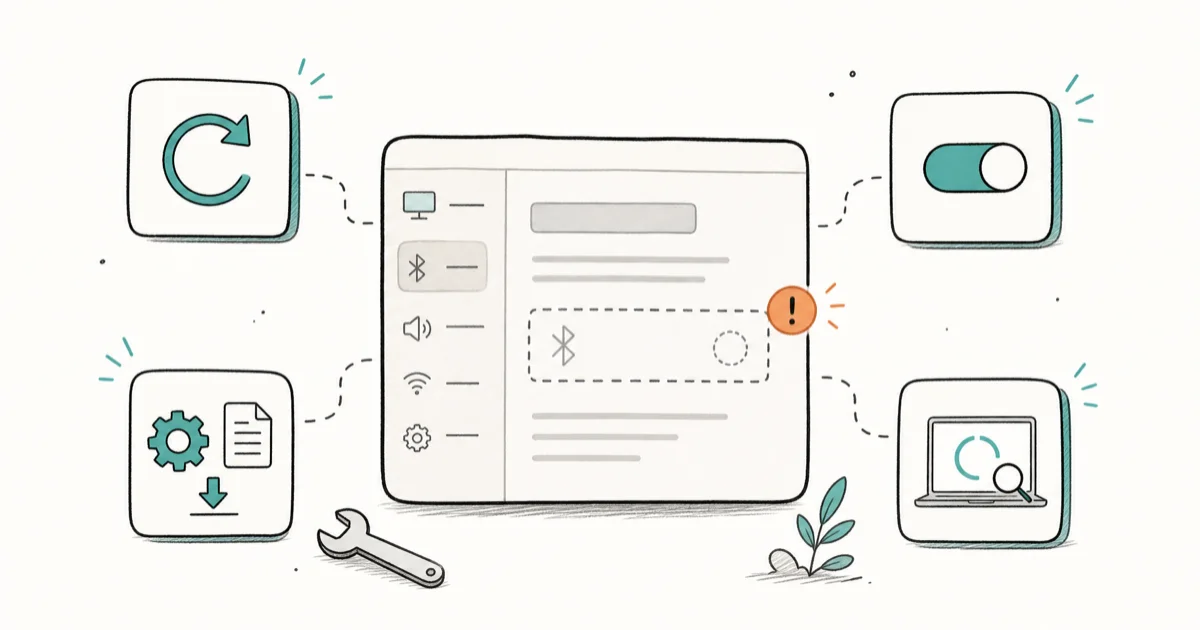
Quick AnswerA missing Windows 11 Bluetooth toggle usually means the driver was removed, the Bluetooth Support Service stopped, or airplane mode disabled the radio. Check Device Manager first, restart the Bluetooth service, then reinstall the driver before assuming the hardware failed.
When the Windows 11 Bluetooth toggle goes missing from Settings and Quick Settings, your headphones, mouse, or controller can’t pair because the radio has vanished from the interface. Four causes account for nearly all of it: a disabled radio, a removed driver, a stopped service, or a PC with no Bluetooth hardware. The steps below sort which one you have.
- A missing Bluetooth toggle has four common causes: disabled radio, removed driver, stopped service, or no Bluetooth hardware
- Device Manager tells you within seconds whether Windows still sees a Bluetooth adapter at all
- Airplane mode and a stuck Quick Settings tile disable the radio without removing the driver
- The Bluetooth Support Service must be running, or the toggle disappears even with a healthy driver
- A desktop with no built-in Bluetooth needs a USB adapter, no software fix will create a toggle
#Why Is the Bluetooth Toggle Missing in Windows 11?
The Bluetooth toggle is a front-end for a hardware radio plus a Windows service plus a driver. If any one of those three is broken or absent, Windows hides the toggle rather than showing a switch that controls nothing. That’s why the fix depends entirely on which layer failed.
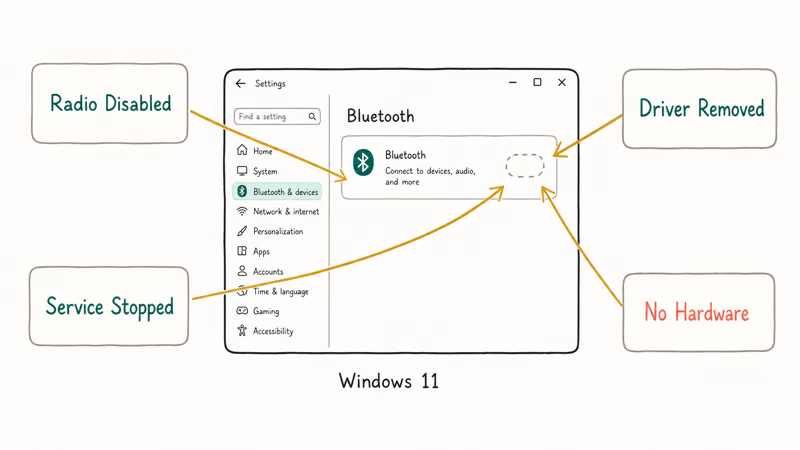
The toggle usually disappears after one specific trigger: a Windows update that swapped a driver, a cleanup tool that removed it, a sleep cycle that didn’t wake the radio, or airplane mode. Each leaves the same visible symptom but needs a different fix, which is exactly why a single “restart and hope” approach so often fails to bring the switch back on the first try.
According to Microsoft’s support guidance for when Bluetooth is missing, the missing-toggle problem is most often a driver or radio-state issue rather than failed hardware. So before assuming the adapter died, confirm what Windows can actually still see.
Here’s how the four causes map to a first action.
| Symptom | Likely cause | First action |
|---|---|---|
| Toggle gone, Device Manager shows Bluetooth | Stopped service or stuck radio | Restart Bluetooth Support Service |
| Toggle gone, Bluetooth with warning icon | Corrupt or outdated driver | Reinstall the driver |
| Toggle gone, no Bluetooth in Device Manager | Driver removed or hidden device | Scan for hardware changes, reinstall |
| Toggle gone after sleep or airplane mode | Radio disabled | Turn airplane mode off, reboot |
| No Bluetooth on a desktop, ever | No built-in hardware | Add a USB Bluetooth adapter |
Diagnostic table mapping a missing Bluetooth toggle to its likely cause
#Check Device Manager for the Adapter
Device Manager is the fastest way to learn whether the problem is software or hardware. Right-click the Start button, open Device Manager, and look for a “Bluetooth” category. If it’s there, your radio exists and the fix is a driver or service issue. If it’s missing entirely, the device is hidden, disabled, or absent.
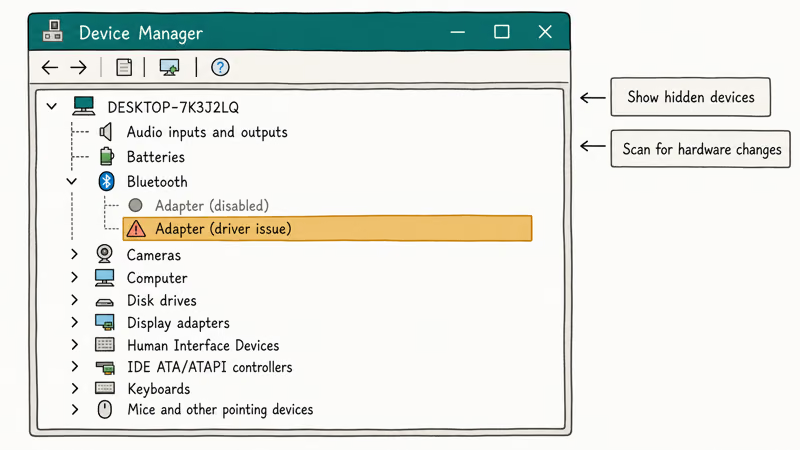
Click View, then Show hidden devices. A Bluetooth entry that appears greyed out is disabled, so right-click it and choose Enable. A device with a yellow warning triangle has a driver problem instead.
If no Bluetooth category shows even with hidden devices visible, click Action, then “Scan for hardware changes.” On a laptop, this can re-detect an adapter that a sleep cycle or driver swap dropped.
A quick checklist for this stage:
- Open Device Manager and look for a Bluetooth category
- Turn on “Show hidden devices” under the View menu
- Enable any greyed-out Bluetooth adapter
- Run “Scan for hardware changes” if nothing appears
If Device Manager truly shows no Bluetooth hardware after a scan, and you’re on a desktop, you likely never had it. That’s a hardware gap, not a Windows bug.
#Restart Bluetooth Services and Airplane Mode
The Bluetooth Support Service drives the toggle, so when it stops, Windows hides the switch even though the driver is healthy. Press Windows + R, type services.msc, and press Enter. Find “Bluetooth Support Service,” right-click it, and choose Restart. Then right-click again, open Properties, and set Startup type to Automatic.
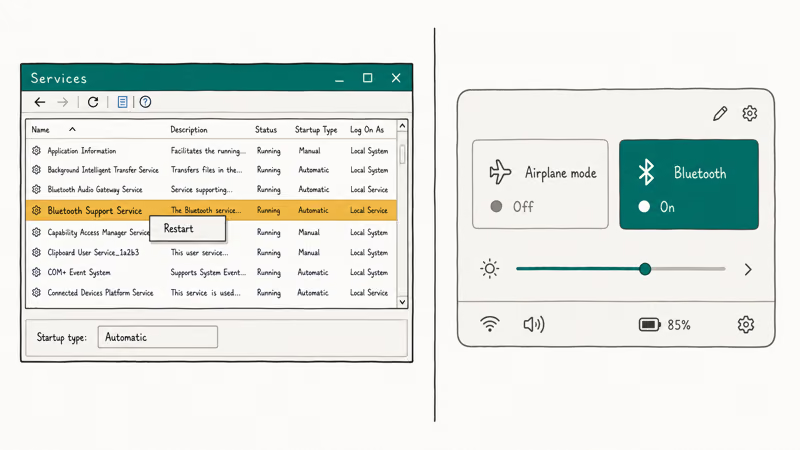
Airplane mode is the other quiet culprit. It disables every radio, and a stuck Quick Settings tile can leave it half-on. Open Settings, go to Network and internet, and confirm airplane mode is off, then reboot.
These two checks resolve the largest share of missing-toggle cases that aren’t driver-related. If your wireless radios drop together rather than Bluetooth alone, our notes on Windows 11 Wi-Fi Keeps Disconnecting cover the shared radio-stack causes.
One caution: don’t disable the service to “reset” it. Set it to Automatic and restart, since a disabled service guarantees the toggle stays gone.
#Reinstall the Bluetooth Driver Safely
When Device Manager shows a Bluetooth adapter with a warning icon, the driver is the problem. Right-click the adapter, choose Uninstall device, and check the box to remove the driver software if offered. Reboot. Windows reinstalls a generic driver automatically on startup, which restores the toggle in most cases.
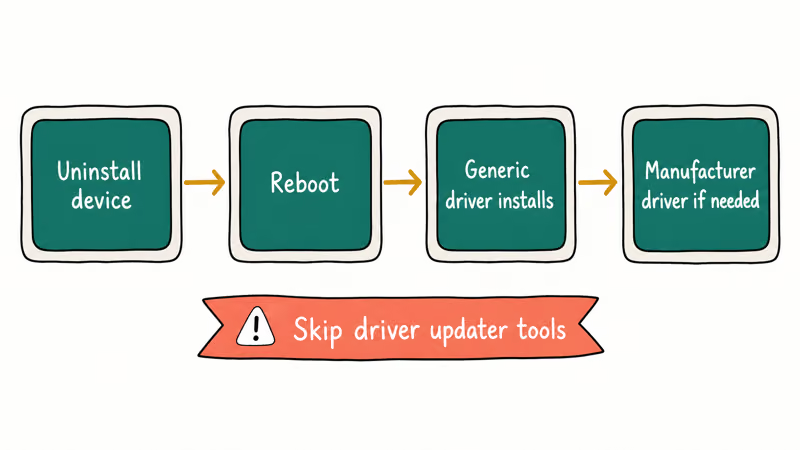
For the proper manufacturer driver, get it from your PC maker’s support page (Dell, HP, Lenovo) rather than a random driver site. According to Microsoft’s Bluetooth pairing documentation, a working driver plus the device in pairing mode is all Windows needs to connect, so a clean reinstall is usually enough.
A safe reinstall sequence:
- Note your adapter model in Device Manager first
- Uninstall the device and remove its driver software
- Reboot to let Windows install a generic driver
- Install the manufacturer driver only if the generic one fails
Avoid third-party “driver updater” tools that bulk-replace drivers. They frequently install the wrong Bluetooth package and can make the toggle disappear again. If a paired accessory shows a yellow icon after the toggle returns, our guide on the Bluetooth Peripheral Device driver error covers that specific Device Manager warning. And if a biometric login broke after the same update that hid Bluetooth, our notes on Windows Hello Fingerprint Not Working cover that companion driver issue.
#Check for a Pending Windows or Driver Update
Sometimes the toggle returns on its own once Windows pulls a corrected driver. Open Settings, go to Windows Update, and install everything pending, including optional driver updates listed under Advanced options. A held-back driver fix is a common reason the radio sits half-broken.
Microsoft’s support documentation states that Windows 11 ships a built-in Bluetooth driver, so a clean Windows Update often restores a working adapter without a manual download. According to Microsoft’s guidance on updating drivers in Windows, optional driver updates can also be installed from the Windows Update advanced settings. After installing, reboot and re-open Quick Settings to see whether the switch is back.
If updates install but the toggle still won’t appear, move on to the service restart and driver reinstall above. An update alone can’t fix a stopped service or a manually disabled adapter.
#When Do You Need a USB Bluetooth Adapter?
If Device Manager shows no Bluetooth hardware after a scan, no service restart and no driver reinstall will help. You can’t install software for a radio that doesn’t physically exist. This is common on desktop PCs, where Bluetooth is often an optional add-on rather than built in.
A USB Bluetooth adapter solves this in minutes. Plug it in, let Windows install its driver, and the toggle appears. These dongles cost under $20 and support Bluetooth 5.x, which is plenty for headphones, mice, and controllers. Our roundup of the Best Bluetooth Adapter For Pc compares current picks.
You need an adapter when:
- Device Manager shows zero Bluetooth hardware after a hardware scan
- You’re on a desktop that never had Bluetooth
- The built-in module physically failed and a driver reinstall can’t revive it
A common after-effect is a controller that won’t pair once Bluetooth returns. If that happens, our guide on Xbox Controller Wont Connect To Pc walks through the pairing-specific fixes that go beyond restoring the toggle.
#Bottom Line
Open Device Manager first. If a Bluetooth adapter is listed, restart the Bluetooth Support Service and turn airplane mode off, then reinstall the driver if it shows a warning icon. If no Bluetooth hardware appears after a hardware scan and you’re on a desktop, stop chasing software fixes and add a USB adapter, since there’s no radio for Windows to expose. Skip third-party driver updaters entirely, they cause more missing toggles than they fix.
#Frequently Asked Questions
Windows 11 Bluetooth toggle missing, what is the first thing to check?
Open Device Manager and look for a Bluetooth category. If it’s there, your hardware exists and the fix is a stopped service or a bad driver. If it’s missing even with “Show hidden devices” on, run a hardware scan, and if nothing appears on a desktop, you likely have no Bluetooth hardware.
Why did the Bluetooth toggle disappear after a Windows update?
Updates sometimes swap or break the Bluetooth driver, which removes the toggle. Reinstall the driver by uninstalling the adapter in Device Manager and rebooting so Windows installs a fresh copy. If a third-party driver tool ran during the update, it may have installed the wrong package.
Does fixing this require a reset or reinstall of Windows?
No. A missing Bluetooth toggle is a driver, service, or radio-state problem, not a corrupted Windows install, so a reset is overkill and risks your files. Restarting the Bluetooth Support Service, toggling airplane mode off, or reinstalling the driver fixes nearly every case in a few minutes. Work those low-risk steps first, and reserve any reset for badly broken system files that you’ve already confirmed with a separate scan.
What official support page should I check first?
Microsoft’s “Fix Bluetooth disappeared” support article covers the missing-radio and driver causes. Its Bluetooth pairing guide explains the connection flow once the toggle returns. Both are linked above.
What should I avoid doing?
Avoid third-party driver updater tools, and don’t disable the Bluetooth Support Service to “reset” it. Both routinely make the toggle disappear for longer.
Can airplane mode hide the Bluetooth toggle?
Yes. Airplane mode disables every radio, and a stuck Quick Settings tile can leave Bluetooth off even after you turned airplane mode back on. Check Settings under Network and internet, turn it off, and reboot.
How do I know if my PC even has Bluetooth?
Run “Scan for hardware changes” in Device Manager. If no Bluetooth category appears afterward, your PC has no working Bluetooth radio. Laptops almost always include it, but many desktops don’t, in which case a USB adapter is the only way to add the toggle.

Best Laptop for Running LLMs in 2026: Memory Comes First
The best laptop for running LLMs is a memory purchase first. Compare MacBook unified memory against NVIDIA laptop VRAM, and see what each tier really runs.

How to Run a Local LLM on Windows: A 2026 Setup Guide
Run a local LLM on Windows with LM Studio or Ollama. Pick a model that fits your GPU memory, keep every prompt offline, and skip the monthly bill.

Bluetooth Not Working on Snapdragon X? Fixes for 2026
Bluetooth not working on your Snapdragon X Copilot+ PC? Generic audio, mice, and keyboards work, but vendor apps often lack an ARM build. Fixes inside.

Docker Desktop and WSL2 Not Working on Snapdragon X? Fix It
WSL2 runs fine on Snapdragon X, but Docker Desktop ARM is Early Access and throws WSL errors. Use WSL2 plus native ARM64 Ubuntu and Docker Engine.