AirPods Connected but Sound Coming From Phone: 8 Fixes
AirPods connected but sound plays through your phone speaker? Fix audio routing with 8 practical methods for all AirPods models on iPhone, iPad, and Mac.
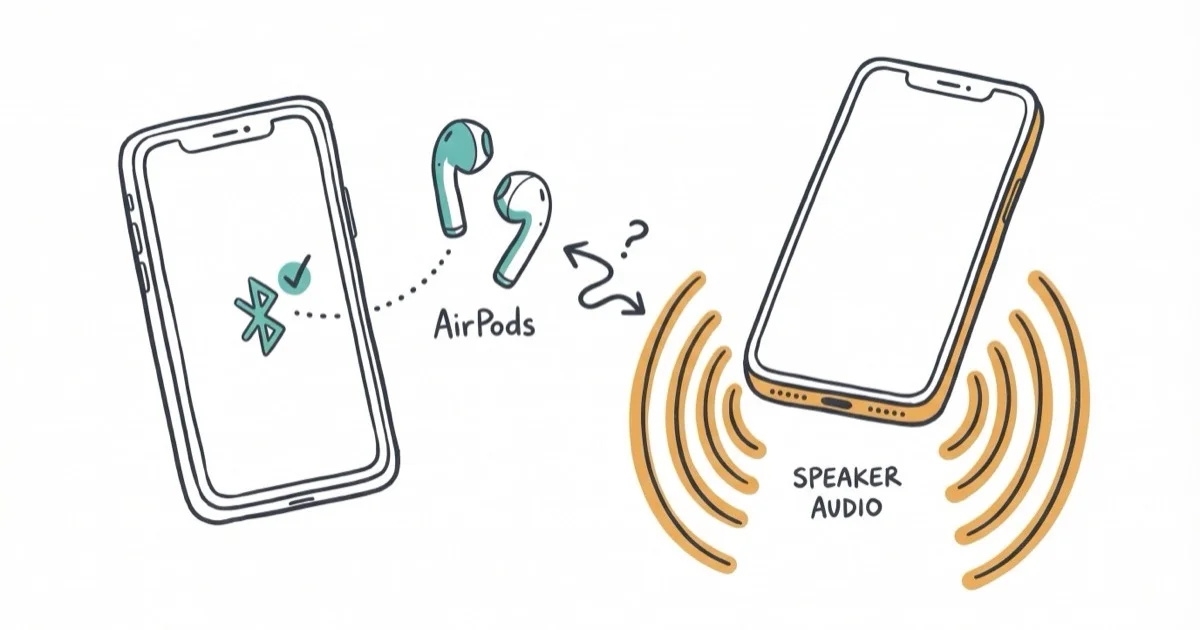
Quick AnswerOpen Control Center, long-press the audio card, tap AirPlay, and select your AirPods. If sound still plays through the speaker, toggle Bluetooth off for 10 seconds and back on.
Your AirPods show “Connected” in Bluetooth settings, yet sound still blasts from the phone speaker. Start by manually selecting AirPods as the audio output, then move through the deeper routing fixes below.
- Bluetooth pairing and audio routing are separate processes, so AirPods can connect without receiving sound
- Switching the audio output manually through Control Center is the fastest first fix
- Dirty proximity sensors trick iOS into thinking AirPods aren’t in your ears, rerouting sound to the speaker
- Toggling Bluetooth in Settings (not Control Center) forces a full reconnection that resets audio routing
- A factory reset clears persistent firmware glitches that survive normal reconnection cycles
#Why AirPods Show Connected but Sound Plays Through the Speaker
Bluetooth pairing and audio routing are two different things. Pairing tells your iPhone the AirPods exist. Audio routing tells it where to actually send sound. Your AirPods can be paired without being the active output device.
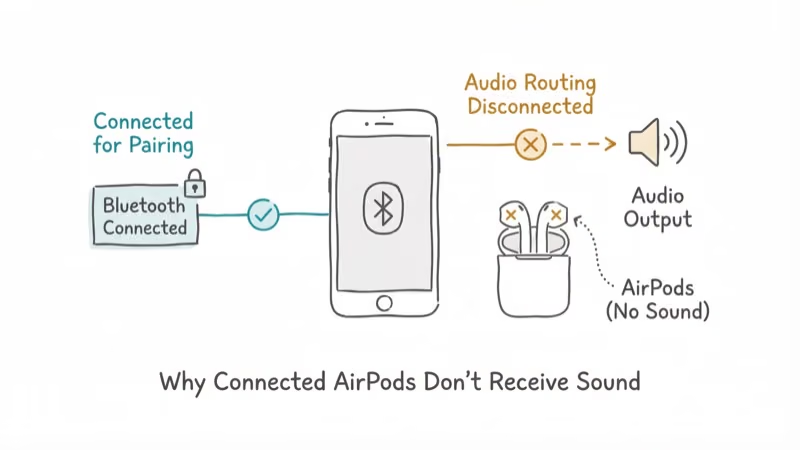
Four situations cause this mismatch.
The audio output defaulted to the speaker. If your last session ended with the phone speaker selected, iOS remembers that choice and won’t automatically switch back to AirPods when they reconnect.
Automatic Ear Detection failed. Each AirPod has a proximity sensor behind the black oval grille. Earwax, sweat, or debris blocks the sensor, and iOS assumes you took the AirPods out. According to Apple’s AirPods settings guide, turning off Automatic Ear Detection on all 4 AirPods models forces audio to always play through AirPods when connected.
Another Apple device grabbed the connection. AirPods support automatic switching between iPhone, iPad, and Mac. If your MacBook played a YouTube video 10 minutes ago, your AirPods may still be routed to the Mac even though the iPhone shows them as connected.
An iOS bug is interfering. Apple’s iOS 17 release notes list specific fixes for audio device switching problems. Older versions have known routing bugs.
#8 Ways to Fix AirPods Audio Routing
#Fix 1: Manually Select AirPods as Audio Output
Open Control Center by swiping down from the top-right corner. Long-press the audio playback card, tap the AirPlay icon in the upper-right corner, and pick your AirPods from the list. On a phone call, tap the speaker icon on the call screen and select AirPods instead.
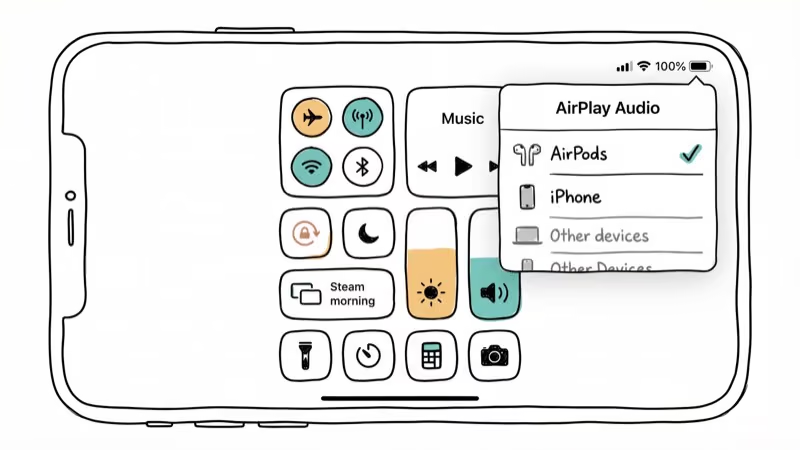
If the AirPods appear in the AirPlay list, select them there.
#Fix 2: Toggle Bluetooth in Settings
The Control Center Bluetooth button only pauses the connection. It doesn’t reset the audio route.
Go to Settings > Bluetooth, flip the toggle off, count to 10, then flip it back on. Your AirPods should reconnect with audio routed correctly. If Bluetooth keeps dropping on your iPhone, our guide on Bluetooth not working on iPhone walks through deeper fixes.
#Fix 3: Disable Automatic Ear Detection
When the proximity sensors malfunction, iOS thinks your AirPods are sitting on a desk rather than in your ears. Sound stays on the phone speaker.
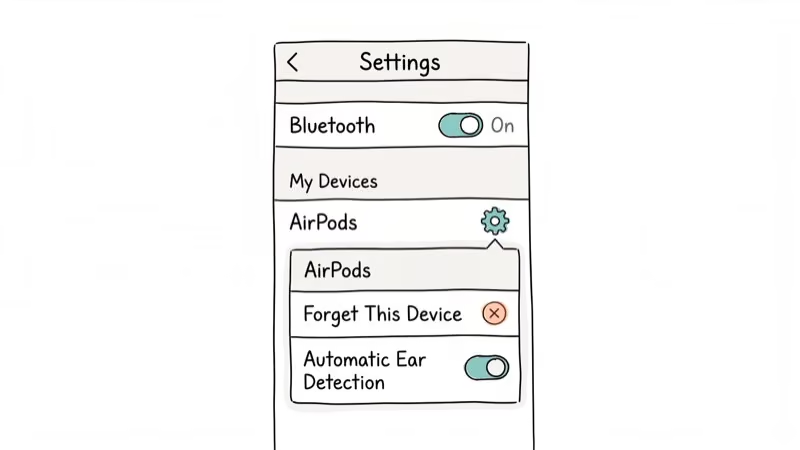
Go to Settings > Bluetooth, tap the i icon next to your AirPods name, and turn off Automatic Ear Detection. Audio will now route to AirPods whenever they’re connected, regardless of sensor readings.
The tradeoff: audio won’t auto-pause when you pull one AirPod out. Clean the black oval sensors on the inner face of each earbud with a dry lint-free cloth before deciding whether to leave this setting off permanently.
#Fix 4: Put AirPods Back in the Case
Take both AirPods out of your ears, place them in the charging case, and close the lid for 15 seconds. Open the lid and reinsert them. This forces a fresh Bluetooth handshake and resets the audio route. If your AirPods case isn’t charging properly, the power cycle may not complete.
#What to Do When Basic Fixes Don’t Work?
The first four methods resolve this for most people. If sound still comes from the phone speaker after trying all four, the underlying problem is more persistent than a temporary routing glitch and you’ll need to go deeper.
#Fix 5: Check Focus Mode Settings
Some custom Focus profiles silence certain apps or modify notification routing. This can make it seem like audio isn’t reaching your AirPods.
Open Control Center and look for a Focus icon (moon, work briefcase, or custom icon). Tap it to disable the active Focus mode, then test audio playback again.
#Fix 6: Update iOS
Go to Settings > General > Software Update. Install any available update. Timing varies.
According to Apple’s iOS update page, each release can include Bluetooth stability improvements. Updating is worth doing when routing bugs persist after basic reconnection steps, especially if the problem started after an older iOS release or keeps returning after you manually select AirPods in Control Center.
#Fix 7: Factory Reset Your AirPods
This wipes all pairing data stored on the AirPods themselves.
Put both AirPods in the case and close the lid for 30 seconds. Open the lid, then press and hold the setup button on the back of the case for 15 seconds. The status light flashes amber, then white. Hold the open case near your iPhone and follow the on-screen pairing prompt.
After resetting, reconnect your AirPods and manually confirm the audio route in Control Center. If pairing fails after the reset, check our AirPods connection failed guide for next steps.
#Fix 8: Reset Network Settings
This erases all saved Wi-Fi passwords and Bluetooth pairings on your iPhone. Use it only after the other seven fixes have failed.
Go to Settings > General > Transfer or Reset iPhone > Reset > Reset Network Settings. Enter your passcode when prompted. Your iPhone restarts, and you’ll need to reconnect to Wi-Fi and re-pair every Bluetooth device afterward.
#Fixing This on Mac and iPad
This happens on Mac and iPad too.
On Mac: Click the Control Center icon in the menu bar, then click the Sound section. Select your AirPods under Output. If they don’t appear, go to System Settings > Sound > Output and pick them from the device list.
On iPad: The process mirrors iPhone exactly. Swipe down from the top-right corner, long-press the audio card, and tap the AirPlay icon. If your AirPods specifically won’t connect to your Mac at all, our AirPods not connecting to Mac guide covers Mac-specific pairing issues.
#Can Dirty AirPods Cause Audio Routing Problems?
Yes. The proximity sensors sit behind the black oval grille on each AirPod. Earwax or debris covering them prevents ear detection, and iOS reroutes audio to the phone speaker.
Clean your AirPods with a dry soft-bristled brush on the speaker mesh and sensors, then wipe the body with a slightly damp lint-free cloth. According to Apple’s cleaning guide, you should never run water directly on any AirPods model. If your AirPods still sound muffled after cleaning, the speaker mesh may need professional service.
#Preventing Audio Routing Issues Long-Term
Keep your AirPods firmware current. Leave them in the charging case near your iPhone overnight with Wi-Fi enabled, and firmware updates install automatically.
Remove old Bluetooth devices you don’t use anymore. Go to Settings > Bluetooth and forget headphones, car systems, and speakers that aren’t part of your daily setup. Fewer paired devices means fewer routing conflicts.
According to Apple’s Bluetooth troubleshooting page, removing unused pairings is one of the first recommended steps for resolving persistent connection problems. If random rerouting keeps happening, forget old headphones, car systems, and speakers you no longer use.
#Bottom Line
Start by selecting AirPods in Control Center. If it recurs, disable Automatic Ear Detection or factory reset them.
#Frequently Asked Questions
Why do my AirPods keep disconnecting and sending sound to the phone?
Low battery is the most common trigger. When AirPods drop below 10%, the Bluetooth connection becomes unstable and iOS falls back to the phone speaker. Charge them above 20% and reconnect.
Can other Bluetooth devices interfere with AirPods audio routing?
Yes. When multiple Bluetooth audio devices are paired, iOS sometimes picks the wrong output. Go to Settings > Bluetooth and forget devices you don’t use, especially old headphones, car systems, and speakers.
Do all eight fixes apply to AirPods Max and older AirPods models?
All eight methods work on every AirPods model including AirPods Max, AirPods 3rd generation, and the original AirPods. AirPods Max uses head detection sensors instead of ear detection, but the troubleshooting steps are identical.
How do I check my AirPods firmware version?
Go to Settings > Bluetooth, tap the i next to your AirPods, and scroll to Firmware Version at the bottom. You can’t force a manual update. Leave your AirPods in the case, charging, and near your iPhone with Wi-Fi on overnight. Pending updates typically install within a few hours.
Will resetting my AirPods delete custom settings?
Yes. A factory reset erases custom tap/press controls, noise cancellation preferences, spatial audio personalization, and Ear Tip Fit Test results. Reconfiguring takes about 2 minutes during re-pairing.
Why does call audio go to the phone speaker while music plays through AirPods?
Phone calls and media playback use separate audio paths in iOS. During a call, tap the speaker icon on the call screen and select AirPods. If calls consistently route to the phone speaker while music works fine, check whether your AirPod microphone is working correctly. A faulty mic can cause iOS to default to the built-in speaker for calls.
Does turning off Automatic Ear Detection drain AirPods battery faster?
No. Disabling this setting doesn’t change power consumption because the sensors still operate in the background. The only difference is that audio won’t pause when you remove an AirPod. Music keeps playing until you manually pause, which can indirectly drain battery if you forget.
Can an iPhone speaker problem cause this issue?
Rarely. If your iPhone speaker has a hardware fault, iOS might behave unpredictably with audio routing. Test by playing audio through the phone speaker alone. If it sounds distorted or cuts out, the problem may be your iPhone speaker, not the AirPods.

Mac mini M6 vs M5 Pro: Which Model Should You Buy?
Mac mini M6 vs M5 Pro compared on price, memory, ports, displays, and real workloads. Find the better 2026 Mac mini for your desk and budget.

Apple Siri Settlement: Who Qualifies and How to Claim
Apple's $250 million Siri settlement covers iPhone 15 Pro and iPhone 16 models bought June 2024 to March 2025. See who qualifies and how claims work.

iOS 26.6.1 Security Update: What Apple Fixed and Who Gets It
Apple released iOS 26.6.1 on August 17 with 29 security fixes, including an IPSec interception bug. See what it patches, who gets it, and how to update.

iPhone Adaptive Power: How It Works and When to Use It
Learn how iPhone Adaptive Power works, which models support it, what it changes, and when Low Power Mode is still the better battery-saving choice.