Windows 10 Parental Controls: Setup Guide for Parents
Set up Windows 10 parental controls with Microsoft Family Safety. Configure child accounts, web filters, screen time, and weekly activity reports.
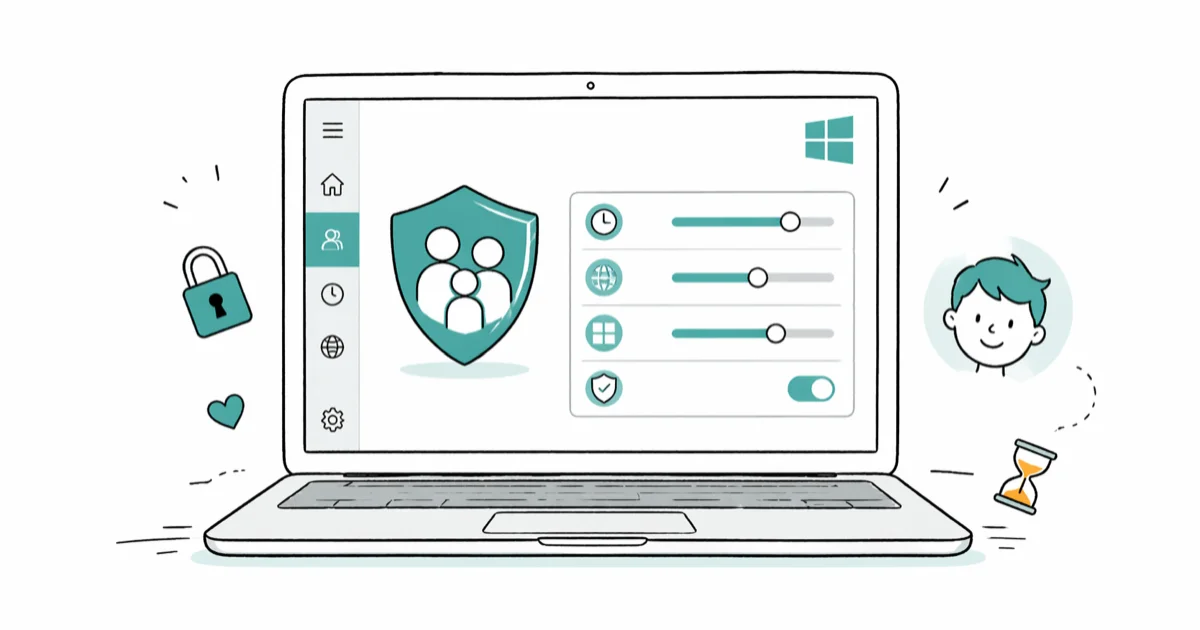
Quick AnswerMicrosoft Family Safety handles parental controls on Windows 10. Sign in to family.microsoft.com, add your child's Microsoft account to your family group, then configure screen time, app limits, web filters, and weekly activity reports from the dashboard.
Windows 10 parental controls run through Microsoft Family Safety, the same account-based system Microsoft uses for Windows 11 and Xbox. The setup takes a short while once your child has a Microsoft account. This guide covers which features still work on Windows 10 22H2, which have moved to the mobile app, and where the platform still falls short.
- Microsoft Family Safety covers screen time, app limits, web filters, purchase approvals, and weekly activity reports on Windows 10 and Windows 11
- The web filter only works inside Microsoft Edge, so Chrome and Firefox bypass it unless you block those browsers in the Apps tab
- The Family Safety mobile app gives parents the same dashboard as family.microsoft.com on iPhone and Android
- Screen time limits sync across Windows PCs, Xbox consoles, and Android devices linked to the same family group
- Microsoft ended free Windows 10 support on October 14, 2025, but Family Safety still works on Windows 10 22H2 with a current Microsoft account
#What Does Microsoft Family Safety Do on Windows 10?
Microsoft Family Safety is the built-in parental control system on Windows 10. It works through your free Microsoft account, not a separate purchase. Once you add your child to your family group, you can manage their PC, Xbox, and supported phones from one dashboard at family.microsoft.com or the Family Safety mobile app.
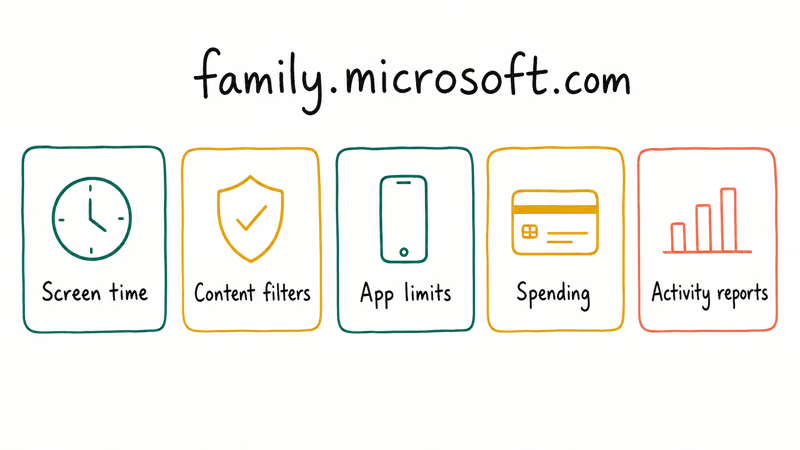
The dashboard groups controls into five buckets: screen time, content filters, app and game limits, spending controls, and activity reporting. Every rule runs at the account level.
According to Microsoft’s Family Safety help center, the dashboard treats each child as a separate profile, so you can set different rules for a seven-year-old and a fourteen-year-old without juggling two systems.
For households that also want network-wide coverage, a router-level layer like Netgear parental controls catches devices Family Safety can’t reach, such as guest laptops or smart TVs. We compare the tradeoffs in our roundup of the best parental control router options for a mixed-device home.
#How to Set Up a Child Account on Windows 10
Family Safety needs a separate Microsoft account for your child before you can apply any limits. You can create one for free during setup. Children under 13 (or your country’s digital-consent age) need parental consent during account creation, which Microsoft verifies with a small one-time card charge.
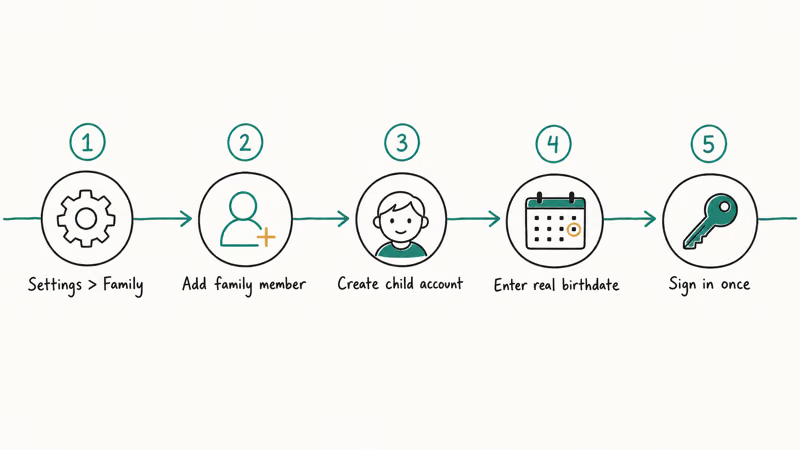
Here are the steps to add a child’s account to a Windows 10 22H2 laptop:
- Open
Settings>Accounts>Family andother users. - Click Add a family member, then Create one for a child.
- Enter the child’s email, password, name, and birthdate. Use the real birthdate, since Family Safety sets age-appropriate defaults based on it.
- Accept the consent prompt and complete the parental verification charge if your country requires it.
- Sign in once on the Windows 10 PC with the child’s new account so the limits start applying.
Microsoft’s family group setup guide confirms that the family group is built for a parent organizer plus child and adult members, with each account managed individually. The full child-account-creation flow is quick on a fresh Windows 10 install. After your child signs in once, switch to your own device or open the Family Safety app on your phone. Their profile appears under your family group, and you can apply rules without ever touching their laptop again.
#Setting Daily Screen Time and App Limits
Open family.microsoft.com, pick the child profile, then click Screen time to set daily caps.
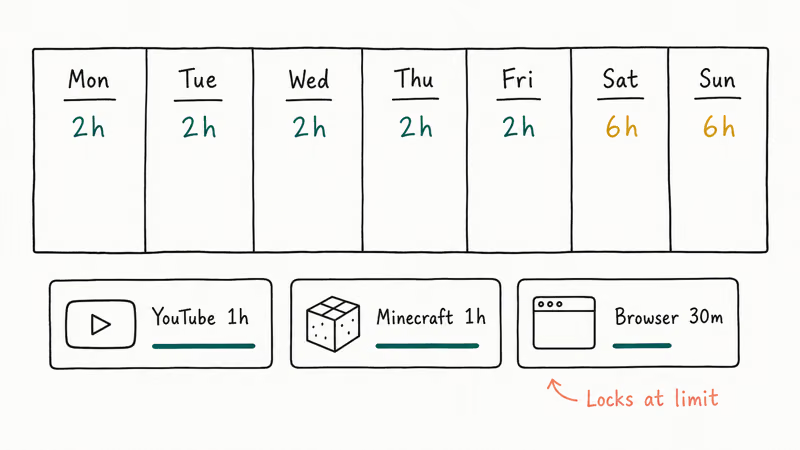
Screen time. Set daily or per-app time limits. You can give your child six hours on Windows on Saturday but only two on weeknights, and Family Safety also supports per-app limits so YouTube and Minecraft each get their own budget. When the limit expires, Windows locks the account and prompts the child to request more time, which sends you a notification you can approve or deny from your phone in a single tap.
Apps and games. Pick an age rating ceiling: PEGI 7, PEGI 12, or ESRB Teen. Anything above that rating in the Microsoft Store gets hidden, and existing apps above the limit need your approval to launch. You can also block specific apps individually, which is useful if a friend installed Discord and you don’t want it on the child’s profile after a weekend visit.
Screen time and app rules sync across every Windows or Xbox device the child signs into with that Microsoft account, so a limit you set on the family laptop also applies to the Xbox in the living room.
#Adding Web Filters, Spending, and Activity Reports
The remaining three tabs on family.microsoft.com cover content filtering, purchases, and reporting.
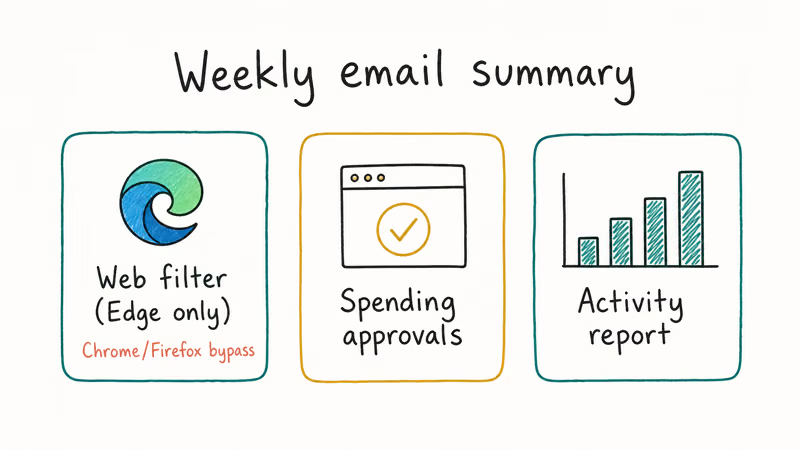
Content filters. Toggle Filter inappropriate websites and searches and Microsoft’s default blocklist activates, covering adult content, gambling, and a few dozen other categories. Add custom blocked or allowed sites underneath. According to Microsoft’s content filter documentation, the filter applies to web searches across Bing, Google, and Yahoo when the child uses Microsoft Edge.
Spending controls. Choose whether your child can buy anything in the Microsoft Store, whether each purchase needs your approval, and whether you want to load funds into their account. The Microsoft Family Safety documentation recommends the prepaid-funds method so children can self-serve small purchases without exposing your card.
Activity reporting. Toggle on the weekly email digest. It summarizes screen time, top apps, top sites visited in Edge, and search terms. The digest arrives weekly and takes about a minute to skim.
For phones in the same family group, the same logic syncs to Android screen time; on iPhones, pair it with iOS Screen Time.
#Does the Web Filter Work on Chrome and Firefox?
No. Microsoft’s web filter only enforces blocks inside Microsoft Edge. On Chrome and Firefox, blocked URLs load without any warning. The filter does not hook into other browsers’ DNS or network stack.
Microsoft’s workaround is to block Chrome and Firefox at the app layer. On the Apps and games tab, search for “Chrome” and “Firefox”, set each one to Blocked, and Windows refuses to launch either when the child is signed in. The block survives reinstalls because Family Safety reads the app’s package signature, not its file path, so reinstalling a blocked browser still won’t let it launch under the child’s account.
If your child is older and you’d rather give them choice of browser, a network-level filter handles browser-agnostic filtering by intercepting DNS requests on the Wi-Fi network. That approach catches phones, tablets, and smart TVs too, and most parents of older kids end up running both Family Safety on the PC and a router filter on the network as a belt-and-suspenders setup.
#Limits of Windows 10 Parental Controls
Family Safety has shipped steadily since 2017, but it still has rough edges parents should know about. Here’s where the friction shows up:
- Edge-only web filter. Already covered above. Plan to block Chrome and Firefox or layer a router filter on top.
- No keystroke logging or screen capture. Family Safety reports screen time and visited URLs but does not capture passwords, messages, or screenshots. This is a feature, not a gap. Installing hidden monitoring software on another person’s device can be illegal under federal wiretap law and most state privacy regulations, and even for your own minor child it teaches the wrong lesson about consent.
- Activity reports lag. The dashboard updates within an hour or two, but the weekly email is not real-time. Use the mobile app if you need to spot-check during the day.
- iOS coverage is thin. On iPhone the app shows location and a few content filters but can’t enforce screen time the way Apple’s own Screen Time can. Pair Family Safety with iOS Screen Time for full coverage, and use our guide on how to block adult sites on iPhone for a deeper iOS walkthrough.
- Windows 10 end of support. According to Microsoft’s Windows 10 end-of-support page, Microsoft officially ended free Windows 10 support on October 14, 2025, and consumer Extended Security Updates are available for one year through October 2026. Family Safety itself still works, but the OS no longer receives free security patches.
If your teen is on TikTok specifically, the controls in our TikTok parental controls guide plug a gap Family Safety can’t fill: app-internal settings like Restricted Mode and direct-message limits.
#Bottom Line
For most households, Microsoft Family Safety is the right starting point on Windows 10. It’s free, the controls match the modern playbook for a minor’s PC (screen time, content filters, purchase approvals, activity reports), and they scale to Xbox and Android out of the box.
The two real gaps are the Edge-only web filter and how Chrome and Firefox slip past it. The cleanest fix is to block both browsers in the Apps tab and let your child use Edge. If your child is over 13, layer a router-level filter on top of Family Safety so every connected device in the house is covered without forcing browser choice on the kid.
Skip third-party tools that capture keystrokes or hide themselves from the user. Those are surveillance products, not parenting tools, and they teach exactly the wrong lesson about consent and privacy.
#Frequently Asked Questions
Can I customize different settings for each child account?
Yes. Family Safety stores rules per profile, so each child gets independent screen time, app, and content rules.
Can I manage Windows 10 parental controls from my phone?
Yes. The Microsoft Family Safety app on iOS and Android shows the same dashboard as family.microsoft.com, and any change you make on your phone applies to your child’s Windows 10 PC within a few minutes. The app is the fastest way to respond when your child runs out of screen time mid-homework, since the push notification lands the moment they tap “Ask for more time” on the lock screen.
Does Family Safety still work after Windows 10 reached end of support?
Yes, with a caveat about OS security. Family Safety is tied to your Microsoft account, not to the Windows release, so it still works on Windows 10 22H2 after the support cutoff. You should still plan to move to Windows 11 or enroll in Extended Security Updates so the OS keeps receiving patches.
What ages does Microsoft Family Safety support?
Microsoft supports children of any age in the family group. Under-13 accounts require parental consent at signup. On the child’s 18th birthday the account converts to adult, and they can opt out of monitoring.
Can my child bypass Family Safety by signing out and using a local account?
Not silently. Creating a new local account on Windows 10 requires a parent’s password during initial Windows setup, and signing out of the family-managed account does not remove the Microsoft account from the device. The managed account stays under your control as long as the admin password is not compromised.
Does Family Safety record passwords or screenshots?
No, only metadata.
Is there an option to give my child more time today without changing the daily limit?
Yes. When the daily limit hits, your child can tap “Ask for more time” on Windows 10, and the request lands in your Family Safety app as a notification. You can grant 15 minutes, an hour, or a custom amount without changing tomorrow’s schedule. Microsoft’s screen time documentation states that one-off grants reset at midnight in the child’s local time zone, so a Tuesday grant doesn’t carry over into Wednesday’s budget.

Is This Bank App Real? Spot a Fake App on Your Home Screen
A bank app can land on your home screen from a web page with no install warning. Learn the checks that tell a real banking app from a phishing web app.

Passkeys Not Syncing Between iPhone and Windows? Read This
Passkeys not syncing between iPhone and Windows is by design, not a bug. Here is why iCloud passkeys skip Windows Hello and the three ways to fix it.

VPN Not Working on Snapdragon X? Why It Fails, How to Fix
Your VPN won't install or connect on a Snapdragon X Copilot Plus PC because Windows on ARM can't emulate the network driver. Here are the fixes that work.

How to Check If a Link Is Safe Before You Click It
Learn how to check if a link is safe with official-first steps: read the real domain, use the app instead, and treat scanners as a second opinion only.