Windows 10 ESU: How to Get Extended Security Updates
Windows 10 ESU explained: the three consumer enrollment paths, what each costs, how long coverage lasts, who needs it, and the alternatives to weigh first.

Quick AnswerWindows 10 ESU keeps a PC patched through October 12, 2027. Consumers enroll three ways: free by syncing settings with Windows Backup, with 1,000 Microsoft Rewards points, or for a one-time $30.
Windows 10 ESU is Microsoft’s lifeline for anyone still running Windows 10 after support ended. The program delivers the security patches your PC would otherwise stop receiving, and for consumers there’s now a path that costs nothing. The catch is that it buys time, not forever.
- Windows 10 reached end of support on October 14, 2025, so unenrolled PCs no longer get security updates
- Consumer ESU covers critical and important security updates through October 12, 2027, two years past end of support
- You can enroll free by syncing settings with Windows Backup, redeem 1,000 Microsoft Rewards points, or pay a one-time $30
- Enrollment needs Windows 10 version 22H2 and a Microsoft account with administrator rights, not a local account
- One ESU license ties to your Microsoft account and covers up to 10 devices, so a household can enroll several PCs
#What Windows 10 ESU Covers
ESU stands for Extended Security Updates. It’s a program that delivers security patches to Windows 10 after the operating system hit the end of its normal support window, so an old PC keeps getting the fixes that matter most even after Microsoft formally walks away from the OS.
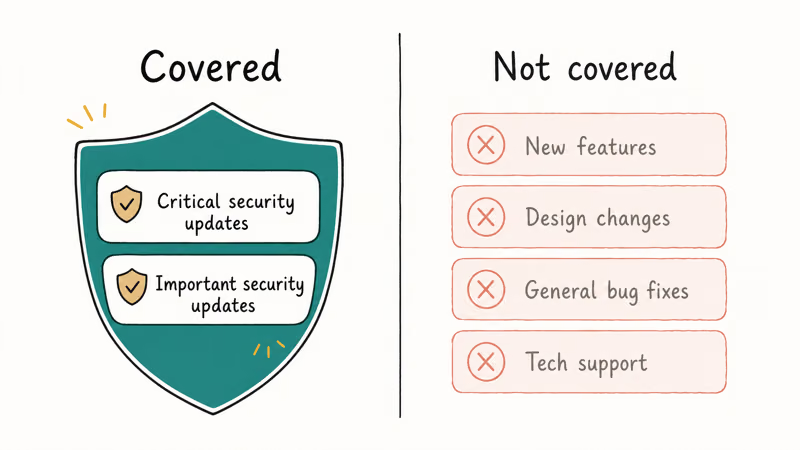
Microsoft sorts Windows updates into categories, and ESU covers only the security ones rated critical and important. According to Microsoft’s Windows 10 Extended Security Updates page, the program covers “critical and important security updates as defined by the Microsoft Security Response Center” for devices running version 22H2. Anything outside that definition is out of scope, which is the whole shape of the deal: an enrolled machine keeps getting patched every month, and stops getting everything else.
Here’s what ESU leaves out. No new features. No design changes, no general bug fixes, no technical support beyond those patches. It’s a security safety net, nothing more.
#Who Actually Needs Windows 10 ESU?
You need ESU in one situation: your PC still runs Windows 10 and either can’t upgrade to Windows 11 or you’re not ready to move yet. Skip enrollment and every vulnerability discovered after October 2025 stays unpatched on your machine, with no monthly fixes arriving to close the holes. That’s the whole reason the program exists.
Microsoft’s Windows 10 end-of-support notice confirms the cutoff was October 14, 2025. After that date an unenrolled Windows 10 PC still boots, but it stops getting the monthly security fixes that block newly discovered exploits. Windows Update will simply report the system is up to date while no new patches arrive. Over months, that gap becomes a real risk for anyone who banks, shops, or stores personal files on the device.
Plenty of machines simply can’t clear the Windows 11 hardware bar. Microsoft’s Windows 11 system requirements demand TPM 2.0 with Secure Boot, and many capable 2017-era laptops fail on that check alone.
If that’s your PC, ESU is the bridge. Not sure whether your machine qualifies for the free Windows 11 upgrade instead? Our guide on how to check if your PC can run Windows 11 walks through the compatibility test step by step.
#The Three Enrollment Paths and What They Cost
Consumers get three ways to enroll, and all three unlock exactly the same coverage. The only difference is how you pay.
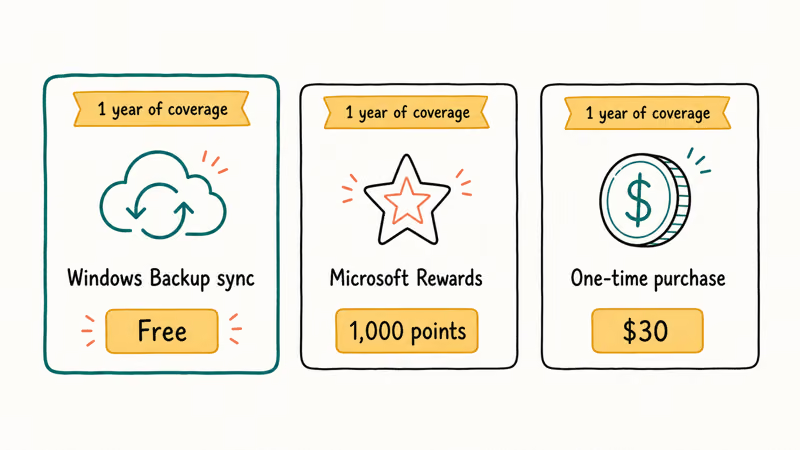
Comparison of the three consumer Windows 10 ESU enrollment options and their cost
| Enrollment path | Cost | What you do |
|---|---|---|
| Windows Backup sync | Free | Sync your PC settings to the cloud |
| Microsoft Rewards | 1,000 points | Redeem reward points |
| One-time purchase | $30 USD | Pay once, plus tax |
The free path is the surprise. Microsoft states that you can enroll at no cost by using Windows Backup to sync your settings to the cloud. For most people that’s the obvious choice, since it asks for a settings sync rather than money. On a Windows 10 22H2 machine, the free option appears under Windows Update once every pending update is applied.
Sitting on Microsoft Rewards? The second path costs 1,000 points, which Microsoft confirms enrolls a device. That’s handy if you already earn points through Bing searches or the Microsoft Store, since it turns idle points into the same coverage the paid path buys.
The third path is a flat one-time $30 plus applicable tax. Pick this only if you don’t want to sync settings and have no points to spend.
#How Long Windows 10 ESU Lasts
Microsoft states that you can enroll any time until the program ends on October 12, 2027, and that coverage for an already-enrolled device continues through that date with no action needed.
That end date is the key limitation. The consumer version has no extension to buy beyond it, so when October 2027 arrives you’re out of road on Windows 10, full stop. Businesses buy their coverage separately, as an annual subscription rather than a one-off.
So treat ESU as a planning window. Use the time to budget for a new PC, prepare a Windows 11 upgrade, or test a different operating system.
#How to Enroll Your PC
Before you enroll, your PC has to be ready. Microsoft requires Windows 10 version 22H2 with the latest updates installed, plus a Microsoft account that has administrator privileges. A local account won’t work, so sign in with a Microsoft account first if you normally run a local one.
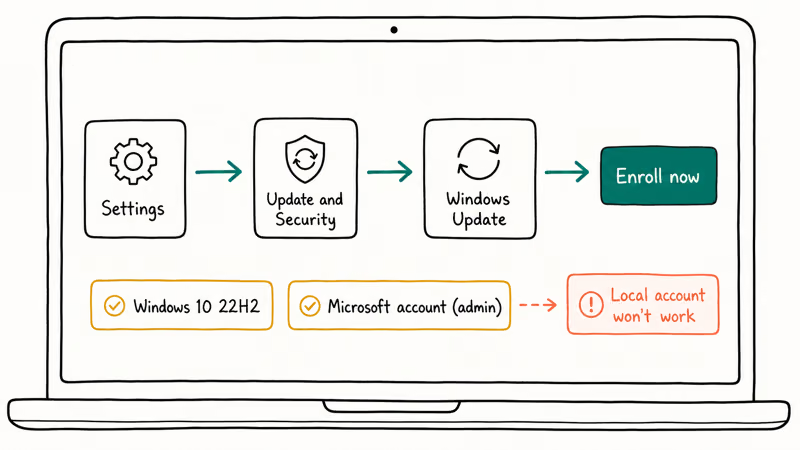
Then open Settings, go to Update and Security, then Windows Update. If your device qualifies, an “Enroll now” prompt appears. Follow it, pick a path, done.
One license covers a household. Microsoft’s consumer ESU program page confirms that a single ESU license tied to your Microsoft account can be used on up to 10 devices, so you can protect several family PCs from one enrollment. Sign in with the same account on each machine to extend the coverage. The prompt usually only surfaces after every pending Windows update has been applied, so update first if you don’t see it.
#What Are the Alternatives to ESU?
ESU isn’t your only option, and for some people it isn’t even the best one. Three real alternatives are worth weighing before you enroll.
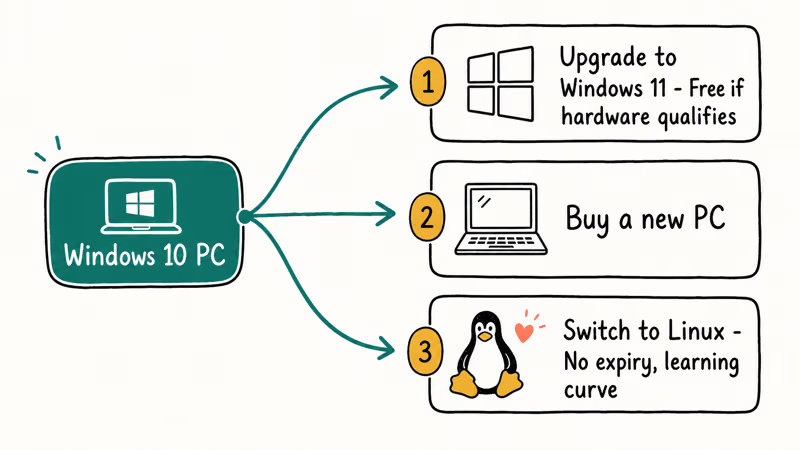
Upgrade to Windows 11 if your hardware qualifies. The upgrade is free. Run the PC Health Check first, and if your license needs sorting out, our walkthrough on how to activate Windows 10 for free covers the licensing side cleanly so the upgrade goes through without an activation snag holding you up.
Buy a new PC if your machine is old. Our guide on how to factory reset Windows 11 while keeping your files helps you set the new one up.
Or switch to Linux. A lightweight distribution runs well on Windows 10-era specs and gets security updates indefinitely, with no expiry date and no annual fee, though the learning curve and app compatibility friction make this route a better fit for tinkerers and second-PC experiments than for everyday users who just need things to work on day one.
#Bottom Line
For most home users, take the free Windows 10 ESU enrollment through Windows Backup settings sync, then spend that runway planning. It costs nothing and keeps your PC patched through October 12, 2027, which removes the immediate security risk without forcing a rushed and expensive hardware purchase you weren’t ready to make this month.
Already meet the Windows 11 bar? Skip ESU and upgrade now. Reserve the paid $30 path for when you won’t sync.
While you secure the machine, lock down your accounts too. Pair your enrollment with a strong authenticator app for two-factor codes and consider moving to passkeys for passwordless logins, both of which protect you no matter which Windows version you run underneath.
#Frequently Asked Questions
Is Windows 10 ESU really free for consumers?
Yes, one of the three consumer paths is free. You enroll at no cost by using Windows Backup to sync your PC settings to the cloud. The other two paths cost 1,000 Microsoft Rewards points or a one-time $30 payment, but all three unlock the same coverage.
When does Windows 10 ESU coverage end?
Coverage runs through October 12, 2027, two years past the October 14, 2025 end-of-support date. Microsoft extended the original one-year window, so an older guide quoting a 2026 cut-off is out of date.
Can I use one ESU license on more than one PC?
Yes, up to 10 devices. The license is tied to your Microsoft account, so signing in with that same account on each Windows 10 PC extends the coverage to all of them.
What happens if I don’t enroll in ESU?
Your PC keeps working, but it stops receiving security updates. Each new vulnerability found after October 2025 then stays unpatched on that machine, and the longer you wait without enrolling, the wider that exposure grows for anyone who banks, shops, or stores personal files on the device every day.
Does ESU include new features or bug fixes?
No. ESU delivers only security updates rated critical and important, nothing else. There are no new features, no interface changes, no non-security bug fixes, and no general technical support. It’s purely a security patch program, designed to keep a Windows 10 machine safe while you plan your next move rather than to keep it evolving.
Do I need a Microsoft account to enroll?
Yes. Enrollment requires a Microsoft account with administrator privileges, and a local account won’t work for it.
Should I just upgrade to Windows 11 instead?
If your hardware qualifies, upgrading to Windows 11 is usually the better choice. It’s free for eligible Windows 10 PCs and has no expiry date, while ESU runs out in October 2027. Run the PC Health Check to confirm your machine meets the TPM 2.0 and other requirements before you decide.

Best Laptop for Running LLMs in 2026: Memory Comes First
The best laptop for running LLMs is a memory purchase first. Compare MacBook unified memory against NVIDIA laptop VRAM, and see what each tier really runs.

How to Run a Local LLM on Windows: A 2026 Setup Guide
Run a local LLM on Windows with LM Studio or Ollama. Pick a model that fits your GPU memory, keep every prompt offline, and skip the monthly bill.

Bluetooth Not Working on Snapdragon X? Fixes for 2026
Bluetooth not working on your Snapdragon X Copilot+ PC? Generic audio, mice, and keyboards work, but vendor apps often lack an ARM build. Fixes inside.

Docker Desktop and WSL2 Not Working on Snapdragon X? Fix It
WSL2 runs fine on Snapdragon X, but Docker Desktop ARM is Early Access and throws WSL errors. Use WSL2 plus native ARM64 Ubuntu and Docker Engine.