Why Won't My AirPods Connect? 9 Fixes for Phone and Mac
Fix AirPods that won't connect to iPhone or Mac. Covers charging, Bluetooth pairing, current compatibility requirements, and model-specific reset steps.
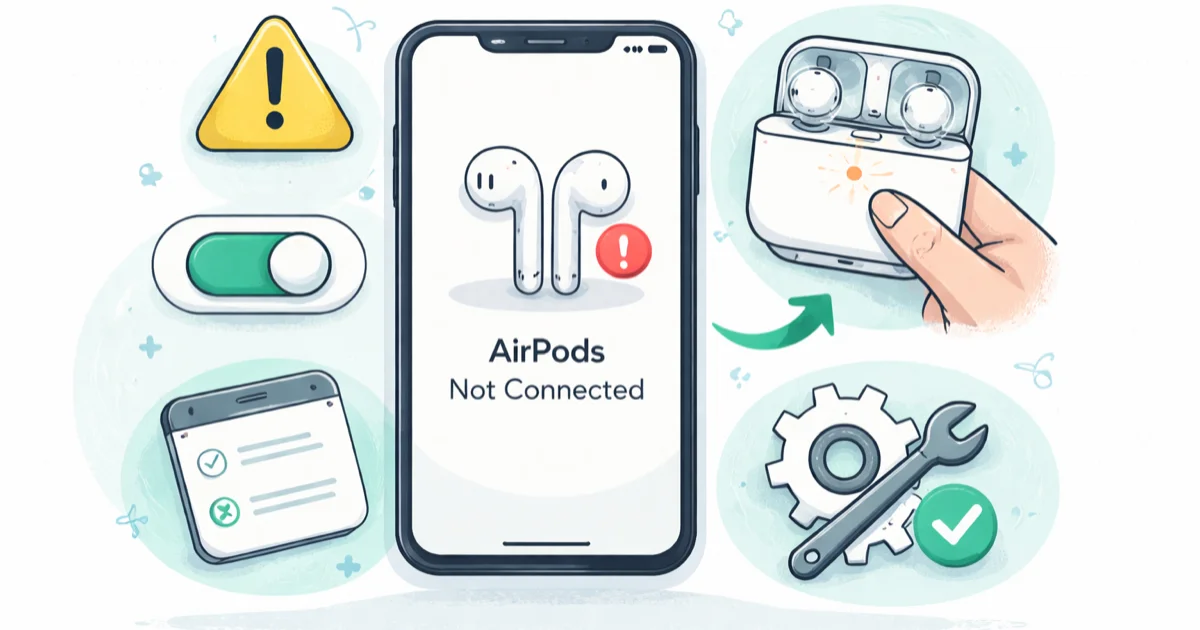
Quick AnswerCharge both AirPods, turn on Bluetooth, and pair again. If that fails, reset by model: hold the setup button for 15 seconds on AirPods 1–3 or Pro 1–2; use the front-case tap sequence on AirPods 4 or Pro 3.
AirPods can fail to connect because of charging, Bluetooth, software compatibility, or pairing problems. Check those in order before assuming the earbuds or case need repair.
- Reset AirPods 1–3 and AirPods Pro 1–2 with the case button; AirPods 4 and AirPods Pro 3 use taps on the front of the case
- iOS requirements depend on the AirPods model and, for AirPods Pro 2, the charging-case version
- If only one AirPod connects, check for a dead battery or dirty charging contact on the other
- AirPods can switch between compatible devices on the same Apple Account, which can look like a disconnection
- Selecting AirPods from the device’s audio-output list distinguishes routing from pairing problems
#What Causes AirPods Connection Failures?
Four common reasons your AirPods won’t connect:
Bluetooth is off or needs to be cycled. Confirm Bluetooth is enabled in Settings before trying to pair again.
One or both AirPods have a dead battery. Open the case near your iPhone. If the battery popup doesn’t appear, the case itself might be dead. Check that the AirPods case is actually charging with a known-good cable.
If the case has been sitting dead, connect it to power before trying to pair again. According to Apple’s charging instructions, AirPods and their case should charge for at least 15 minutes when they won’t charge normally.
Your AirPods are paired to a different device. iCloud auto-switching is the culprit here. If your Mac is playing audio, the AirPods stay connected there.
Outdated or incompatible software. According to Apple’s current compatibility list, each AirPods model has a different minimum iOS version. AirPods Pro 2 with a Lightning case require iOS 16 or later, while the USB-C case requires iOS 17 or later; AirPods 4 require iOS 18 or later, and AirPods Pro 3 require iOS 26 or later.
#iPhone Fixes for AirPods Connection Problems
Work through these fixes in order and test after each one.
#1. Toggle Bluetooth Off and Back On
Go to Settings > Bluetooth on your iPhone. Turn the toggle off and back on. Don’t use the Control Center toggle for this step since that only disconnects devices temporarily without fully cycling Bluetooth.
If your AirPods appear in the device list, tap them to connect. If they show “Not Connected” and tapping does nothing, move to the next fix.
#2. Put AirPods Back in the Case and Reopen
Close the AirPods case lid. Wait 15 seconds, then open the lid near your iPhone.
You should see a battery status popup. If you don’t, your case battery may be dead. Charge it for at least 15 minutes and try again.
Try pairing again before moving on to a full reset.
#3. Reset Your AirPods
Put both AirPods in the case, close the lid, and wait 30 seconds. If the AirPods still appear under Settings > Bluetooth, tap the info button and forget the device. Then open the case.
- For AirPods 1, 2, or 3 and AirPods Pro 1 or 2, hold the setup button on the back for about 15 seconds, until the status light flashes amber and then white.
- For AirPods 4 and AirPods Pro 3, double-tap the front while the light is on, double-tap again when it flashes white, and double-tap a third time when it flashes faster. The reset completes when the light flashes amber and then white.
Apple’s current AirPods reset instructions state that the procedure depends on the case generation.
Pairing mode and a full reset aren’t the same on newer cases: AirPods 4 and AirPods Pro 3 use one front-case double-tap to enter pairing mode, but a reset requires the three timed double-taps above.
With the lid still open, hold the case near your iPhone. Follow the on-screen pairing instructions. Your settings (name, Automatic Ear Detection, etc.) will be reset to defaults, but you can reconfigure them in Settings > Bluetooth > AirPods.
#4. Check the Apple Account Association
If the AirPods were previously owned by someone else, pairing alone isn’t enough. The previous owner must remove them from their Apple Account before you can use account-linked features such as Find My and automatic switching. Apple’s pairing guide states this ownership requirement explicitly.
If these are your AirPods and they won’t flash white, return to the charging and reset checks instead.
#5. Select AirPods as the Audio Output
Open Control Center, tap the AirPlay button, and select your AirPods. If they appear and audio plays, pairing works and the issue was output routing. If they don’t appear or won’t connect, return to the model-specific reset in Fix 3, then continue to the update in Fix 6. This matches Apple’s current connection checklist.
#6. Update iOS
Go to Settings > General > Software Update and install any available update. Apple tells users with AirPods connection problems to update the paired device to the latest supported version before pairing again (Apple Support).
#Mac Fixes for AirPods That Won’t Pair
On a Mac, verify Bluetooth, pairing mode, software, and the selected audio output.
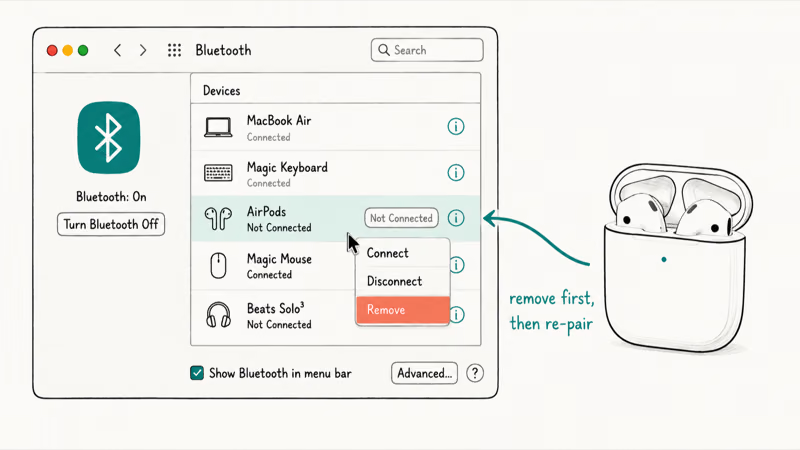
#7. Manually Connect via Bluetooth Settings
Click the Apple menu > System Settings > Bluetooth. Look for your AirPods in the device list. If they appear but show “Not Connected,” click Connect.
If they don’t appear, open the case and put it into pairing mode: double-tap the front for AirPods 4 or AirPods Pro 3; for other models, hold the setup button until the light flashes white. Then select the AirPods under Nearby Devices.
If your AirPods specifically won’t connect to your Mac but work with your iPhone, focus on the Mac’s pairing record, software, and audio output.
#8. Update macOS
Go to Apple menu > System Settings > General > Software Update and install any available update. Apple’s connection checklist also calls for the latest macOS version supported by the Mac.
#9. Forget and Re-Pair on Mac
Open Apple menu > System Settings > Bluetooth, click the info button next to the AirPods, and choose Forget This Device. Put the AirPods back into pairing mode using the model-specific method above, then select them again in Bluetooth settings. Apple’s current troubleshooting path uses re-pairing rather than a hidden Bluetooth debug menu.
If AirPods show as connected but audio still plays from the Mac, treat that as a separate routing issue: no sound came from them.
#Do AirPods Connection Problems Mean They’re Broken?
Not necessarily. Charging, compatibility, and pairing problems can look like a hardware defect, so complete the connection checklist before arranging service.
#Signs of a Hardware Defect
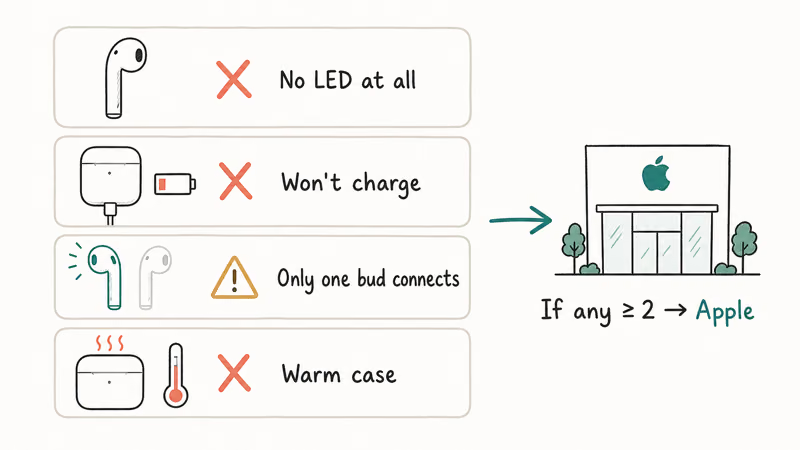
If one AirPod never charges, the case status light doesn’t turn on after charging, or the model’s pairing control never responds, the AirPods may need hardware service.
#When to Contact Apple
If you’ve worked through the checklist and the AirPods still won’t connect, book a Genius Bar appointment or start a support case. According to Apple’s AirPods repair page, Apple must inspect the product to provide a personalized estimate; coverage, final fees, and service options depend on the device and location.
#Bottom Line
Start by charging both AirPods, checking Bluetooth, and pairing again. If that fails, reset them with the procedure for your model and reconnect after the amber-then-white confirmation.
If it doesn’t work, forget the device on your iPhone or Mac and pair again from scratch. For persistent problems, update the supported OS and verify the audio output. Contact Apple Support if the checklist does not resolve the issue.
#Frequently Asked Questions
Can AirPods connect to Android phones?
Yes. Open the case and put it into pairing mode: double-tap the front for AirPods 4 or AirPods Pro 3, or hold the rear setup button for other models until the light flashes white. Then select the AirPods in the Android phone’s Bluetooth settings. Basic Bluetooth audio and microphone functions work, but Apple-specific features may be limited.
Why do my AirPods keep disconnecting randomly?
Low battery, Bluetooth interference, or a buggy iOS version. Charge them, move away from other Bluetooth devices, and update iOS. Still happening? Reset the AirPods.
Can I connect AirPods to my iPhone and Mac at the same time?
AirPods support automatic switching between compatible Apple devices signed in to the same Apple Account with two-factor authentication. For example, they can move from music on a Mac to a call you answer on an iPhone (Apple Support). You can change automatic connection behavior in the AirPods settings for each device.
What does the amber light on the AirPods case mean?
On current charging cases, green means fully charged and amber means less than one full charge remains. With the AirPods inside, the light reports the earbuds; without them, it reports the case. During a reset, amber followed by white confirms success (Apple Support).
How do I know if my AirPods firmware is up to date?
Go to Settings > Bluetooth, tap the i next to your AirPods, and check the Firmware Version field. Compare it to Apple’s current firmware list. Updates install automatically while the AirPods charge within Bluetooth range of a paired iPhone, iPad, or Mac connected to Wi-Fi.
If that version never climbs, our guide on how to unstick a stalled AirPods firmware update covers the charging and Wi-Fi conditions that trigger a new build.
Will resetting AirPods delete my settings?
Yes. A reset removes the pairing and restores custom AirPods settings to their defaults. Reconfigure those settings after re-pairing.
Why does only one AirPod connect?
The other AirPod likely has a dead battery or dirty charging contacts. Clean the bottom of the AirPod and the inside of the case with a dry cotton swab, then charge for 15 minutes.
If one still won’t connect, it may need servicing. A related issue is when one AirPod is louder than the other.
Do AirPods work with older iPhones?
It depends on the model. Apple’s current minimums range from iOS 10 for AirPods 1 through iOS 26 for AirPods Pro 3. AirPods Pro 2 with a Lightning case require iOS 16 or later, while the USB-C version requires iOS 17 or later. Older software may still provide basic Bluetooth audio for some models, but full functionality requires the supported iOS version.

Mac mini M6 vs M5 Pro: Which Model Should You Buy?
Mac mini M6 vs M5 Pro compared on price, memory, ports, displays, and real workloads. Find the better 2026 Mac mini for your desk and budget.

Apple Siri Settlement: Who Qualifies and How to Claim
Apple's $250 million Siri settlement covers iPhone 15 Pro and iPhone 16 models bought June 2024 to March 2025. See who qualifies and how claims work.

iOS 26.6.1 Security Update: What Apple Fixed and Who Gets It
Apple released iOS 26.6.1 on August 17 with 29 security fixes, including an IPSec interception bug. See what it patches, who gets it, and how to update.

iPhone Adaptive Power: How It Works and When to Use It
Learn how iPhone Adaptive Power works, which models support it, what it changes, and when Low Power Mode is still the better battery-saving choice.