AirPods Won't Flash White? 6 Proven Fixes for 2026
AirPods not flashing white means they can't enter pairing mode. Here's how to reset, charge, and clean your way back to a working connection.
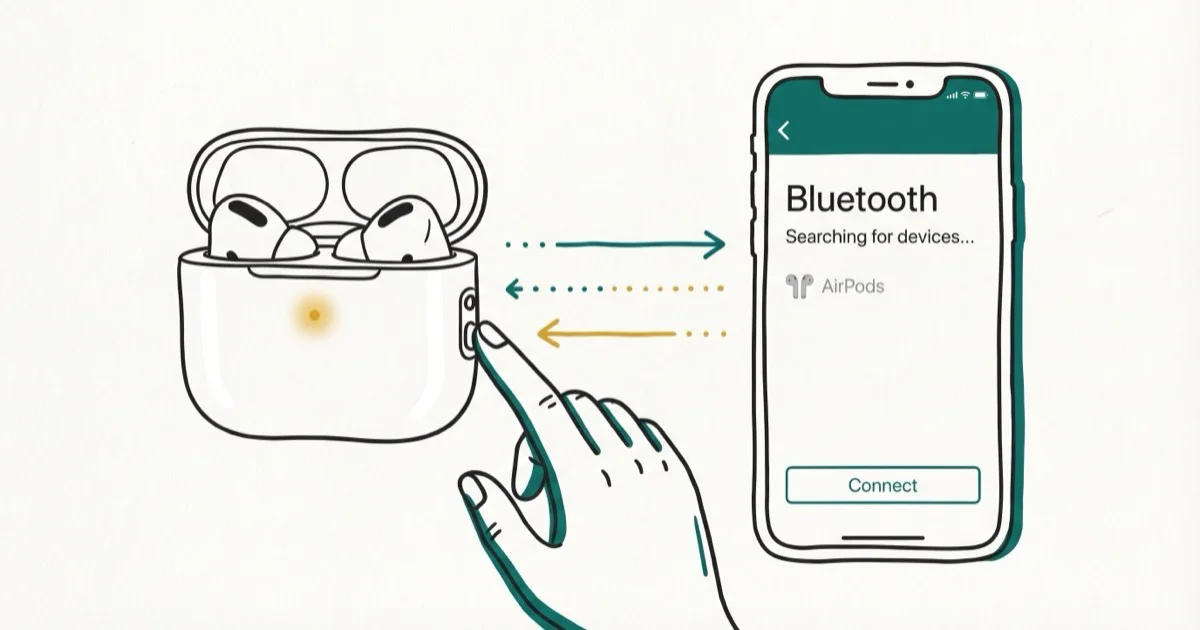
Quick AnswerPut both AirPods in the case, close the lid for 30 seconds, then open the lid and hold the setup button on the back for 15 seconds until the light flashes amber and then white. This factory reset restores pairing mode for most people in under 2 minutes.
Your AirPods refuse to flash white, which means they’re locked out of pairing mode entirely. This problem narrows down to three root causes: a dead case battery, gunked-up charging contacts, or a stale Bluetooth cache on the connected device. The fix usually takes less than 5 minutes once you identify which problem you’re dealing with.
- The white flash confirms your AirPods are in pairing mode
- A case battery below 10% blocks the status LED completely
- Holding the setup button 15 seconds forces a factory reset
- Dirty contacts on the AirPod stems prevent the case from detecting them
- AirPods 4 and Pro 3 use a double-tap reset instead of a physical button
#Why Won’t Your AirPods Flash White?
That white flash is your AirPods telling nearby devices they’re open for pairing. No flash means the pairing sequence never starts.
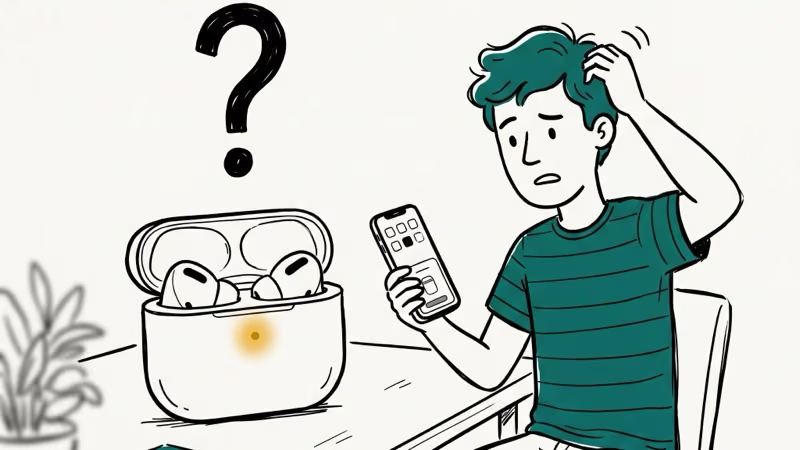
Dead or critically low case battery. The status LED needs power to light up. When the case drops to a critically low charge, it can’t initiate the pairing broadcast at all, and the light stops responding entirely once the case charge runs very low.
Dirty charging contacts. Lint, earwax, and pocket debris collect on the metal contacts inside the case and on each AirPod stem. When those contacts can’t make a clean electrical connection, the case doesn’t register that the AirPods are seated.
Bluetooth cache corruption. A stale Bluetooth pairing record on your iPhone, Mac, or Android device can block the handshake that triggers pairing mode. Apple’s guide states that 10 seconds of Bluetooth off time clears most temporary pairing failures — see Apple’s connection troubleshooting guide for the full steps. In some cases the AirPods won’t even appear in the device list until after the toggle.
Hardware failure. The LED, setup button, or internal Bluetooth antenna can degrade after years of daily use. Less common, but real.
#How Do You Reset AirPods to Force the White Flash?
This single step fixes the problem for the majority of people. Put both AirPods in the case and close the lid. Wait 30 seconds.
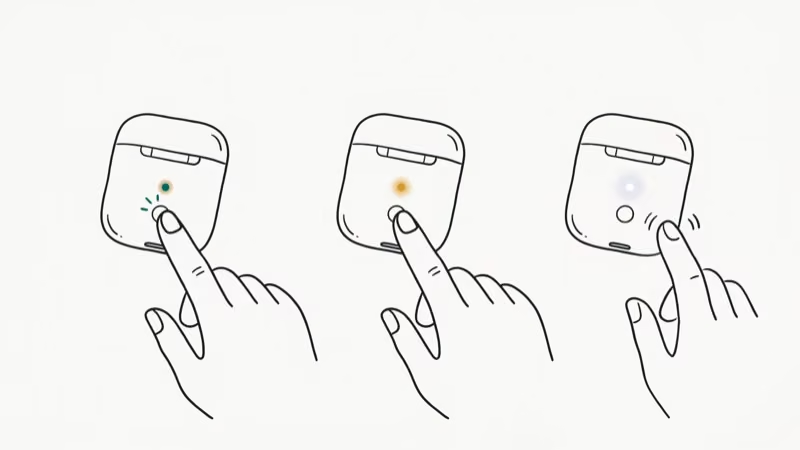
Open the lid. Press and hold the setup button on the back of the case for about 15 seconds. Watch the status light: it should flash amber first, then switch to white. Once you see white, hold the open case near your iPhone and follow the on-screen prompt.
According to Apple’s AirPods reset instructions, this process works across AirPods 1st, 2nd, and 3rd generation, plus AirPods Pro 1 and Pro 2. For AirPods 4 and AirPods Pro 3, you double-tap the front of the case three times instead of pressing a physical button.
If your AirPods keep failing to connect even after the reset, the problem is likely on the device side rather than the AirPods themselves.
#Charge and Clean Before Anything Else
Skip the reset if the case battery is dead. Plug in a Lightning or USB-C cable (depending on your model), close the lid, and wait at least 15 minutes.
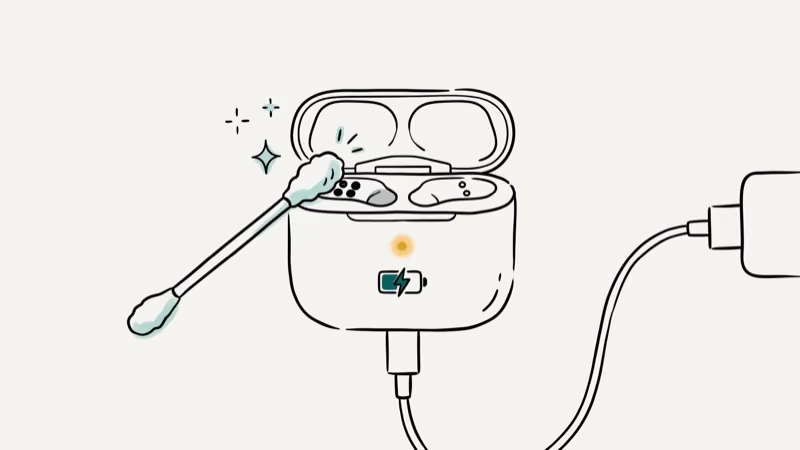
Open the case lid near your iPhone to check the battery level. You need at least 20% for reliable pairing. If the charging indicator doesn’t appear at all, try a different cable and power adapter. A case that won’t charge is a separate issue, and our guide on AirPods case not charging covers that scenario in detail.
Cleaning the contacts takes 30 seconds. Grab a dry cotton swab and wipe the metal contacts on the bottom of each AirPod stem, then the matching contacts inside each slot of the charging case. Dry friction removes the thin film of oils and debris that builds up over weeks of pocket carry. Skip rubbing alcohol.
#Software Fixes When the Reset Doesn’t Work
If the white flash still won’t appear after charging, cleaning, and resetting, the problem is almost certainly on your phone or computer.
#Toggle Bluetooth Off and On
Go to Settings > Bluetooth on your iPhone. Turn it off, wait 10 seconds, turn it back on. On a Mac, click the Bluetooth icon in the menu bar and toggle it. This clears the temporary Bluetooth cache without wiping any saved pairings.
If your AirPods won’t connect to your Mac even after the toggle, move on to forgetting the device entirely.
#Forget the AirPods and Pair Fresh
Old pairing records get corrupted over time. Go to Settings > Bluetooth, tap the info (i) icon next to your AirPods name, and tap “Forget This Device.” Confirm the removal.
Now put the AirPods back in the case, open the lid, and hold the setup button until white appears. Bring the case close to your iPhone, and the setup animation should pop up within a few seconds. You can rename your AirPods afterward to tell them apart from other devices on your account.
#Update iOS or macOS
Outdated software causes Bluetooth pairing bugs more often than people realize. Go to Settings > General > Software Update on your iPhone. Install anything pending.
AirPods firmware updates happen automatically in the background when the AirPods are in the case, charging, and connected to your iPhone. Based on Apple’s firmware update documentation, you can’t manually trigger this process, but keeping your iPhone on the latest iOS version ensures the firmware update can install when conditions are met.
#Reset Network Settings
This is the nuclear option for Bluetooth problems. Go to Settings > General > Transfer or Reset iPhone > Reset > Reset Network Settings. It wipes all saved Bluetooth pairings, Wi-Fi passwords, and VPN configurations, so only use it after the lighter fixes fail.
This method resolves stubborn pairing loops that survive every other fix, including a phone restart as part of the process. The AirPods usually connect on the first attempt afterward.
#AirPods Status Light Colors Explained
The small LED on your case tells you exactly what’s happening at a glance. According to Apple’s charging guide, here’s what each color means:
| Light | AirPods in Case | AirPods Out of Case |
|---|---|---|
| Solid green | Fully charged | Case is fully charged |
| Solid amber | Still charging | Case battery is low |
| Flashing white | Ready to pair | N/A |
| Flashing amber | Pairing error or reset needed | N/A |
| No light | Dead battery or hardware fault | Dead battery |
Seeing flashing amber instead of white? That means the reset didn’t complete. Hold the button a full 15 seconds this time. Count it out.
#When to Contact Apple Support
If all six methods fail, you’re dealing with a hardware defect. The status LED, setup button, or Bluetooth antenna inside the case could be physically damaged.
Book a Genius Bar appointment or start a service request through Apple’s repair page. Out-of-warranty case replacements run anywhere from $29 to $99 depending on the model. AppleCare+ covers manufacturing defects at no extra charge and includes unlimited accidental damage repairs for a service fee.
Other signs of hardware trouble: muffled audio quality or audio that cuts in and out during normal use.
#Preventing Future Pairing Problems
Wipe the charging contacts once a month with a dry cotton swab. That alone prevents the majority of pairing failures.
Don’t leave the case sitting in a hot car or toss sweaty AirPods straight into the case without a quick wipe-down first. Store them in the case whenever you’re not wearing them. The case protects the stems and keeps the battery topped off, which means the LED and pairing hardware stay responsive when you need them.
#Bottom Line
The factory reset fixes this for most people: AirPods in the case, setup button for 15 seconds, wait for white. If nothing happens, charge the case to 20% and clean the contacts. Hardware issues need Apple service.
#Frequently Asked Questions
Why are my AirPods flashing amber instead of white?
Flashing amber means the reset didn’t finish. Close the lid for 30 seconds, reopen, and hold the setup button for a full 15 seconds until you see white. If it stays amber, the case battery may be too low to complete the process, so charge for at least 15 minutes and try the reset again.
Can you pair AirPods without the charging case?
No. The charging case houses the setup button and the Bluetooth hardware that broadcasts the pairing signal. Without the case, your AirPods can reconnect to a previously paired device but can’t start a brand-new pairing. If you lost your case, check our guide on how to find your AirPod case.
Do AirPods still charge if they won’t flash white?
Yes, in most cases. Charging and pairing rely on completely separate internal systems. No light at all when you plug in points to a dead battery or faulty port.
What if only one AirPod won’t trigger the white flash?
Clean the contacts on that specific AirPod and its matching slot in the case. Debris on one side is the single most common culprit. If cleaning doesn’t fix it, Apple can replace individual AirPods without replacing the full set. You might also notice one AirPod draining faster than the other, which points to a degraded battery in that unit.
How long should I charge before trying to pair?
Fifteen minutes on a wired charger is the minimum. That gets the case to roughly 20-30% battery, enough to power the status LED and run the pairing sequence. Wireless charging pads work too, but they charge slower, so give it 25-30 minutes on a Qi pad.
Will resetting AirPods delete my data?
A factory reset wipes your custom AirPods name, ear tip fit test results, press-and-hold gesture assignments, and spatial audio preferences. Nothing on your iPhone changes. Re-pairing takes about 2 minutes.
Why do my AirPods flash white but still won’t connect?
The white flash means pairing mode is active, so the AirPods side is working correctly. The failure is on the device side. Toggle Bluetooth off and on, then try again. If that doesn’t work, reset your network settings to clear all saved Bluetooth data.
How do I reset AirPods 4 or AirPods Pro 3 without a setup button?
These newer models replaced the physical button with a tap-based interface. Put both AirPods in the case, close the lid for 30 seconds, then open it. Double-tap the front of the case three times. The status light should flash amber and then white, confirming the reset worked.

Mac mini M6 vs M5 Pro: Which Model Should You Buy?
Mac mini M6 vs M5 Pro compared on price, memory, ports, displays, and real workloads. Find the better 2026 Mac mini for your desk and budget.

Apple Siri Settlement: Who Qualifies and How to Claim
Apple's $250 million Siri settlement covers iPhone 15 Pro and iPhone 16 models bought June 2024 to March 2025. See who qualifies and how claims work.

iOS 26.6.1 Security Update: What Apple Fixed and Who Gets It
Apple released iOS 26.6.1 on August 17 with 29 security fixes, including an IPSec interception bug. See what it patches, who gets it, and how to update.

iPhone Adaptive Power: How It Works and When to Use It
Learn how iPhone Adaptive Power works, which models support it, what it changes, and when Low Power Mode is still the better battery-saving choice.