AirPods Firmware Update Stuck? How to Fix It in 2026
AirPods firmware update stuck on an old version? Learn how AirPods firmware really updates, the conditions to meet, how to verify it, and when to reset.
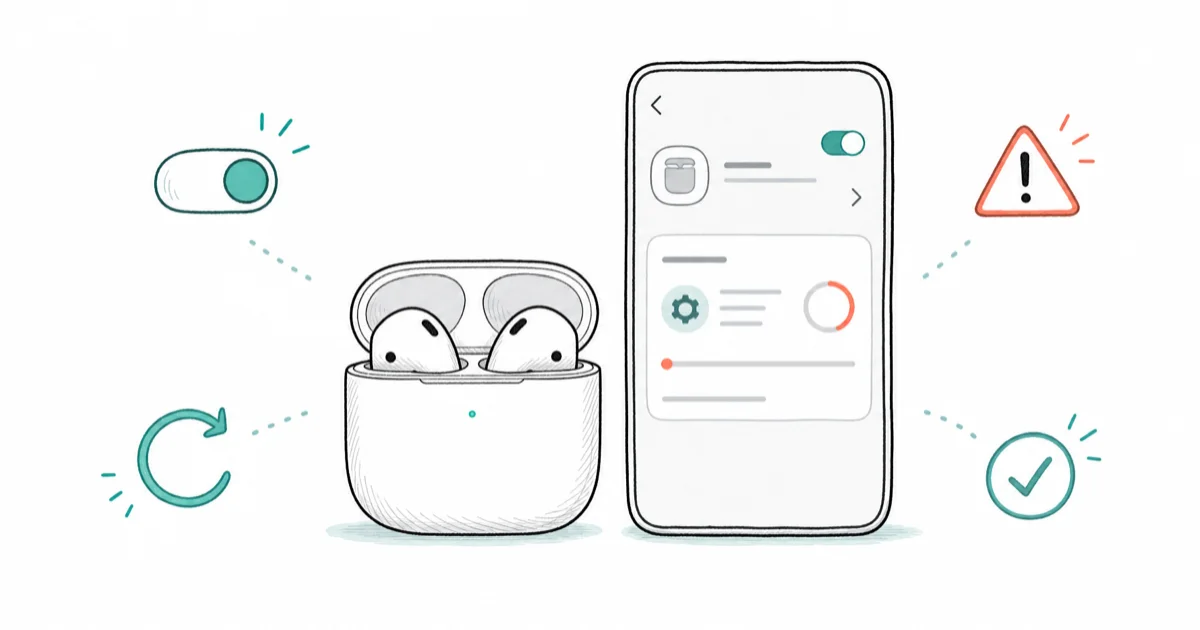
Quick AnswerAirPods firmware updates automatically when the case is charging and near an unlocked iPhone on Wi-Fi. There is no manual update button. Meet those conditions and wait, then check the version in Bluetooth settings.
If your AirPods firmware update is stuck on an old build, the first thing to know is that you can’t force it with a button. Apple doesn’t provide one. The update installs automatically only after the case sits charging near a Wi-Fi-connected Apple device for a while. The fix is meeting the exact conditions Apple requires, then verifying the result.
- There is no manual AirPods update button; firmware installs silently in the background.
- Updates trigger only when the case is charging, the lid is open, and the AirPods are near an unlocked iPhone on Wi-Fi.
- You can confirm the installed firmware version under Settings, Bluetooth, then the info button next to your AirPods.
- AirPods Max specifically need about 30 minutes of charging within range to update.
- Resetting AirPods doesn’t directly force an update, but it can clear a stuck connection that blocks one.
#Why Is My AirPods Firmware Update Stuck?
An AirPods firmware update stuck on an old version is rarely a fault. It usually means the conditions for an automatic install were never met. Apple ships firmware updates quietly, and they only apply when your gear is in a specific state.
The most common reason is simple: the case wasn’t charging, or the AirPods weren’t near an unlocked, Wi-Fi-connected iPhone long enough. Without that exact setup, the update just waits.
According to Apple’s firmware update support page, AirPods firmware installs automatically while the AirPods are charging and in Bluetooth range of a device connected to Wi-Fi. That sentence is the whole mechanism, and it explains why nothing happens when you go looking for an update button.
#There Is No Manual Update Button
No, and this is the single biggest source of confusion. Many guides imply you can tap something to trigger an update. You can’t. Apple has never shipped a manual firmware control for AirPods.
That design choice means the update process is entirely environmental. You create the right conditions, then wait. There’s no progress bar, no Install Now, and no notification when it finishes. The version number simply changes.
Knowing this saves hours of hunting through Settings for a control that doesn’t exist. If your AirPods also drop their connection while you wait, that can stall the update, and our AirPods Connection Failed guide covers the pairing side. For sound issues unrelated to firmware, see AirPods Sound Muffled.
#Meet the Conditions That Trigger an Update
This is where the actual fix lives. Set up the exact state Apple requires and the update installs on its own.
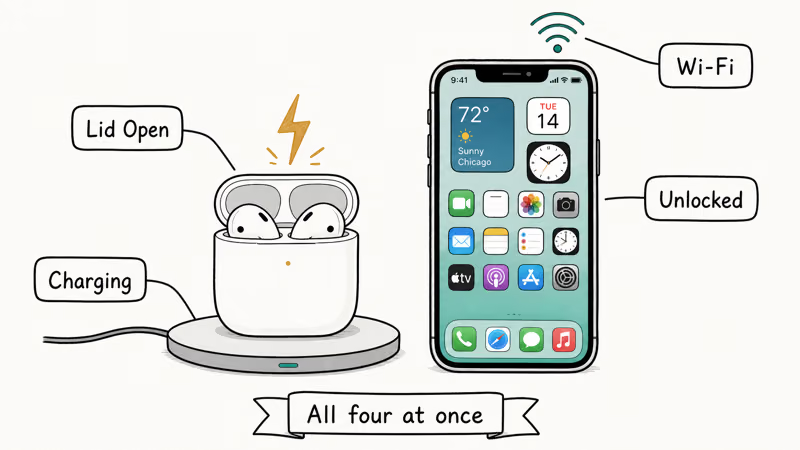
Put both AirPods in the case and plug it in to charge, or set it on a wireless charger with the lid open. Make sure your iPhone is unlocked, connected to Wi-Fi, and sitting right next to the case, then leave everything alone for a while. Once all four conditions hold at the same time, the update can install in the background.
The order matters less than the combination. If any one piece is missing, the update stays parked. A case that isn’t charging is the most common gap. If the case itself won’t take a charge, our AirPods Case Not Charging guide walks through that problem first, since a dead case blocks every update.
#AirPods Max Update a Little Differently
AirPods Max follow the same idea but with their own steps, so don’t apply the earbud routine to them. The over-ear model uses a cable instead of a case, and it needs a longer window to update.
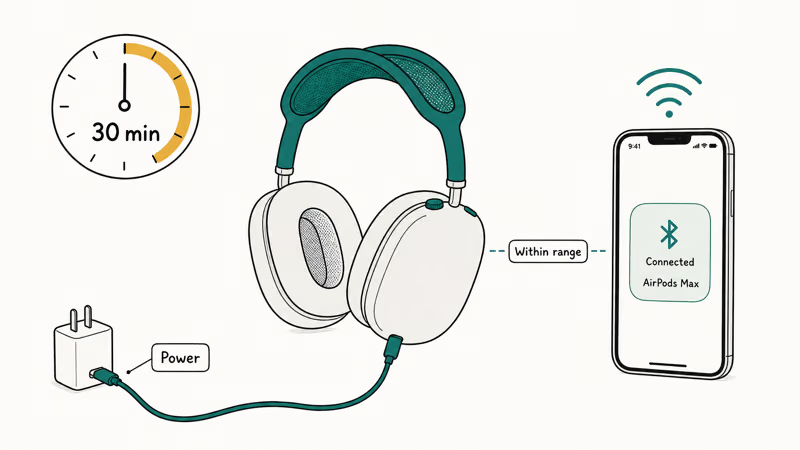
According to Apple, AirPods Max need at least 30 minutes connected to power and within Bluetooth range of your Wi-Fi iPhone for the firmware to update. Apple spells out this exact step on the same AirPods firmware support page. After the wait, check the version the same way you would for the earbuds.
#Check the Current Firmware Version
Verifying the version is the only way to know whether the update worked, because nothing announces it. The check takes a few seconds.
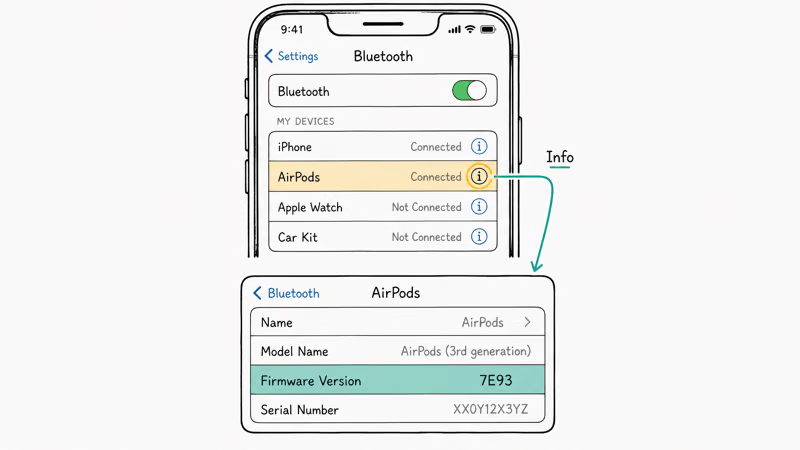
On your iPhone or iPad, go to Settings, Bluetooth, find your AirPods in the list, and tap the info button next to their name. The firmware version appears on that screen. According to Apple, this Bluetooth info screen is where the firmware version is shown, and the same path appears in its guide to viewing the firmware version. Note the number, then compare it against the latest build Apple has published for your model.
Check the version before and after you set up the charging conditions. If the number went up, the update succeeded. If it still doesn’t move after a sustained wait, move to a reset. Connection problems with a computer can also hide the real version, which our AirPods Not Connecting to Mac guide addresses in detail, since a Mac that won’t hold the link can mask whether the firmware actually changed at all.
#When Should You Reset the AirPods?
A reset is the last step, and it doesn’t directly push firmware. It clears a stuck pairing that may be blocking the install. Try it only after the charging conditions fail to trigger an update.
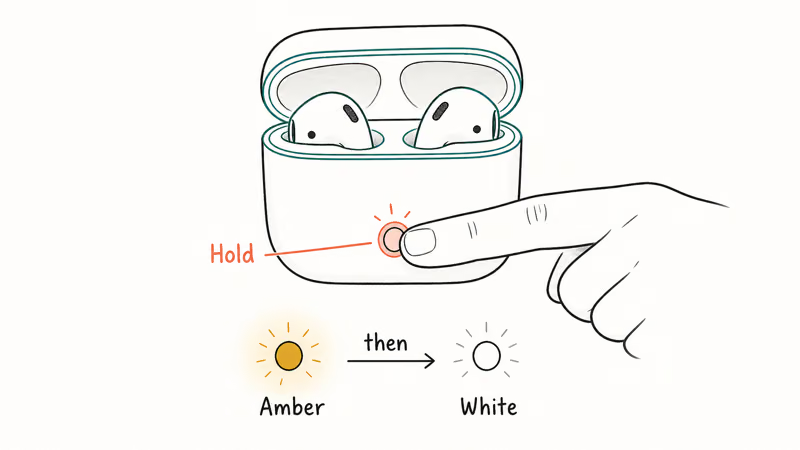
To reset, put the AirPods in the case, hold the setup button on the back until the status light flashes amber then white, and re-pair them to your iPhone. After re-pairing, repeat the charging-and-proximity setup and recheck the version.
If the version still lags well behind the current build after a reset and a fresh round of conditions, the update may simply not be ready for your unit yet, since Apple rolls firmware out in stages. For deeper sound or settings behavior once you’re current, our AirPods Pro Equalizer guide covers the audio side.
#Bottom Line
There is no manual AirPods firmware button, so the real fix is creating the conditions: case charging, lid open, AirPods connected, and near an unlocked iPhone on Wi-Fi. Leave that setup running long enough for the background update to install, then check the version under Settings, Bluetooth, and the info button. Reset the AirPods only if the version still lags after correct conditions fail, and accept that staged rollouts mean some units simply update later than others.
#Frequently Asked Questions
Why is my AirPods firmware update stuck?
It’s almost always because the automatic conditions weren’t met. AirPods only update while charging and near an unlocked iPhone on Wi-Fi. Set up those conditions and wait.
Is there a manual AirPods update button?
No. Apple has never provided a manual firmware control for AirPods. Updates install silently in the background when the right conditions exist. There’s no Install Now option and no notification, so the only sign of success is a changed version number.
What conditions trigger an AirPods update?
The AirPods must be in the case, the case must be charging with the lid open, and the case must sit near an unlocked iPhone that’s connected to Wi-Fi. With all of those conditions true at once, the firmware installs on its own in the background, with no prompt and no progress bar. Miss even one piece of the setup, and the update simply waits until the next time everything lines up the way Apple’s system expects.
How do I check my AirPods firmware version?
Open Settings, Bluetooth on your iPhone, tap the info button next to your AirPods, and read the firmware version on that screen. Check it before and after you set up the charging conditions so you can tell whether the update actually installed.
How long does an AirPods update take?
For most AirPods, the install completes automatically once conditions are met. Apple notes AirPods Max need about 30 minutes of charging within range. Check the version to confirm it finished.
Does resetting AirPods force an update?
Not directly. A reset clears a stuck pairing or a confused connection that may be blocking the automatic install, but it doesn’t push firmware itself. After you reset and re-pair, you still have to recreate the charging-and-proximity conditions for the update to land, so treat the reset as a way to unblock the process rather than as a trigger for it.

Apple Siri Settlement: Who Qualifies and How to Claim
Apple's $250 million Siri settlement covers iPhone 15 Pro and iPhone 16 models bought June 2024 to March 2025. See who qualifies and how claims work.

iOS 26.6.1 Security Update: What Apple Fixed and Who Gets It
Apple released iOS 26.6.1 on August 17 with 29 security fixes, including an IPSec interception bug. See what it patches, who gets it, and how to update.

iPhone Adaptive Power: How It Works and When to Use It
Learn how iPhone Adaptive Power works, which models support it, what it changes, and when Low Power Mode is still the better battery-saving choice.

How to Transfer Data to a New iPhone Without iCloud
Move everything to your new iPhone without iCloud: Quick Start device-to-device transfer, wired migration, and encrypted Finder or iTunes backups.