What Is StandBy Mode on iPhone and How Does It Work?
StandBy turns a charging iPhone into a glanceable clock, widget, and photo display. Learn which models support it, how to enable it, and customize it.
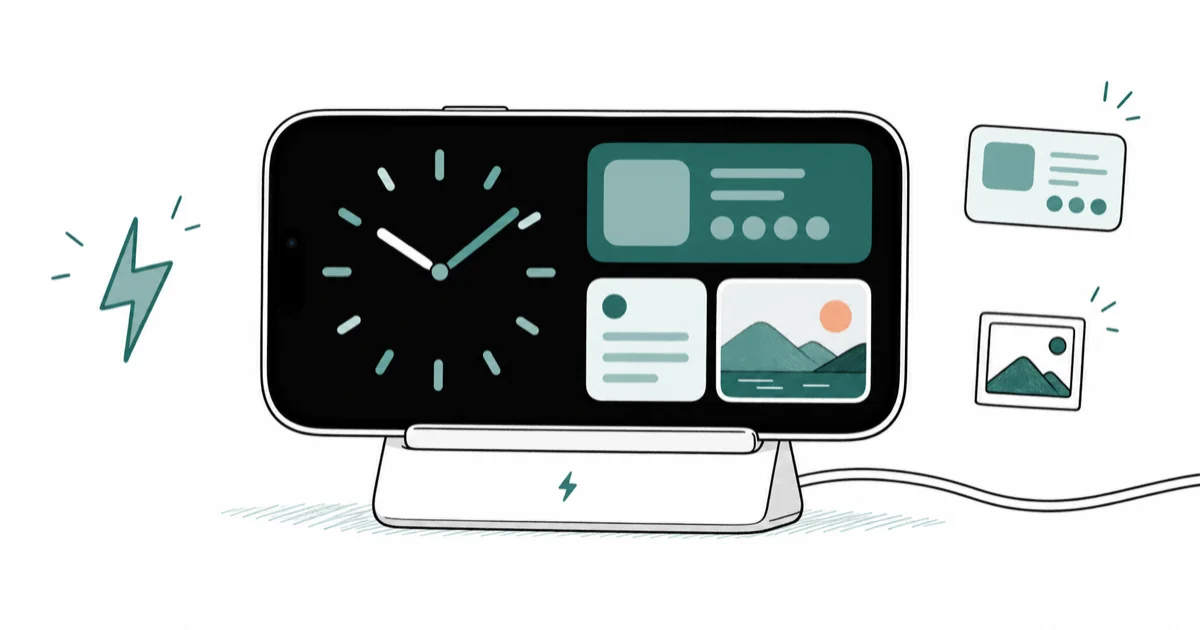
Quick AnswerStandBy is an iPhone mode that shows a clock, widgets, or photos when the phone is charging, on its side, and locked. Enable it in Settings, then swipe to switch views.
StandBy mode turns a charging iPhone into a glanceable display, showing a clock, widgets, or photos when it sits on its side. It kicks in once three conditions are met: charging, landscape, and locked. If it never appears, one of those three is usually missing.
- StandBy needs three things at once: the iPhone charging, turned sideways, and locked.
- Swipe between three views: clock styles, widget stacks, and your photos.
- On Pro models with an Always-On display, StandBy stays lit; other models wake on a tap.
- Night Mode tints StandBy red in low light so it won’t disturb your sleep.
- The iPhone remembers your preferred view per charging location when you use MagSafe.
#What Does StandBy Mode Do?
StandBy makes a sideways, charging iPhone useful at a glance. Apple’s StandBy guide confirms that StandBy appears when you charge the iPhone, set it on its side, and press the side button to wake it.
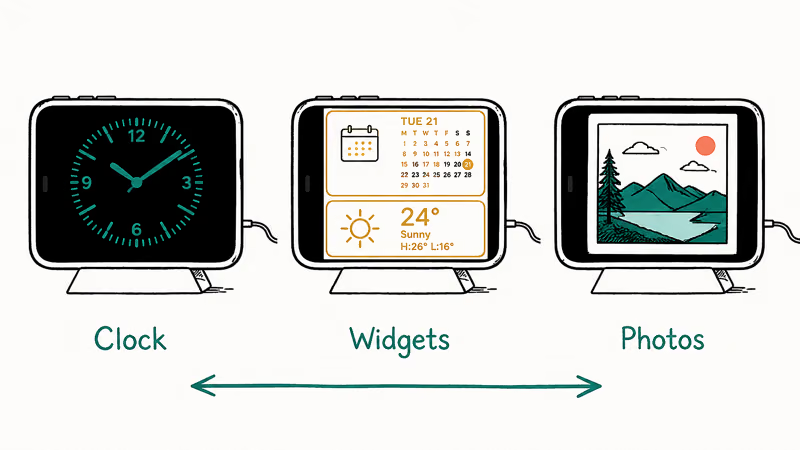
There are three views, and you swipe left or right to switch.
The clock view offers several styles, from a digital readout to an analog face. The widget view shows stacks you can scroll through, like calendar and weather. The photo view turns the phone into a small frame. It pairs nicely with a Sleep Focus for a calm nightstand setup.
#Which iPhones Support StandBy?
Every recent iPhone can run StandBy, but they don’t all behave the same. The split comes down to the Always-On display, which only some models have.
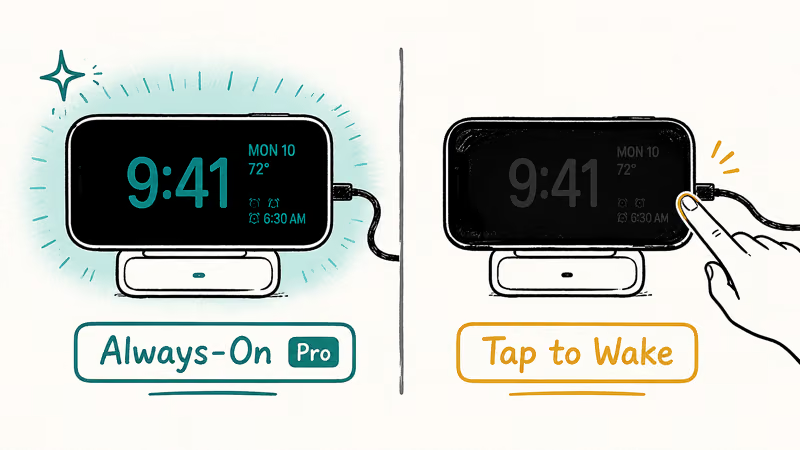
That single feature changes everything about how StandBy feels.
According to Apple’s iPhone 14 Pro tech specs, the Always-On display debuted on that model, so StandBy stays continuously lit only on iPhone 14 Pro and later Pro models. On every other supported iPhone, StandBy still works, but the screen sleeps and wakes when you tap it, nudge the table, or use Siri. Set expectations by your model before assuming yours will glow all night.
#How to Turn On and Customize StandBy
Setup takes seconds. Open Settings, tap StandBy, and make sure it’s switched on, then connect the iPhone to a charger and set it on its side while locked.
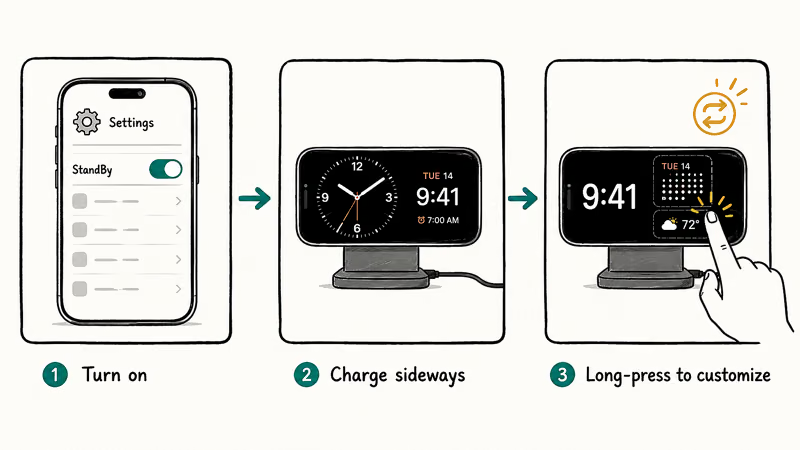
The customization is where it gets fun.
Long-press any view to change it: swap clock styles, edit which widgets appear, or pick a photo album. StandBy also keeps your chosen view handy when you use a consistent charging setup. You can tie a quick action to the hardware button too, which the guide to Action button ideas explores in depth.
#Why StandBy Might Not Show Up
Almost every “StandBy isn’t working” case is a missing condition. The phone has to be charging, on its side, and locked, all at the same time.
Check those three first.
A common miss is orientation: StandBy needs landscape, so a phone propped upright won’t trigger it. Another is the toggle itself, which can be off in Settings under StandBy. A case or stand that holds the phone too upright can keep StandBy from appearing, so lay it flatter and confirm the setting is on. If the display behaves oddly while charging overnight, the notes on standby battery drain are worth a read.
#StandBy, Always-On, and Battery Life
Battery is the question everyone asks. Apple’s Always-On display guide confirms that the display lowers its refresh rate to stay visible without burning through power.
That low refresh rate is the trick behind an always-lit clock.
On Pro models, the screen dims and slows rather than staying at full brightness, and it goes fully dark when the room is dark or the phone is face down. Since StandBy runs while charging anyway, the battery impact during use is minor. The display timeout is adjustable too, under Settings, then StandBy, then Display, with options for Automatically, After 20 Seconds, or Never.
#Getting the Most Out of StandBy
StandBy rewards a fixed charging spot. With MagSafe, the iPhone remembers your preferred view per location, so your kitchen charger can show photos while your nightstand shows a clock.
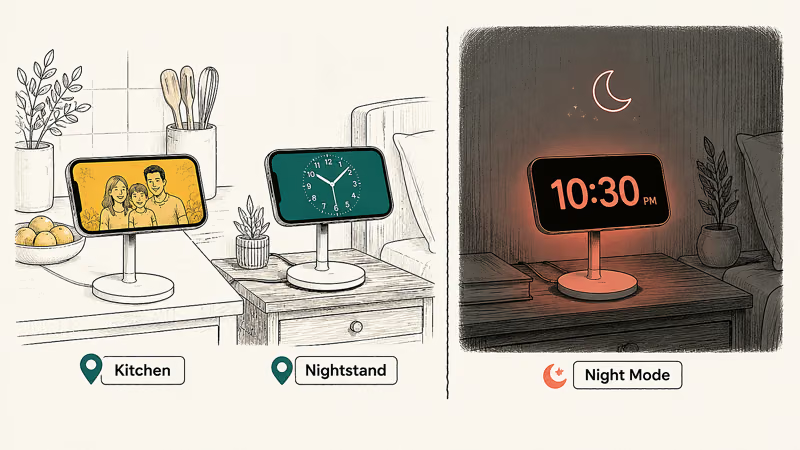
Night Mode is the underrated setting.
When the room dims, StandBy shifts to a soft red tint that’s easy on the eyes at 3 a.m. and won’t light up the whole room. It sits alongside other glanceable touches, like your Focus status that tells contacts you’re away. If you’ve just moved to iPhone, the guide to transferring data from Android to iPhone helps you get set up first.
#Bottom Line
StandBy is worth turning on if you charge your iPhone on a nightstand or desk stand, because it turns idle charging time into a useful clock or widget panel. On models without an Always-On display it only wakes on a tap, so set expectations by generation before assuming yours will glow all night. Pick a fixed MagSafe spot, enable Night Mode, and StandBy quietly becomes the most-used feature you didn’t know you wanted.
#Frequently Asked Questions
What is StandBy mode on an iPhone?
StandBy is a full-screen display mode that activates when your iPhone is charging, on its side, and locked. It shows a clock, widgets, or photos, turning idle charging time into a glanceable display you can read across the room.
Which iPhones can keep StandBy on all the time?
Only iPhone models with an Always-On display, which started with the iPhone 14 Pro and continues on later Pro models. On those, StandBy stays continuously lit. Every other supported iPhone runs StandBy too, but the screen sleeps and wakes when you tap it, nudge the surface, or speak to Siri, rather than glowing the whole time.
How do I turn StandBy off?
Open Settings, tap StandBy, and switch it off. The feature disables immediately, and your iPhone will simply show a dark screen while charging instead.
Why does StandBy not appear when I charge my phone?
StandBy needs all three conditions at once: charging, landscape orientation, and a locked screen. The most common culprits are a phone propped upright instead of sideways, or the StandBy toggle being switched off in Settings. A case or stand that tilts the phone too far upright can also block it, so lay the phone flatter and confirm the setting is on.
Does StandBy use a lot of battery?
Not much, since it runs while the phone is charging. On Pro models, the Always-On display drops to a very low refresh rate and dims, which keeps power draw modest. If you’re worried, set the display timeout to Automatically so the screen sleeps in a dark room.
Can I change the StandBy clock style?
Yes. While StandBy is active, swipe to the clock view and press and hold the screen. You can then cycle through several clock styles, from digital to analog, and adjust the accent color to match your space.

Apple Siri Settlement: Who Qualifies and How to Claim
Apple's $250 million Siri settlement covers iPhone 15 Pro and iPhone 16 models bought June 2024 to March 2025. See who qualifies and how claims work.

iOS 26.6.1 Security Update: What Apple Fixed and Who Gets It
Apple released iOS 26.6.1 on August 17 with 29 security fixes, including an IPSec interception bug. See what it patches, who gets it, and how to update.

iPhone Adaptive Power: How It Works and When to Use It
Learn how iPhone Adaptive Power works, which models support it, what it changes, and when Low Power Mode is still the better battery-saving choice.

How to Transfer Data to a New iPhone Without iCloud
Move everything to your new iPhone without iCloud: Quick Start device-to-device transfer, wired migration, and encrypted Finder or iTunes backups.