What Is iPhone Safety Check and How Do You Use It?
iPhone Safety Check lets you review or cut off who can see your data and location. Here is what it does, both modes, and what it can't catch.
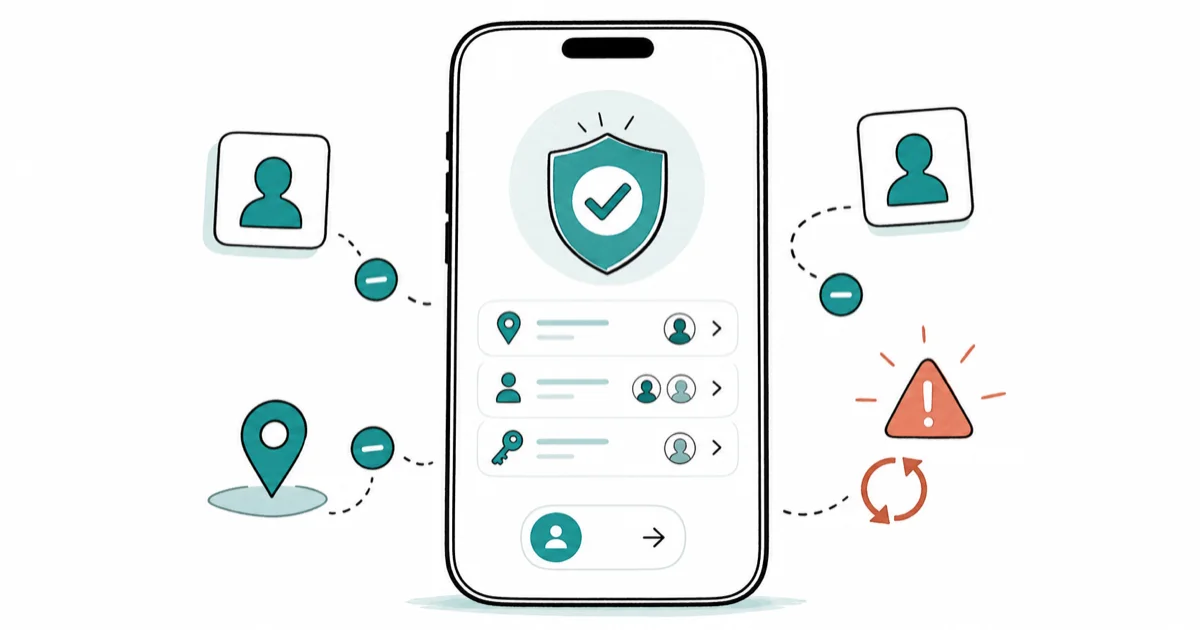
Quick AnswerSafety Check is an iOS privacy tool, in Settings under Privacy and Security, that lets you review and revoke who has access to your information, location, and accounts. Emergency Reset cuts off everyone at once, while Manage Sharing and Access lets you do it person by person.
iPhone Safety Check is a privacy tool built for the moments when you need to take back control of who can see your data and location on your own device. Apple designed it for situations like leaving a controlling relationship. It puts every sharing permission and connected account in one place so you can review or cut them off. Its two modes split the job between an immediate reset and a slower item-by-item review.
- Safety Check lives in Settings under Privacy and Security and reviews who can access your information
- Emergency Reset stops sharing with all people and apps at once for a fast, total cutoff
- Manage Sharing and Access lets you review and revoke access person by person and app by app
- It requires iOS 16 or later and an Apple Account using two-factor authentication
- It can’t touch non-Apple accounts, social media, or spyware, so it isn’t a complete security sweep
#What Safety Check Actually Does
Safety Check gives you a single dashboard for everything your iPhone shares about you. From one screen, you can see who has access to your location, which apps hold your data, and which devices are signed into your Apple Account.
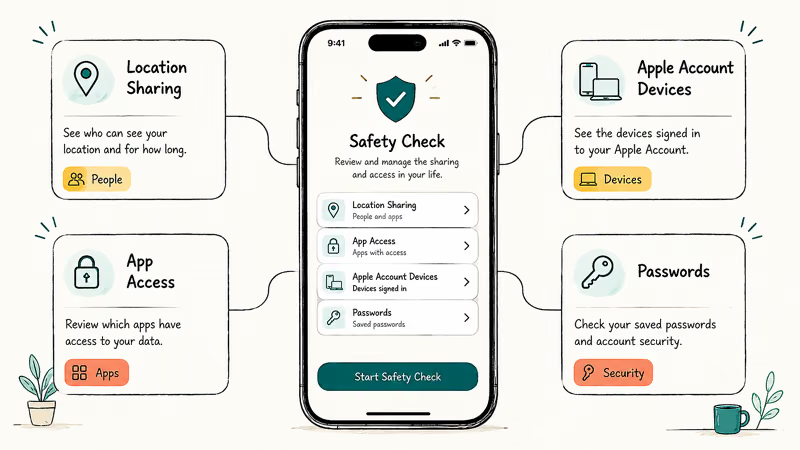
More importantly, you can change all of it from there. According to Apple’s Safety Check guide, you can “review and stop sharing your information with individual people and apps,” reset app privacy permissions, and update your passcode or Apple Account password.
The feature exists for a serious reason. Apple built it into its Personal Safety guidance for people who need to quickly revoke access an abuser once had, all from their own phone, and that design goal shapes everything about how the tool behaves, from the saved progress to the discreet, single-screen layout that lets you act without digging through scattered settings menus.
#Emergency Reset vs Manage Sharing and Access
Safety Check gives you two paths, and choosing the right one depends on urgency. They serve very different needs.
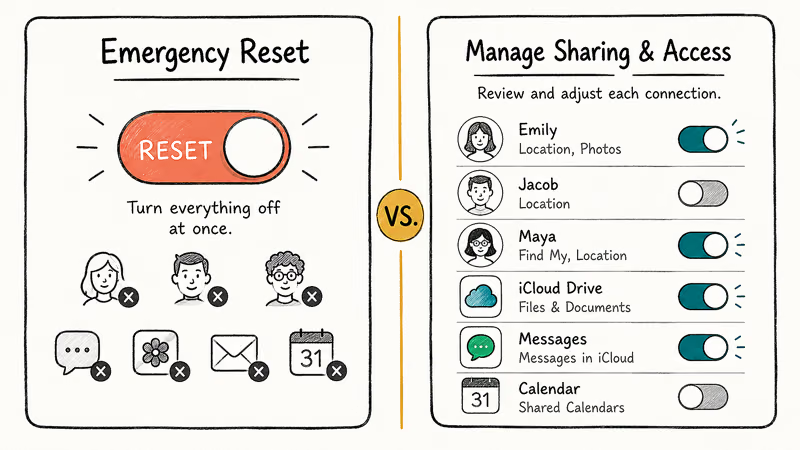
Emergency Reset is the panic button. It immediately stops sharing all of your information with every person and app at once, then walks you through securing your Apple Account and resetting privacy permissions. It’s an all-at-once cutoff, not a review flow. Use it when you need speed and don’t want to review each item.
Manage Sharing and Access is the surgical option. It lets you go person by person and app by app, reviewing what each one can see and revoking only what you choose. This is the better fit when you want to keep some sharing, like a family member you trust, while cutting off others.
#How Do You Open and Use Safety Check?
Getting to Safety Check takes a few taps, and it has two requirements. According to Apple, you need iOS 16 or later, and your Apple Account must use two-factor authentication. An independent Tom’s Guide walkthrough covers the same steps if you want a second reference.
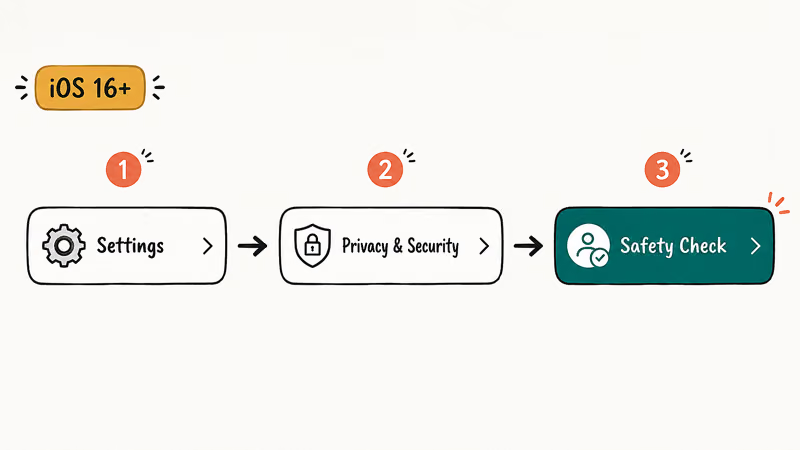
Open Settings, tap Privacy & Security, then Safety Check. From there, pick Emergency Reset for the total cutoff or Manage Sharing & Access for the item-by-item review, and follow the on-screen steps.
Take a breath before you commit to changes. Apple’s Personal Safety User Guide recommends considering the impact first, because cutting off sharing can sometimes alert the other person or affect shared accounts you still rely on. Work through it deliberately rather than in a rush.
#Privacy-First Design and Saved Progress
Safety Check was clearly built with sensitive, high-stress situations in mind, and several of its design choices reflect that careful, safety-first thinking. The whole flow is meant to be discreet and fully recoverable.
One helpful detail is that your progress is saved as you move through Emergency Reset, so an interruption doesn’t force you to restart, and that small touch matters a great deal when you’re acting under real stress and may need to set the phone down, handle a call, or step away and then quietly come back to finish later without losing your place.
If you decide to share again afterward, the change isn’t permanent. To restore sharing with someone, you simply reopen the relevant app or service and share that content again, which gives you full control to reverse course on your own terms.
#What Safety Check Can’t Detect
Safety Check is powerful within Apple’s ecosystem, but it has clear edges. Knowing its limits keeps you from a false sense of total security.
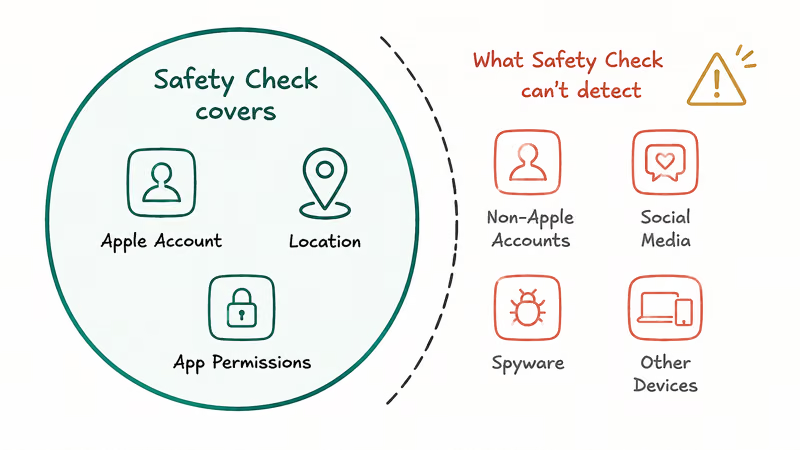
It can’t review or change non-Apple accounts, your social media sharing, or passwords stored outside Apple. It also can’t reach a device signed into a different Apple Account, or an iPad or Mac where sharing is managed separately. Most importantly, it doesn’t scan for or remove spyware.
So pair it with other steps for a full review. Check the signs your phone may be hacked and secure logins like your Google account.
You’ll also want to reset passwords on accounts Safety Check can’t reach, such as your Instagram password if you suspect someone had access. Safety Check is one strong layer, not the whole defense.
#Is It Safe and Legal to Use Safety Check?
Yes, on your own iPhone and Apple Account. It’s designed for you to manage access to your own data, well within your rights.
A few privacy implications are worth weighing first. Revoking access can be visible to the other person, so in a domestic-safety situation, consider whether that alert could put you at risk before acting. If you fear for your safety, contact a local support service or law enforcement alongside using the tool. For ongoing privacy on public networks, a VPN for iPhone adds a layer this doesn’t cover.
The legal boundary is simple. Use it on your own device only, and keep it strictly to accounts that belong to you.
#Bottom Line
iPhone Safety Check is a useful privacy tool, and it shines when you need to reclaim control over who can see your data on your own iPhone. Reach for Emergency Reset when you want an immediate, total cutoff from everyone, and use Manage Sharing and Access when you’d rather review and revoke access one person or app at a time.
Just remember its boundaries. It can’t touch non-Apple accounts, social media, or spyware, so treat it as one important layer alongside securing your other logins and reviewing how Find My works on your own device.
#Frequently Asked Questions
What iOS version do I need for Safety Check?
Safety Check requires iOS 16 or later, plus an Apple Account with two-factor authentication. If you don’t see it in Privacy & Security, update your iPhone first.
Does Safety Check work on iPad or Mac?
Safety Check is an iPhone feature. It can manage some sharing tied to your Apple Account, but it can’t directly control an iPad or Mac where information sharing is configured separately on that device, so for those you’ll need to open each one and adjust its own sharing and privacy settings by hand to fully match what you changed on the iPhone.
What is the difference between Emergency Reset and Manage Sharing and Access?
Emergency Reset instantly stops sharing with everyone and every app at once. Manage Sharing and Access lets you revoke access selectively, one person or app at a time.
Will people know I used Safety Check?
Sometimes, yes. Stop sharing your location and the other person may notice it ended. Apple recommends weighing this in a sensitive situation, so think through the impact on your safety, and any backup plan you might need, before you make changes that someone monitoring you could see and react to.
Does Safety Check remove spyware?
No. Safety Check reviews and revokes the sharing and access permissions tied to your Apple Account, but it does not scan for or remove spyware or stalkerware. If you suspect a hidden monitoring app, that requires separate steps, such as checking for unfamiliar profiles and apps or restoring your iPhone.
What does the saved progress mean in Safety Check?
Your progress is saved at each step of Emergency Reset. So an interruption won’t force you to start over; you can pause and resume.
Can I undo an Emergency Reset?
You can restore sharing afterward, but not with a single undo button. To resume sharing with a person or app, reopen the relevant app or service and share that information again. This deliberate design ensures sharing only restarts when you actively choose to turn it back on.

Apple Siri Settlement: Who Qualifies and How to Claim
Apple's $250 million Siri settlement covers iPhone 15 Pro and iPhone 16 models bought June 2024 to March 2025. See who qualifies and how claims work.

iOS 26.6.1 Security Update: What Apple Fixed and Who Gets It
Apple released iOS 26.6.1 on August 17 with 29 security fixes, including an IPSec interception bug. See what it patches, who gets it, and how to update.

iPhone Adaptive Power: How It Works and When to Use It
Learn how iPhone Adaptive Power works, which models support it, what it changes, and when Low Power Mode is still the better battery-saving choice.

How to Transfer Data to a New iPhone Without iCloud
Move everything to your new iPhone without iCloud: Quick Start device-to-device transfer, wired migration, and encrypted Finder or iTunes backups.