Unable to Connect to World in Minecraft: 8 Fixes (2026)
Unable to connect to world in Minecraft? Try friend re-add, firewall allow list, Xbox privacy settings, version match, and DNS swap. 8 quick fixes.
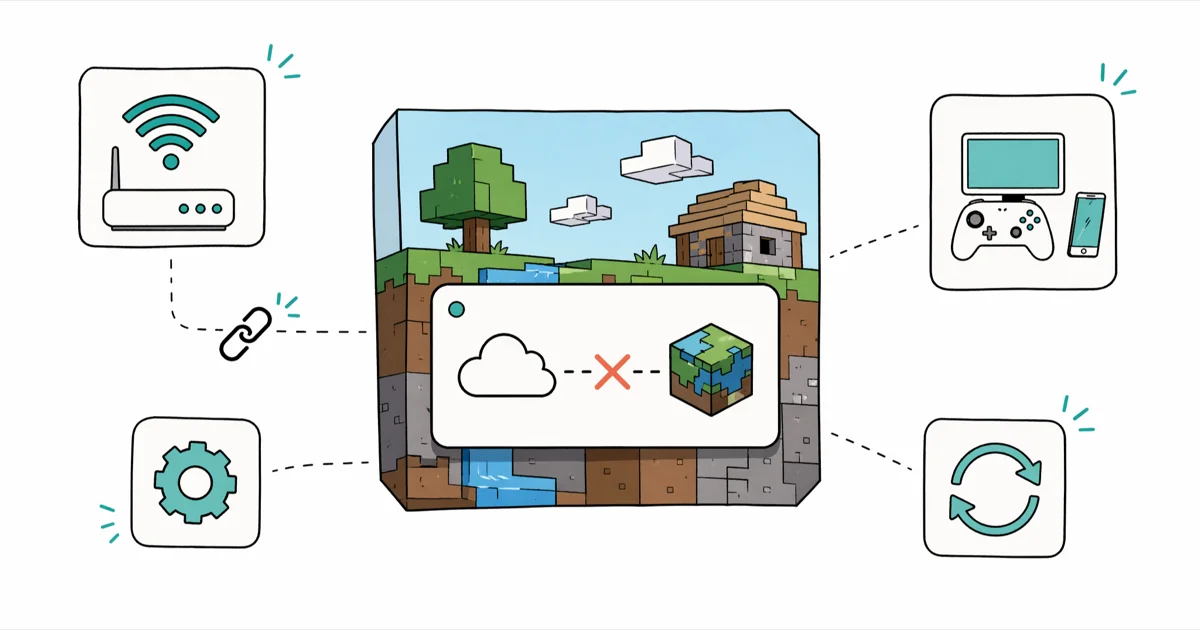
Quick AnswerThe 'Unable to Connect to World' error in Minecraft comes from a mismatched game version, a Microsoft account sync glitch, or a firewall blocking outbound ports. Re-add the friend whose world fails, sign out and back into your Microsoft account, and add Minecraft Launcher to the Windows Defender Firewall allow list to clear it in one short session.
Seeing “Unable to connect to world” in Minecraft is one of the most frustrating errors in the game, because the lobby still loads and your friend list still works. The world join silently fails when the two players aren’t on the exact same build, the Microsoft account session got desynced, or the Windows Defender Firewall is dropping Minecraft’s outbound traffic. The eight fixes below walk through these in order, starting with the changes that solve the most cases first.
- Eight fixes cover both Bedrock cross-play worlds and Java multiplayer servers, sorted by how often each one resolves the error.
- Re-adding the friend whose world fails is the single most reliable fix on Bedrock, especially after a Minecraft Live update.
- Edition mismatch (Bedrock vs. Java) and minor version drift between two players is another common root cause.
- Windows Defender Firewall and third-party antivirus block Minecraft’s outbound ports more often than people expect, even after months of working play.
- A 30-second router reboot plus switching to a public DNS like 1.1.1.1 or 8.8.8.8 clears stale DNS records that block Realms and friend joins.
#Why Can’t I Connect to My Friend’s World in Minecraft?
Minecraft’s “Unable to connect to world” message hides four very different failures behind the same string. On Bedrock, it usually means the Xbox Live friend handshake is stale. On Java, it usually means the server is on a newer or older protocol than your client.
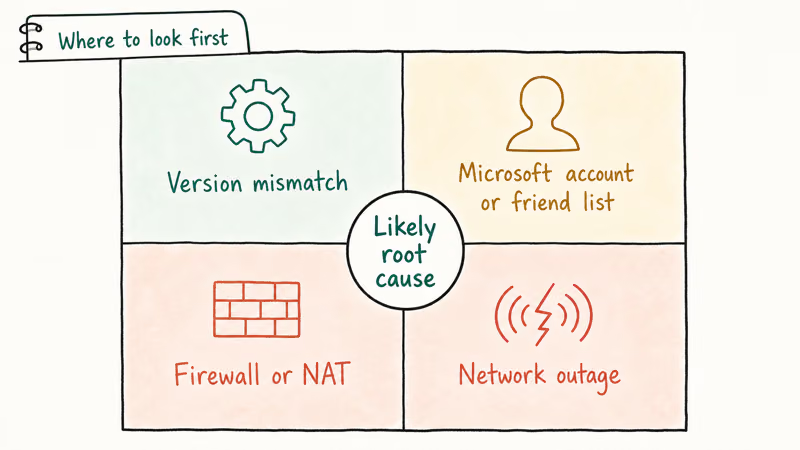
It can also mean the Windows firewall is dropping outbound packets on UDP 19132 (Bedrock) or TCP 25565 (Java). Walking through the fixes in the order below isolates each cause without guessing. Start with friend, version, and firewall checks before moving into the deeper network fixes for stubborn cases where Realms worked yesterday and silently failed today after no visible change on either device.
#Friend and Version Fixes
#Re-add the friend whose world is failing
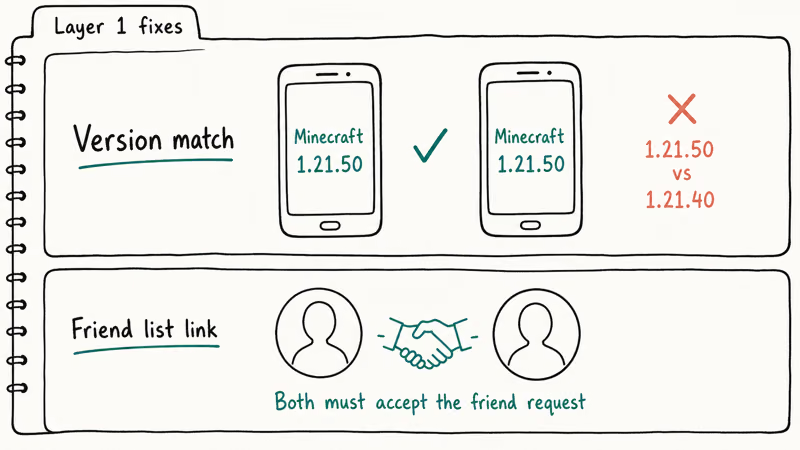
This is often the quickest Bedrock fix, and it only takes a minute. On Bedrock, the friend handshake between two Xbox Live accounts caches state on Mojang’s side that can go stale after either player updates the game, changes Gamertag, or signs in on a new device.
A full remove-and-re-add cycle refreshes the relationship on both sides before the next join attempt.
- Open Minecraft Bedrock and stay on the main screen. Don’t enter a world.
- Click Friends, then click the friend’s name and choose Unfriend.
- Close Minecraft completely. Wait 15 seconds so the Xbox Live session expires.
- Reopen Minecraft, click Friends again, search the same Gamertag, and add them back.
- Ask your friend to re-add you on their end too. Both directions need to refresh.
- Open their world from the Friends tab, not from the Worlds tab.
If the join still fails, swap the direction: ask the friend to invite you instead.
#Match the edition and game version on both sides
Minecraft has two completely separate codebases. Bedrock runs on Windows, Xbox, PlayStation, Switch, and mobile. Java runs on Windows, macOS, and Linux. They can’t connect to each other.
According to Mojang’s Java vs. Bedrock comparison help article, the two editions use different network protocols, different world formats, and different account systems. If one friend is on Java and the other is on Bedrock, the join will always fail with the connect-to-world message.
Inside the same edition, the minor version still matters. A Bedrock 1.21.3 client can’t join a 1.21.1 host world without the host upgrading. Open the launcher, check the version label on both clients, and update the older one before trying again.
Java Realms locks every connected client to the same version, so a single outdated player is enough to block the whole group.
#Firewall and Antivirus Fixes
#Allow Minecraft through Windows Defender Firewall
According to Microsoft’s Windows Defender Firewall with Advanced Security overview, the firewall ships with 3 default profiles (Domain, Private, Public), and inbound traffic is blocked by default on all 3. That’s what trips up multiplayer joins after a fresh Windows install or a major Windows update. The Minecraft Launcher and the game itself need their own inbound exceptions.
- Press Win + R, type
WF.msc, press Enter to open Windows Defender Firewall with Advanced Security. - Click Inbound Rules in the left pane, then New Rule on the right.
- Choose Program, click Next, then browse to the executable. For the new Launcher this is usually
C:\XboxGames\Minecraft Launcher\Content\Minecraft.exeorC:\Program Files (x86)\Minecraft Launcher\MinecraftLauncher.exe. - Select Allow the connection, leave all three profiles ticked, name the rule
Minecraft Launcher, and finish. - Repeat the same five steps for
javaw.exeif you play Java edition. The Java path is inside the Minecraft directory underruntime\java-runtime-*\bin\javaw.exe.
Third-party antivirus (Norton, McAfee, Bitdefender, Kaspersky) keeps its own firewall list on top of Windows Defender. If you run one of these, repeat the same allow-list step inside the antivirus console.
#Microsoft Account Fixes
#Sign out and back into your Microsoft account
If the friend re-add didn’t help and the firewall is clean, the next suspect is a stale Microsoft account token. Both editions of Minecraft authenticate against the same Microsoft identity.
The token can desync after a password change, an Xbox Live ban appeal, or a two-factor reset. Sign out of the game, close it, then sign back in with the same credentials. On the new Microsoft-account-only Java launcher, you also need to sign out of the Minecraft Launcher itself, not just the game window.
#Check Xbox privacy and online safety settings
This is the single highest-hit fix for child accounts and family accounts. The Xbox account governs all multiplayer permissions, even on PC and even on Java if you signed up after the 2021 Microsoft migration.
- Open a browser and sign in at account.xbox.com with the same account that owns the Minecraft license.
- Click Privacy & online safety, then Xbox One/Windows 10 Online Safety.
- Set You can join multiplayer games to Allow.
- Set You can add friends to Allow.
- Click Submit at the bottom of the page. The page is silent on success, so a missed Submit click is a real failure mode.
Microsoft’s Manage Xbox online safety and privacy settings page states that the child can’t override these from inside their own account. The parent has to sign in on the adult account and approve them through Microsoft Family Safety.
#Restart and Update Fixes
#Restart the game, console, and router in that order
Mojang’s general connection troubleshooter recommends a power cycle in order, and it works because each device caches a different layer of state.
Close Minecraft on every device first. Then hard-restart your console or PC (full shutdown, not sleep). Then unplug your router for 30 seconds and let it boot back up.
The router step matters because consumer routers cache DNS responses, and a stale Mojang DNS record will fail every Realms or friend join until the cache clears. If your home internet drops repeatedly during play, the deeper fix is in our guide on why your internet keeps disconnecting.
#Update Minecraft, Java, and Windows
An out-of-date client is another common cause after edition mismatch.
| Component | Where to update | Why it matters |
|---|---|---|
| Minecraft Bedrock | Microsoft Store or Xbox app, Library → Updates | Bedrock Realms reject outdated clients at the connection step |
| Minecraft Java | Minecraft Launcher, Installations tab, set to latest release | Java servers usually run the current protocol within 72 hours of release |
| Java Runtime | The new launcher bundles Java, but standalone installs need java.com for legacy 1.16 and older | Older modpacks and servers still rely on a system-wide Java |
| Windows | Settings → Windows Update → Check for updates | Network stack fixes ship in Windows updates and break older Minecraft network code |
Table 1: Where to check for updates across Minecraft, Java, and Windows components.
After every update, restart the device once before testing the connect-to-world flow again. The new build doesn’t always reload TCP/UDP socket state until restart.
#Network Layer Fixes
#Reset the network adapter and switch to public DNS
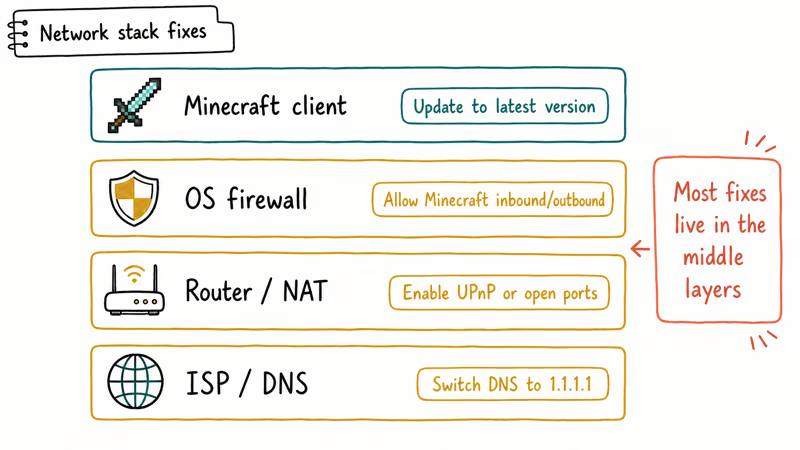
If everything above passed and the error remains, the issue sits at the network layer. Open an elevated Command Prompt and run these three commands one by one:
ipconfig /flushdns
netsh winsock reset
netsh int ip reset
Restart the PC after the last command. Then switch DNS to a public resolver. In Settings → Network & internet → properties on your active adapter → DNS server assignment → Manual, enter 1.1.1.1 (Cloudflare) for preferred and 8.8.8.8 (Google) for alternate.
Cloudflare’s public DNS announced that 1.1.1.1 hit a median response time of 14ms globally, faster than most ISP resolvers. A stale ISP DNS record can make a previously working Realm stop resolving, and swapping to 1.1.1.1 or 8.8.8.8 forces a clean lookup.
While the router is rebooting, check whether the hardware itself is the bottleneck. Our roundup of the best routers under $50 covers options that handle Minecraft Realms cleanly.
#Is the Problem on My End or the Server?
Before you spend an hour on the eight fixes above, spend 60 seconds on a triage check. Try joining a different friend’s world, or join a third-party Minecraft server through the Server tab.
If both fail, the problem is on your device or your network. If only one specific friend’s world fails, the problem is between you and that friend. Re-add them and have them check their own router and firewall. If a single public server fails but the others work, the server is down or running a different version, and no fix on your end will help.
The official server status mirrors on r/minecraft usually catch outages within minutes.
#Bottom Line
For Bedrock cross-play with friends, work the list in this exact order: re-add the friend, verify both clients are on the same minor version, then allow Minecraft Launcher through Windows Defender Firewall.
For Java multiplayer or Realms, version match and the inbound firewall rule for javaw.exe are the two fixes that pay off most often, especially right after a Mojang patch when servers update faster than client launchers do. If you got the world connecting again and want to keep playing without the small in-game headaches that pile up over a long session, the three guides below cover the next set of issues most players hit in 2026:
- Minecraft no sound walks through the audio fixes when the game loads silent.
- Keep inventory command explains the gamerule that saves your items on death.
- Bow enchantments in Minecraft ranks the most useful enchants for the bow and crossbow.
#Frequently Asked Questions
Why does my friend keep getting “Unable to connect to world” only on my world?
Their client likely can’t resolve your host IP through Xbox Live, or your home router blocks inbound UDP 19132. Have them remove and re-add you, then check your router’s UPnP setting. If UPnP is off, either turn it on or open UDP 19132 to your PC’s local IP.
Can a Bedrock player join a Java world?
No. Bedrock and Java run different protocols and different world formats, and they can’t connect to each other directly. The only workaround is a proxy server like Geyser that translates between the two protocols, which only works for dedicated servers, not for private friend worlds.
Does this error mean my Minecraft account is banned?
No. A ban shows its own message, not the connect-to-world error.
Why does the connect-to-world error happen right after a Minecraft update?
Every Minecraft update changes the network protocol version. A few hours after a major release, you’ll see this error on any world where one player has updated and the other hasn’t. The fix is for the lagging player to launch the store or Xbox app, update Minecraft, and restart.
Do I need to port forward to join my friend’s Realm?
No, Realms is hosted by Mojang and routes through their servers, so no port forwarding is needed to join. Port forwarding only matters when you host a self-run server on your own PC and want friends outside your network to reach it on TCP 25565 (Java) or UDP 19132 (Bedrock). For self-hosted servers, you forward the port on your router admin page to the host PC’s local IP, then share your public IP. Realms removes that layer entirely.
Does using a VPN cause this error?
Yes, often. Most consumer VPNs route Minecraft traffic through shared datacenter IPs that Mojang’s anti-abuse system flags as suspicious, which kills Realms joins and sometimes friend joins. Disconnect the VPN entirely before launching Minecraft, including any kill-switch features. Reconnect afterwards for the other apps that need it.
Can a parental controls app cause “Unable to connect to world”?
Yes. Microsoft Family Safety, Norton Family, Bark, and Qustodio all let parents disable multiplayer. Review the family rules first.
Why did my world connect yesterday and fail today with no changes?
The most common cause is an overnight Minecraft update on one device but not the other. The second most common is your router rebooting at night and picking up new DNS records that haven’t propagated. Re-launch the game on both ends, restart the router, and the join usually works again. If it doesn’t, walk the eight-fix list from the top.

Fortnite Stuck on the Loading Screen? Fix It in 2026
Fortnite stuck on the loading screen? Check server status, fix the Windows N Media Pack and DirectX 11 on PC, clear the console cache, and verify files.

Minecraft Keeps Crashing? Java and Bedrock Fixes (2026)
Minecraft keeps crashing on startup or mid-game? Update your GPU driver, remove mods on Java, and reinstall Gaming Services on Bedrock. Fixes for both.

Pokemon GO Not Loading? Fix the Loading Screen 2026
Pokemon GO not loading or stuck on the Pokeball? Check server status, fix automatic date and time, grant location permission, clear the cache, and update.

PS5 Controller Not Charging? 9 Fixes That Work (2026)
DualSense not charging? Swap the cable, use a rear port in Rest Mode, clean the USB-C port, and check power settings. 9 fixes for a dead PS5 controller.