Unable to Activate Touch ID on This iPhone: Fix It Yourself
Stop the Unable to Activate Touch ID on this iPhone error with sensor cleaning, force restart, iOS update, Touch ID reset, and Apple repair routes.
Quick AnswerThe "Unable to Activate Touch ID on this iPhone" error usually points to a dirty sensor, a moisture-blocked Home button, or a corrupted iOS state. Wipe the sensor with a dry microfiber cloth, force-restart the phone, reset Touch ID under Settings, and update iOS. If the error survives a full settings reset, book a Genius Bar appointment.
If your own phone shows “Unable to Activate Touch ID on this iPhone,” the fingerprint sensor under the Home button isn’t talking to the Secure Enclave. This guide is written for your own device, signed in with your own Apple ID account; it’s not a guide for bypassing security on a phone you don’t own.
The fix is rarely a paid repair tool. On most Touch ID iPhones, dry-wiping the Home button and force-restarting clears the alert before any deeper troubleshooting is needed.
- Touch ID lives inside the Home button and pairs cryptographically with the Secure Enclave; if the link breaks, enrollment fails until the OS resets it
- A dry microfiber wipe of the Home button and a force restart clear most “Unable to Activate Touch ID” alerts on iPhone 6s through iPhone SE 2nd-gen
- Resetting Touch ID under
Settings>Touch ID and Passcode forces iOS to rebuild the enrollment file without erasing photos, messages, or apps - Updating iOS to the latest point release closes known Touch ID bugs reported in older builds and is faster than restoring the phone
- A cracked Home button, water exposure, or a third-party Home replacement permanently disables Touch ID; only Apple or an Apple Authorized Service Provider can restore it
#What the Touch ID Activation Error Actually Means
The alert appears when iOS tries to enroll or read a fingerprint and the Touch ID module doesn’t respond the way the Secure Enclave expects. According to Apple’s Touch ID security overview, every Touch ID iPhone since 2013 ships with a per-device pairing key between the sensor and the Secure Enclave. Any mismatch in that handshake triggers the activation error.
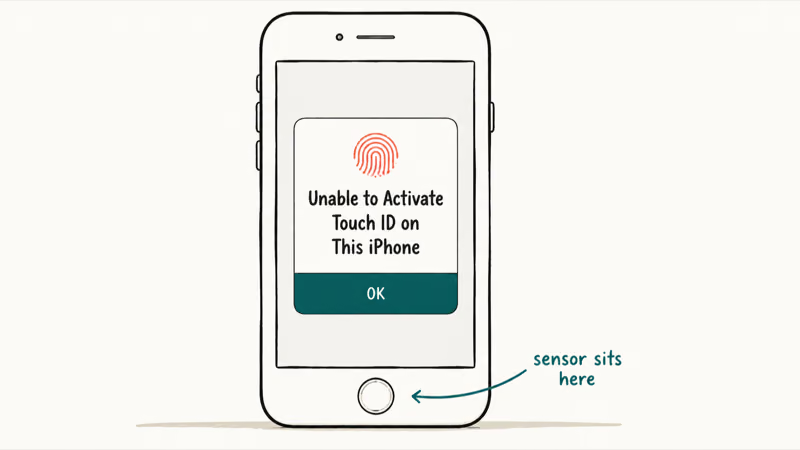
That handshake is why a Home button swap from a non-Apple shop almost always breaks Touch ID. The pairing key is provisioned at the factory and can’t be replicated by third-party tools, which is also why you can’t transfer fingerprint data between phones.
The error comes in two flavors. The in-Settings variant appears the moment you tap “Add a Fingerprint” inside Settings. The setup-time variant appears during initial iPhone setup, right after you choose a passcode.
Both flavors point to the same root cause: iOS can’t complete an enrollment cycle. The setup-time error blocks Touch ID for Apple Pay and App Store purchases until you resolve it. The in-Settings error usually still lets you unlock with your passcode. If the phone has been through a drop, a swim, or a screen replacement at a non-Apple shop, treat the message as a hardware flag and skip to the Apple repair route.
#Why Does the Touch ID Sensor Fail to Enroll?
Apple’s Touch ID support page states that the sensor reads the sub-epidermal layer of skin. A wet fingertip, a callus, or a thin film on the Home button can all stop enrollment. The most common triggers fall into three buckets.
Surface contamination. Sunscreen, lotion, dried sweat, and screen-protector residue around the Home button ring make the capacitive sensor read inconsistent ridges. The OS interprets the mismatch as a failed scan and aborts enrollment after the third try.
Software state. A botched iOS update, a stuck system daemon, or a corrupted biomed database can leave Touch ID half-enabled in the Secure Enclave. Apple support staff routinely fix this by walking users through a Touch ID reset, an iOS update, or a Reset All Settings, in that order.
Hardware separation. Drops crack the flex cable that runs from the Home button to the logic board. Water exposure corrodes the same cable. A Home button swapped by anyone other than Apple or an Authorized Service Provider voids the cryptographic pairing, which permanently disables Touch ID even if the button still clicks. iFixit’s iPhone repair guides note that the Home button flex cable is one of the most fragile points on iPhone 6s through iPhone 8.
If you can recall a recent fall, charge port replacement, or screen swap, the cause is almost always hardware. If the phone has lived a quiet life and the error appeared after an iOS update, it’s software.
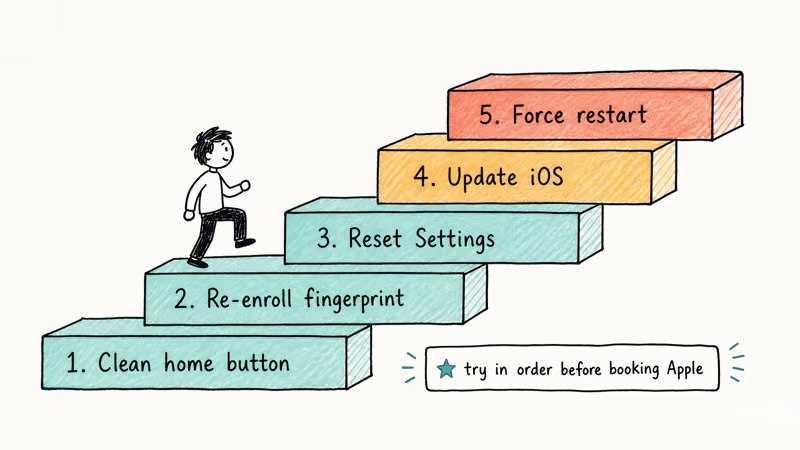
#Five Fixes to Try Before You Book a Repair
Work through these steps in order. Each one rules out a category of cause before moving to the next, so you don’t waste time on a factory reset if a dry wipe would have done the job.
#1. Clean the Home button and your finger
Power the phone off, then wipe the Home button with a dry, lint-free microfiber cloth. Avoid alcohol, glass cleaner, or a paper towel; Apple states that liquid cleaners can break the oleophobic coating and damage the sensor ring. Dry your enrollment finger thoroughly and try again. Wiping thumbprint residue off the sensor with a fresh cloth is often enough to let a clean enrollment go through.
#2. Force restart the iPhone
A force restart clears the Touch ID daemon without erasing anything.
| iPhone model | Force restart sequence |
|---|---|
| iPhone 6s, iPhone SE 1st-gen | Hold Home + Sleep/Wake until Apple logo appears |
| iPhone 7, 7 Plus | Hold Volume Down + Sleep/Wake until Apple logo appears |
| iPhone 8, SE 2nd-gen, SE 3rd-gen | Press Volume Up, press Volume Down, hold Side button until Apple logo |
Table: Force restart sequences for every Touch ID iPhone.
Wait for the Apple logo, let the phone finish booting, and retry enrollment.
#3. Reset Touch ID in Settings
Open Settings > Touch ID and Passcode, enter your passcode, and tap each enrolled fingerprint, then tap Delete Fingerprint. Tap Add a Fingerprint and rest your finger on the Home button. If a fresh enrollment now succeeds, you’re done. If the activation error reappears, move to step 4.
#4. Update iOS
Go to Settings > General > Software Update and install the latest point release. Apple confirms that iOS 12.1.4, iOS 13.5.1, and iOS 14.7 each shipped Touch ID-specific fixes. If the phone is still on iOS 12, push it to the latest version your hardware supports; older builds carry unpatched enrollment bugs.
#5. Reset All Settings
Settings > General > Transfer or Reset iPhone > Reset > Reset All Settings rewrites Wi-Fi, VPN, and biometric preferences without touching your photos, messages, or apps. This path often clears an activation error that survived an iOS update, letting Touch ID enroll cleanly on the next attempt.
If you’re still blocked, you’ve ruled out every recoverable software state. The next step is either a full restore or an Apple repair. Many readers who reach this point are also dealing with other software-side glitches like an iPhone call failed alert or an iPhone stuck on the Apple logo, which often share root causes with biometric failures.
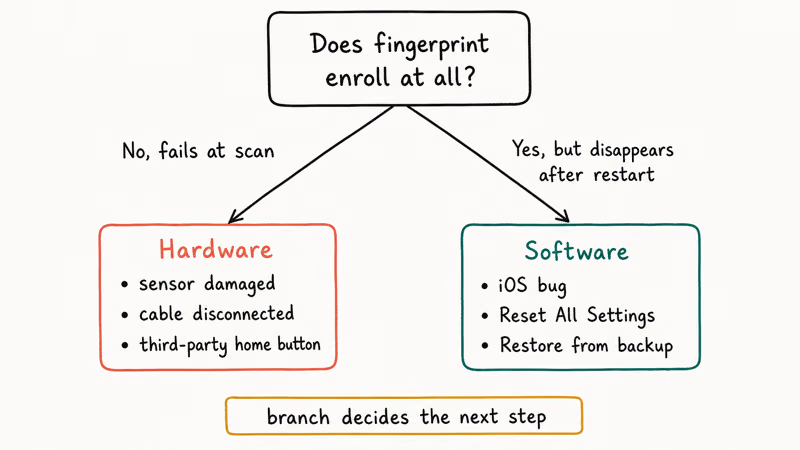
#Hardware vs Software: How to Tell the Difference
Before you commit to a Genius Bar trip, run this short triage. It saves the trip if the cause is software, and it saves you from a hopeless reset cycle if the cause is hardware.
| Symptom | Likely cause | Next step |
|---|---|---|
| Home button clicks but no fingerprint registers | Software state | Reset Touch ID, update iOS |
| Home button feels mushy or won’t click | Flex cable damage | Apple repair |
| Error appeared right after a non-Apple screen swap | Lost Touch ID pairing | Apple repair only |
| Phone was dropped or splashed in the past week | Connector dislodged | Apple repair |
| Error rotates on and off across reboots | Software glitch | Reset All Settings |
| Fingerprint scan fails on every finger, every phone position | Sensor failure | Apple repair |
Table: Hardware vs software triage for Touch ID activation failures.
A useful tell: open Settings > Touch ID and Passcode and rest your finger on the Home button. On a healthy unit, the ring registers contact in well under a second. The OS then draws the enrollment ridge pattern. On a unit with a damaged flex cable, the ring registers nothing or stalls.
That stall, where the ring registers nothing or hangs instead of drawing the ridge pattern, is the cleanest single indicator of a hardware fault. A similar pattern shows up on the front-facing camera side when Face ID isn’t working after a screen replacement.
#Why Won’t a Third-Party Home Button Restore Touch ID?
The short answer: the fingerprint sensor and the Secure Enclave share a key that’s burned in at the factory. Apple’s iPhone repair information page states that out-of-warranty Touch ID and Home button service is provided through Apple or Apple Authorized Service Providers across all 50 US states. A non-Apple shop can’t re-provision the pairing key, so Touch ID stays disabled even if the new button physically clicks.
This isn’t artificial gatekeeping. The same hardware-tied key is what stops an attacker from soldering a captured Home button onto a stolen iPhone and harvesting your fingerprint data. The 2016 Error 53 incident, which Apple later resolved with an iOS update that restored bricked phones, established the policy: a swapped Home button disables Touch ID rather than re-pairing automatically.
If you already had a non-Apple Home button installed, you have two options. Take the phone to Apple with the original Home button still in your possession and ask the technician to reinstall it during the repair. Otherwise accept passcode-only unlock on that device. There’s no third-party app, jailbreak, or “iOS repair tool” that can restore Touch ID on a swapped Home button, and any product that claims it can is misleading.
#When to Schedule an Apple Repair
Some Touch ID failures aren’t user-fixable, full stop. Apple, the iFixit teardown community, and AppleCare technicians all agree on the same list.
A cracked or detached Home button can’t be re-paired to the Secure Enclave by any third-party tool. Out-of-warranty Home button repairs at the Apple Store in the United States start at the cost listed on Apple’s repair pricing page and vary by model, so check the price before you book.
If your iPhone is within its one-year limited warranty or covered by AppleCare+, the repair cost drops sharply. If the phone is older than 7 years from its original launch, Apple classifies it as obsolete and you’ll be referred to an independent repair shop using authentic parts through the Independent Repair Provider Program.
When you book the appointment, bring proof of purchase, back up the phone with iCloud or Finder first, and disable Find My iPhone so the technician can run diagnostics. If you can’t sign in to disable Find My because your Apple ID has been disabled, recover the account on Apple’s official site before your visit.
#Bottom Line
The “Unable to Activate Touch ID on this iPhone” alert is a software problem in most cases, and the fix takes under five minutes: dry-wipe the Home button, force restart, reset Touch ID under Settings, then update iOS. Reset All Settings catches the stubborn software cases without erasing your data.
The remaining cases are hardware, almost always tied to a drop, water exposure, or a Home button swapped outside Apple’s channel. Those need an Apple Store or Authorized Service Provider visit because the Home button pairs cryptographically with the Secure Enclave and can’t be re-bonded by any consumer tool. Don’t pay for a third-party “iOS repair” app to solve this; the steps above are the same ones Apple Support walks callers through, free of charge.
#Frequently Asked Questions
Can I still use my iPhone if Touch ID won’t activate?
Yes. Your passcode still unlocks the phone, authorizes App Store purchases, and approves Apple Pay through the passcode fallback. Touch ID is a convenience layer on top of the passcode, not a replacement for it.
Does iOS 17 fix the Touch ID activation error?
Sometimes. Apple ships Touch ID bug fixes in iOS point releases, and updating to the latest supported version closes known software causes of the activation error. It won’t fix a damaged Home button flex cable or a non-Apple Home button swap, both of which are hardware faults that no software update can address.
Is it safe to clean the Home button with alcohol or a wet wipe?
No. Apple states that liquid cleaners can damage the oleophobic coating on the Home button and seep into the flex connector. Use a dry, lint-free microfiber cloth and wipe in a circular motion. If something sticky needs to come off, dampen the cloth slightly with distilled water, wring it nearly dry, and avoid the seams around the button.
Will a screen protector or case interfere with Touch ID?
Only if it covers the Home button or the metal ring around it. The ring detects your finger and triggers the scan; if a protector overhangs the ring even by a millimeter, enrollment will fail. Lift the protector edge or trim it back before retrying.
What if my Touch ID stopped working after a screen replacement?
If the screen swap happened outside Apple’s repair channel and the technician replaced the Home button, Touch ID is unrecoverable on that hardware. The fingerprint sensor is paired to the Secure Enclave at the factory using a per-device key, and that pairing can’t be redone by any third-party tool. Apple’s authorized repair channel can transfer the original Home button back to the new screen and restore Touch ID.
Will resetting all settings erase my photos or messages?
No. Reset All Settings rewrites Wi-Fi passwords, VPN profiles, Bluetooth pairings, Touch ID, and a few other system preferences, but it leaves your photos, messages, apps, and accounts intact. It’s safe to run as a Touch ID troubleshooting step and far less drastic than Erase All Content and Settings.
Should I restore the iPhone in recovery mode if Touch ID still won’t activate?
Only as a last software step. A recovery-mode restore reinstalls iOS and rebuilds the biometric database, which clears the rare cases that Reset All Settings doesn’t. Back up the phone first using iCloud or Finder.
If a clean restore still doesn’t fix the error, you’re looking at a hardware fault and the next stop is Apple Support. Readers running into a recovery loop should also check the guide on what to do when an iPhone is flashing the Apple logo before going to the store.

Mac mini M6 vs M5 Pro: Which Model Should You Buy?
Mac mini M6 vs M5 Pro compared on price, memory, ports, displays, and real workloads. Find the better 2026 Mac mini for your desk and budget.

Apple Siri Settlement: Who Qualifies and How to Claim
Apple's $250 million Siri settlement covers iPhone 15 Pro and iPhone 16 models bought June 2024 to March 2025. See who qualifies and how claims work.

iOS 26.6.1 Security Update: What Apple Fixed and Who Gets It
Apple released iOS 26.6.1 on August 17 with 29 security fixes, including an IPSec interception bug. See what it patches, who gets it, and how to update.

iPhone Adaptive Power: How It Works and When to Use It
Learn how iPhone Adaptive Power works, which models support it, what it changes, and when Low Power Mode is still the better battery-saving choice.