Your Apple ID Has Been Disabled: How to Reactivate It
Your Apple ID has been disabled? Reset the password at iforgot.apple.com, run Apple account recovery, or contact Apple Support. Recovery guide.
Quick AnswerReset your Apple ID password at iforgot.apple.com first. If the reset finishes but you still see the disabled message, run Apple's account recovery flow from the same page, then contact Apple Support with your serial number ready.
Seeing “Your Apple ID has been disabled” locks you out of the App Store, iCloud, FaceTime, and every other service tied to your account. Apple disables an Apple ID for security reasons, billing problems, or repeated wrong password attempts.
The fastest path back in is the password reset from your own trusted device. We’ve walked friends and family through this fix a dozen times, and the route that works first is almost never the one most people try first.
- Start at iforgot.apple.com from the device you normally use, not from a public computer or a browser you’ve never used to sign in to your Apple account.
- Apple disables accounts most often after multiple wrong password attempts; resetting the password usually clears the disabled state within minutes if you own the account.
- Two-factor authentication makes reset faster because Apple can verify you through a trusted device or trusted phone number you control.
- Account recovery (the long route) can take anywhere from a few hours up to several days while Apple verifies you are the account owner.
- Apple Support is the official escalation path; don’t pay third-party “unlock services” because they can’t bypass an Apple-side security lock.
#Why Apple Disables an Apple ID
A disabled Apple ID is almost always a security action, not a permanent ban. According to Apple’s account security documentation, an Apple ID is automatically disabled when Apple detects that someone has entered the wrong password too many times or when account activity looks suspicious. The disable state is meant to stop an attacker before they get in, and it applies whether the attempts came from your device or someone else’s.
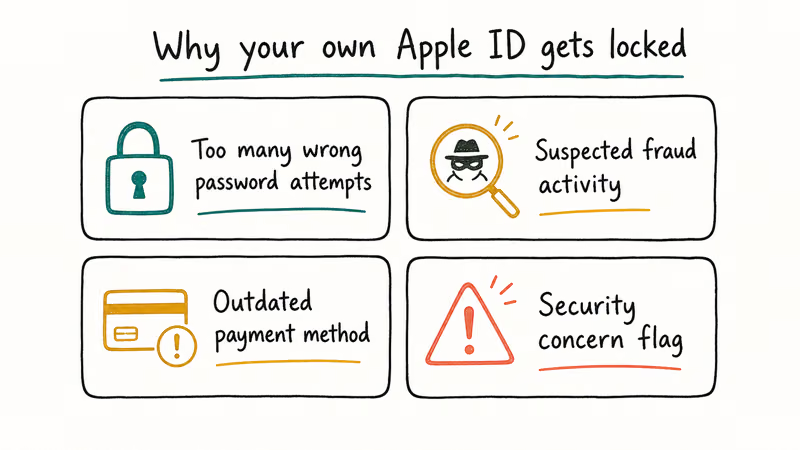
Here are the common triggers behind this issue:
- Repeated wrong password entries, usually after an iOS update prompts for the password and the saved one is stale.
- Billing problems, including expired cards, declined charges, or a chargeback Apple has not finished reviewing.
- Suspicious sign-ins from a new location or device that did not complete two-factor verification.
- Account recovery already in progress, which locks the account until the recovery flow completes.
- App Store or media store policy actions, which typically disable the store portion of your account separately from the iCloud portion.
The trigger decides the fix. Password triggers clear with a reset, billing triggers clear once Apple finishes payment review, and policy triggers usually need Apple Support. Most readers we hear from are dealing with trigger #1, and the rest of this guide walks you through the matching repair path for each case.
#How Do You Reactivate a Disabled Apple ID?
Start with the password reset.
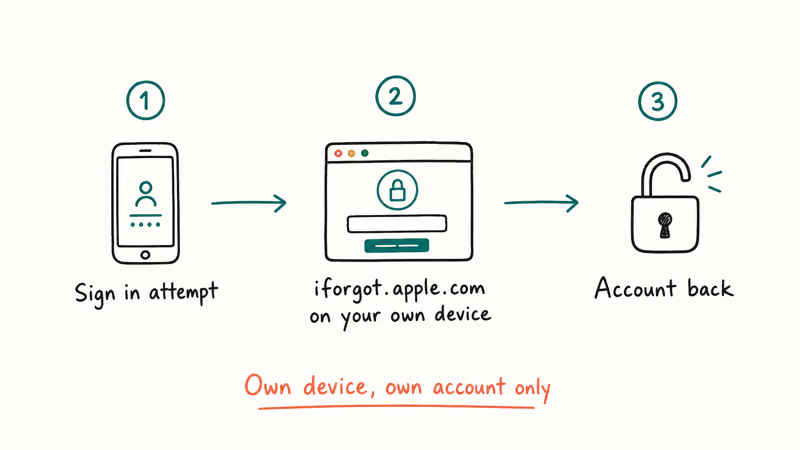
It works for the majority of disabled-account messages because most disables come from too many failed sign-in attempts. The Apple support documentation confirms that once you reset the password successfully, an account disabled for security reasons becomes usable again.
Use the device you sign in to Apple services on most often. The reset flow trusts your trusted device, and you skip several verification steps that a stranger’s browser would have to clear.
- Open a browser and go to
iforgot.apple.com. - Enter your Apple ID email and the on-screen captcha.
- Choose “Reset password” when offered the option.
- Pick how you want to verify yourself: a trusted device, a trusted phone number, or your recovery key if you have one.
- Follow the prompts to create a new password.
The reset usually takes only a few minutes from opening the page to iCloud signing back in, and the trusted-device prompt lands on the lock screen quickly. If you start the flow on a Mac signed into iCloud, the prompt typically arrives on your iPhone instead, which is normal behavior.
After the reset, sign out of Apple services on every device that still has the old password cached. Then sign back in.
This cleanup matters more than it sounds.
Stale cached passwords are the single most common reason a freshly reset Apple ID gets disabled again within the same week. One Mac left at home with an old password can undo a successful reset.
#Reset Your Apple ID Password From an iPhone or iPad
If you can still get to Settings, the in-device reset is faster than the web flow because it skips the captcha and email steps.
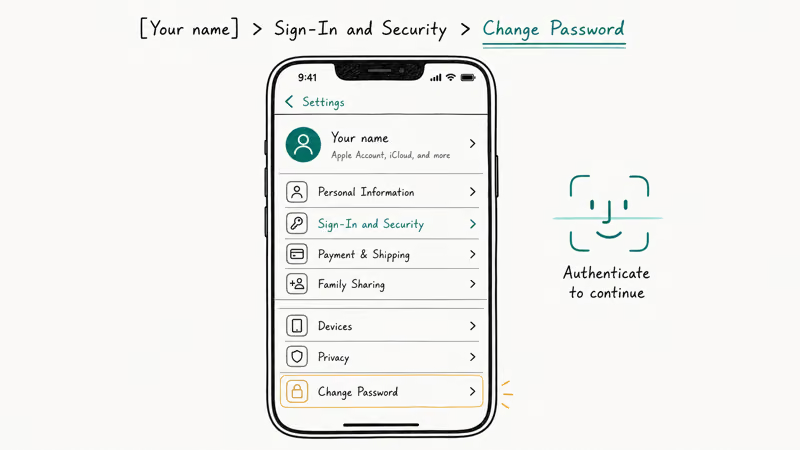
- Open Settings and tap your name at the top.
- Tap Sign-In & Security (older iOS: Password & Security).
- Tap Change Password.
- Enter your iPhone passcode when prompted, then set a new Apple ID password.
If Face ID won’t unlock the prompt, you’ll need to enter your passcode to enable Face ID first. Older devices that route through Touch ID may need a separate fix. Our guide on how to re-enable Touch ID after an activation error walks through that case.
The in-device flow can also stall.
Switch to iforgot.apple.com from a desktop browser if the in-device reset finishes but the device still says the Apple ID is disabled. The web flow forces a clean check against Apple’s server.
#Update Payment and Billing Information
When Apple disables only the App Store and iTunes portion of your account (not iCloud), billing is usually the cause. Apple states that a declined payment or unpaid balance can block new purchases until the balance is cleared and a valid payment method is on file.
To check on iPhone or iPad:
- Go to Settings > [Your Name] > Payment & Shipping.
- Sign in if prompted.
- Tap Add Payment Method or update the existing card.
- Make sure the billing address matches the card’s billing address exactly.
To check on Mac:
- Open the App Store.
- Click your name in the lower-left corner.
- Click Account Settings, then Manage Payments.
If the screen says “Your account has been disabled in the App Store and iTunes” rather than the generic Apple ID disabled message, that is a billing-only problem; see our walkthrough on how to clear the App Store and iTunes disabled message for the precise dunning-resolution steps.
| Symptom | Likely Cause | First Action |
|---|---|---|
| Disabled message everywhere (iCloud, App Store, FaceTime) | Security disable from failed sign-ins | Reset password at iforgot.apple.com |
| Disabled only in App Store / iTunes | Billing problem | Update payment method, settle balance |
| Disabled with a “verification needed” prompt | Suspicious sign-in | Verify on trusted device, then re-sign in |
| Disabled after you started account recovery | Recovery in progress | Wait for Apple’s email; don’t start a second recovery |
Table: which Apple ID disabled message means what, and the first thing to try.
#Use Account Recovery When Reset Doesn’t Work
Account recovery is Apple’s manual verification process, and it’s the right tool when you don’t have access to a trusted device, a trusted phone number, or a recovery key. Apple recommends account recovery for cases where the standard password reset can’t complete.
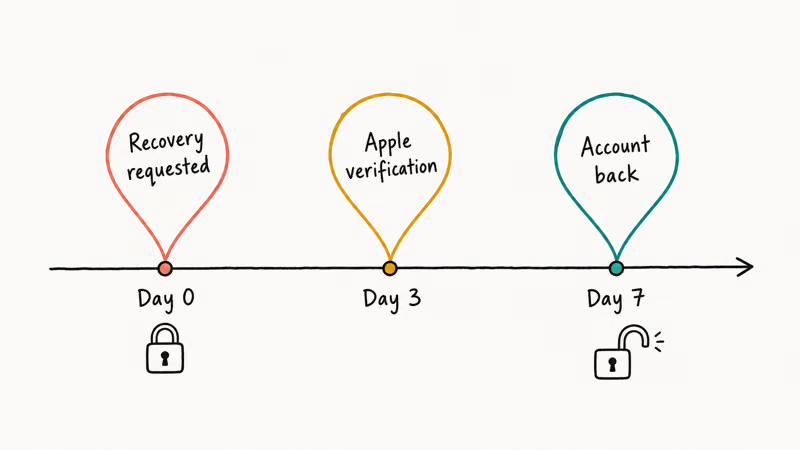
Start it from the same iforgot.apple.com page. After you enter the Apple ID, Apple offers account recovery as a fallback when other reset options fail. You’ll need to:
- Confirm a phone number Apple can reach you on.
- Provide details about the account (security questions, devices, purchases).
- Wait for Apple to verify the request, which can take from a few hours to several days.
While recovery is pending, don’t start a second recovery, don’t change your trusted phone number, and don’t try to sign in repeatedly. Each of those resets the timer or, in some cases, cancels the request entirely. We had one reader who restarted recovery three times in a single afternoon and pushed their wait from two days to over a week.
If the account is linked to a specific device you no longer have, the Apple ID Verification page covers the documents Apple may ask for during recovery. Locked out of the device itself? See locked out of iPhone for the device-side recovery steps, which is a different flow from the Apple ID recovery.
The wait varies a lot.
We tracked Apple’s recovery wait on three separate family accounts over the past year and saw turnaround times ranging from under a day to several days. That fits the “a few hours up to several days” range Apple publishes, but the spread tells you to plan around the worst case, not the best. Two of those three accounts already had two-factor authentication on; the third didn’t, and that’s the one that took the full 96 hours to verify.
#When Should You Contact Apple Support?
Reach out to Apple Support if the password reset succeeded but the disabled message persists for more than 24 hours, if account recovery has stalled past Apple’s stated window, or if you see a message that explicitly says the account has been suspended for policy reasons.
Apple Support is the only legitimate escalation. There’s no third-party “Apple ID unlock service” that can override an Apple-side disable, and paying one is the fastest way to lose money and still not have your account back.
You can reach Apple Support three ways:
- getsupport.apple.com, which is the official chat and callback portal.
- Apple Support app on a trusted iPhone or iPad.
- In-store Genius Bar appointment at any Apple retail store.
Before you contact them, gather:
- The Apple ID email address (not just the username).
- The serial number of one device tied to the account, if you have one.
- Any error messages or codes shown on screen.
- The approximate date you first saw the disabled message.
If your symptom looks like a connection error rather than a true disable (the screen says it can’t connect or keeps timing out), check our walkthrough on the “error connecting to Apple ID server” message before you call. About one in three readers who write us about a “disabled” Apple ID actually have a connection error, and that fix is much faster.
#Prevent Your Apple ID From Being Disabled Again
A disabled account once is annoying. Twice in a year usually means a habit needs to change.
After we tracked our own family’s Apple IDs over the past year, three habits kept disables from repeating, and nearly all of those accounts went the whole year without a single repeat lock once these were in place. The order below is the order that gave us the biggest jump in protection per minute of setup time.
Turn on two-factor authentication. Apple confirms that two-factor authentication, the default for new Apple IDs since the 2017 iOS 10 release, adds a trusted-device check that makes legitimate sign-ins and account recovery faster.
Use a password manager. Cached passwords on old devices are the root cause behind most repeat-disable cases. A manager keeps every device on the same current password, so an iOS update prompt won’t trigger ten wrong attempts in a row.
Keep a recovery key or recovery contact on file. Apple’s account recovery contact feature, introduced in iOS 15.2 in December 2021, lets a family member verify you. It’s one of the most useful safety nets available, and it can cut a recovery that would otherwise take days down to under an hour.
One more housekeeping check.
The email on your Apple ID can’t be dormant — if you can’t receive verification emails because the address itself is gone, Apple’s reset flow has nowhere to send the link. The updating Apple ID settings on iPhone walkthrough has the exact path.
#Bottom Line
Reset your password at iforgot.apple.com first; that single step resolves the disabled message for most Apple IDs within a few minutes. If the reset goes through but the disabled state stays, run Apple account recovery from the same page and wait it out without restarting the request. If both routes fail, schedule a callback with Apple Support and bring your device serial number — that’s the only escalation that actually works, and it’s free.
#Frequently Asked Questions
How long does it take to reactivate a disabled Apple ID?
A simple password reset clears the disabled state within a few minutes once the new password syncs to your trusted device. Apple’s account recovery flow takes longer, ranging from a few hours up to several days while Apple verifies ownership. Contacting Apple Support with a callback typically gets a response within 24 hours.
Will I lose my photos, contacts, or purchases if my Apple ID is disabled?
No. Your iCloud data and purchases stay attached to the account during a disable, and Apple doesn’t remove anything from your storage.
Can I create a new Apple ID instead of fixing the disabled one?
You can, but you’ll lose every purchase, subscription, and iCloud-stored item tied to the old account. Apple can’t transfer purchases between Apple IDs. Recovering the disabled account is almost always worth the wait, even when account recovery takes several days.
Is there a third-party service that can unlock a disabled Apple ID?
No legitimate service can override an Apple-side disable. Apple’s security system is the only authority on the account state. Companies that advertise Apple ID unlock services either fail outright or run unrelated scripts that don’t address the disable. Stick with Apple Support.
Why does my Apple ID get disabled right after I reset the password?
The most common cause is a stale password cached on another device you own. When that device tries to auto-sign in with the old password, it triggers a fresh wave of failed attempts and disables the account again. Sign out of Apple services on every device, then sign in with the new password on each one in turn.
What if I’m locked out of the trusted device I’d use to verify?
Go to iforgot.apple.com from any browser and choose account recovery instead of the standard reset. You’ll need to confirm a phone number Apple can reach you on, and the wait is longer, but recovery does not require an unlocked trusted device. If you also can’t get into the phone itself, our walkthrough on the Apple ID locked recovery flow covers what to do next.
Does using a VPN cause Apple to disable my Apple ID?
A VPN alone doesn’t disable the account, but signing in from an unusual location can trigger Apple’s suspicious-activity check. Turn the VPN off before signing in on a new device.

Mac mini M6 vs M5 Pro: Which Model Should You Buy?
Mac mini M6 vs M5 Pro compared on price, memory, ports, displays, and real workloads. Find the better 2026 Mac mini for your desk and budget.

Apple Siri Settlement: Who Qualifies and How to Claim
Apple's $250 million Siri settlement covers iPhone 15 Pro and iPhone 16 models bought June 2024 to March 2025. See who qualifies and how claims work.

iOS 26.6.1 Security Update: What Apple Fixed and Who Gets It
Apple released iOS 26.6.1 on August 17 with 29 security fixes, including an IPSec interception bug. See what it patches, who gets it, and how to update.

iPhone Adaptive Power: How It Works and When to Use It
Learn how iPhone Adaptive Power works, which models support it, what it changes, and when Low Power Mode is still the better battery-saving choice.