Tweets Aren't Loading Right Now? 8 Fixes That Work in 2026
Tweets aren't loading right now? Fix X feed problems with outage checks, app cache cleanup, network diagnostics, VPN checks, and reinstall steps.
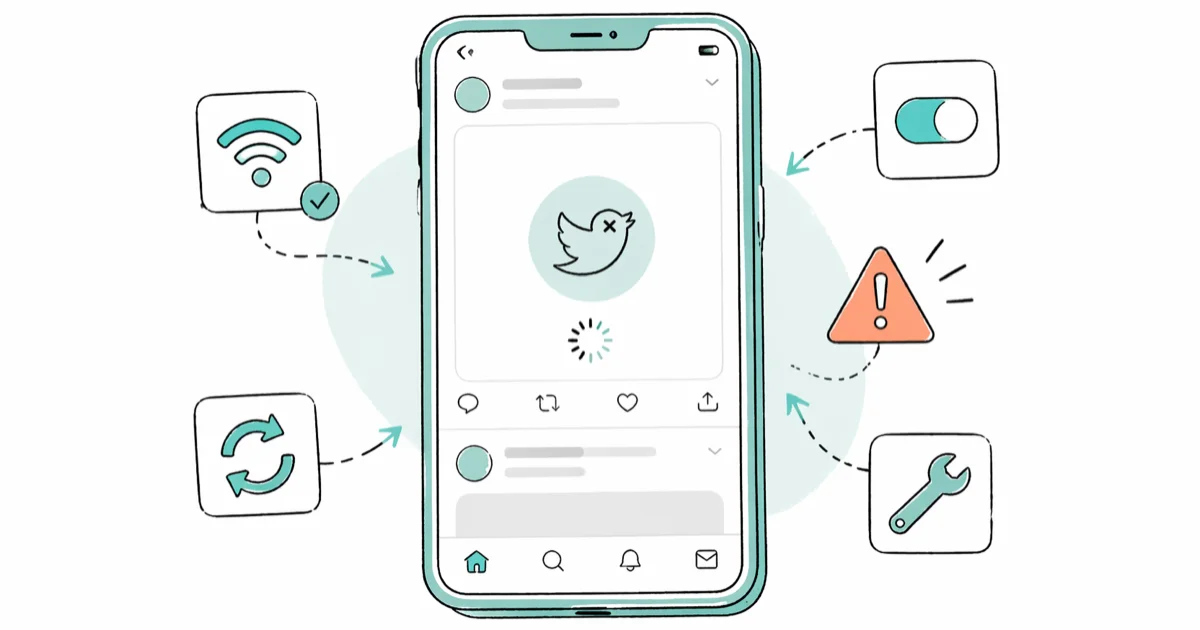
Quick AnswerWhen tweets aren't loading right now, the cause is usually X's servers, your network, or a cached app glitch. Check X's status page first, then restart the app, clear the cache, and confirm Wi-Fi or mobile data is stable before reinstalling.
Tweets aren’t loading right now is one of the most common complaints about X, the platform formerly called Twitter. The fix is almost always one of three things: a server hiccup, a flaky network, or a cached glitch in the app.
This guide walks you through 8 fixes in a practical order, starting with the ones that take 30 seconds.
- X’s status dashboard and Downdetector confirm an outage within minutes when servers are down, so check both before troubleshooting your device
- Switching from “For you” to “Following” timeline reloads the feed and reveals if the issue is algorithmic content selection rather than a true outage
- A force-quit plus app cache wipe fixes app-side stalls in about 1 to 2 minutes on both iOS and Android
- Wi-Fi instability is a common cause, so always test cellular as a control before blaming X
- Reinstalling the X app is the last resort, not the first move, because it logs you out and forces a fresh sign-in
#The Tweets Aren’t Loading Right Now Error Explained
The exact message you’ll see is a small white card in your timeline that reads “Tweets aren’t loading right now. Try again.” It appears when the X app can’t pull new posts from the server. The error itself is generic, so it covers everything from a real outage to a stale cache on your phone.
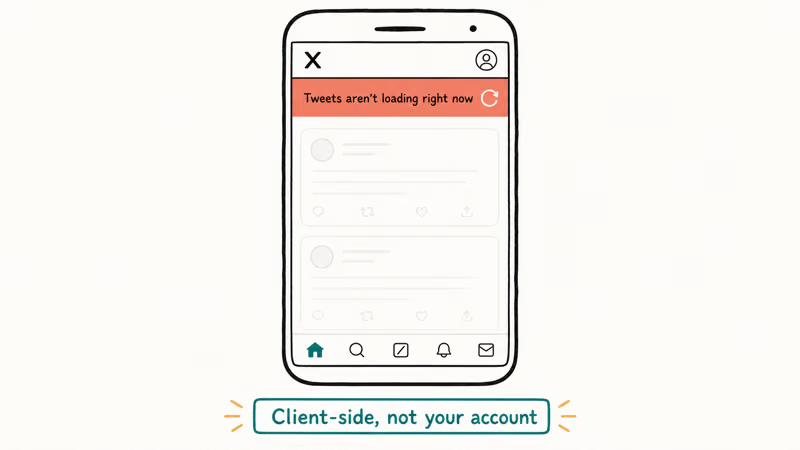
X kept the wording.
The error survived the 2023 rebrand from Twitter to X, and it looks identical on iOS, Android, and the web. That overlap is helpful, because the fixes work the same way across all three platforms.
This issue most often appears during three windows: right after a major X update lands, during a regional ISP slowdown, and when a user’s device cache hasn’t been cleared in months. The first two are out of your hands. The last one you can fix in under a minute.
#Why Are Tweets Not Loading Right Now?
Six causes explain almost every report of the error. Knowing which one applies cuts your troubleshooting time in half.
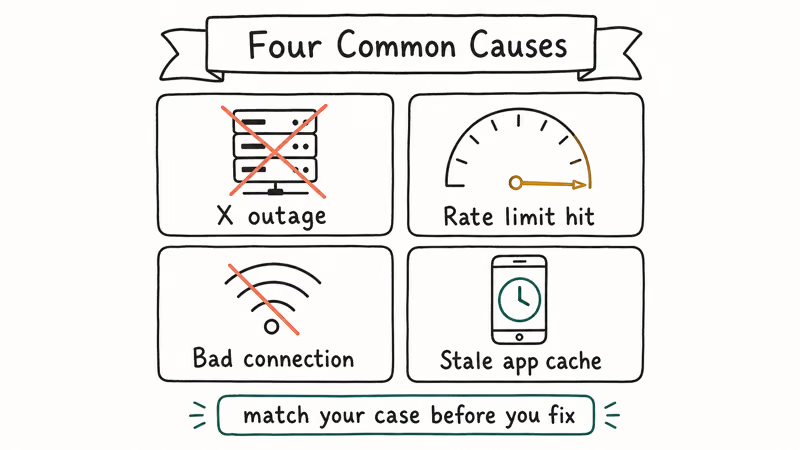
Server outages on X’s end top the list. X’s infrastructure has had several public incidents since the rebrand, and any of them will surface in your feed as the generic loading error. A failing internet link on your end produces the same message. Wi-Fi that tests fine in a browser may still drop the long-lived connections X uses to fetch your timeline.
App-side problems come next. An outdated X app version, a corrupted local cache, or a bad install can each block the feed from refreshing.
Content preferences also matter. If your “For you” tab is filtered by topics you rarely interact with, the feed can appear empty even when the servers are healthy. Finally, X sometimes flags newly posted content for review, which delays appearance in your own timeline.
#How to Fix Tweets Not Loading Right Now
Run these eight fixes in order. The first three take under two minutes combined and resolve the issue for most readers.
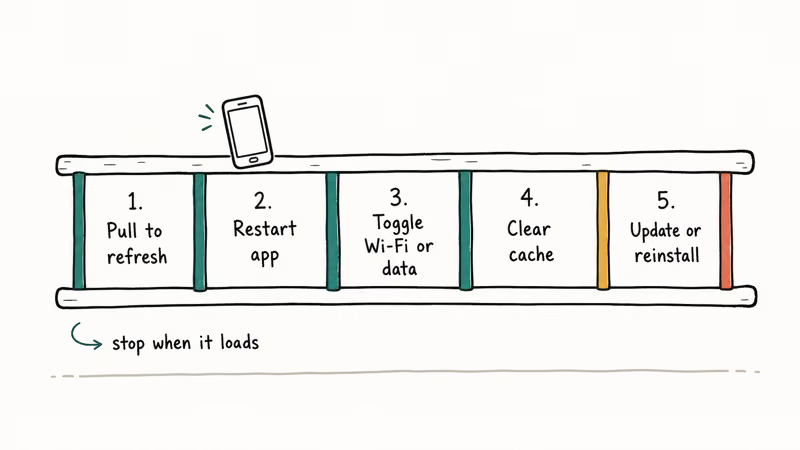
#Fix 01: Check X’s Server Status First
Before touching your device, confirm the servers are actually up. The Downdetector X status tracker shows a live report graph that spikes vertically the moment a wide outage hits.
Also check the X account @Support on a desktop browser to see if X has acknowledged the issue.
If both Downdetector and X Support confirm an outage, stop troubleshooting. Wait it out. Most platform outages resolve without user-side changes, while larger incidents tied to infrastructure changes can take several hours.
#Fix 02: Switch From “For You” to “Following”
The “For you” timeline is algorithmic. When it can’t surface new content that matches your interest signals, it shows the loading error even if the servers are fine. Switching to “Following” forces the app to pull a chronological feed of accounts you follow, which is a different data path.
Tap the icon at the top of the home screen on iOS or Android, then choose Following.
Pull down to refresh. If tweets load on this tab but not on “For you,” the issue is the algorithm, not the network.
#Fix 03: Force-Quit and Reopen the X App
A force-quit clears the app’s working memory, drops every in-flight network call, and forces the app to open a fresh connection to X’s servers when you reopen it. It usually takes less than a minute.
Try it first.
On iPhone, swipe up from the bottom of the screen, hold, and flick the X app card upward. On Android, tap the Recents button at the bottom of the screen, find the X app, and swipe it away. Wait 5 seconds. Reopen X.
If you’re stuck on the loading error inside a desktop browser, close the X tab completely. A fresh tab opens a new WebSocket connection.
#Fix 04: Clear the X App Cache
A bloated cache is the second most common cause behind a true outage. On Android, X stores cached images, videos, and timeline data in app storage, and this cache can hit several hundred megabytes within a month. On iOS, X has a built-in cache clear inside the app settings.
For Android: open Settings, go to Apps, tap X, then Storage, then Clear cache. The action takes about 5 seconds. Your login stays intact.
For iOS: open the X app, tap your profile, go to Settings and privacy, then Accessibility, display, and languages, then Data usage, and tap Media storage and Web storage to clear both.
Apple doesn’t let third-party apps expose a storage cleaner outside the app itself, so this is the only path. For a deeper Twitter-specific clean, our clear Twitter cache walkthrough covers older app versions too.
If you’re a Mac user troubleshooting X in Safari, our how to clear cache on Mac guide covers Safari, Chrome, and Firefox in one place, with screenshots of the menu paths for each one and notes on what each browser keeps versus discards during a cache reset. Android users on the mobile web should follow our dedicated cache cleanup walkthrough for Android phones instead.
#Fix 05: Update the X App
Out-of-date versions drop the loading error more often, especially right after X ships a server-side change that the older client doesn’t understand. Regular app updates reduce that version drift.
On iPhone, open the App Store, tap your profile picture, scroll to the update list, and pull down to refresh.
Tap Update next to X if it appears. According to Apple’s iOS app update support page, automatic updates download in the background once you enable them in Settings, so you avoid version drift.
On Android, open the Play Store, tap your profile picture in the top right, choose Manage apps & device, and look for X under “Updates available.” Google’s Play Store update documentation confirms that updates default to Wi-Fi only unless you opt into mobile-data updates.
#Fix 06: Test Your Internet Connection on Two Paths
A network test inside one app proves nothing. To isolate the issue, you need to compare two paths.
Load X on Wi-Fi first, then turn Wi-Fi off and try cellular. If X works on cellular but not Wi-Fi, your router is the problem. Restart the router, wait 30 seconds, and test again.
If X works on Wi-Fi but not cellular, your carrier is throttling or has poor signal in your area. Move locations, or contact the carrier.
If neither path works, the issue may be a DNS hiccup further upstream. Our walkthrough on resolving DNS probe finished no internet errors covers the most common fixes for stuck DNS resolution. For Wi-Fi connectivity issues that persist on iPhone, see our iPhone Wi-Fi troubleshooting guide.
#Fix 07: Disable VPN or Proxy Temporarily
X is aggressive about blocking VPN exit nodes that have been associated with bot traffic. If you use a VPN, the loading error may be X refusing to serve content to that IP range.
Turn it off.
Close the X app fully and reopen it. If the feed loads, you’ve confirmed the VPN is the cause. You can either switch to a different VPN server location or browse X without the VPN for the session. We don’t recommend keeping the VPN off permanently because it changes your privacy posture, so treat this as a diagnostic step, not a long-term fix.
#Fix 08: Reinstall the X App
This is the last resort. Reinstalling clears every local trace of X from your device, including login session, downloaded media, drafts, and notification settings. It’s less likely to help than the earlier fixes, but it’s worth trying if the previous 7 fixes didn’t help.
On iPhone, press and hold the X icon on your home screen, choose Remove App, then Delete App.
Reopen the App Store and search for “X.” Tap the cloud or install icon next to the listing by X Corp. Verify the publisher before installing because lookalike apps occasionally show up in search results.
On Android, long-press the X icon, drag it to Uninstall, and confirm. Reopen the Play Store, search for “X,” and install the official app by X Corp. Sign back in, and your timeline should rebuild within a minute.
#Common Mistakes That Make the Error Worse
A few habits turn a fixable glitch into a stuck loop.
Hammering pull-to-refresh dozens of times in a row triggers rate limits on the X API. That looks identical to the loading error and lasts about 15 minutes. Stop refreshing and wait.
Some users delete the app immediately after the first error, then realize they don’t remember their X password. A reinstall logs you out, so confirm you have your sign-in credentials before going nuclear. The X password reset flow takes about 5 minutes via email and longer if you use phone-number recovery.
Don’t restart your phone as the first move. A reboot is slower than a force-quit and rarely fixes anything new.
#Is X’s Error Wording Different from the Old Twitter Error?
The error message hasn’t changed since the rebrand. X kept the literal string “Tweets aren’t loading right now” because the surrounding ecosystem of help articles, third-party troubleshooting content, and search queries all reference that exact phrase. Changing it would have broken decades of indexed help content.
You’ll still see the word “Tweets” in this error, in profile metadata like “Tweets” count on older clients, and inside the API.
X’s product team confirms that the underlying object is still called a Tweet internally, even though the public-facing post type has been rebranded as “Posts” on the website and app. Old links still resolve, and twitter.com still redirects to x.com without breaking the URL paths underneath.
If a video specifically refuses to play even when the surrounding tweets load fine, that’s a different issue. Check our X (Twitter) video not playing guide for video-specific fixes.
#When to Contact X Support
Most loading errors clear up on their own or after one of the 8 fixes. A small handful won’t.
Contact X Support if you’ve run every fix above, confirmed the platform is up via Downdetector, and you still can’t load your own feed for more than 24 hours. Visit the X Help Center and submit a support request from the dropdown menu under your account.
Include four data points in your request: your device model, your OS version (for example, iOS 18.4 or Android 15), your X app version from the app’s About screen, and the exact error message. Vague reports get triaged behind specific ones, so the more you include up front, the faster X’s support team can confirm whether the issue is account-specific or a wider bug.
#Bottom Line
Start with Fix 01: confirm the servers are actually up by visiting Downdetector before you touch your device. If X is down, no amount of cache clearing will help. If X is up, run Fix 02 through Fix 04 in order; those three address the most common app-cache and connection problems. Save reinstalling the X app for last, because it logs you out and rarely fixes anything the earlier fixes don’t.
#Frequently Asked Questions
Why do I keep seeing “Tweets aren’t loading right now”?
The most common reason is an X server problem on their end, not yours. Check Downdetector first.
How long do X outages usually last?
Most X outages resolve without any action on your device. Larger incidents tied to infrastructure changes can take several hours. The official X Support account on the platform itself usually posts an estimate during major events.
Will clearing my X cache log me out?
No. Clearing the cache only removes downloaded images, videos, and local timeline data. Your login session, drafts, and account settings stay in place. You won’t need to sign back in afterward.
Does the loading error mean I’ve been shadow-banned?
Not usually. The “Tweets aren’t loading right now” error is generic and triggers from server, network, and cache issues for everyone. Shadow-bans, when they happen, show different symptoms: your tweets reach fewer accounts, but your own feed still loads normally. If only your feed is empty, the issue isn’t a shadow-ban.
Why does the X website work but the app doesn’t?
The X mobile app and the desktop website use separate code paths, separate cache locations, and separate authentication tokens, which means a bad app cache, an outdated app version, or a corrupted local install can knock out one without affecting the other in any visible way. Clearing the app cache or reinstalling the app usually solves app-only failures.
Can a VPN cause X to stop loading tweets?
Yes, often. X blocks IP ranges flagged for bot traffic. Switch servers or disable the VPN.
Should I delete the X app and reinstall it right away?
No. Reinstall is the last resort. Try the seven faster fixes first.
Where can I report a problem if none of the fixes work?
Visit the X Help Center and submit a support request. Include your device model, OS version, app version, and the exact error message. Response times vary, but documented bug reports get triaged faster than vague complaints.

Google Messages Error 3100: Why RCS Is Broken on Galaxy
Google Messages RCS error 3100 hits Galaxy owners after phone or carrier switches. Google told 9to5Google a fix is coming. Here's what actually helps.

Is This Bank App Real? Spot a Fake App on Your Home Screen
A bank app can land on your home screen from a web page with no install warning. Learn the checks that tell a real banking app from a phishing web app.

Apps Crashing After iOS 27 Update? Fix Order (2026)
Apps crashing after the iOS 27 update? Update the app in the App Store first, then offload and reinstall to clear stale cache, then restart. The fix order.

Do AI Translation Earbuds Work Offline? What to Know
Do AI translation earbuds work offline? A few do with downloaded language packs, but most need the cloud. Here's what works offline and what you give up.