How to Right-Click on a Mac: Every Method by Device (2026)
No right mouse button on a Mac? Right-click with two fingers, a corner tap, Control-click, or a Magic Mouse. Setup steps and fixes for every device, 2026.
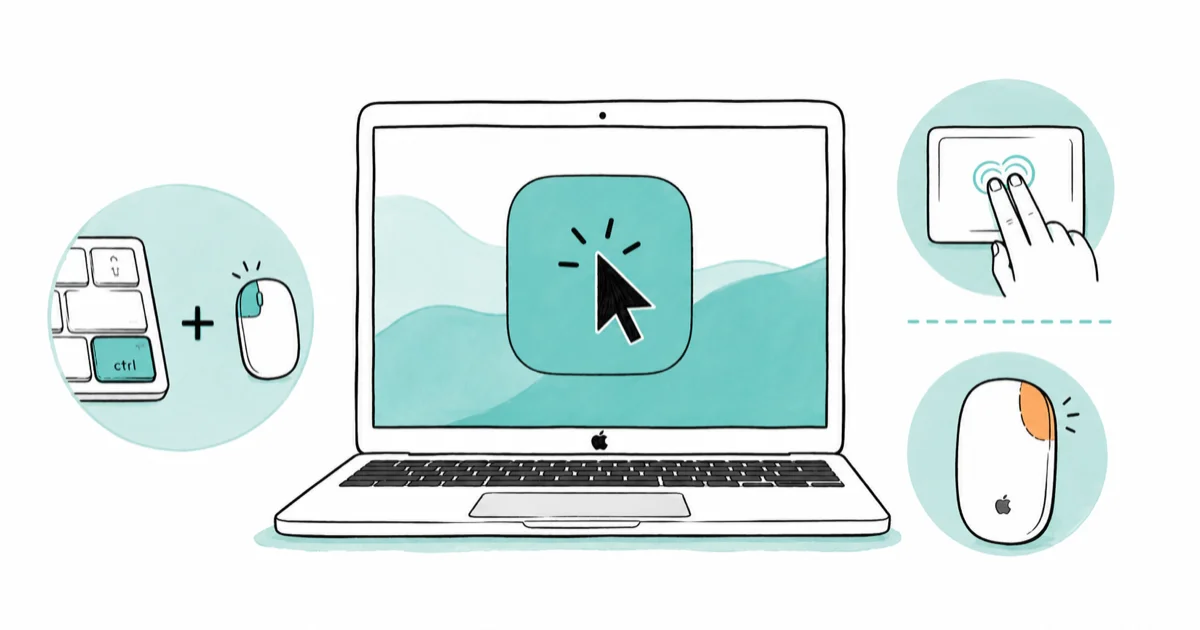
Quick AnswerHold Control and click to right-click on any Mac. On a trackpad, click or tap with two fingers; on a Magic Mouse, click the right side once it's enabled in System Settings.
Coming from Windows, your first question is fair: where’s the right mouse button? A Mac has no separate right button, but it right-clicks the same way Windows does. Apple calls it a secondary click or a Control-click, and you have five ways to do it depending on what you’re pointing with.
Pick the method that matches your device and you can get right-click working quickly.
- Control-click works on every Mac and every pointing device, so it’s the one method that never needs setup
- Two-finger click or tap is the default trackpad gesture on modern MacBooks, already on out of the box
- The bottom-right corner click is a Windows-style option you turn on under Trackpad in System Settings
- A Magic Mouse looks like one solid surface but right-clicks once you set Secondary click to the right side
- If right-click stops working, the cause is almost always a changed Secondary click setting, not broken hardware
#What a Right-Click Is Called on a Mac
On a Mac, the action you know as right-click is the secondary click. It opens the same context menu: Copy, Paste, Get Info, Move to Trash.
According to Apple’s right-click guide, the most reliable trigger is to hold the Control key while you click. Control-click works on all five input types, so if you remember nothing else, remember Control-click.
A two-finger tap, a corner press, and a Control-click all open the same menu.
#How Do You Right-Click on a MacBook Trackpad?
The trackpad is where most new Mac owners get stuck, because tapping harder does nothing. The fix is to use two fingers.
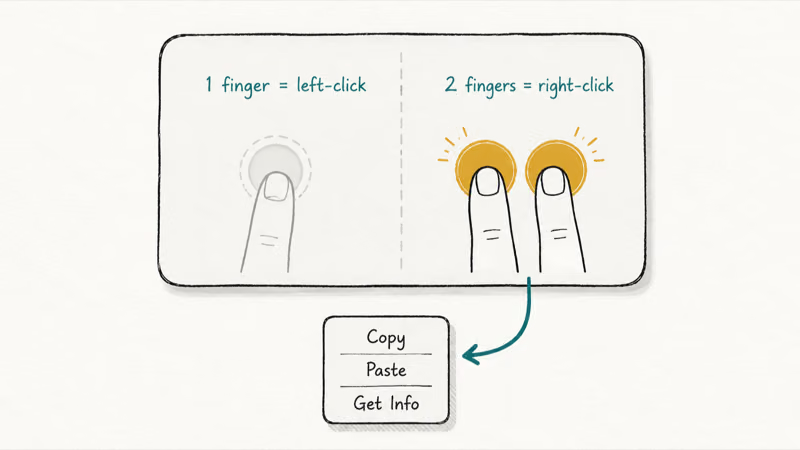
Rest two fingers on the trackpad and press down, or tap with both fingers at once if Tap to Click is on. According to Apple, the secondary-click gesture needs exactly 2 fingers on a built-in Multi-Touch trackpad or a Magic Trackpad, a behavior documented in its Multi-Touch gestures guide. One finger is a normal left-click, two fingers is a right-click.
Two-finger click is the default on modern Mac laptops. If two fingers does nothing for you, the gesture was switched off at some point, and the troubleshooting section below shows how to switch it back on.
There’s also a corner option that mimics a Windows touchpad. Instead of two fingers, you press the bottom-right corner with one finger. Long-time Windows users often prefer it.
#How to Turn On Secondary Click in Trackpad Settings
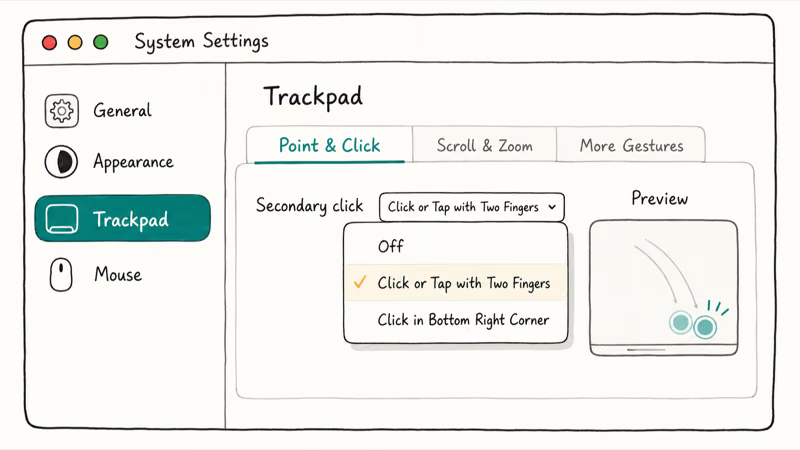
If the gesture isn’t responding, or you want the corner-click style, open the trackpad pane and set it yourself. This takes about 30 seconds.
-
Click the Apple menu, then choose System Settings
-
Click Trackpad in the sidebar
-
Stay on the Point & Click tab
-
Find the Secondary click pop-up menu
-
Choose Click or Tap with Two Fingers for the standard gesture, or Click in Bottom Right Corner for the Windows style
The bottom-right-corner setting is per-Mac, so a corner-click you set on one machine won’t follow you to another. You can switch back to the two-finger gesture from the same menu.
A small live preview plays next to the menu while you pick, so you can confirm you chose the gesture you meant before you close System Settings.
#Right-Clicking With a Magic Mouse
A Magic Mouse right-clicks even though it looks like one smooth shell with no buttons. The whole top surface is touch-sensitive, and it reads where your finger lands.
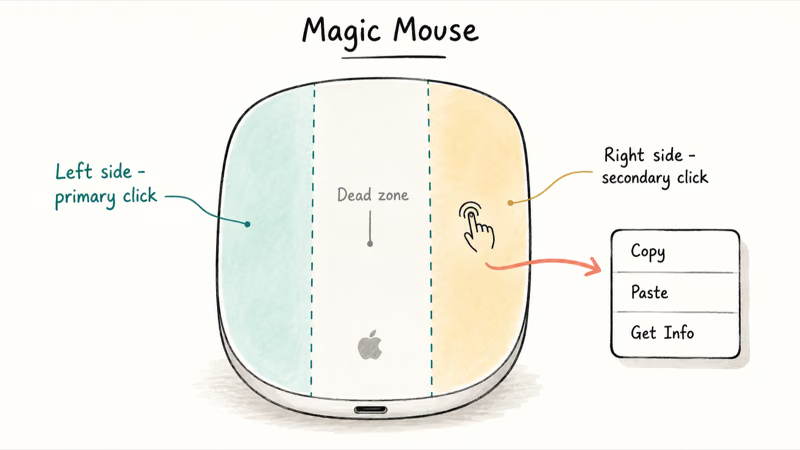
Out of the box, a right-side press should open the context menu. If it doesn’t, the Secondary click option is set to off or to the wrong side. Apple’s mouse settings guide states that you open the Mouse pane, find Secondary click, then choose Click Right Side or Click Left Side.
A Magic Mouse needs a clear press on the right side of the shell. Pressing dead center may register as a normal click instead. If you’re left-handed, switch the setting to Click Left Side and the logic flips.
A Magic Mouse also supports a Control-click, so if the side detection ever feels fussy, holding Control and clicking anywhere on the surface always works as a fallback.
#Right-Clicking With a Third-Party USB or Bluetooth Mouse
A regular two-button mouse from Logitech, Microsoft, or any other brand works on a Mac with no drivers. Plug it in or pair it over Bluetooth, and the physical right button right-clicks straight away.
macOS treats the right button on a standard mouse as the secondary click automatically. You don’t open any settings, and you don’t install software for basic clicking.
If your third-party mouse has extra buttons or a tilt wheel, those advanced features may need the maker’s app. The plain right-click never does. For Bluetooth mice that won’t connect at all, the Bluetooth not available on Mac guide walks through the controller reset that usually brings the radio back.
#Picking the Right Method for Your Device
Each method maps to a device, and a couple of them need a one-time setting. This table lays out what works where, and whether you have to turn anything on first.
| Method | Device | Setup needed? |
|---|---|---|
| Control-click | Any mouse or trackpad | None, always on |
| Two-finger click or tap | Built-in trackpad, Magic Trackpad | On by default |
| Bottom-right-corner click | Built-in trackpad, Magic Trackpad | Turn on in Trackpad settings |
| Right-side click | Magic Mouse | Set Secondary click to Click Right Side |
| Physical right button | Standard two-button mouse | None, works on connect |
For most people on a MacBook, the two-finger click is the answer. It’s the fastest, it’s already on, and it works without reaching for the keyboard. Keep Control-click in your back pocket as the method that works on any Mac you ever touch.
#Why Isn’t Right-Click Working on Your Mac?
A right-click that suddenly stops is frustrating, but it’s rarely a hardware fault. A changed setting or a stalled input process is usually behind it.
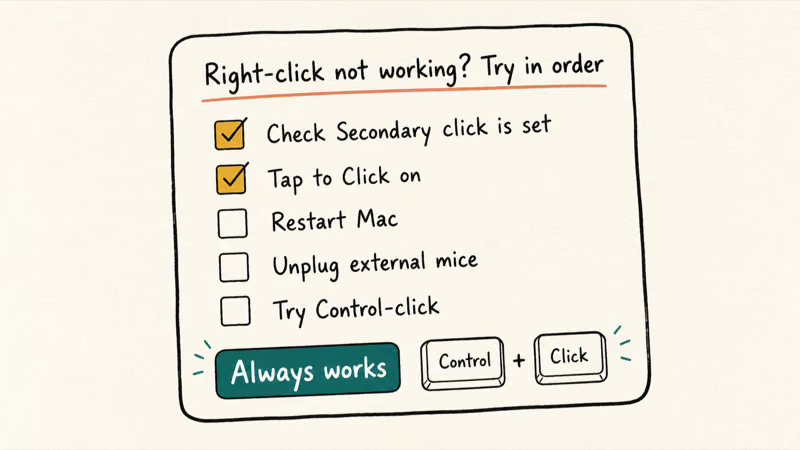
Work through these in order:
-
Open
System Settings>Trackpad(or Mouse) and confirm Secondary click is set, not set to off -
For a trackpad, check Tap to Click is on if you tap rather than press
-
Restart the Mac, which clears a stuck input daemon without changing any data
-
Unplug external mice and Bluetooth peripherals, since an old Logitech or Microsoft driver can hijack click input
-
Try Control-click, which bypasses every gesture setting and tells you whether the hardware still works
If Control-click opens the menu but the gesture doesn’t, the problem is a setting, and step 1 fixes it. If even Control-click fails on a trackpad, the hardware itself may be at fault, and these deeper guides take over from here:
- MacBook Pro trackpad not working: the SMC, NVRAM, and plist resets for a dead trackpad
- Slow Mac fixes: for clicks that lag or freeze rather than refuse to register
- Mac keeps crashing: when right-clicks coincide with full system stalls
#Right-Clicking Without Any Mouse or Trackpad
If your pointing device is dead, you can still reach a context menu from the keyboard alone.
Apple keyboards don’t ship with a dedicated right-click key, so the true keyboard-only route is Mouse Keys, under System Settings then Accessibility then Pointer Control. With Mouse Keys on, the number pad moves the pointer and the 5 key clicks, so a Control-click works with no mouse at all.
Setting up a Mac as a near-desktop with a keyboard but no working mouse? Mouse Keys plus the Phone app on Mac handoff features keep you productive while you sort out a replacement pointer.
A working trackpad or mouse is far faster for everyday use. Treat the keyboard method as an accessibility and emergency fallback, not a daily driver.
#Bottom Line
Turn on two-finger secondary click in System Settings > Trackpad if it isn’t already, then use it as your everyday right-click on any MacBook. It’s the fastest method and it works on every modern Mac laptop. When you’re on an unfamiliar Mac or your settings get scrambled, fall back to Control-click, the one move that always works.
#Frequently Asked Questions
How do I right-click without a mouse?
Hold the Control key and click with your trackpad. With no pointer at all, turn on Mouse Keys in Accessibility settings so the number pad clicks.
Why isn’t right-click working on my Mac?
Almost always, the Secondary click setting got switched off or changed. Open System Settings > Trackpad or Mouse and confirm Secondary click is set to a gesture. A restart clears a stuck input process, and Control-click will tell you whether the hardware itself still responds.
How do I right-click on a MacBook trackpad?
Click or tap the trackpad with two fingers at once. If that does nothing, turn it on under System Settings > Trackpad.
Can I right-click with a Magic Mouse?
Yes. Press the right side of the smooth top surface. If nothing happens, open System Settings > Mouse and set Secondary click to Click Right Side. Pressing dead center won’t register, so aim for the right third of the shell.
How do I change right-click settings on a Mac?
Open the Apple menu, choose System Settings, then click Trackpad or Mouse in the sidebar. On the Trackpad pane, the Secondary click pop-up menu sits under Point & Click and lets you pick a two-finger gesture or a bottom-corner click. On the Mouse pane, the same menu sets the click to the right or left side, which matters most for a Magic Mouse. A preview plays beside the menu, and the change applies right away with no restart.
Is Control-click the same as right-click?
Yes, they open the identical context menu. Apple uses Control-click as the universal secondary click because it works on every Mac, every keyboard, and every pointing device without any setup.
Does right-click work the same on the newest macOS?
Yes. The gestures and the Secondary click menu have stayed consistent across recent macOS releases. The settings live under Trackpad and Mouse in System Settings, and the two-finger and Control-click methods behave the same as they have for years.

macOS 27 Compatible Macs: Every Supported Model (2026)
macOS 27 Golden Gate runs only on Apple Silicon Macs. Here is the full list of supported M-series models and the four Intel Macs that lose support.

macOS 27 Golden Gate: Every Major New Feature Confirmed
macOS 27 Golden Gate goes Apple Silicon only, adds a Gemini-powered Siri, refines Liquid Glass, and rebuilds Spotlight. Here is every confirmed change.

macOS 27 Liquid Glass: Every Readability Fix Explained
macOS 27 Golden Gate refines Liquid Glass with an intensity slider, better contrast, cleaner window corners, and edge-to-edge sidebars to fix readability.

macOS 27 Performance: What Golden Gate Makes Faster
macOS 27 Golden Gate speeds up AirDrop, network file browsing, Safari, and Spotlight, with core system improvements on the Apple Silicon-only release.