MacBook Pro Service Battery Warning: Causes, Cost, Fixes
MacBook Pro showing a Service Battery warning? Learn what it means, how to check cycle count, when to replace it, and how to extend battery life.
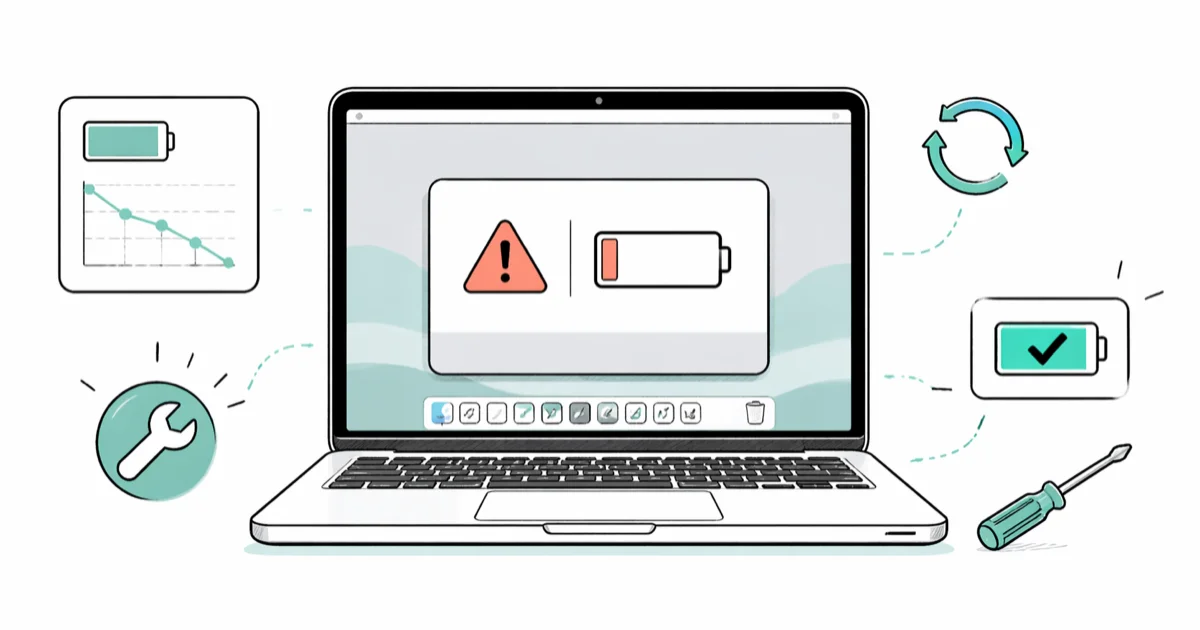
Quick AnswerThe Service Battery warning means your MacBook's battery health has fallen below Apple's threshold, usually after exceeding 1000 charge cycles. Hold the Option key, click the Apple menu, then open System Information and select Power to see your cycle count, current capacity, and condition status.
Seeing the MacBook Pro Service Battery warning in your menu bar is unsettling, but it isn’t an emergency. The battery is degraded, not dead.
Apple’s macOS shows this status when your battery has fallen past Apple’s specifications, giving you time to confirm what’s happening, plan your next step, and back up your data before any service work. Every fix below applies whether you take a MacBook Pro to an Apple Store or an Apple Authorized Service Provider.
- Service Battery means battery health dropped below Apple’s threshold, almost always past 1000 charge cycles or as a result of a hardware defect
- Find your cycle count under Apple menu (hold Option) >
System Information>Power, alongside current capacity in mAh - Apple charges $129 for most MacBook Pro batteries and $199 for 16-inch models, with free replacement under AppleCare+ if capacity is below 80%
- Service Battery on a MacBook with under 500 cycles points to a defect, not wear, and often qualifies for a free Apple replacement
- Optimized Battery Charging in
System Settings>Battery>Battery Healthslows future degradation by limiting time spent above 80% charge
#What Does the Service Battery Warning Mean on a MacBook Pro?
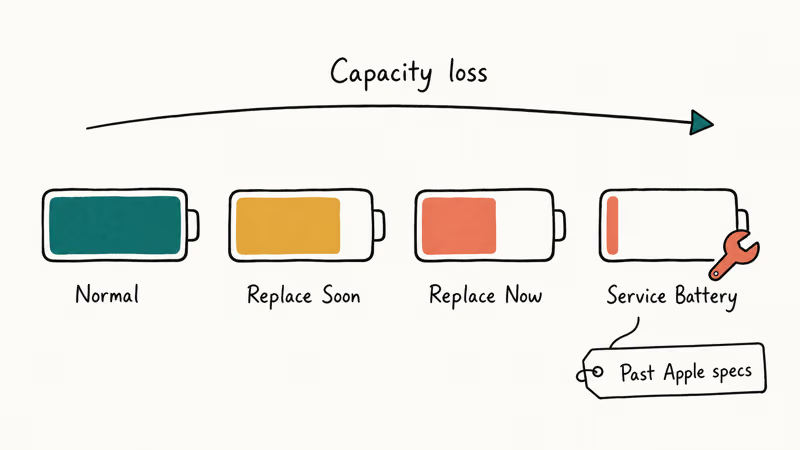
The MacBook Pro battery menu reports one of four states when you click the battery icon: Normal, Replace Soon, Replace Now, or Service Battery. Each step represents a different stage of capacity loss. Service Battery is the final state, indicating that the battery no longer operates within Apple’s design specifications.
Trust the charger, not the percentage.
According to Apple’s battery health guide, the Service Battery condition typically appears once a battery exceeds its rated cycle count or develops a hardware fault that prevents it from holding charge predictably. A degraded cell can report 40 percent capacity one moment and shut the MacBook down a minute later, because it can no longer sustain the discharge load.
This shows up as a clean shutdown while the menu bar still reports plenty of charge left, with no warning beep or low-battery notice.
Your MacBook continues to run on battery and on adapter power, but the percentage readout is no longer reliable. Treat unsaved work as if you’re on a battery that could die at any time, and keep your MagSafe or USB-C charger close. If your Mac won’t take a charge at all with the warning showing, the issue may be elsewhere. See MacBook Pro not charging for adapter and port checks before booking battery service.
#How Do You Check Your MacBook’s Cycle Count and Capacity?
Cycle count gives you the truest picture of battery wear. Hold the Option key, click the Apple menu in the top-left corner, and select System Information. In the sidebar, click Power under the Hardware section. macOS shows you the current cycle count, condition, and current charge capacity in milliamp-hours (mAh).
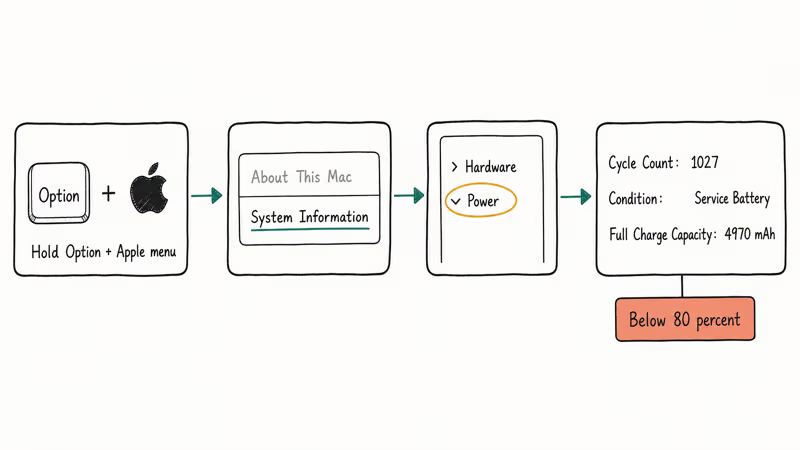
Apple rates modern MacBook Pro batteries for 1000 charge cycles before they fall to roughly 80 percent of their factory capacity. A cycle is a full discharge equivalent, not a single plug-in. Apple’s cycle count documentation confirms that draining 50 percent of the battery on two consecutive days equals one cycle, not two.
That distinction matters more than people expect.
The System Information panel updates immediately after each charge cycle. The condition field flips from Normal to Service Battery the moment a battery crosses below 80 percent capacity, with no delay between physical degradation and the macOS notification.
A low cycle count plus Service Battery is a defect, not wear. Call Apple before paying for a replacement.
#Reading the Capacity Number
The current capacity in mAh tells you exactly how much energy the battery can hold today versus when it left the factory. An older MacBook Pro typically loses a meaningful chunk of its original capacity after years of charge cycles, eventually dropping its retention into Service Battery territory.
Compare your value against the original capacity for your model in Apple’s specs page. If today’s value is below 80 percent of the original, the warning is mechanically accurate and the cells are worn. If it’s above 80 percent and you’re still seeing Service Battery, the battery sensor or controller is faulty rather than the cells themselves, which is another reason to escalate to Apple before paying for a swap.
#Common Causes Behind the Service Battery Warning
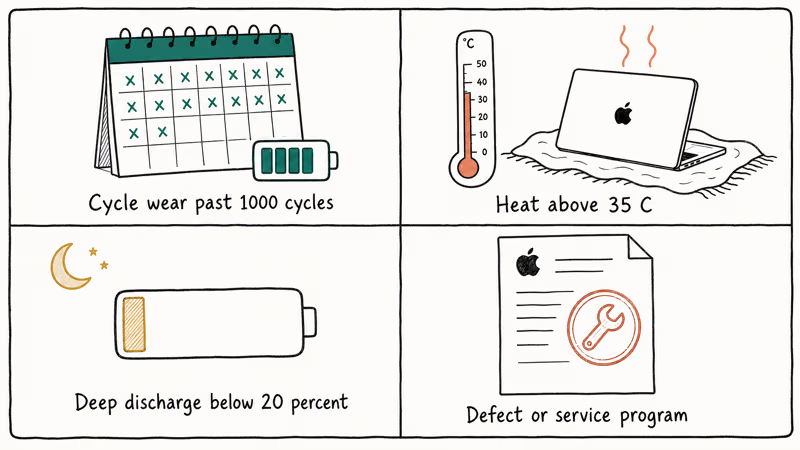
The most common cause is normal lithium-ion wear past 1000 cycles. As the cells age, the chemistry storing energy degrades, and capacity loss accelerates after the cycle threshold is crossed. There’s no fix for this except replacement.
Heat does almost as much damage as cycling.
This is especially true in MacBooks used on beds, couches, or laps that block the bottom vents. Apple’s MacBook operating temperature guide recommends a 50°F to 95°F (10°C to 35°C) ambient range, and sustained heat above that range damages cells faster than cycling does.
Hot batteries lose capacity, full stop.
A monitoring tool like iStat Menus will show battery temperatures running clearly higher on a wool blanket than on a hardwood desk during a sustained video render. Running that hot regularly accelerates capacity loss over time.
Repeated deep discharges contribute too. Letting a lithium-ion battery drain to 0 percent and stay there for hours pushes the cells into a chemically unstable state. Apple recommends keeping the battery above 20 percent for any storage longer than a day.
Manufacturing defects are rarer, but they happen. Apple has issued multiple battery service programs over the years for specific MacBook models with known battery faults, and check Apple’s exchange and repair extension programs page. If your MacBook is on that list, the replacement is typically free regardless of warranty status, and the same page lists how to start a covered repair.
#What a MacBook Pro Battery Replacement Costs
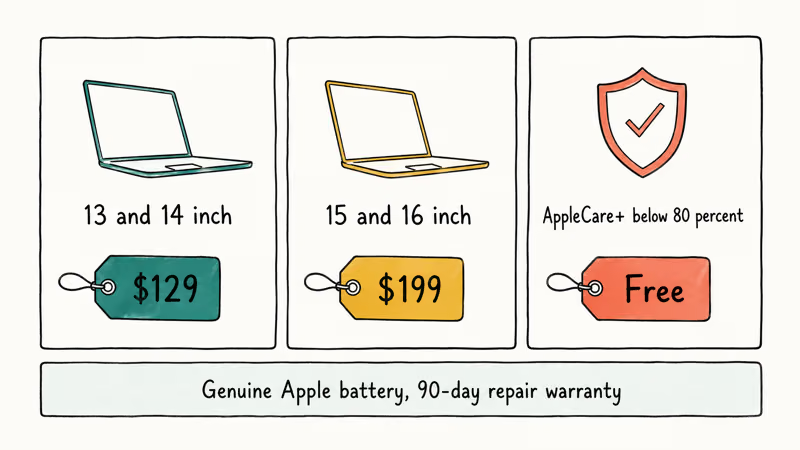
Apple charges a flat fee for battery service: $129 for 13-inch and 14-inch MacBook Pros, $199 for 15-inch and 16-inch models. The price covers both labor and the battery, and it includes Apple’s standard 90-day repair warranty. If your MacBook is under AppleCare+ or the original Limited Warranty and the battery shows below 80 percent capacity, the replacement is free.
That last point is worth checking before you pay.
Verify warranty coverage before booking. Use Apple’s coverage checker with the serial printed on the underside of the MacBook.
Apple Authorized Service Providers (AASPs) charge the same price as Apple and use genuine Apple batteries, so the choice between Apple and an AASP comes down to scheduling and location. Avoid third-party shops that fit non-Apple batteries: macOS will mark the battery’s health reporting as unavailable, and you may see “Battery Not Charging” warnings even when the cell is healthy.
#How to Schedule a Safe Replacement
Back up first.
Open System Settings > General > Time Machine or use iCloud, an external SSD, or both. A battery replacement is rarely destructive, but technicians occasionally need to reset other firmware components, and a fresh backup costs nothing.
If your MacBook also shows other symptoms, address those before the battery service. See MacBook Pro screen flickering for display issues and MacBook not turning on for power-on failures, since both can mimic battery faults but require different repairs.
When you book the appointment, mention the Service Battery warning by name and include your cycle count and capacity reading from System Information. That single detail saves time at the counter and helps the technician confirm which spare to pull from inventory before you arrive. If you book through the Apple Support app, paste the cycle count into the diagnostic notes field. AASPs use a similar intake flow and benefit from the same level of detail.
#Mistakes That Damage MacBook Batteries Faster
A new battery degrades fastest under the same conditions that killed the old one. The biggest accelerants are predictable, and avoiding them buys you another year or two of useful life.
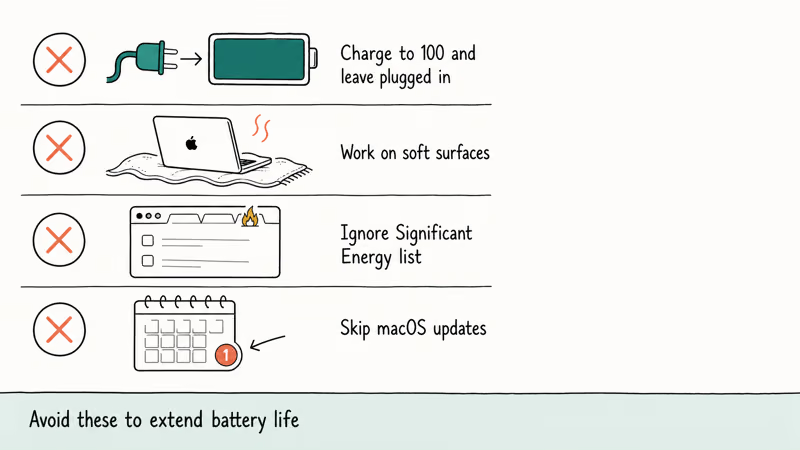
Charging to 100 percent and leaving it plugged in for hours. macOS Optimized Battery Charging mitigates this, but it works best when you charge in similar patterns each day. If you bounce between locations, unplug manually once the battery is full and Optimized hasn’t kicked in.
Working on soft surfaces. A blocked vent traps heat near the battery cells. Even a $15 wedge stand drops case temperatures noticeably.
Letting macOS run hot apps unmonitored. Click the battery icon and review the Using Significant Energy list. Quitting a single runaway browser tab can drop CPU temperature noticeably when a stuck WebGL canvas or similar background process has been pinning the processor near 100 percent.
Skipping macOS updates. Apple states that point releases routinely include energy management improvements.
Ignoring slowness. A MacBook that’s slow even when plugged in often has secondary issues that load the battery harder when you do unplug. See how to clear cache on Mac before concluding that the battery is the only cause.
#Bottom Line
For a MacBook Pro past three years old and over 1000 cycles, the Service Battery warning is expected wear. Schedule a $129 to $199 battery service through Apple or an Authorized Service Provider, and turn on Optimized Battery Charging the day you get it back.
For a MacBook under two years old or below 500 cycles, don’t pay out of pocket. Call Apple Support, reference your serial number, and ask for an out-of-warranty exception or a check against active service programs. Apple has covered defective MacBook Pro batteries at no cost for many users in this exact situation, and the call costs nothing.
If the warning is paired with other symptoms (a Mac stuck on the Apple logo at boot, repeated kernel panics, or a charger your MacBook refuses to recognize), diagnose those first, since they can mimic or amplify battery faults.
#Frequently Asked Questions
Can I keep using my MacBook Pro with the Service Battery warning?
Yes, but plan for unpredictable runtime. Stay near a power source for important work until you replace the battery.
How long does a MacBook Pro battery last before needing replacement?
Most MacBook Pro batteries last three to five years before reaching 1000 cycles under typical use. Heavy users who fully cycle daily tend to hit 1000 cycles in two to three years, while users who stay plugged in often go six or seven years before reaching the threshold. Temperature exposure and charging habits affect the timeline more than calendar age does.
Does Apple replace MacBook Pro batteries for free?
Yes, but only under AppleCare+ or the original Limited Warranty when capacity is below 80 percent. Otherwise the cost is $129 for 13-inch and 14-inch models or $199 for 15-inch and 16-inch.
Is it safe to replace a MacBook Pro battery yourself?
Apple does not recommend DIY battery replacement on MacBook Pros made since 2016. The battery is glued to the bottom case, and removing it without the right tools risks puncturing a lithium-ion cell, which is a fire hazard. The cost difference between DIY and authorized service rarely justifies that risk, especially since macOS reports battery health less accurately with non-Apple cells, and the savings often disappear once you factor in iFixit toolkits and replacement adhesive.
How do I tell if my MacBook battery problem is covered under warranty?
Hold Option, click the Apple menu, then open System Information > Power and note your cycle count and condition. Then go to checkcoverage.apple.com and enter your serial number. If the battery shows below 80 percent capacity and you’re inside AppleCare+ or the Limited Warranty window, the replacement is free.
What’s the difference between Replace Soon and Service Battery on a MacBook?
Replace Soon is a heads-up. Service Battery is the deadline.
Can macOS settings clear the Service Battery warning?
No. The warning reflects physical chemistry inside the battery cells, which no software setting can reverse. Optimized Battery Charging, Low Power Mode, and macOS updates all slow future degradation, but they can’t restore lost capacity. Battery replacement is the only way to remove the Service Battery warning.

Mac mini M6 vs M5 Pro: Which Model Should You Buy?
Mac mini M6 vs M5 Pro compared on price, memory, ports, displays, and real workloads. Find the better 2026 Mac mini for your desk and budget.

macOS 27 Compatible Macs: Every Supported Model (2026)
macOS 27 Golden Gate runs only on Apple Silicon Macs. Here is the full list of supported M-series models and the four Intel Macs that lose support.

macOS 27 Golden Gate: Every Major New Feature Confirmed
macOS 27 Golden Gate goes Apple Silicon only, adds a Gemini-powered Siri, refines Liquid Glass, and rebuilds Spotlight. Here is every confirmed change.

macOS 27 Liquid Glass: Every Readability Fix Explained
macOS 27 Golden Gate refines Liquid Glass with an intensity slider, better contrast, cleaner window corners, and edge-to-edge sidebars to fix readability.