How to Fix iTunes Invalid Signature Error on Windows
Fix the iTunes invalid signature error on Windows 10 and 11 with three proven fixes: clean reinstall, Internet Options tweak, or a third-party repair tool.
Quick AnswerReinstall iTunes after uninstalling Apple Mobile Device Support, Bonjour, Apple Software Update, and Apple Application Support in that order, then download a fresh copy from apple.com and run it as administrator to clear the invalid signature block.
The “iTunes has an invalid signature” error blocks Windows from verifying that the Apple installer is authentic, so the install or update halts before any iTunes files reach your drive. The fix sequence below clears stale Apple components, refreshes the installer path, and rebuilds the digital signature chain Windows expects.
This error mainly shows up when you download iTunes directly from apple.com on a Windows PC rather than installing through the Microsoft Store. We will walk through the cleanup order that works, the Internet Options toggle that bypasses the check temporarily, and a repair tool you can use when manual cleanup doesn’t finish the job.
- Windows blocks installers when their Authenticode signature doesn’t match a trusted certificate chain stored on the machine
- The desktop iTunes installer needs five Apple components removed in order: iTunes, Apple Software Update, Apple Mobile Device Support, Bonjour, and Apple Application Support
- The Internet Options toggle for “Allow software to run or install even if the signature is invalid” is a temporary workaround, not a permanent fix
- The Microsoft Store version of iTunes bypasses Windows signature verification entirely and avoids this error class
- A clean reinstall is the main fix before trying signature-bypass settings
#What Causes the “iTunes Has an Invalid Signature” Error?
The error appears when Windows User Account Control reads the Apple installer’s embedded Authenticode signature and can’t match it to a trusted root certificate or to a verified countersignature timestamp. Several specific conditions trigger that mismatch.
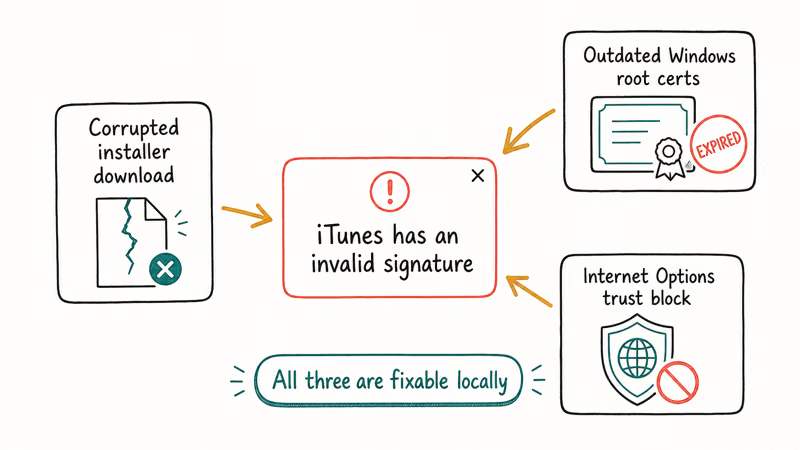
A stale registry entry from a previous iTunes uninstall is the most common cause. When the standard Windows uninstaller leaves orphan keys under HKLM\SOFTWARE\Apple Inc., the new installer reads those keys as conflicting metadata and refuses to validate.
Outdated root certificates also break the chain. Windows ships with a list of trusted root authorities, and the certificates Apple uses to sign the installer expire and get rotated. According to Microsoft’s Trusted Root Certificate Program documentation, Windows refreshes the trusted root list automatically across all 11 supported client editions; if that updater is disabled by group policy or by an aggressive antivirus tool, validation fails.
A third common cause is a corrupted download. If the installer .exe was interrupted during download or scanned by an antivirus that quarantined and re-released part of the file, the signature hash won’t match the file contents.
Apple’s iTunes installation troubleshooting guide recommends downloading the installer fresh after clearing the browser cache. That advice targets corrupted or cached installer files, including downloads interrupted by antivirus scanning.
#How Do You Fix the iTunes Invalid Signature Error on Windows?
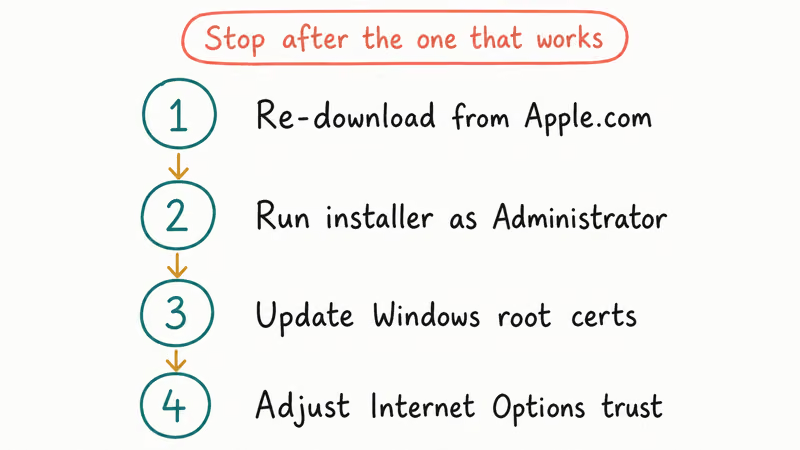
The fix that works in most cases is a clean reinstall in the correct removal order. Apple Mobile Device Support owns the USB driver and must come out after iTunes itself, or the new install fails again.
- Press the Windows key and type
appwiz.cpl, then press Enter to open Programs and Features. - Uninstall each Apple component in this exact order, because Apple Mobile Device Support owns the USB driver that the iTunes uninstaller needs to release: iTunes, then Apple Software Update, then Apple Mobile Device Support, then Bonjour, then Apple Application Support 32-bit, and finally Apple Application Support 64-bit.
- Press the Windows key plus R, type
%programfiles%, and delete any leftover folders namediTunes,Bonjour, oriPod. Repeat the same step with%programfiles(x86)%. - Empty the Recycle Bin and restart Windows. The restart is mandatory because some Apple driver files only release on reboot.
- Download a fresh copy of iTunes from the Apple website. Don’t reuse a saved installer from an earlier download because its signing timestamp may already be outdated.
- Right-click the downloaded installer and select Run as administrator. The administrator context lets Windows install the kernel-level USB driver Apple Mobile Device Support needs.
After a clean reinstall, run the iTunes update check again before trying the Internet Options workaround. If you need a deeper walkthrough that also covers macOS, our guide on how to reinstall iTunes has the Mac steps as well.
#Reinstall iTunes on a Mac
The invalid signature error is much rarer on macOS because Apple signs the Music and Devices apps as part of the system bundle. If you still need a clean reinstall on a Mac running macOS Mojave 10.14 or earlier, the process targets the legacy iTunes app directly.
- Open Finder and click Go in the menu bar, then select Applications.
- Right-click the iTunes icon and select Get Info. On the Sharing & Permissions panel, click the lock icon at the bottom right and enter your administrator password.
- Change the permission for “everyone” to Read & Write.
- Quit iTunes, drag the iTunes icon to the Trash, and empty the Trash.
- Download iTunes 12.6.5 from Apple’s iTunes download page and run the installer. On macOS Catalina 10.15 or later, iTunes is replaced by the Music app, so you don’t need to reinstall it as a separate program.
If iTunes opens then crashes, that’s a different problem. Our iTunes won’t open on Windows 10 guide covers that case.
#Repair iTunes Components With Tenorshare TunesCare
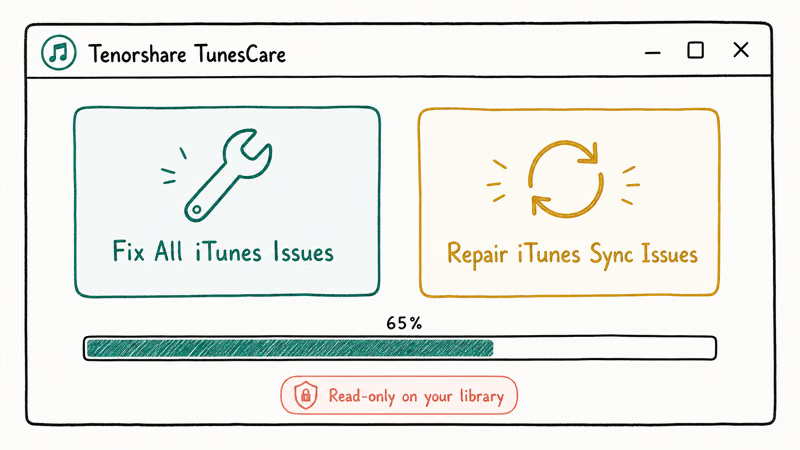
If a clean reinstall doesn’t resolve the error, a dedicated repair tool can rebuild the iTunes component tree without you running through Programs and Features again. Tenorshare TunesCare is a Windows utility that detects damaged Apple framework files and replaces them while preserving your library, backup, and device pairing data.
The free tier repairs the most common iTunes errors. These include the invalid signature failure, iTunes error 54, iTunes error 9, and the connection failure covered in our iTunes could not connect to this iPhone fix guide. It runs on Windows 7, 8, 10, and 11.
If you keep hitting iTunes errors during iPhone updates, our walkthrough of iTunes error 3004 and 9006 lists related fixes for that family of failures.
Here is the repair sequence.
- Download TunesCare from the Tenorshare site and run the installer. The download is also linked below for convenience.
- Launch TunesCare and click Fix All iTunes Issues on the main screen.
- Click Repair iTunes. The tool downloads the matching iTunes repair drives for your specific Windows build.
- Wait roughly two minutes for the automatic repair to finish. A success prompt appears when the repair completes.
Some links on this page are affiliate links, which means fone.tips may earn a commission at no extra cost to you.
TunesCare can rebuild damaged iTunes components without removing your library or backup folders. If iTunes feels sluggish afterward, our why is iTunes so slow guide covers the library cleanup steps that help.
#Adjust Internet Options to Trust the Apple Signature
A faster temporary workaround toggles a Windows setting on your own computer that lets installers run even when their signatures fail verification. Microsoft documents this as a legal, user-configurable security option, and it recommends keeping it off by default. Revert the change after iTunes installs successfully.
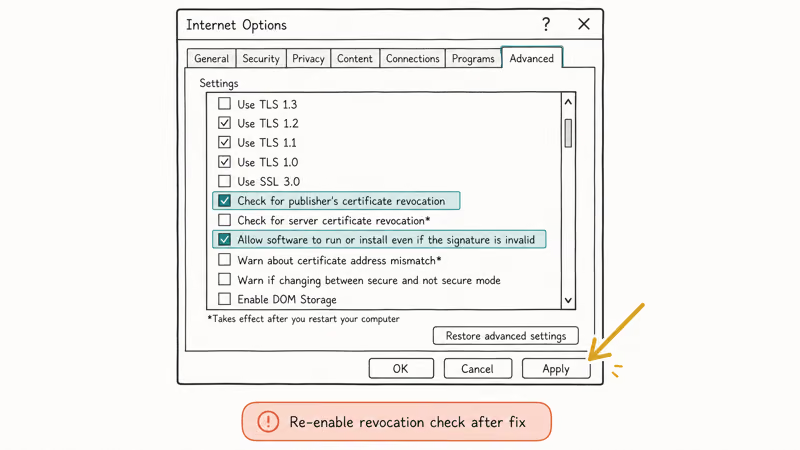
- Press the Windows key plus R, type
inetcpl.cpl, and press Enter. - Click the Advanced tab in the Internet Properties window that opens.
- Scroll the Settings list to the Security section, then check the box for “Allow software to run or install even if the signature is invalid.”
- Click Apply and then OK, then restart Windows so the policy takes effect.
- Run the iTunes installer again. The signature check is now skipped and the install proceeds.
- Once iTunes is installed and open, return to Internet Options and uncheck the same setting. Leaving it on means any unsigned installer can run, which is a significant security exposure.
This workaround doesn’t fix the underlying signature problem. It only suppresses the check. If you find yourself toggling it for every iTunes update, the root cause is somewhere else and a clean reinstall is the better long-term answer.
#Preventing the Invalid Signature Error in the Future
A few habits keep this error from coming back after you’ve fixed it once.
Install iTunes from the Microsoft Store when possible. The Store version is delivered through the Universal Windows Platform, which uses a different signature model that doesn’t depend on Internet Options or root certificate updates. It also avoids the specific apple.com installer path that triggers this error.
Keep your Windows root certificate updater enabled.
Open Group Policy Editor with the Windows key plus R, type gpedit.msc, then go to Computer Configuration > Administrative Templates > System > Internet Communication Management > Internet Communication settings. Make sure “Turn off Automatic Root Certificates Update” is set to Disabled or Not Configured. Apple’s iTunes update guide states that the latest iTunes build is required for new iPhone backups.
Use the built-in appwiz.cpl only.
Avoid third-party uninstaller tools that promise to fully wipe iTunes. They often delete files the official uninstaller relies on for clean re-registration, which is exactly what creates the orphan registry keys the signature error reads as conflicting. The built-in Programs and Features applet does the right cleanup as long as you remove components in the correct order. If iTunes auto-launches every time you plug in your iPhone, our stop iTunes from opening guide covers the auto-launch toggle.
#Bottom Line
For most Windows 10 and Windows 11 users hitting this error, a clean reinstall in the correct component order resolves it within five minutes. It doesn’t require registry editing or security setting changes. If the reinstall fails on your second attempt, run Tenorshare TunesCare and let it rebuild the iTunes framework. Reserve the Internet Options bypass for cases where you need iTunes up immediately, and revert the setting before doing anything else online.
#Frequently Asked Questions
Will reinstalling iTunes delete my music library and device backups?
No. The default iTunes library sits under your user profile at \Users\YourName\Music\iTunes, and Windows doesn’t touch that folder when you uninstall the iTunes program. Device backups under \Users\YourName\AppData\Roaming\Apple Computer\MobileSync\Backup are preserved the same way.
Is the invalid signature error a sign that iTunes has malware?
No.
Can I install iTunes on Windows 7 or Windows XP?
You can install iTunes on Windows 7 but only iTunes 12.10.11 or earlier. Newer builds require Windows 10 or later. Windows XP isn’t supported by any current iTunes version, and the signature error there is usually a symptom of an expired root certificate that Microsoft no longer updates on XP.
Why does the signature error only appear on Windows and not on Mac?
Apple signs the system apps on macOS, including Music and Finder device management, as part of the operating system bundle itself. There is no separate installer for those apps, so there’s no detached signature for Windows-style verification to fail on. macOS instead uses Gatekeeper, which validates against a different trust source.
Does the Microsoft Store version of iTunes update as fast as the apple.com version?
Both versions are updated together and ship the same features. The Store version sometimes lags by a few days because Microsoft handles distribution timing, but the gap is usually under a week.
What if I see “iTunes setup wizard ended prematurely” right after the signature error?
That’s the next failure in the install chain, not a separate problem. The signature error blocked the initial verification, and the setup wizard then exits because it can’t continue. Fixing the signature error with the clean reinstall above also clears the premature exit message.
Is it safe to leave the “Allow software with invalid signatures” option enabled long term?
It isn’t. The setting disables the safety check that keeps unsigned or tampered installers off your machine. Leaving it on opens you to any installer that lacks a valid Authenticode signature, including malware repackaged inside legitimate-looking files. Turn it back off as soon as iTunes is running.

Mac mini M6 vs M5 Pro: Which Model Should You Buy?
Mac mini M6 vs M5 Pro compared on price, memory, ports, displays, and real workloads. Find the better 2026 Mac mini for your desk and budget.

Apple Siri Settlement: Who Qualifies and How to Claim
Apple's $250 million Siri settlement covers iPhone 15 Pro and iPhone 16 models bought June 2024 to March 2025. See who qualifies and how claims work.

iOS 26.6.1 Security Update: What Apple Fixed and Who Gets It
Apple released iOS 26.6.1 on August 17 with 29 security fixes, including an IPSec interception bug. See what it patches, who gets it, and how to update.

iPhone Adaptive Power: How It Works and When to Use It
Learn how iPhone Adaptive Power works, which models support it, what it changes, and when Low Power Mode is still the better battery-saving choice.