How to Fix the iTunes6464.msi Missing Error on Windows
Fix the iTunes6464.msi missing error with 6 methods. Works on Windows 10 and 11. Step-by-step guide from registry cleanup to full reinstall.
Quick AnswerThe iTunes6464.msi missing error happens when Windows can't find the 64-bit iTunes installer package. Uninstall all Apple components through Control Panel, restart your PC, then download a fresh copy of iTunes from Apple's website or the Microsoft Store.
The iTunes6464.msi missing error stops you from installing, updating, or removing iTunes on a 64-bit Windows PC. Windows needs this MSI file to set up the desktop version of iTunes. Six fixes cover this error on Windows 10 and Windows 11, and the clean reinstall method is the one that resolves it most often. Here’s every method, starting with the most reliable.
- iTunes6464.msi is the 64-bit Windows Installer package for iTunes, and the error appears when this file is corrupted, missing, or blocked by leftover files from a previous installation
- A clean uninstall of all six Apple components in the correct order, followed by a fresh iTunes download, fixes the error on most PCs
- The Microsoft Program Install and Uninstall Troubleshooter automatically detects and clears corrupted installer registry entries in about 30 seconds
- Running System File Checker (sfc /scannow) repairs damaged Windows system files that block MSI-based installations and takes 5-15 minutes to complete
- Switching to the Microsoft Store version of iTunes bypasses MSI files entirely since it uses a different installation framework
#What Causes the iTunes6464.msi Missing Error?
The error shows up when the Windows Installer can’t locate or access the iTunes6464.msi file during setup. Several things trigger this.
Leftover Apple files from a previous install are the most common culprit. If old Apple components stayed behind, the new installer trips over the stale data.
According to Apple’s support page, you need to remove all 6 Apple programs in a specific order to avoid leftover files. Apple’s full removal guide for Windows lists the exact uninstall sequence. Skipping even one of these 6 components causes the error to reappear during reinstallation.
Corrupted Windows Installer cache is another frequent trigger. Windows stores copies of MSI files in a hidden folder at C:\Windows\Installer. If that cached copy gets damaged or deleted, any future install, update, or uninstall involving that MSI will fail.
A stopped Windows Installer service prevents all MSI-based installations. You won’t install any software that relies on MSI packages until this service runs again.
Less common causes include corrupted system files and antivirus interference. Damaged system DLLs can break the Windows Installer engine, while aggressive antivirus software sometimes quarantines MSI files during download.
If you’re dealing with other iTunes installer errors, the root causes overlap significantly with the ones above.
#How Do You Clean Uninstall and Reinstall iTunes?
This method fixes the error on most machines. It works because it removes every trace of the old installation before starting fresh.
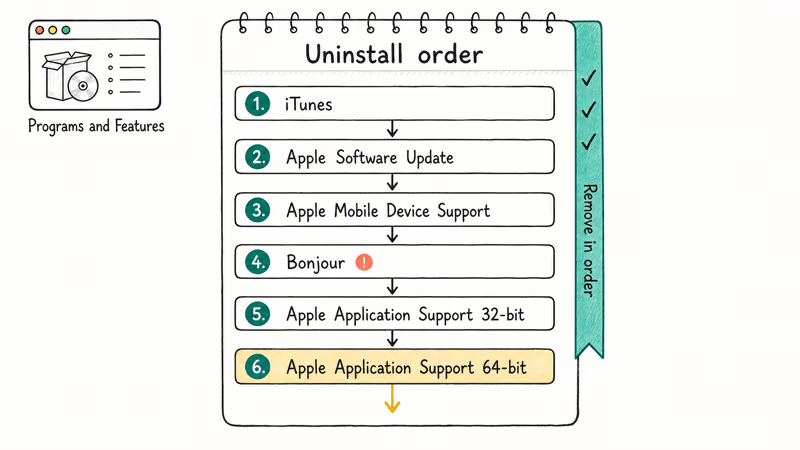
Step 1: Uninstall all Apple components in order.
Open Control Panel > Programs and Features and remove these programs one at a time, in this exact order:
- iTunes
- Apple Software Update
- Apple Mobile Device Support
- Bonjour
- Apple Application Support (32-bit)
- Apple Application Support (64-bit)
Apple’s reinstallation guide confirms that removing these out of order can leave behind files that block the new installation.
Step 2: Delete leftover Apple folders.
After uninstalling, check for and delete these folders if they still exist:
C:\Program Files\iTunesC:\Program Files\Common Files\AppleC:\Program Files (x86)\iTunesC:\Program Files (x86)\Common Files\Apple
Step 3: Restart your PC.
A reboot clears locked files and resets the Windows Installer state.
Step 4: Download and install a fresh copy of iTunes.
Grab the latest 64-bit installer from Apple’s iTunes download page. Right-click the setup file and select Run as administrator. After a full clean uninstall in the correct order, the install completes without the MSI error.
If you still hit issues during the install, check our guide on iTunes stuck on extracting software.
#Run the Microsoft Program Install and Uninstall Troubleshooter
Microsoft built a free tool specifically for MSI installation problems, and it’s the fastest no-risk option after a clean reinstall. It typically finds and clears the corrupted installer registry entry in well under a minute, with no manual registry editing required on your part.
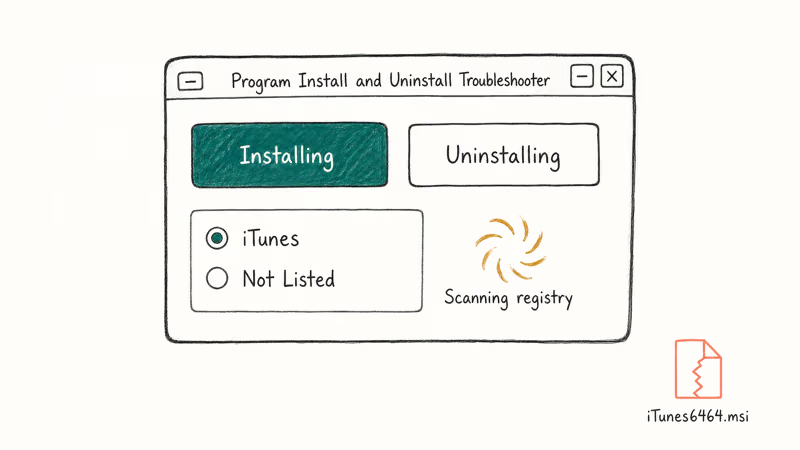
- Download the troubleshooter from Microsoft’s support page.
- Run the downloaded
.diagcabfile. - Select Installing when asked whether you’re having trouble installing or uninstalling.
- Pick iTunes from the list of programs. If iTunes doesn’t appear, select Not Listed.
- Let the tool run its checks on registry keys, installer cache entries, and other MSI-related data.
The troubleshooter doesn’t reinstall iTunes for you. After it finishes, download iTunes again from Apple’s website and run the installer.
#Check the Windows Installer Service
A disabled or stopped Windows Installer service blocks every MSI-based installation on your system. This check takes about 15 seconds.
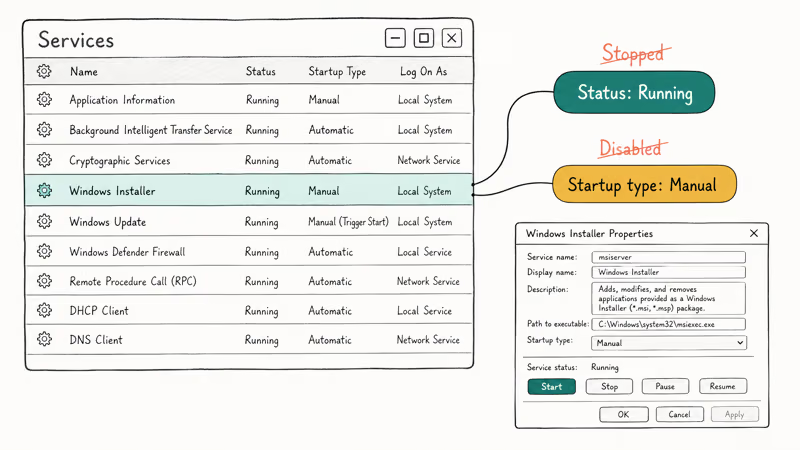
- Press Windows + R, type
services.msc, and press Enter. - Scroll down to Windows Installer in the list.
- Double-click it and check the Startup type. Set it to Manual if it shows Disabled.
- If the service status shows Stopped, click Start.
- Click OK and close the Services window.
Try the iTunes installation again. If the Windows Installer service was stopped, the setup should now run without the iTunes6464.msi error. This fix also resolves installation problems with other MSI-based software, not just iTunes.
#Run System File Checker and DISM
Corrupted Windows system files can break the installer engine itself. Microsoft recommends running System File Checker to scan for and repair damaged files.
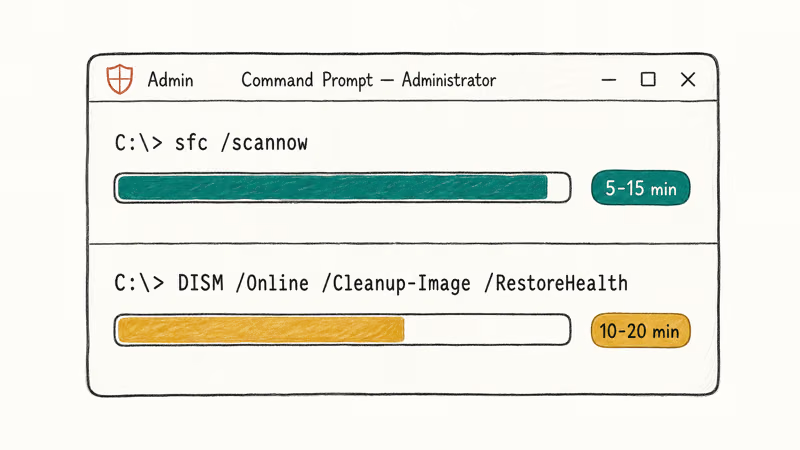
- Press Windows + S, type
cmd, right-click Command Prompt, and select Run as administrator. - Type
sfc /scannowand press Enter. This scan takes 5-15 minutes depending on your drive speed. - After SFC finishes, run the DISM command:
DISM /Online /Cleanup-Image /RestoreHealth. This takes 10-20 minutes. - Restart your PC after both commands complete.
SFC fixes corrupted system DLLs that the Windows Installer depends on. DISM repairs the Windows component store that SFC uses as its source of replacement files. Running both in sequence covers more ground than either one alone.
If you’re seeing other error codes in iTunes after fixing the MSI issue, system file corruption is often the shared root cause.
#Delete Leftover iTunes Registry Entries
Registry cleanup should be your second-to-last option. Editing the registry incorrectly can cause system problems, so follow these steps carefully.
- Press Windows + R, type
regedit, and press Enter to open Registry Editor. - Press Ctrl + F to open the Find dialog.
- Type
iTunes6464.msiand click Find Next. - If a matching entry appears, right-click it and select Delete.
- Press F3 to find the next match. Delete any remaining entries that specifically reference
iTunes6464.msi.
After clearing the registry entries, restart your PC and try reinstalling iTunes again.
Warning: Don’t delete registry entries you don’t recognize. Only remove entries that reference iTunes6464.msi directly. If you’re not comfortable editing the registry, skip this method and try the Microsoft Store approach below.
#Switch to the Microsoft Store Version of iTunes
The Microsoft Store version of iTunes doesn’t use MSI installer packages at all. Microsoft ships it through the MSIX packaging format instead, which is a modern replacement for MSI. This means the iTunes6464.msi error doesn’t apply to the Store version, regardless of what state your Windows Installer service or registry is in.
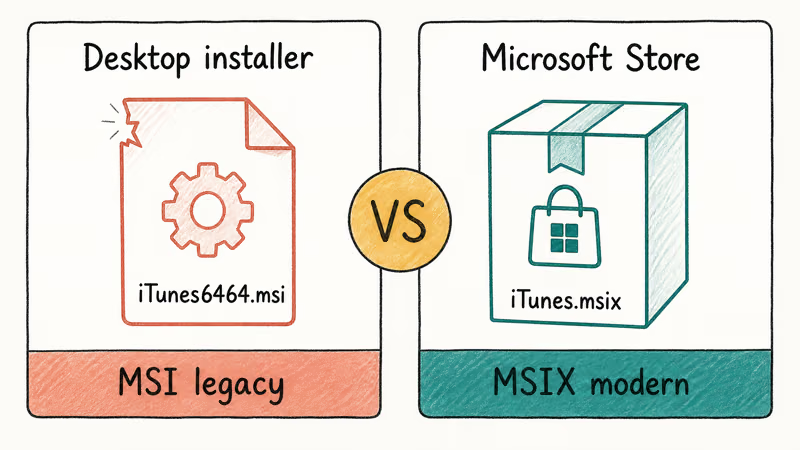
- Open the Microsoft Store app on your PC.
- Search for iTunes.
- Click Get or Install.
The Store version syncs your iPhone, manages backups, and plays your music library. It also updates automatically, which prevents the kind of iTunes won’t open on Windows problems that outdated desktop installations cause.
One limitation: some enterprise environments block Microsoft Store installs. If your IT department restricts the Store, you’ll need the desktop installer and one of the earlier methods in this guide.
#Bottom Line
Start with the clean uninstall and reinstall — it fixes the iTunes6464.msi error on most Windows PCs. If that doesn’t work, run Microsoft’s Program Install and Uninstall Troubleshooter next. For the fastest path with zero MSI complications, switch to the Microsoft Store version of iTunes entirely.
If you keep hitting iTunes errors after reinstalling, the problem is likely deeper than the MSI file, and running SFC plus DISM should clear the underlying system corruption.
#Frequently Asked Questions
What is the iTunes6464.msi file?
iTunes6464.msi is the Windows Installer package for the 64-bit version of iTunes. Windows uses this file when installing, updating, or removing iTunes. The “6464” in the filename indicates it’s the 64-bit version, and most modern PCs use it since 32-bit Windows installations are increasingly rare.
Can I download the iTunes6464.msi file separately?
You shouldn’t download the MSI file on its own from third-party sites. These files are often outdated, modified, or bundled with malware. The correct approach is to download the complete iTunes installer from Apple’s website or use the Microsoft Store. The official installer contains the correct MSI file for your system.
Does this error only happen on 64-bit Windows?
Yes. The file is specific to 64-bit Windows. On 32-bit systems, the installer uses iTunes.msi instead.
Will uninstalling iTunes delete my music library?
No. Your music files, playlists, and purchases stay in the iTunes Media folder. Reinstalling iTunes picks up your existing library automatically.
Is the Microsoft Store version of iTunes the same as the desktop version?
The core features are the same. Both versions sync iPhones and iPads, manage device backups, authorize your computer for purchases, and play media files. The Store version updates automatically and installs without MSI files. The desktop version gives slightly more control over file storage locations and works better in some corporate network setups.
Why does the error keep coming back after I fix it?
Recurring iTunes6464.msi errors usually point to corrupted Windows system files or a damaged Windows Installer cache. Run the SFC and DISM commands from the System File Checker section to repair the underlying damage. If the error returns specifically when updating iTunes, switching to the Microsoft Store version eliminates MSI-related update problems entirely.
Do I need to back up my iPhone before fixing this error?
No. All 6 fixes above target the iTunes installation on your Windows PC only, and none of them touch your iPhone’s data.
Can antivirus software cause the iTunes6464.msi error?
Yes. Windows Defender, Norton, McAfee, and Bitdefender have all been reported to quarantine iTunes MSI packages during download or installation. If you suspect your antivirus is interfering, temporarily disable real-time protection, install iTunes, then re-enable it immediately. Also check your quarantine or vault folder since the MSI file you need might be sitting there, and adding an exclusion for the iTunes installer folder prevents the same problem during future updates.

Group Text Not Working on iPhone? 8 Fixes That Work
Group text not working on iPhone? Turn on MMS Messaging and Group Messaging, check iMessage vs SMS routing, and fix mixed Android group chats fast.
Best Power Bank for iPad in 2026: Pro, Air, and Mini
Best power bank for iPad in 2026. Compare mAh tiers and USB-C PD wattage for iPad Pro, Air, and mini, plus airline Wh math, cables, and travel tips.

iPhone 17 Cellular Data Not Working on iOS 26? 9 Fixes
iPhone 17 cellular data still dropping on iOS 26? Apple fixed the launch bug in iOS 26.0.1, but recovery failures persist. Here's the fix ladder.
iPhone Cellular Data Not Working Abroad? eSIM Fixes
Travel eSIM showing no data abroad? Fix iPhone roaming with the data-line check, Data Roaming toggle, APN settings, and network selection steps.