How to Fix iTunes Stuck on Extracting Software (2026)
iTunes stuck on extracting software during an iPhone update? Clear the IPSW cache, force restart, and restore in 7 proven steps that fix the freeze.
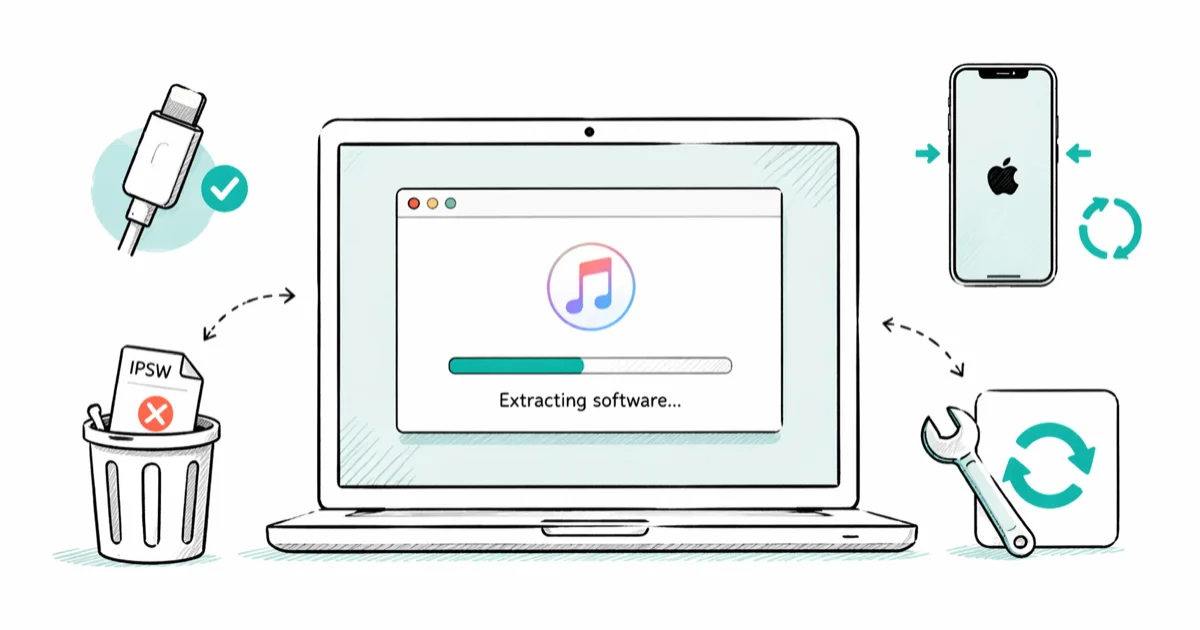
Quick AnswerCancel the update in iTunes, delete the half-downloaded IPSW file, quit iTunes, then reconnect your iPhone and start the update again on a wired connection. If the progress bar freezes again, force restart the iPhone and use iTunes Restore to reinstall iOS cleanly.
iTunes stuck on extracting software is usually a broken IPSW download, not a dead iPhone. The progress bar parks itself around the “Extracting” stage, the spinner keeps turning, and nothing else happens for hours. The seven steps below start with the safest cache and connection fixes before moving to Restore.
- “Extracting software” means iTunes has finished the download and is unpacking the IPSW firmware locally, so the freeze is almost always a corrupted cache file.
- Deleting the IPSW file from the iTunes cache folder and retrying the update resolves the freeze in many cache-related cases.
- Quitting iTunes from Task Manager or Activity Monitor is safer than waiting through a visible hang, since the “Extracting” bar can stall for 30 minutes or longer.
- A force restart on the iPhone clears the device-side update state and lets iTunes restart the process without the device refusing to reconnect.
- If cache clearing fails twice, iTunes Restore (not Update) reinstalls iOS from a fresh firmware file and bypasses whatever extraction step keeps breaking.
#What Does “Extracting Software” Actually Mean in iTunes?
When iTunes shows “Extracting software” during an iPhone or iPad update, the IPSW firmware file has finished downloading to your computer and iTunes is unpacking it before pushing it to the device. Extraction is a local disk operation. Nothing is being pulled from Apple’s servers at this stage, so the freeze is not a slow connection. It’s almost always a corrupted or partially written IPSW file.
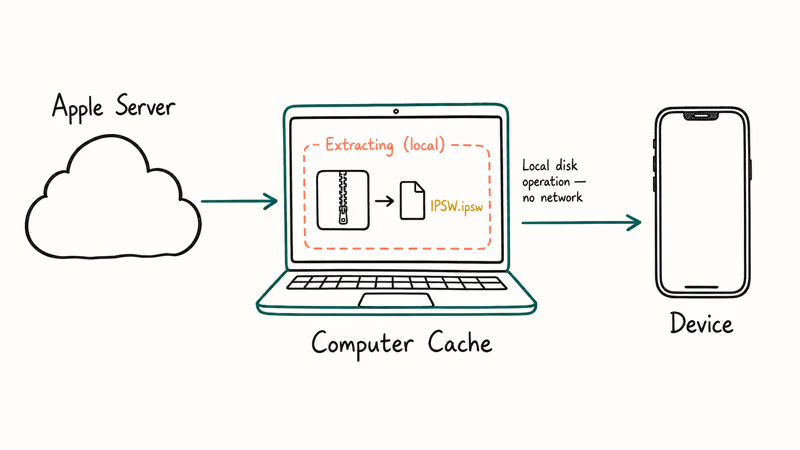
Interrupted downloads can leave a partial IPSW file that looks complete enough for iTunes to retry but fails during extraction. Deleting the partial file forces a clean download.
According to Apple’s update your iPhone, iPad, or iPod touch guide, 2 common wireless-update failure modes are a VPN or proxy connection preventing your device from reaching the update servers, plus storage space issues on the device itself. Neither is what you’re seeing when the bar freezes at “Extracting” specifically, but turn off any VPN before you try the fix below.
#How to Fix iTunes Stuck on Extracting Software (7 Steps)
Start at step 1. Each step builds on the last. Most readers will be unstuck by step 3.
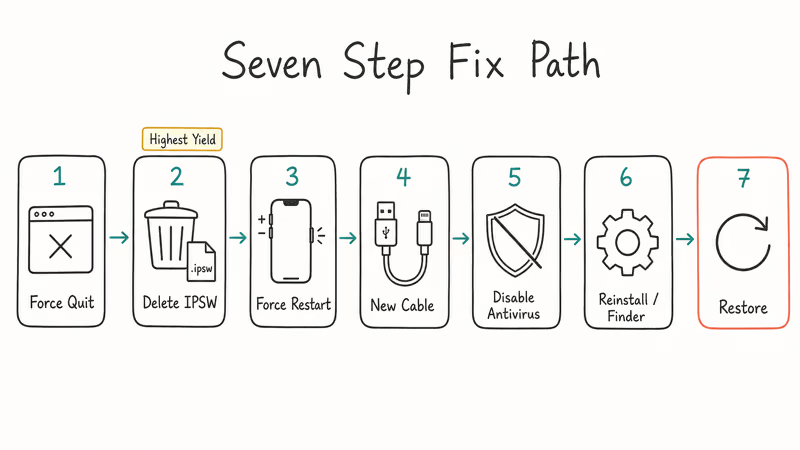
#Step 1: Force Quit iTunes and the Apple Devices App
Waiting out a clearly stalled extraction usually doesn’t help, because iTunes is no longer making progress on the local IPSW file.
- Windows: Press
Ctrl + Shift + Escto open Task Manager. Find iTunes (and Apple Mobile Device Service if listed), right-click, and choose End task. - Mac: Press
Cmd + Option + Escto open Force Quit. Select iTunes or Apple Devices, then click Force Quit.
Disconnect your iPhone from the USB cable after iTunes closes. Give it 30 seconds.
#Step 2: Delete the Corrupted IPSW Cache File
This is the single highest-yield fix. iTunes stores the downloaded firmware in a hidden cache folder, and a partial or damaged IPSW is what hangs the extraction step.
- Windows 10 or 11: Open File Explorer, paste
%USERPROFILE%\AppData\Roaming\Apple Computer\iTunes\iPhone Software Updatesinto the address bar, and press Enter. - macOS: Open Finder, press
Cmd + Shift + G, paste~/Library/iTunes/iPhone Software Updates, and press Return.
Delete every .ipsw file in that folder. Empty the Recycle Bin or Trash. Reopen iTunes, reconnect your iPhone, and click Check for Update again. iTunes will download a fresh IPSW, and the extraction step usually completes within two to three minutes on a modern SSD.
#Step 3: Force Restart the iPhone
If the freeze happened after iTunes put your iPhone into update mode, the device may still be holding onto a partial state. A force restart clears it without erasing anything.
- iPhone 8 or later (including iPhone 15 and 16 series): Press and release Volume Up, press and release Volume Down, then press and hold the Side button until the Apple logo appears.
- iPhone 7 and 7 Plus: Hold Volume Down + Side button together until the Apple logo appears.
- iPhone 6s and earlier: Hold Home + Top (or Side) button together until the Apple logo appears.
This is the same fix used for related hangs. If your phone ends up showing the cable-to-computer screen, see our walkthrough for iPhone stuck on the iTunes logo, which covers how to get out of recovery mode without data loss.
#Step 4: Use a Different USB Cable and Port
Flaky cables cause more extraction errors than people expect.
- Use an Apple-made or MFi-certified cable.
- Plug directly into a USB port on your computer, not a hub or keyboard passthrough.
- On desktops, try a rear-panel USB-A port. Rear ports are wired directly to the motherboard.
If iTunes still doesn’t detect the iPhone cleanly, our guide on iTunes not recognizing iPhone has the Apple Mobile Device USB Driver reset that resolves most Windows-side detection failures.
#Step 5: Temporarily Disable Security Software
Real-time antivirus or third-party firewalls can lock the IPSW file while iTunes is trying to read it. Apple’s iTunes update guide for Windows confirms that the expected flow is 4 clicks (Device button, Summary, Check for Update, Update). If those 4 clicks end in a frozen “Extracting” bar on your machine, third-party security software is a likely culprit.
- Windows: Temporarily turn off Windows Defender real-time protection (
Settings>Privacy & Security>Windows Security>Virus &threat protection) plus any third-party antivirus (Norton, McAfee, Kaspersky, Avast). - Mac:
Open System Settings>Network>Firewall andswitch it off. Quit apps like Little Snitch or Malwarebytes before retrying.
Re-enable everything after the update finishes. If you can’t disable your corporate antivirus, run the update on a personal machine instead.
#Step 6: Reinstall iTunes (Windows) or Use Finder (Mac)
If you’re on Windows and the Microsoft Store version of iTunes keeps failing extraction, the desktop version from apple.com tends to be more stable. Our how to reinstall iTunes walkthrough covers removing every Apple component in the right order. That order matters because leftover Apple Software Update and Apple Mobile Device Support services can interfere with a clean install.
On macOS Catalina (10.15) or later, iTunes doesn’t exist. Use Finder instead: connect the iPhone, click its icon in the Finder sidebar, and choose Check for Update. Finder uses the same update pipeline but bypasses any broken iTunes install.
#Step 7: Use iTunes Restore Instead of Update
Skip ahead to this step if nothing above worked. Restore erases the iPhone and reinstalls iOS from a fresh IPSW. Back up first.
- In iTunes or Finder, click the device icon.
- Hold Shift (Windows) or Option (Mac) and click Restore iPhone.
- Select the latest IPSW file you downloaded manually, or let iTunes download a fresh one.
- Confirm the restore. iTunes reinstalls iOS and reboots the iPhone.
Apple states that this process reinstalls iOS and erases all data on the device. See the official iPhone update and restore error guide for the recovery-mode button sequence if the computer doesn’t see your iPhone at all. Restore from your backup afterward using Setup Assistant.
#Root Causes Behind iTunes Extraction Freezes
Four root causes explain most iTunes extraction freezes:
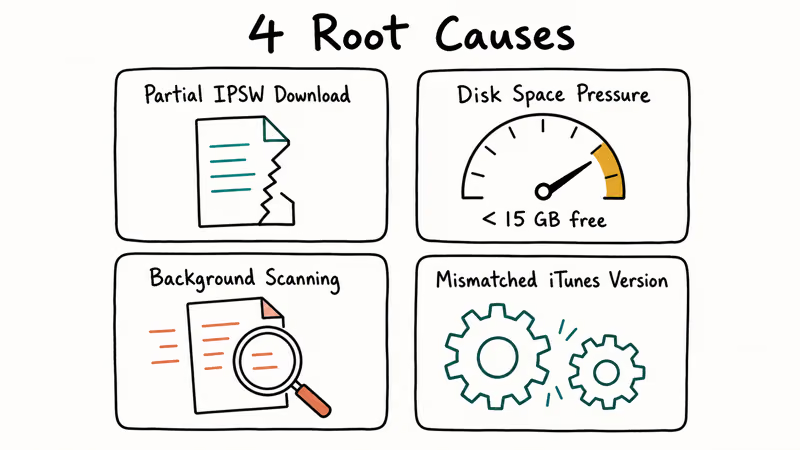
- Partial IPSW download: any interruption mid-download can leave a file that passes the filename check but fails extraction
- Disk space pressure: under 15 GB free on your system drive can stall extraction silently
- Background scanning: antivirus and Spotlight indexing read the IPSW mid-extraction, causing read-lock collisions
- Mismatched iTunes version: an outdated install may not recognize the current IPSW format, so update iTunes or switch to Finder
If your stuck state looks different, like a long freeze on the white boot screen after the update tried to install, see our fix for iPhone stuck on preparing update, which covers the preparation phase specifically.
#Common iTunes Error Codes During Extraction
Sometimes the extraction hang ends in a numbered iTunes error instead of a continued freeze. The common ones tie back to the same underlying problem.
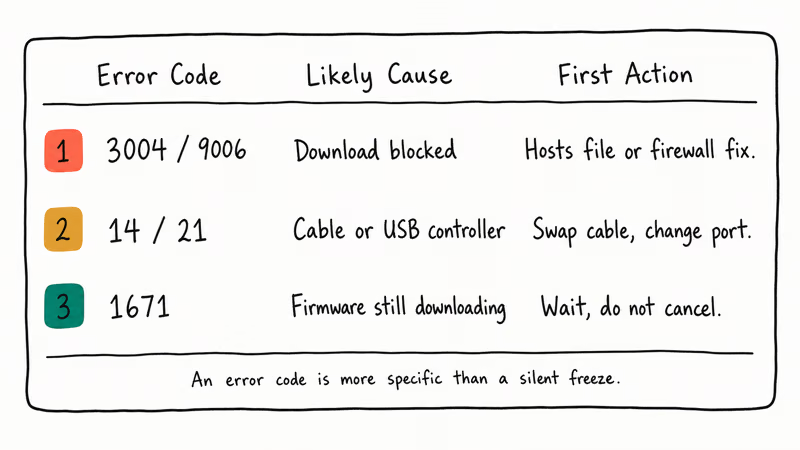
- Error 3004 or 9006: download blocked — our iTunes error 3004/9006 fix covers the hosts file and firewall changes
- Error 14 or 21: cable or USB controller issue, so swap cables first
- Error 1671: firmware still downloading, so wait before cancelling
Error codes give you a more specific diagnosis than a silent freeze. Treat them as progress, not a worse failure.
#Signs Your Extraction Is Actually Stuck, Not Just Slow
Before force-quitting, check for real progress signals first.
- Open Task Manager or Activity Monitor: no disk activity for several minutes is a strong sign it’s hung
- Watch the IPSW cache folder file size, since a silent folder for several minutes points to a freeze
- Ignore the spinner animation, which often keeps moving while the progress bar flatlines
Reboot the computer before you retry. A clean OS state rules out stale file handles or broken Apple services.
#How Can You Prevent iTunes From Freezing on Future Updates?
A few habits reduce the chance of a repeat extraction freeze.
- Update over Wi-Fi first via
Settings>General>Software Updateon the iPhone - Free at least 20 GB on your computer before starting the update
- Plug into a wall outlet so laptop power-management doesn’t pause the USB bus
- Update iTunes before the iPhone using
Help>Check for Updateson desktop iTunes
#Bottom Line
Start with step 2. Delete every file in the iPhone Software Updates cache folder, then retry the update. If the same “Extracting software” hang comes back twice, jump to step 7 and use iTunes Restore with a fresh IPSW.
#Frequently Asked Questions
How long should iTunes take to extract software normally?
Extraction usually finishes in two to three minutes on a computer with an SSD and a current version of iTunes. Traditional hard drives can take up to ten minutes. Anything past fifteen minutes on the same progress bar is a hang, not slow progress.
Will deleting the IPSW file from the cache folder lose my iPhone data?
No. The IPSW file is the iOS firmware, not your personal data. Deleting it only forces iTunes to fetch a fresh copy on the next update attempt.
Can I download the IPSW firmware file manually to avoid this issue?
Yes. Sites like ipsw.me list current signed IPSW files directly from Apple’s servers. In iTunes or Finder, hold Shift (Windows) or Option (Mac) and click Update, then point to the downloaded IPSW. This skips the iTunes download and extraction steps entirely, which is useful when your connection keeps dropping or corporate networks block large firmware downloads.
Is it safe to cancel the extraction when iTunes is frozen?
Yes. The iPhone hasn’t received the new firmware yet, so you’re not interrupting the install. Force-quitting iTunes is safe. You may need to force restart the iPhone afterward if it’s stuck on the cable-to-computer screen.
Why does this happen more often on Windows than on Mac?
iTunes on Windows is a separate app with its own update pipeline, Apple Software Update service, and Mobile Device Support service. Any of those can go out of sync with the firmware format. On Mac, Finder uses system-integrated components that tend to stay current automatically, so the extraction step fails less often. Microsoft Store iTunes handles its own updates, which closes one of the common Windows gaps, but the Mobile Device service can still fall out of sync.
Should I update over Wi-Fi on the iPhone instead of using iTunes?
It’s a reasonable backup plan. Go to Settings > General > Software Update on the iPhone and install the update directly. You skip iTunes entirely.
Can iTunes extracting software stuck mean my iPhone is bricked?
No. The extraction stage happens on your computer, not on the iPhone. Your iPhone is fine. Worst case, you end up in recovery mode with the cable-to-computer icon, and a force restart plus an iTunes Restore brings it back to life with all your data intact if you had a backup.
What if I need to downgrade iOS instead of update it?
Standard iTunes Update only moves you to signed versions, which is usually the latest iOS. If you need to go back, check our downgrade iOS without iTunes guide. Apple only signs the two most recent iOS releases at any given time, so downgrading has a short window.

Mac mini M6 vs M5 Pro: Which Model Should You Buy?
Mac mini M6 vs M5 Pro compared on price, memory, ports, displays, and real workloads. Find the better 2026 Mac mini for your desk and budget.

Apple Siri Settlement: Who Qualifies and How to Claim
Apple's $250 million Siri settlement covers iPhone 15 Pro and iPhone 16 models bought June 2024 to March 2025. See who qualifies and how claims work.

iOS 26.6.1 Security Update: What Apple Fixed and Who Gets It
Apple released iOS 26.6.1 on August 17 with 29 security fixes, including an IPSec interception bug. See what it patches, who gets it, and how to update.

iPhone Adaptive Power: How It Works and When to Use It
Learn how iPhone Adaptive Power works, which models support it, what it changes, and when Low Power Mode is still the better battery-saving choice.