iTunes Error 9006: 5 Apple-First iPhone Fixes (2026)
Fix iTunes error 9006 with Apple-first software, USB, network, and security checks before recovery mode or any device-erasing restore workflow.
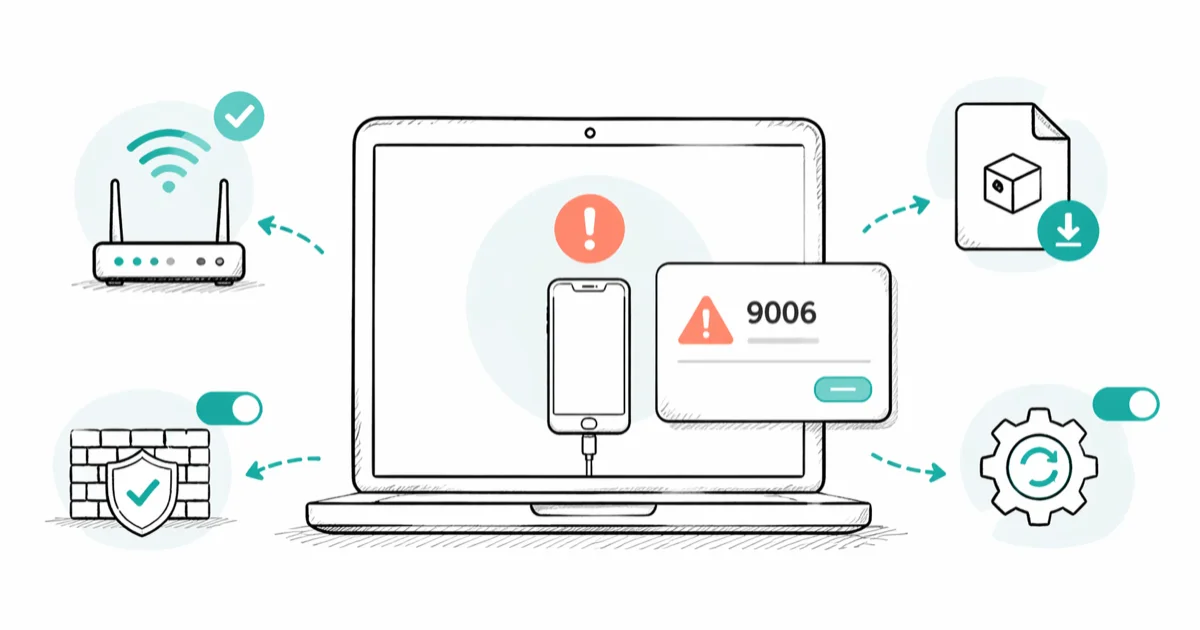
Quick AnswerApple says error 9006 can mean the computer can't communicate with its servers or the connected device. Update Apple software, connect directly, restart, then test security software or another network.
Error 9006 can appear while a computer updates, restores, or communicates with an iPhone or iPad. Apple says it may indicate that the computer can’t connect to its servers or the device, not proof of one failed firmware download.
On a current Windows PC, use the Apple Devices app for iPhone and iPad management. Finder handles these tasks on a current Mac, while iTunes remains relevant on older Macs and some Windows setups.
- Treat error 9006 as a communication problem to isolate, not a confirmed hardware or firmware diagnosis
- Update the Mac or the Apple Devices/iTunes software before changing security settings
- Connect the iPhone or iPad directly to the computer with a known-good data cable
- Check third-party security software only after the software, cable, restart, and connectivity checks
- Try Update before Restore; a restore reinstalls the operating system and erases the device
Use these steps only on a device you own or are authorized to service.
#What Does iTunes Error 9006 Mean?
According to Apple’s current security-software and iTunes guidance, error 9006 can mean that the computer can’t communicate with Apple servers or with the connected iPhone, iPad, or iPod touch. Apple tells readers to check communication with its software-update servers, then continue with connectivity and security-software checks if the error remains.
That wording matters. Error 9006 does not, by itself, prove that a firewall blocked a particular port, that an IPSW file is corrupt, or that Apple servers are overloaded. Record when the alert appears and whether the device is still usable before choosing the next step.
#Fix 1: Update the Mac or Windows Apple Software
Update Apple software first.
On a Mac, install available macOS updates. On Windows, open Microsoft Store and update Apple Devices or iTunes. According to Apple’s Windows software update page, Microsoft Store provides current versions of Apple Devices and iTunes, while some older installations use Apple Software Update.
Restart the computer after updating, reopen the Apple app, and retry.
#Fix 2: Connect the Device Directly and Restart
Use a direct computer port. Connect the iPhone or iPad to a USB port on the computer, not a keyboard or USB hub. Unlock the device and tap Trust if prompted.
According to Apple’s general update and restore error page, you should use a cable in good condition, try another Apple USB cable or computer USB port if the alert remains, and restart both the computer and the device.
If the device never appears in Finder or Apple Devices, use the device-recognition checks instead of assuming a network fault.
#Fix 3: Test the Connection on Another Network or Computer
Change one variable at a time. Confirm that the computer can reach ordinary websites and that its date, time, and time zone are correct. Don’t rely on a universal speed threshold or fixed firmware-file size; both vary by device and release.
If several devices can’t reach the internet, restart the router according to its manufacturer’s instructions. Then retry on another computer and network if possible.
If the operation works elsewhere, investigate the original computer or network and use the related iTunes connection checks. If it fails on a second current computer and a different network, keep the exact error text and contact Apple instead of repeatedly downloading or restoring.
#Fix 4: Check Third-Party Security Software
Treat security software as one suspect. Apple lists error 9006 among the alerts that can appear when third-party security software interferes, but doesn’t say that software is always the cause.
Before changing the security setup, Apple says to use an administrator account, correct the computer’s date and time, install current Apple and operating-system software, and avoid running more than one security product. Work with the security-software provider if you need to allow Apple services or completely remove that product.
Don’t disable the built-in firewall as a routine first step. Restore protection immediately after any vendor-directed isolation test.
#Fix 5: Try Update Before Recovery or Restore
Try Update before Restore. If the iPhone or iPad starts normally, back it up and try Settings > General > Software Update. On Windows, use Apple Devices > select the device > General > Check for Update or Update. On a current Mac, select the device in Finder and choose the update option.
Use recovery mode only when the device state calls for it, such as a Connect to computer screen, repeated Recovery Assistant startup, or a device the computer reports as being in recovery mode. Apple’s current recovery-mode guide says to try Update first if it has not already been tried; Restore reinstalls iOS and erases all data.
If Update or recovery mode can’t complete, get Apple service. Don’t keep restoring a device with an unverified backup or assume a commercial repair utility can correct a server, network, cable, or security-software problem.
#Should You Download an IPSW File Manually?
Apple doesn’t list third-party firmware indexes in its standard error-9006 troubleshooting flow.
Use the Apple Devices app, Finder, iTunes, or Apple Support first. If Apple Support directs you to select a firmware file manually, confirm the exact model and whether the update preserves data before proceeding; choosing Restore erases the device.
#Recurring Error 9006
Repeat the same isolation order. The code still doesn’t identify one recurring cause.
Keep notes on which combinations fail. A failure limited to one computer points toward that computer’s software or connection; a failure limited to one network points toward that network. Those are troubleshooting observations, not proof that a particular firewall, VPN, or server caused the code.
If the device also shows the Connect to computer screen or is stuck in recovery mode, follow the screen-specific recovery steps and protect the backup before any erase.
A simultaneous error 3004 should be evaluated from its own alert instead of being assigned the same cause automatically.
#Bottom Line
Start with Apple’s sequence: update the computer software, connect the device directly, restart both devices, check third-party security software, and try another computer on another network.
Use Update before Restore when Apple offers both choices. If the device remains in recovery mode or the same code appears after the isolation checks, contact Apple with the error text and the steps already tested.
#Frequently Asked Questions
What does iTunes error 9006 mean?
Apple says the computer might be unable to communicate with Apple servers or the connected device. The code doesn’t prove a specific firewall, firmware-file, or hardware cause by itself.
Can error 9006 damage my iPhone?
The code alone doesn’t establish hardware damage. However, an interrupted update or restore can leave the device on a recovery screen, so preserve a verified backup and follow Apple’s Update or recovery guidance instead of promising that the device can’t be affected.
Does error 9006 happen on both Windows and Mac?
It can appear in computer-based update or restore workflows on either platform. Use Apple Devices on a current Windows PC, Finder on a current Mac, or iTunes where Apple still documents it for that setup.
How big is the firmware download?
The size varies by device model and software release. Use the storage and download information shown by Apple’s update interface rather than relying on a fixed range from an older release.
Does error 9006 mean Apple’s servers are overloaded?
Not necessarily. Apple says to check communication with its update servers, but it does not define the code as proof of server overload or publish a fixed waiting period for it.
Can I update my iPhone without using iTunes?
If the device works normally, open Settings > General > Software Update. You can also use Finder on a current Mac or Apple Devices on a current Windows PC; iTunes is not the only supported route.
What if I still get error 9006 after trying everything?
Contact Apple Support with the exact alert, computer and device software versions, and the networks, cables, and computers already tested. Apple can then decide whether recovery mode or service is appropriate; the code alone does not establish an Apple Account block.
Does using a VPN cause iTunes error 9006?
A VPN changes the computer’s network path and can be tested as one variable, but error 9006 does not prove the VPN caused the failure. If policy permits, compare the same operation without the VPN or on a different network, then restore the required VPN configuration.

Mac mini M6 vs M5 Pro: Which Model Should You Buy?
Mac mini M6 vs M5 Pro compared on price, memory, ports, displays, and real workloads. Find the better 2026 Mac mini for your desk and budget.

Apple Siri Settlement: Who Qualifies and How to Claim
Apple's $250 million Siri settlement covers iPhone 15 Pro and iPhone 16 models bought June 2024 to March 2025. See who qualifies and how claims work.

iOS 26.6.1 Security Update: What Apple Fixed and Who Gets It
Apple released iOS 26.6.1 on August 17 with 29 security fixes, including an IPSec interception bug. See what it patches, who gets it, and how to update.

iPhone Adaptive Power: How It Works and When to Use It
Learn how iPhone Adaptive Power works, which models support it, what it changes, and when Low Power Mode is still the better battery-saving choice.