Snapchat My AI Not Working? How to Fix It Fast 2026
Snapchat My AI not working or missing? Check account eligibility, app version, the pinned conversation, and cache before reinstalling Snapchat.
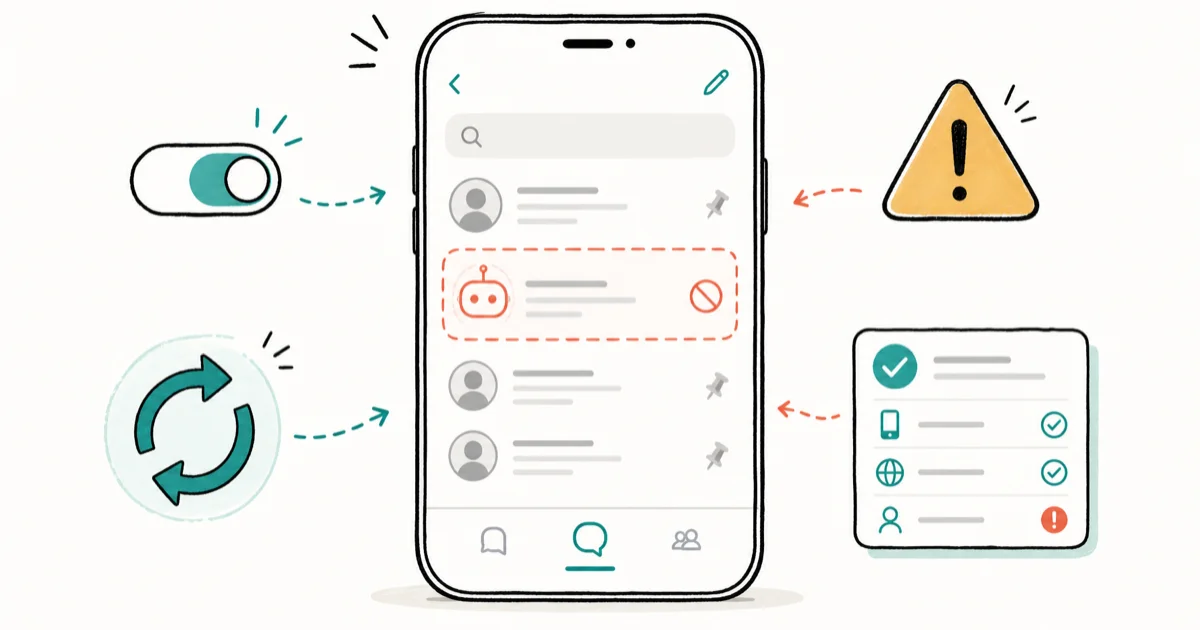
Quick AnswerSnapchat My AI usually stops working because of an outdated app, an age or region limit, or the conversation being unpinned. Update Snapchat, confirm eligibility, and re-pin My AI in your chat list.
Snapchat My AI not working usually splits into two very different problems: the chatbot is unavailable for your account, or it’s available but stuck. Knowing which one you have saves you from reinstalling for nothing. The most practical first checks are app freshness, account eligibility, and whether the My AI conversation is still pinned.
- My AI is gated by age, region, and account type, so it isn’t available to everyone.
- An outdated Snapchat app is the most common cause of a missing or frozen My AI.
- If My AI vanished from your chat list, it was likely unpinned, not removed.
- Clearing the Snapchat cache fixes a My AI that loads forever without responding.
- Reinstalling is a last resort. My AI returns automatically once you log back in.
#Why Is Snapchat My AI Not Working?
My AI problems come from a short list: your account isn’t eligible, your app is out of date, the conversation got unpinned, the cache is stale, or Snapchat’s servers are briefly down. The fix depends entirely on which of those you’re hitting, so it pays to figure out the category before you start tapping buttons or, worse, reinstalling the whole app on a hunch.
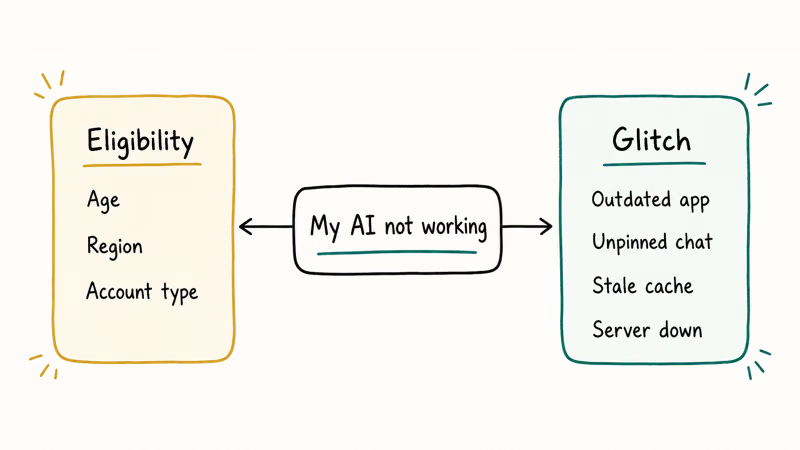
The split that matters most is eligibility versus a glitch. If My AI never appears at all, it’s usually an availability limit. If it used to work and now lags or vanished, it’s almost always a glitch you can clear.
Updating the app and re-pinning the conversation are the first practical checks for “missing My AI” cases. According to TechCrunch’s coverage of the My AI rollout, the chatbot expanded from paid subscribers to all users for free, so the first real check is whether My AI is even supposed to be on your account.
#Confirm My AI Is Available for Your Account
Before troubleshooting a glitch, confirm My AI is eligible for you. Availability depends on your age as set on your account, your region, and your account type. Some regions and account configurations don’t get My AI at all, and no fix will force it to appear.
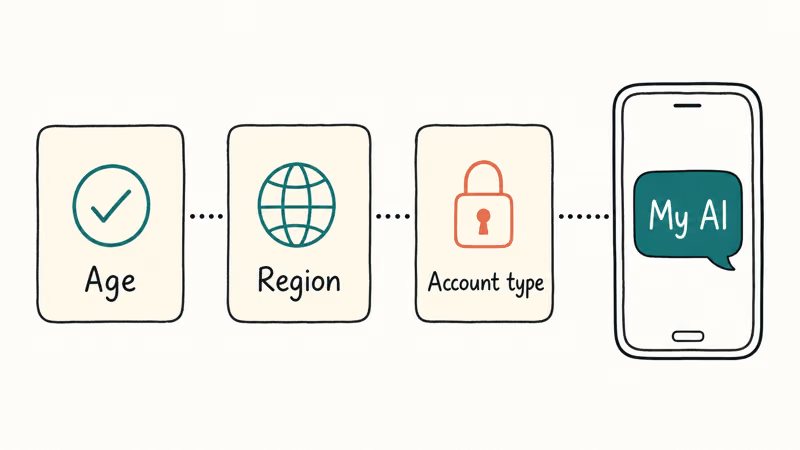
Check your age first. My AI has age requirements, and an account registered below the threshold won’t show it. Your birthdate isn’t something you simply toggle, so if age is the blocker, that’s the answer. Region is the next factor.
If you’ve confirmed your account should have My AI, the problem is a glitch, and the rest of this guide applies. Snapchat’s About My AI page states that account features can differ between users, so a friend having My AI doesn’t mean your account is eligible. For broader account safety habits, our iPhone privacy checklist is worth a look while you’re in your settings.
#Update Snapchat and Clear the Cache
If My AI is eligible but misbehaving, start with the app version. An old Snapchat build is the top cause of a frozen chatbot. Open the App Store or Google Play, search Snapchat, and tap Update.
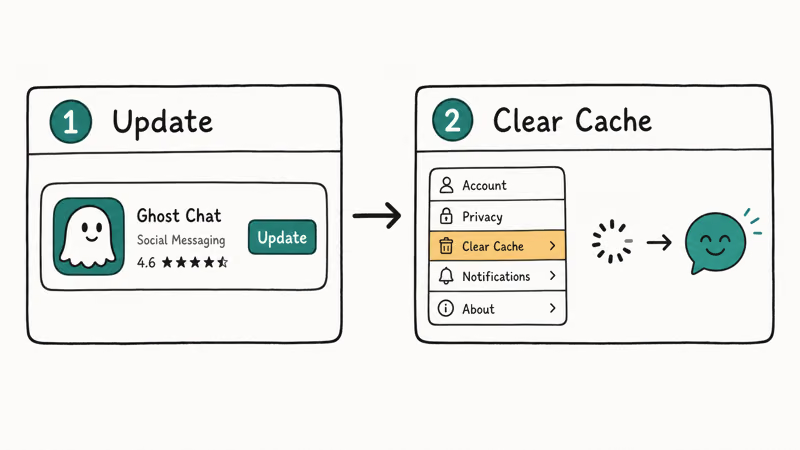
Next, clear the Snapchat cache. This is safe and doesn’t delete your account, Snaps, or Memories, since it only removes temporary files. In Snapchat, tap your profile icon, then the gear for Settings, scroll to “Clear Cache,” and confirm. Cache clearing is a reasonable early step for a My AI chat stuck on a loading spinner.
Check your connection too, since a weak signal makes My AI look broken. If the whole app keeps closing, our guide on Snapchat keeps crashing covers the deeper app fixes.
#Pin or Restore the My AI Conversation
A very common “My AI disappeared” report is simply an unpinned conversation. My AI normally sits at the top of your chat list because it’s pinned. If it gets unpinned, it slides down or out of view and looks gone, even though it’s still there.
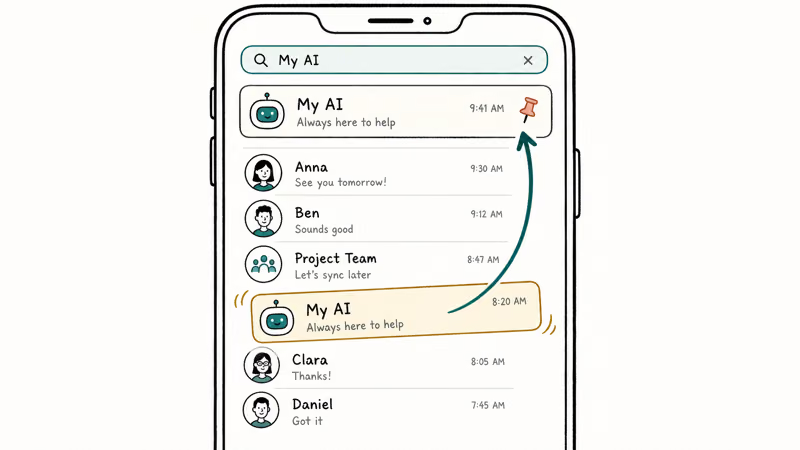
To bring it back, search for it. Tap the search bar, type “My AI,” and open the conversation. Then press and hold on My AI in your chat list, choose “Chat Settings,” and tap “Pin Conversation” to lock it back to the top.
If My AI still doesn’t show in search, recheck eligibility, since search won’t surface a feature you don’t have on your account in the first place. An unpinned My AI conversation can be restored by searching for it and pinning it back to the top of the chat list. If odd app behavior worries you, our guide on how to tell if your phone is hacked helps you rule out anything serious.
#Reinstall Snapchat as a Last Step
Reinstalling is the last step, not the first, because it logs you out and clears local data. Only reinstall after you’ve updated the app, cleared the cache, checked your connection, and confirmed My AI is eligible. If all of those are done and My AI is still broken, a clean reinstall can resolve a deeper corruption.
Before reinstalling, make sure you know your login details. Reinstalling doesn’t delete your Snaps, Memories, or friends, since those live on Snapchat’s servers. Delete Snapchat, restart your phone, then install the latest version and log in.
My AI returns on its own once you’re logged back in, assuming your account is eligible. If it still doesn’t appear after a clean reinstall, the cause is likely a server-side rollout or a temporary outage on Snapchat’s end. A quick way to capture the error for a support request is a screenshot, and our walkthrough on how to screenshot on Windows covers the desktop method if you use the web app.
#Is My AI a Privacy or Data Risk?
It’s a fair question, and the honest answer is that My AI is a chatbot that processes what you send it, so treat it like any other app feature. Don’t share passwords, financial details, or anything sensitive in the chat, the same rule you’d apply to any online service.
Snapchat lets you clear My AI data in your settings. The Verge’s coverage of My AI recommends treating it like any cloud chatbot.
Cautious about app permissions? Our take on whether iPhones need antivirus walks through the real risk in plain terms.
The practical takeaway is simple. My AI is safe within normal limits, but it isn’t a confidant, so keep sensitive details out of every chatbot you use and review your privacy settings every so often so you always know exactly what is being shared and what stays private on your own device.
#Bottom Line
Start with the app update. It quietly fixes more My AI problems than any single setting. Confirm My AI is available for your age and region next, since eligibility is the most common reason the chatbot never shows up for some accounts no matter how many times they reinstall the app.
Re-pin the My AI conversation if it dropped off your list, then clear the cache to fix a frozen one. Reinstall only as a final move.
#Frequently Asked Questions
Why is Snapchat My AI not responding?
The usual causes are an outdated app, a stale cache, or a weak connection. Update Snapchat first, then clear the cache from Settings.
Is My AI available for every account?
No. My AI availability depends on your age, your region, and your account type, and it isn’t rolled out everywhere. If it never appears no matter what you try, your account may simply not be eligible, and no fix will force it to show, which is the single most overlooked reason it seems broken.
Why did My AI disappear from my chats?
Most often it was unpinned and slid out of view rather than removed. Search “My AI” in the search bar to find it, then pin the conversation back to the top through Chat Settings, and it will stay there until you unpin it again.
Does My AI require a subscription?
The standard My AI chatbot is part of the regular Snapchat experience for eligible accounts. Snapchat offers paid features, but basic My AI access doesn’t require a subscription.
Will clearing the cache fix My AI?
Often, yes, for a My AI that loads endlessly or freezes. Clearing the cache removes temporary files without deleting your Snaps, Memories, or account, and the app rebuilds the cache on the next launch, so it’s a safe early step that’s well worth trying before you reinstall anything at all.
How do I get My AI back after reinstalling?
Just log back in. My AI returns automatically once you sign in to your account, since the feature is tied to your account, not the app files. If it still doesn’t appear after a reinstall and your account is eligible, it’s likely a temporary server-side issue, so wait and check again later in the day.

Is This Bank App Real? Spot a Fake App on Your Home Screen
A bank app can land on your home screen from a web page with no install warning. Learn the checks that tell a real banking app from a phishing web app.

Apps Crashing After iOS 27 Update? Fix Order (2026)
Apps crashing after the iOS 27 update? Update the app in the App Store first, then offload and reinstall to clear stale cache, then restart. The fix order.

Do AI Translation Earbuds Work Offline? What to Know
Do AI translation earbuds work offline? A few do with downloaded language packs, but most need the cloud. Here's what works offline and what you give up.
How to Set Up Translation Earbuds (Pairing and Modes)
How to set up translation earbuds: charge, install the app, pair over Bluetooth, pick two languages, and choose a mode. A step-by-step first-use guide.