Samsung Tablet Frozen? 7 Fixes to Unfreeze It Fast
Samsung tablet frozen and won't respond? We cover 7 proven fixes from a force restart to safe mode and factory reset to get it working again.
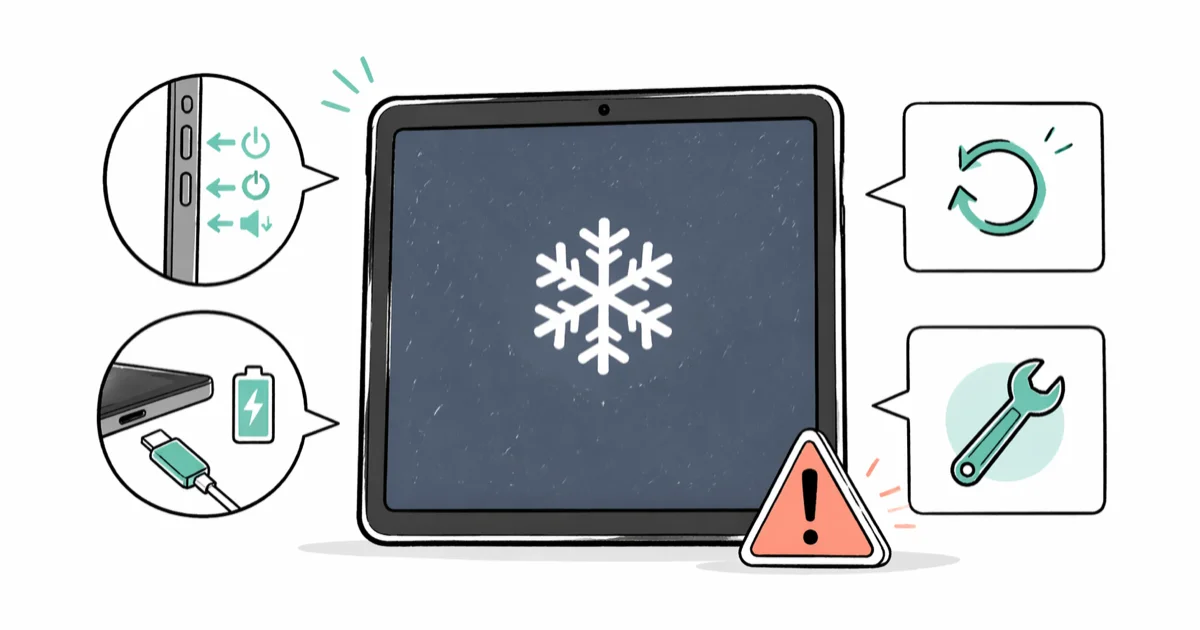
Quick AnswerPress and hold both the Power button and Volume Down button for 7 to 10 seconds to force restart a frozen Samsung tablet. If that doesn't work, charge the tablet for 15 minutes before trying again, since a dead battery often mimics a frozen screen.
A Samsung tablet frozen on a black screen or stuck on the logo is one of the more frustrating problems in mobile troubleshooting because the usual fix (turn it off and on again) doesn’t work when the screen won’t respond. The seven methods below are ordered by what actually unfreezes Galaxy Tab hardware versus what only delays the next freeze.
Use these steps only on your own device or a tablet you have explicit permission to repair. Recovery and reset procedures bypass the lock screen on some older models, so respect privacy and legal boundaries when helping a family member or a friend.
- Hold Power and Volume Down for 7 to 10 seconds to force restart a frozen Galaxy tablet without losing data
- A drained or faulty battery mimics freezing, so charge for 15 minutes before assuming software is the cause
- Repeated freezes after a normal reboot usually trace back to a single misbehaving app running in the background
- Safe Mode disables every third-party app at once and isolates the culprit without erasing your files
- Factory reset wipes every photo, message, and app, so back up to Samsung Cloud or a PC before using it
#Why Is Your Samsung Tablet Frozen?
Tablets freeze for a handful of reasons. Knowing which one applies usually shortcuts the fix.
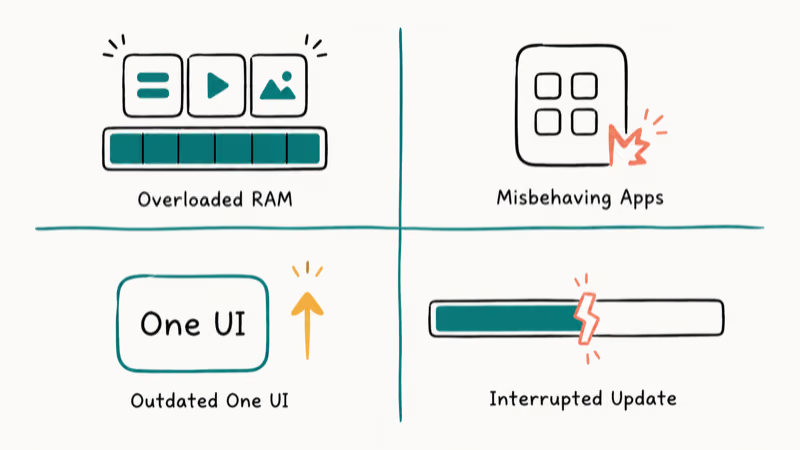
Overloaded RAM. Galaxy tablets often ship with less RAM than phones in the same price tier. Running several apps at once fills available memory and locks up the system. Older Tab A and Tab E models are the most vulnerable because they have the least headroom to begin with.
Android Developers’ memory documentation states that the low-memory killer terminates background processes once free memory drops, which on lower-RAM tablets shows up as a long unresponsive pause that looks identical to a freeze.
Misbehaving apps. Some apps have memory leaks that worsen over time, and others conflict directly with One UI’s customizations. Background services, widgets, and poorly coded games are frequent offenders. Background launcher widgets cause more reproducible freezes than any other category on Galaxy Tab hardware. A third-party weather widget that auto-refreshes on a 30-second interval, for example, can lock up a Tab A7 Lite within a few hours.
Outdated software. One UI patches frequently include freeze fixes for the kernel scheduler and memory manager. An update at Settings > Software Update is the fastest first move when freezes started after a few months of normal use.
Interrupted updates. A One UI install that gets cut short, often by the tablet running out of battery mid-flash, leaves system files in a half-applied state. The result is freezes that occur immediately after every restart. Open Settings > Software Update and check the install history if freezing began right after a recent update attempt.
#How Do You Unfreeze a Samsung Galaxy Tablet?
Work through these fixes from the top. The first two solve the problem in most cases, and only the last few touch your data.
#Fix 1: Force Restart the Tablet
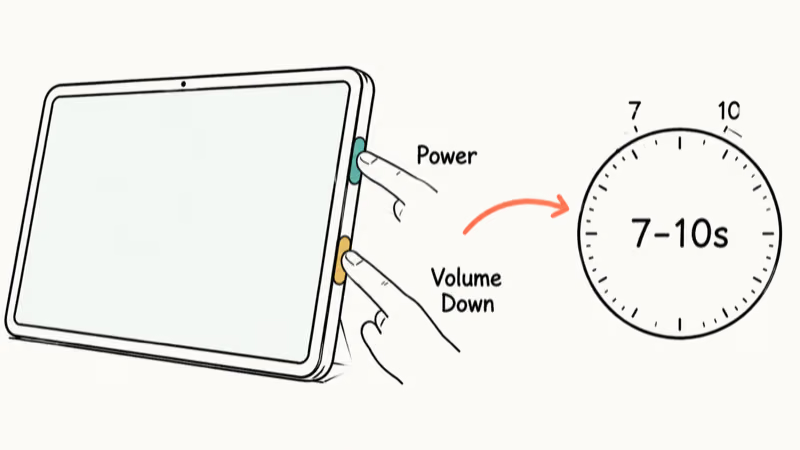
Press and hold the Power button and the Volume Down button at the same time for 7 to 10 seconds. The screen turns black, then the Samsung logo appears. Some models need up to 15 seconds, so keep holding if nothing happens at first. This is the modern equivalent of pulling the battery and is safe on every Galaxy Tab generation since the Tab S2.
#Fix 2: Charge the Device First
A tablet at 0% or critical battery sometimes appears frozen because it doesn’t have enough power left to drive the touchscreen. Plug in the original charger, leave it for 15 minutes, then try Fix 1 again.
On a Galaxy Tab A7 Lite that has run completely flat overnight, the first charge animation can take several minutes to appear, and the force-restart combo only works after a longer charge. If charging looks unreliable, our Samsung tablet not charging guide covers the cable, port, and adapter checks before you blame software.
#Fix 3: Boot into Safe Mode
Safe Mode disables every third-party app in one shot. To enter it, hold the Power button until the power menu appears, then tap and hold Power Off until a Safe Mode prompt appears. Tap OK and wait for the home screen to reload with “Safe Mode” in the bottom-left corner.
If the tablet runs stably for an hour in Safe Mode, you have a bad app rather than a hardware fault. Restart normally and uninstall recently added apps one at a time until the freezing stops.
#Fixing Repeated Freezes: Apps and Storage
If the tablet freezes routinely rather than once in a while, you’re looking at a software or storage problem instead of a one-time glitch.
#Fix 4: Uninstall Suspicious Apps
Go to Settings > Apps and remove apps you installed around the time the freezing started. If keyboard input crashes appear alongside the freezes, our Samsung keyboard troubleshooting guide covers the specific keyboard-service fixes.
Pay extra attention to apps that asked for “Display over other apps” permission or device administrator access at install. They run at a deeper system level and cause disproportionate damage when they misbehave. Always-on widgets, location-tracking apps, and step counters are also common freeze sources on Galaxy Tab hardware. Uninstall the most recently added app first, reboot, and use the tablet for an hour before moving on to the next candidate.
#Fix 5: Clear App Cache and Free Storage
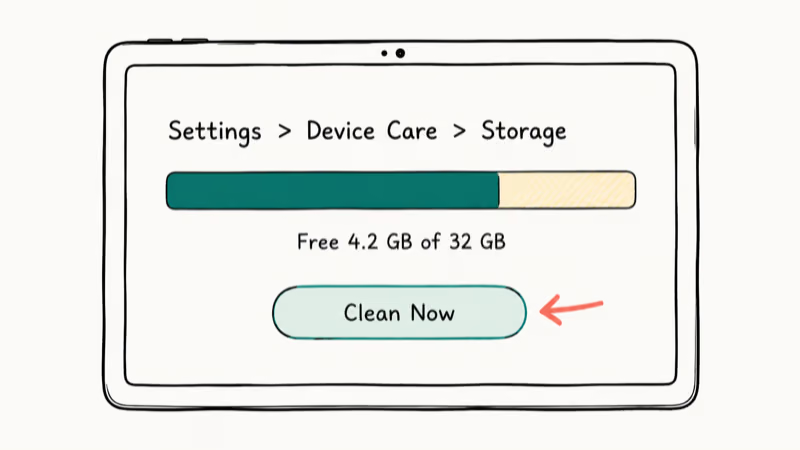
Open Settings > Device Care > Storage > Clean Now.
When free storage drops below 10% of total capacity, Galaxy tablets freeze regularly because the system can no longer write the temporary scratch files Android needs during normal operation. Move photos to Samsung Cloud or Google Photos, delete downloaded movies, and clear Telegram or WhatsApp media folders to free space fast. Persistent app crashes often trace back to low storage: our Android process acore guide covers the related crash pattern when contacts and dialer services fail under storage pressure.
#Fix 6: Install Pending Software Updates
Go to Settings > Software Update > Download and Install. Samsung’s monthly security updates include kernel and memory-manager patches that target freeze conditions. On a Tab S6 left unpatched for six months, applying the backlog of updates can cut random freezes from once a day to none over the following week.
According to Google’s Android security bulletins, monthly patches bundle kernel and framework fixes that reach Galaxy devices through Samsung’s monthly merge. Install every available update, restart, and use the tablet for at least 24 hours before deciding the freezing has actually stopped.
#Advanced Recovery Options
These last fixes are for tablets that won’t boot normally or where the standard fixes haven’t moved the needle.
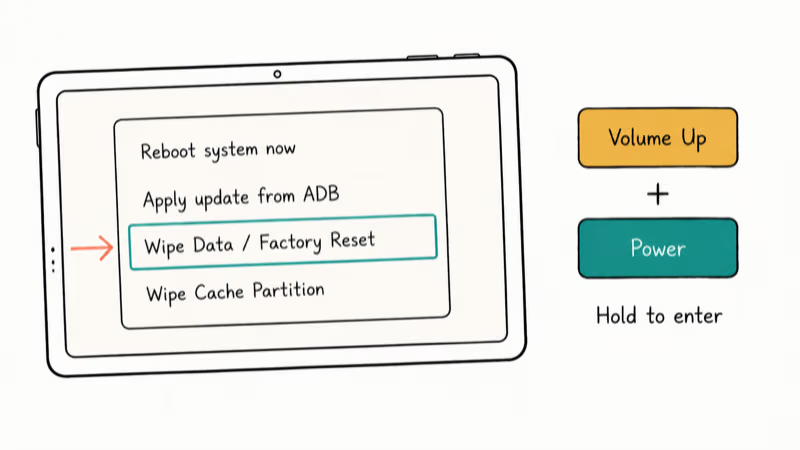
#Fix 7: Factory Reset
Back up photos, contacts, and app data to Samsung Cloud or a PC first. Then go to Settings > General Management > Reset > Factory Data Reset and confirm.
If Settings won’t load, use recovery mode. Power off, hold Volume Up + Power until the recovery menu appears, select Wipe Data/Factory Reset, and confirm with the Power button. The process takes 10 to 15 minutes and the tablet restarts several times. For a deeper walkthrough of recovery-mode reset paths, see our Android factory reset guide, which covers the alternate reset codes when standard menus are inaccessible.
After resetting, set up the tablet as new without restoring third-party apps from a backup. Use it in this clean state for 24 hours to confirm the freezing is gone. Then reinstall apps one at a time, waiting roughly 30 minutes between installs and checking the tablet between each one. The slow reinstall lets you spot the offending app the moment it triggers another freeze, which identifies the original cause.
#Tablet Won’t Boot at All
A boot loop is different from a freeze.
If the Samsung logo stays on screen and never reaches the home screen, the tablet is rebooting partway through startup rather than locking up at runtime. Our Samsung tablet won’t turn on guide walks through the recovery-mode steps that address stuck-logo and boot-loop scenarios on Galaxy Tab models specifically.
If the screen stays black but the tablet feels warm or buzzes when you hold it, force restart first. If that fails, the display panel itself may be the issue and a Samsung Service Center diagnostic is the next step before you spend money on a third-party repair. For tablets that reboot on their own instead of staying frozen, our Samsung Galaxy keeps rebooting guide covers the auto-restart flavor of this problem.
Display glitches and freezing often share a root cause in the touchscreen controller. Our Samsung screen rotation troubleshooting covers the related sensor and accelerometer fixes that sometimes resolve unresponsive-screen complaints on the same Galaxy Tab models.
#Preventing Your Samsung Tablet from Freezing Again
Keep free storage above 10% of total capacity by deleting downloads weekly, offloading photos, and removing apps you stopped using. Check storage at Settings > Device Care > Storage. A Tab A7 Lite tends to start freezing whenever free space drops under about 1.2 GB and runs cleanly once it stays above 5 GB.
Open Settings > Battery and Device Care > Battery > Background Usage Limits and restrict apps that don’t need to run constantly.
Google’s Doze and App Standby documentation explains that the operating system already defers background CPU and network activity for unused apps when the screen is off, and Samsung’s deep-sleep list extends the same idea to apps you rarely open at all on the tablet.
Update apps weekly.
Most freeze-causing memory leaks get fixed within a release or two of being reported, so staying current on Galaxy Store and Google Play closes the gap before it widens into a daily problem.
#Bottom Line
Force restart first, every time.
If the screen stays unresponsive, charge the tablet for 15 minutes and repeat the Power and Volume Down combo before reaching for Safe Mode and the app-uninstall path. Most frozen Samsung tablets respond to that sequence in under 15 seconds.
Persistent freezing almost always traces back to a single bad app or to low storage. Save the factory reset for the rare case where Safe Mode itself freezes.
Samsung Galaxy Guide
#Frequently Asked Questions
Will a force restart erase my data?
No. A force restart is the same as a normal reboot, just triggered by hardware buttons instead of the power menu. You lose unsaved work in any apps that were open, but every file, photo, and message stays on the device.
How do I know which app is causing the freezing?
Boot into Safe Mode first. If the tablet runs stably in Safe Mode, a third-party app is responsible. Reboot normally and uninstall recently installed apps one by one, testing for 30 to 60 minutes between each removal until freezing stops. The last app removed before stability returns is your culprit.
My Samsung tablet freezes every few minutes. What should I do?
Force restart, then check free storage in Settings > Device Care > Storage. Anything under 1 GB free almost always causes frequent freezing because the system can’t write the temporary files it needs to function. Move large videos and photos to Samsung Cloud or Google Photos and uninstall any apps you stopped opening months ago to claw back at least 5 GB.
Can a virus cause a Samsung tablet to freeze?
Yes. Malicious apps freeze tablets by consuming CPU and memory in the background. Uninstall any app you installed from outside the Galaxy Store or Google Play if freezing started right after adding it.
According to Google’s Play Protect documentation, the service runs a safety check on Play Store apps before download and scans installed apps for harmful behavior on a periodic schedule once they’re on the device. Sideloaded APKs sit outside that automatic screening, which is why they’re a more common source of resource-eating adware on Galaxy Tab hardware and the first thing to uninstall when freezing starts shortly after a manual install from a third-party site or a friend’s USB drive.
How long does a factory reset take?
Plan for 10 to 15 minutes of active reset time and another 10 to 20 minutes for the first-boot setup. Don’t interrupt the reset and don’t unplug the charger if the battery is below 30%.
Does Safe Mode delete anything?
No. Safe Mode is non-destructive. It only disables third-party apps for the duration of the session, and a normal reboot brings everything back the way it was.
What’s the difference between clearing cache and doing a factory reset?
Cache clearing removes temporary files without touching apps or personal data, and it’s safe to run any time storage feels tight. A factory reset deletes everything on the tablet and restores factory defaults, including photos, contacts, apps, and settings. Always clear the cache and run Safe Mode diagnostics first, since the data loss from a factory reset is permanent without a current backup.
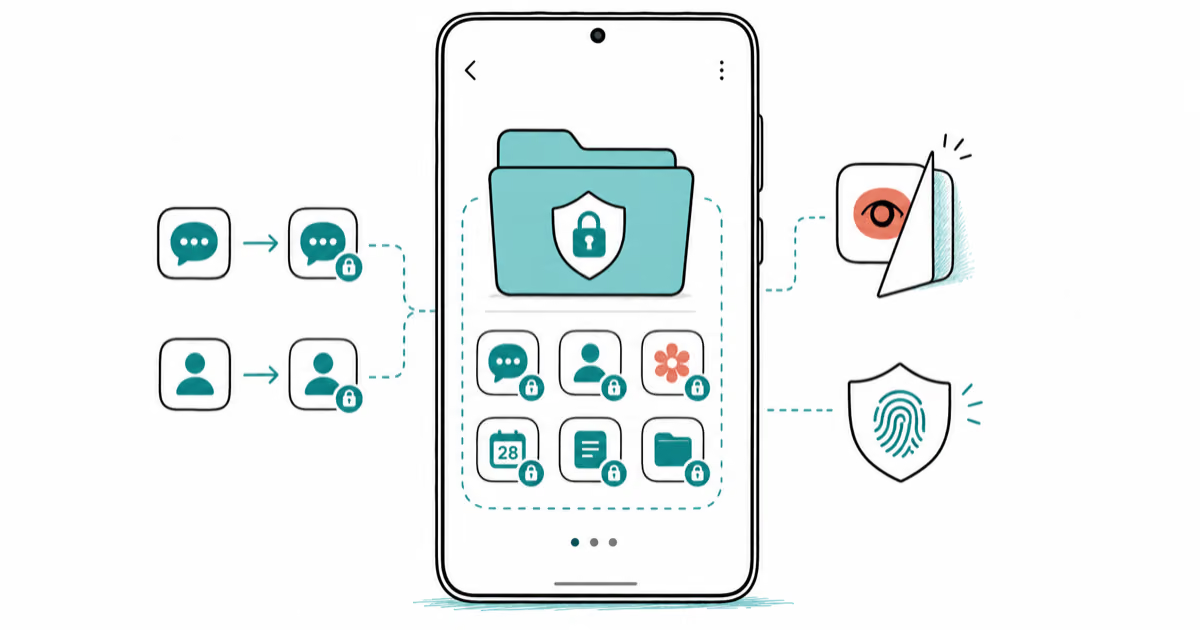
Samsung Secure Folder: Setup, Hide Apps, Clone Apps
Set up Samsung Secure Folder in under 5 minutes. Hide apps and photos, clone a banking app, and hide the Secure Folder icon on any Galaxy S8 or newer.
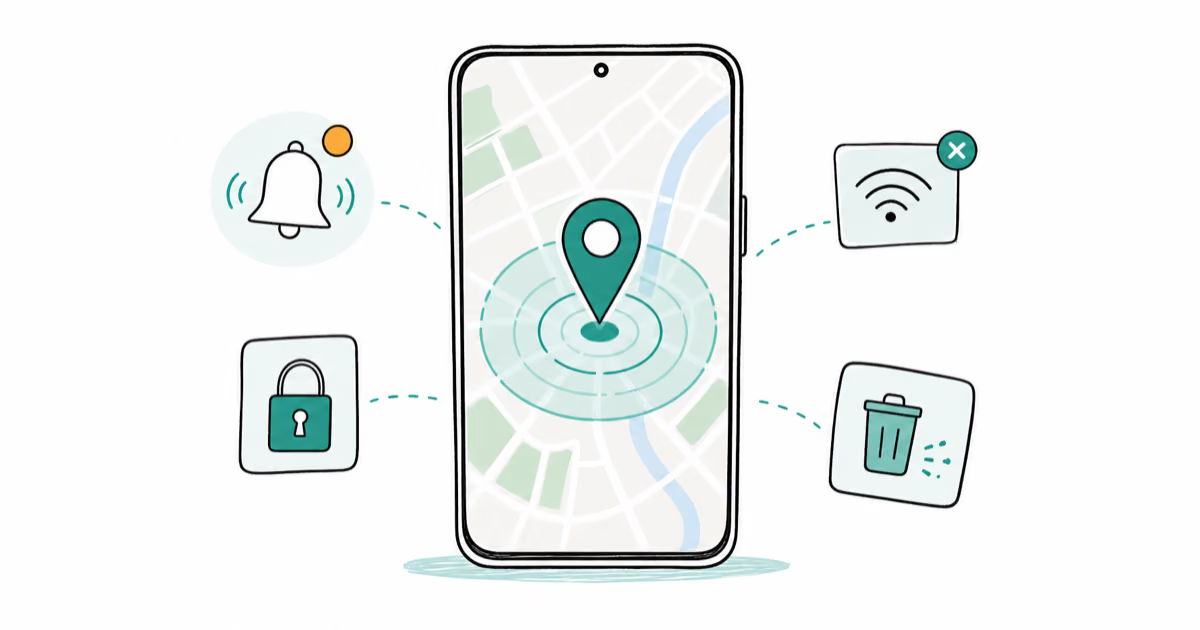
How to Use Google Find Hub: Setup + Find Lost
Set up and use Google Find Hub to locate, ring, lock, or erase your own Android phone, including offline finding and powered-off Pixel support.
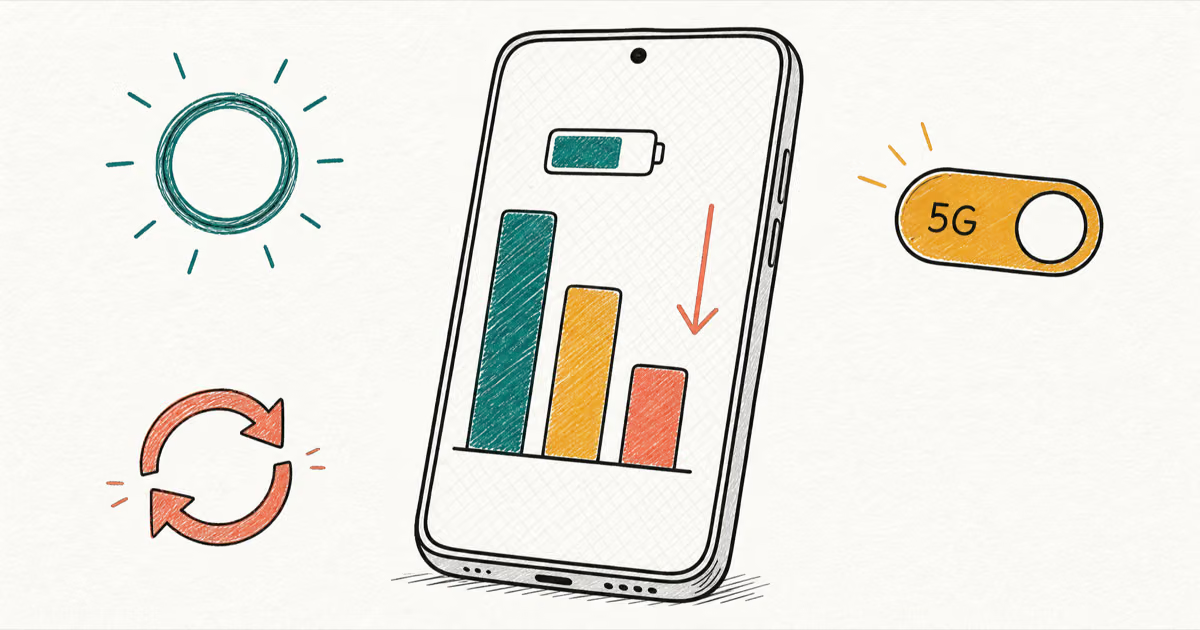
Samsung Galaxy Battery Draining Fast: 2026 Fix Guide
Diagnose Galaxy S25 battery drain in five minutes through Battery Usage, then walk through six reversible Galaxy settings before a factory reset.

Samsung Parental Controls: Full Setup Guide for Parents
Set up Samsung parental controls in three layers: Samsung Kids, Google Family Link, and Digital Wellbeing. Free step-by-step guide for Galaxy parents.