Samsung Galaxy Keeps Rebooting: 8 Fixes That Stop the Loop
Samsung Galaxy stuck in a reboot loop? 8 step-by-step fixes for Galaxy S23, S21, and A53 to stop random restarts and stabilize your phone in minutes.
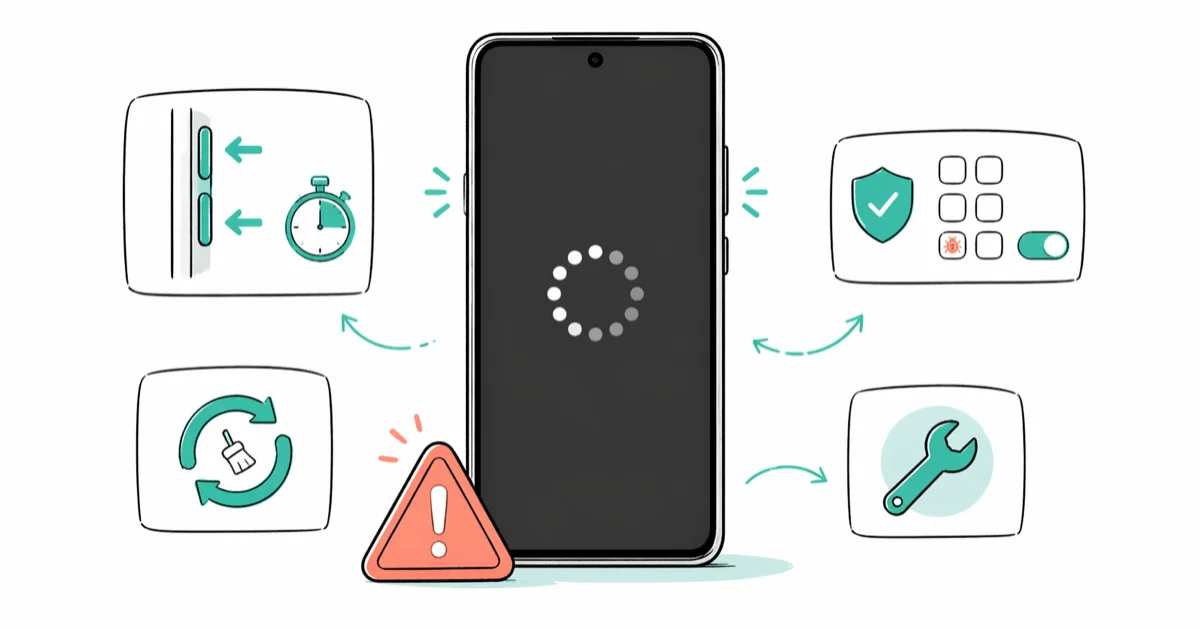
Quick AnswerHold Power and Volume Down for 10 seconds to force restart your Samsung Galaxy. If random reboots continue, boot into Safe Mode to rule out a rogue app, then wipe the cache partition. Most reboot loops clear up with one of these three steps before you need a factory reset.
Your Samsung Galaxy keeps rebooting on its own, and the random restarts are making the phone unusable. The fixes below apply to recent models like the Galaxy S23, S21, and A53. The cause is almost always one of three things: a misbehaving app, corrupted cache data, or a battery that can no longer hold a stable voltage.
Use these steps only on your own device or a phone you have explicit permission to repair. Don’t use recovery, reset, or troubleshooting tools to access someone else’s data or account.
Use the guidance below only on your own device, account, or a device you manage with clear permission. Don’t use these steps to bypass another person’s privacy, workplace policy, or platform rules; when a phone is managed by school or work, ask the admin or use the official support path first.
- Force restart with Power plus Volume Down for 10 seconds stops most active reboot loops in seconds
- Safe Mode disables every third-party app and reveals if one is triggering the restarts
- Wiping the cache partition clears corrupted temp data without touching personal files or apps
- Battery health below 80% capacity, visible in
Settings>Device Care>Battery, often forces hardware reboots - A factory reset resolves software-rooted reboots; persistent restarts after one mean a hardware repair
#Why Does My Samsung Galaxy Keep Rebooting?
Software conflicts cause most random restarts. A single misbehaving app installed shortly before the reboots start can trigger restarts every few minutes until it’s removed in Safe Mode. Cache corruption is the second most common cause.
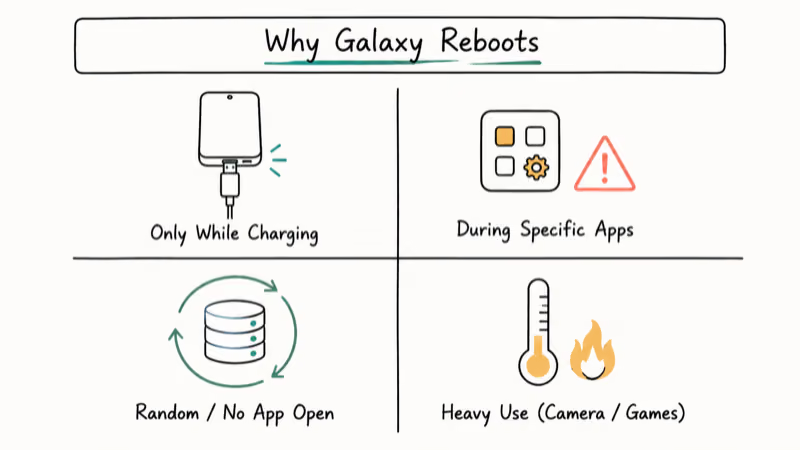
Hardware faults like a swollen battery or a damaged USB-C port are rarer but harder to fix.
A few quick clues to narrow the cause before you start:
- Restarts only when charging? The cable, charger, or charging port is suspect.
- Restarts during specific apps? A third-party app is conflicting with One UI.
- Restarts at random with no app open? Cache corruption or battery degradation.
- Restarts during heavy use (camera, games)? Overheating or a worn battery cell.
According to Samsung’s 2024 Galaxy reboot support article, random restarts spike during the first 2 to 4 weeks after a major One UI release as third-party apps catch up. The same pattern followed the One UI 6 rollout in late 2023 and the One UI 6.1 update in early 2024.
#Force Restart Stops Active Loops First
Press and hold Power + Volume Down together for 10 seconds. Keep holding until the Samsung logo appears.
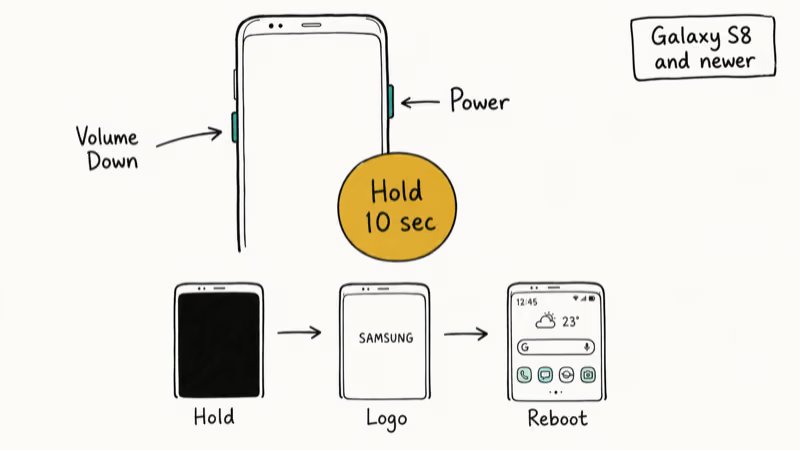
This drops every running process and reboots One UI cleanly without losing data. If the phone restarts again within 30 minutes, the trigger is persistent and you need to move down the list. If it stays stable, monitor it for a couple of hours before assuming you’re done.
Force restart works on every Galaxy released since the S8.
Older models with a physical Home button use Power + Volume Down + Home instead.
#Software Fixes for the Samsung Reboot Loop
Eight times out of ten, the fix is software.
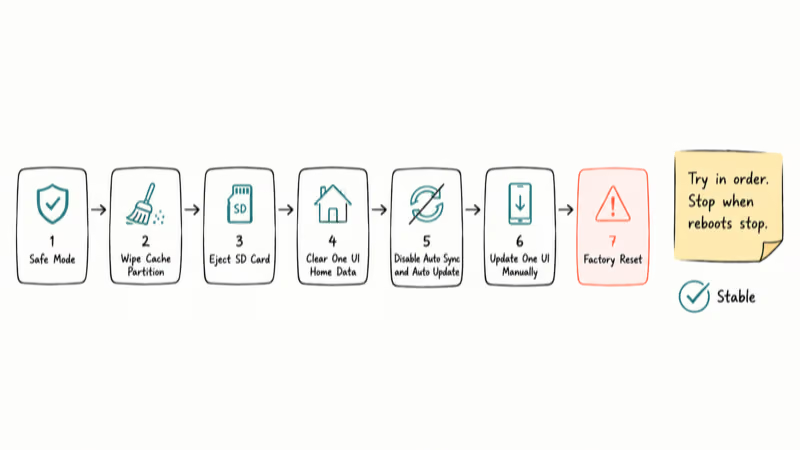
Work through these in order. Each step takes a few minutes.
#Boot Into Safe Mode
Safe Mode disables every third-party app and runs only Samsung’s stock software. If reboots stop in Safe Mode, you’ve confirmed a third-party app is the culprit.
Press and hold the Power button. When the menu appears, long-press Power Off until “Reboot to Safe Mode” pops up. Tap OK.
The phone restarts with “Safe Mode” labeled in the bottom-left corner. Watch it for 30 minutes without installing anything new. If stable, restart normally and uninstall the most recently added apps one at a time, restarting between each removal until reboots stop.
#Wipe the Cache Partition
The cache partition stores temporary system files One UI uses to load apps faster. Corrupted cache data is one of the cleanest causes of unpredictable reboots, and wiping it preserves all your apps and personal data.
Power the phone off completely. Hold Volume Up + Power (newer models) or Volume Up + Bixby + Power (S10 and earlier) until the recovery screen loads.
Use Volume Down to highlight Wipe Cache Partition, press Power to confirm, then Reboot System Now. Android’s developer documentation states that this wipe touches only 1 partition, /cache, and leaves the user data partition intact, which is why your apps, photos, and accounts survive the operation.
#Eject the SD Card
Power off, slide out the SD card tray, and restart without the card. Skip this step if you don’t use one.
If reboots stop without the SD card present, the card or its file system is corrupted. Don’t reformat through phone settings — phone-side formatting often misses deep file system damage.
Use a computer to do a full format, or replace the card with a new one. A single failing MicroSD card can cause repeated Galaxy reboots in a short span.
#Clear One UI Home Data
Corrupted launcher data is a common but overlooked reboot trigger.
Open Settings > Apps, tap One UI Home (newer Galaxy models) or TouchWiz Home (older ones), then Storage and Clear Data.
Your home screen layout resets but apps and files stay intact.
You’ll need to rearrange widgets and icons afterward, which takes a couple of minutes at most.
#Disable Auto-Sync and Auto-Update
Background sync and automatic app updates can collide with running system processes and trigger restarts during installation. Open Settings > Accounts and Backup > Manage Accounts and turn off auto-sync.
In the Google Play Store, tap your profile icon, go to Settings > Network preferences > Auto-update apps and pick Don’t auto-update apps.
Google’s Play Store support article recommends disabling auto-updates as a first-line fix for app-related crashes and restarts that began after a recent update wave. Turning auto-updates off is a sensible default step while you isolate a reboot bug.
#Update One UI Manually
Pending One UI updates often patch the exact bug causing your reboot loop.
Open Settings > Software Update > Download and Install. If the phone restarts before the download finishes, connect it to a PC and use Samsung Smart Switch to push the latest firmware directly. This avoids the restart trap during over-the-air updates.
#Factory Reset as the Last Software Step
A factory reset returns the phone to out-of-box settings and clears every reboot trigger that lives in software. Do this only after the steps above fail.
Back up contacts, photos, and messages first to your Google or Samsung account.
Open Settings > General Management > Reset > Factory Data Reset and confirm. The reset itself takes 7 to 12 minutes; initial setup adds another 10 to 15 minutes if you restore from a cloud backup. If the phone won’t stay booted long enough to reach Settings, hold Volume Up + Power to enter recovery mode and pick Wipe data/factory reset there.
For dedicated Android system repair without losing data first, Tenorshare ReiBoot for Android bundles a one-click “fix Android system” utility that targets boot-loop conditions before you resort to a full reset.
Some links on this page are affiliate links, which means fone.tips may earn a commission at no extra cost to you.
#Battery and Charger Failures
A worn or swollen battery is the most common hardware cause of persistent reboots. When a lithium-ion cell can’t deliver stable current under load, the phone restarts to protect the circuitry from a brownout.
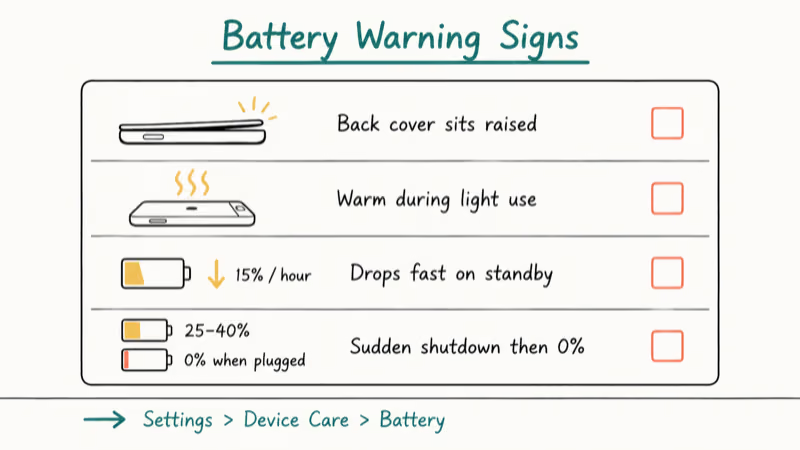
Check the obvious physical signs first:
- The back cover sits slightly raised or feels uneven against the frame
- The phone runs unusually warm during light use like reading or texting
- Battery percentage drops 15% or more in a single hour of standby
- The phone shuts down at 25% to 40% battery, then claims 0% when plugged in
Open Settings > Device Care > Battery to see battery health.
A degraded battery is worth having serviced rather than worked around, since a cell that can’t hold voltage under load will keep dropping the phone mid-task. On an older phone with degraded battery health, reboots often stop completely after a battery swap at a Samsung service center.
If the battery looks healthy but reboots only happen while charging, swap the cable, then the wall adapter. Counterfeit USB-C cables and unbranded adapters frequently deliver unstable voltage that triggers protective restarts. Use the Samsung-branded cable that shipped in the box, or any USB-IF certified PD cable rated 25W or higher.
#How Do You Prevent Future Samsung Reboots?
Keep One UI patched and install apps only from the Play Store.
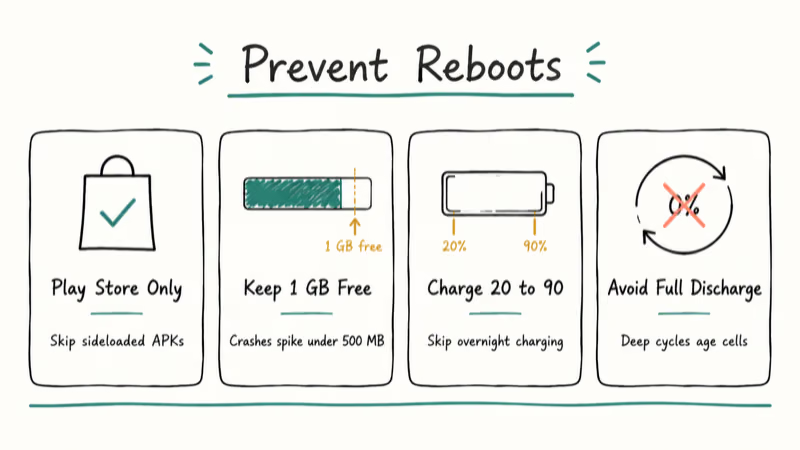
Sideloaded APKs bypass Play Protect compatibility checks and account for many random-reboot reports.
Keep at least 1 GB of storage free at all times. Low storage forces the system to write temp files in unstable locations, and restarts spike when free space drops under 500 MB.
When internal storage runs near capacity, a Galaxy can hard-restart repeatedly until you clear out unused files like old video clips.
Don’t drain the battery to zero. Deep discharge cycles age lithium cells fastest.
Plug in around 20%, unplug around 90% if you can manage it.
If reboots still come back, related fone.tips troubleshooting guides cover the adjacent failure modes you may run into next:
- Samsung black screen recovery
- frozen Samsung tablet fixes
- Samsung fingerprint scanner not working
- Galaxy not charging fixes
- com.samsung.android.incallui errors
- Process System isn’t responding
- data recovery from a dead phone when nothing else worked
#When to Visit a Samsung Service Center
Hand the phone to a technician once reboots survive a factory reset, the back cover sits visibly raised, the device gets hot during normal use, or battery health reads below 80%. Those four signals point to hardware faults that no software fix will resolve.
In-warranty Galaxy phones get free diagnostics at Samsung walk-in service centers. Out-of-warranty battery swaps run roughly $50 to $100 with a 1 to 2 hour turnaround at most authorized locations.
Bring proof of purchase if you can find it. Some service centers will honor manufacturer warranties even when you’ve lost the original receipt, but it speeds up the intake.
#Bottom Line
Force restart first; it stops most active loops in 10 seconds. If the reboots come back, Safe Mode plus a cache partition wipe handles most of the rest without touching your data. Reach for a factory reset only after those fail. If reboots survive a factory reset and the battery health reads under 80%, book a battery swap at a Samsung walk-in service center before sinking more time into software fixes.
Samsung Galaxy Guide
#Frequently Asked Questions
Why does my Samsung Galaxy randomly restart?
Three usual suspects: a third-party app conflict, corrupted cache data, or a battery that can no longer hold stable voltage under load.
Safe Mode rules out apps within 30 minutes. Wiping the cache partition handles corrupted temp data. Battery replacement is the answer when cell health drops below roughly 80%. Work through them in that order and you’ll catch the cause in nearly every case.
Can a One UI software update cause my Galaxy to keep rebooting?
Yes. A buggy or partially installed One UI update can introduce a reboot loop, especially when the update is interrupted by a low battery or a forced restart partway through.
Wipe the cache partition first; that resolves the bulk of post-update reboot issues without losing data. If the loop survives the cache wipe, push a clean firmware install through Samsung Smart Switch from a PC, or factory reset as the final fallback.
Does a factory reset always fix a Samsung reboot loop?
It fixes the loop reliably when software is the cause, which is true for the majority of reboot complaints. A factory reset clears every app, every cached file, and every system setting that could trigger a restart. It won’t fix a swollen battery, a damaged USB-C port, or a failed power-management chip. Back up everything to your Google or Samsung account first; the reset is destructive and takes about 7 to 12 minutes plus restore time.
How do I know if my Samsung battery is causing the reboots?
Three physical signs flag a failing cell.
A back cover that sits raised or uneven, unusual warmth during light use, and a battery percentage that drops 15% or more per hour while the phone is idle. Then go to Settings > Device Care > Battery to read the cell health. Anything under 80% is in replacement territory on a Galaxy phone older than two years, and the gap widens fast once you cross that line.
Is it safe to keep using my Samsung if it keeps rebooting?
Short term yes, long term no. Repeated forced restarts can corrupt the file system and damage app databases over weeks of use. Don’t leave a phone rebooting day after day; either fix the cause or back up everything important and stop using the device until a service center checks it.
Can a third-party charger or cable cause Samsung reboots?
Yes, especially under fast-charge load.
Counterfeit chargers and unbranded USB-C cables frequently deliver unstable voltage. Use the cable that shipped in the box, or buy a USB-IF certified PD cable rated 25W or higher. Swapping a cheap no-brand cable for the original Samsung one is a common fix when a phone restarts repeatedly only while charging.
How long does a factory reset take on a Samsung Galaxy?
The reset itself runs 7 to 12 minutes on modern Galaxy hardware. Initial setup adds another 10 to 15 minutes once you sign back into your Google and Samsung accounts. Connect to Wi-Fi before you start so app and contact data restores automatically from your cloud backup; this saves you from reinstalling everything by hand and avoids a fresh round of compatibility-conflict reboots.
When should I take my Samsung to a repair shop?
Four signals say it’s time for hardware service.
Reboots that survive a factory reset, a back cover that sits visibly raised, a phone that runs hot during normal use, or battery health that reads below 80%. Each one points to a hardware fault that no software fix will resolve, and stacking two together makes the call obvious. In-warranty Galaxy phones get free diagnostics at Samsung walk-in service centers, and out-of-warranty battery swaps run roughly $50 to $100 in 1 to 2 hours.
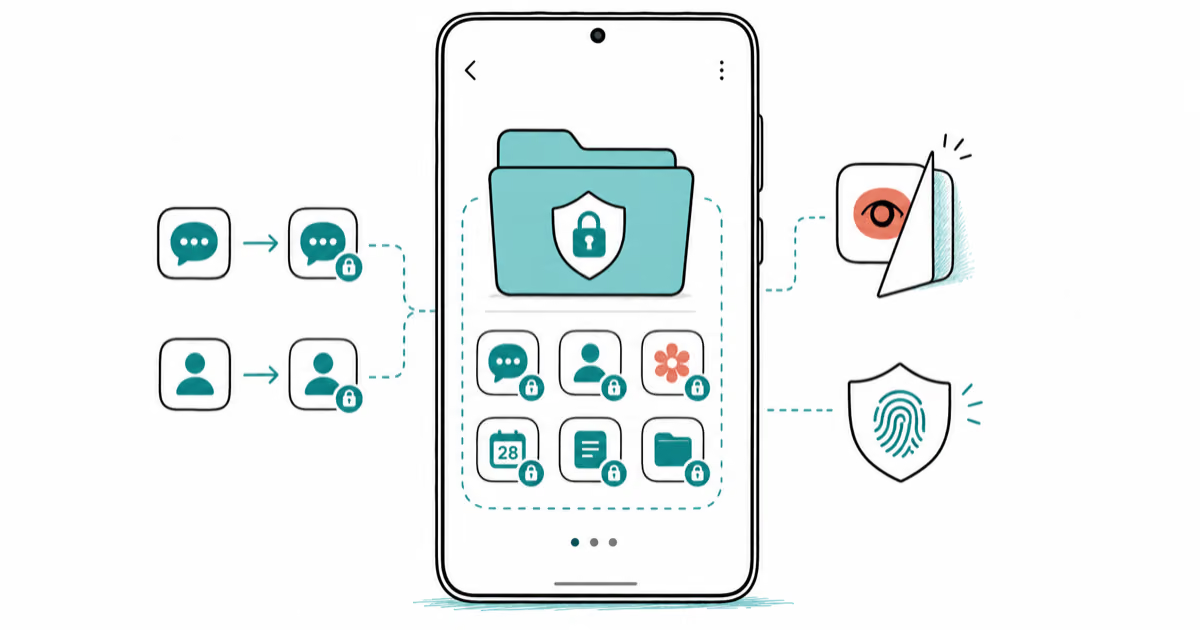
Samsung Secure Folder: Setup, Hide Apps, Clone Apps
Set up Samsung Secure Folder in under 5 minutes. Hide apps and photos, clone a banking app, and hide the Secure Folder icon on any Galaxy S8 or newer.
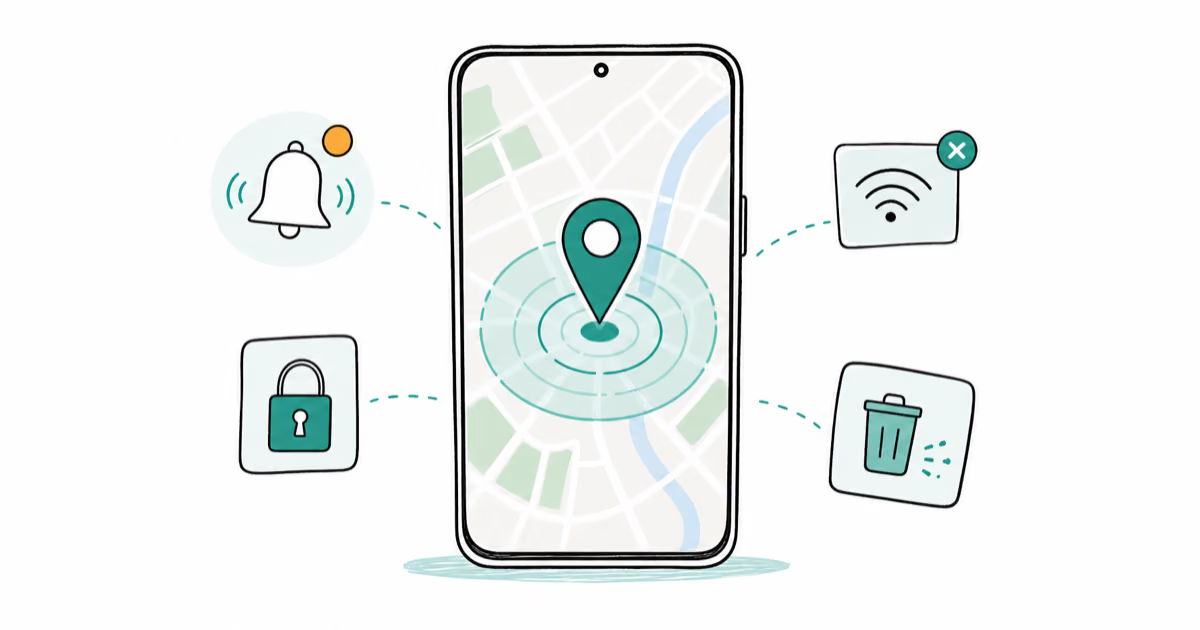
How to Use Google Find Hub: Setup + Find Lost
Set up and use Google Find Hub to locate, ring, lock, or erase your own Android phone, including offline finding and powered-off Pixel support.
Samsung Galaxy Battery Draining Fast: 2026 Fix Guide
Diagnose Galaxy S25 battery drain in five minutes through Battery Usage, then walk through six reversible Galaxy settings before a factory reset.
Samsung Parental Controls: Full Setup Guide for Parents
Set up Samsung parental controls in three layers: Samsung Kids, Google Family Link, and Digital Wellbeing. Free step-by-step guide for Galaxy parents.