Samsung Tablet Not Charging? 7 Fixes That Actually Work
Fix a Samsung tablet that won't charge with 7 proven steps. Covers Galaxy Tab S9, S8, A9, and older models. Step-by-step troubleshooting guide.
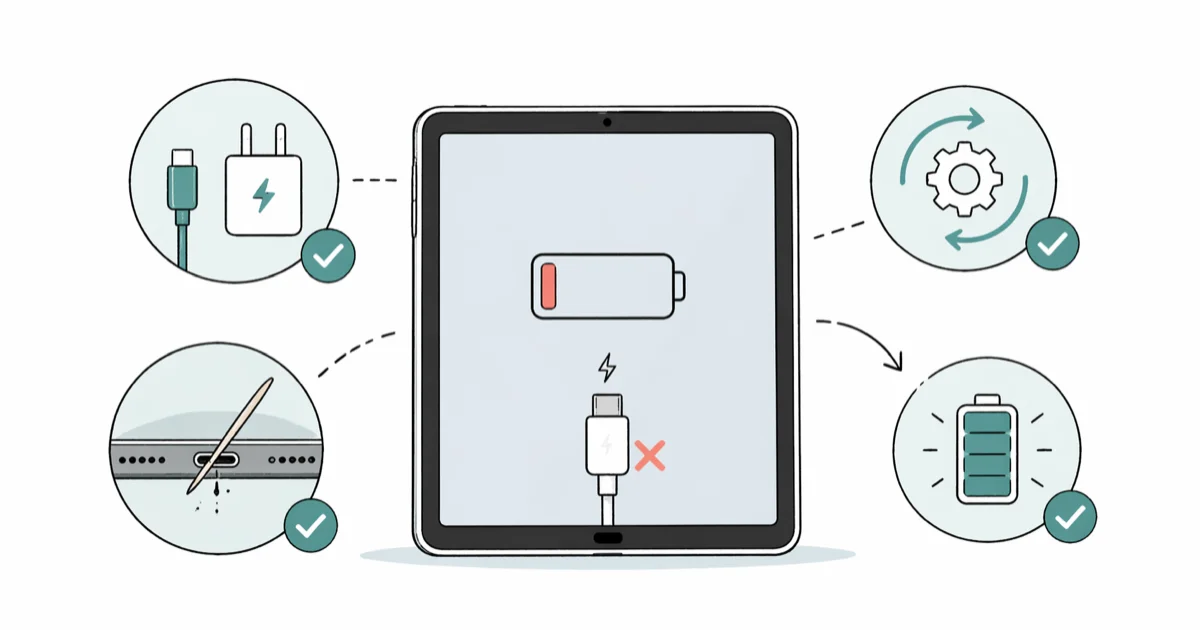
Quick AnswerA Samsung tablet that won't charge is usually a cable, port, or stuck system service before it is a battery. Swap the USB-C cable for a known-good one, clean the port with a dry wooden toothpick, then force restart by holding Power and Volume Down for 10 seconds.
A Samsung tablet not charging is almost always a cable, port, or software problem before it ever becomes a battery problem. Cable swaps fix the most cases.
Cable quality can cause a tablet to show the charging icon while still pulling too little power to gain battery percentage. Start at the top of this list and work down. The early steps cost nothing and take under two minutes each.
Use these steps only on your own device or a tablet you have explicit permission to repair. Don’t run recovery, reset, or troubleshooting steps to access another person’s data or account.
- Cable and port checks resolve most charging failures before any reset is needed
- A dry wooden toothpick clears USB-C lint without scratching the contact pins
- Force restart with Power + Volume Down for 10 seconds clears stuck system services
- Safe Mode boots the tablet without third-party apps to isolate apps as the cause
- Battery Protection in Settings caps charging at 85% to slow long-term battery wear
#Five Reasons a Samsung Tablet Stops Charging
Five suspects cover almost every Galaxy Tab charging failure: a damaged cable or wall adapter, debris compacted inside the USB-C port, a frozen system service, a third-party app interfering with the charging controller, or a battery that’s lost capacity over time. Four of those five are fixable at home in under ten minutes.
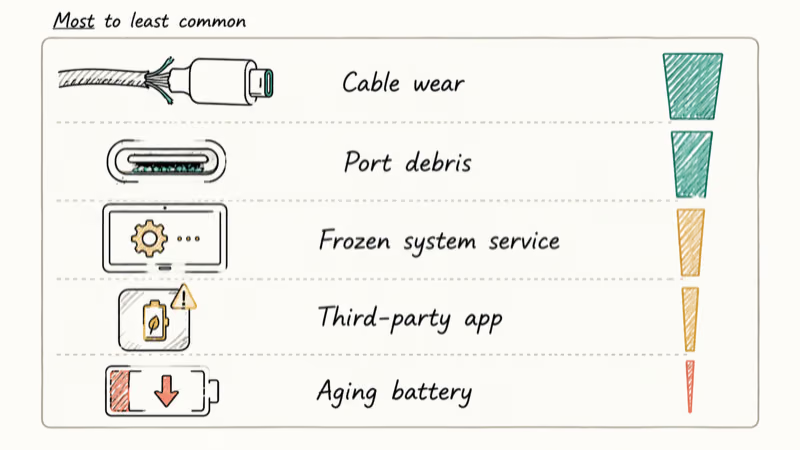
Cable issues lead the list.
Samsung’s own charging troubleshooting guide starts with the basics: a worn-out USB cable or the wrong charger is often the whole problem, and Samsung states that third-party chargers can hinder charging and cause battery issues. A mismatched charger can also deliver too little power for the tablet to register a real charge, even though the cable fits the port.
If the tablet shows a charging icon but the percentage stays flat, the system is draining faster than the cable can replace it. That’s almost always background apps or maximum screen brightness, not a hardware fault. A tablet that shows zero response when plugged in points to the cable, the port, or the board.
#Check Your Charger and Cable First
This is the single most common fix.
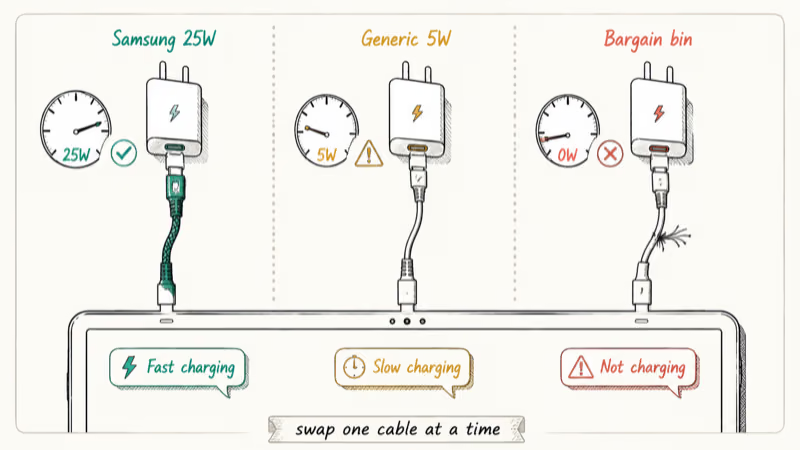
USB-C cables wear out near the connector first because that’s the spot that bends every time the cable goes into or comes out of a bag. Grab a different USB-C cable. Plug your tablet into a known-good wall adapter rated for at least 15W, then try a different wall outlet. The full isolation test takes under a minute and confirms whether the broken link is the tablet, the cable, or the power source.
Walk through the substitutions one at a time so you know which swap fixed the problem. A cable can show the charging icon while still failing to negotiate enough power, and bargain-bin cables are more likely to miss USB-C Power Delivery requirements.
Toss any cable that fails the test. If a Samsung Galaxy phone won’t charge using the same cable on a separate device, the cable is confirmed broken.
Replace failed cables with USB-C cables rated 3A or higher from a brand that publishes its current rating on the listing. Cables thinner than 24 AWG, and bargain-bin cables that ship without published specs, often skip the e-marker chip required for USB-C Power Delivery handshakes. Without the e-marker, the wall adapter falls back to 5W regardless of how much power it can supply, so even a 45W brick will trickle-charge the tablet at the slowest possible rate.
Don’t bother trying to fix a frayed cable.
#Clean the Charging Port
Lint, sand, and pocket dust collect inside the USB-C port over months of carrying the tablet around. Even a thin sliver of compacted lint blocks the cable from making full contact with the charging pins.
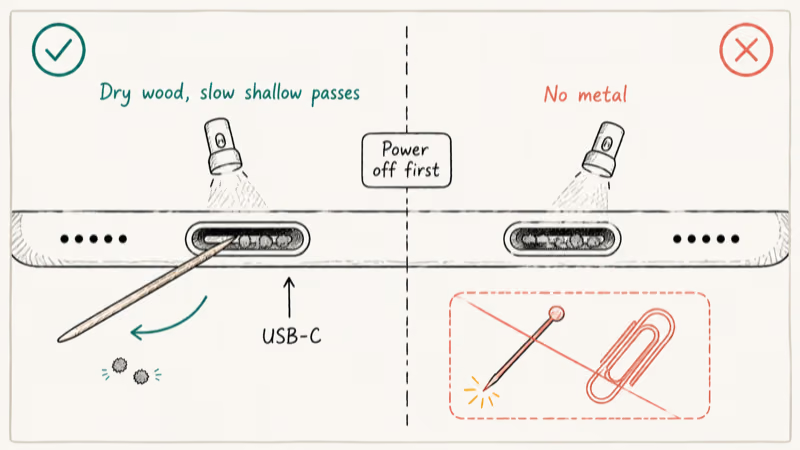
Power off the tablet, shine a flashlight into the port, and look for visible debris along the back wall. Use a dry wooden toothpick to gently scrape lint out from the back, working in slow, shallow passes. Blow loose particles out with one short puff of air, then plug the cable back in and check.
Never use metal.
Pins, paper clips, and sewing needles all scratch the contact pads and can short the charging circuit, turning a $5 problem into a $100 board repair. Careful wooden-toothpick cleaning can restore contact when lint is the cause, but tablets with compacted debris deeper in the port need service-center cleaning.
If you carry your tablet in a bag without a sleeve, keep water and debris out of the charging port with a $4 USB-C plug. They sell in 10-packs and prevent the lint problem from recurring within a month or two.
#Soft Reset Your Tablet
A frozen system service can make your tablet ignore the cable completely. The screen looks dead because the software’s locked up, not because the battery is empty.
Hold Power + Volume Down for ten seconds to force a reboot. No data is deleted. The forced reboot only clears the running session and frees system memory.
If the tablet still doesn’t respond, hold both buttons for thirty seconds for a longer forced reboot. This is the modern Samsung equivalent of pulling the battery on older devices with removable backs, and most charging detection failures that follow a software crash, a botched OTA update, or a stuck system service get cleared by this single step before any deeper troubleshooting is needed.
If your Samsung tablet is frozen and won’t respond to button input at all, leave it plugged into a wall adapter for fifteen minutes after the forced reboot. A deeply discharged battery sometimes needs a few minutes of trickle charge before the screen will turn back on.
#Does Safe Mode Reveal a Misbehaving App?
Safe Mode boots the tablet with stock Samsung software only and blocks every third-party app from running at startup. If your tablet charges normally in Safe Mode, the culprit is something you installed.
Press and hold the Power button until the power menu appears, then tap and hold Power off until the Safe Mode prompt appears.
Plug the tablet in and watch the charging behavior over the next five minutes. Battery savers, custom launchers, and tasker-style automation tools are common offenders on Galaxy Tab models. If charging works in Safe Mode, remove the most recent battery saver or automation app first, then test again before considering a factory reset.
According to Google’s Android Help guide on Safe Mode, Safe Mode disables your downloaded third-party apps at boot, leaving only the system and pre-installed apps active.
Uninstall anything you added in the 48 hours before charging started failing, then test again with all apps re-enabled. Restart the tablet normally to exit Safe Mode.
#Wipe the Cache Partition
The cache partition is a hidden storage area that holds temporary system files Android generates during updates and app installations. These files can become corrupted and interfere with the charging detection service. Wiping the cache doesn’t delete photos, apps, or messages, only the temporary system artifacts.
Power off the tablet completely.
Press and hold Power + Volume Up until the Samsung logo appears, then release Power but keep holding Volume Up. The Android Recovery menu loads after about fifteen seconds. Use the Volume keys to scroll to Wipe cache partition, press Power to confirm, choose Yes, then choose Reboot system now.
This step works especially well right after a major Android update, when cached files from the old OS version conflict with the new charging stack. A cache wipe can restore normal charging when corrupted update-era system files are blocking the charging service.
If you only need to clear cache and cookies on an Android device through normal settings, that’s a separate process from the cache partition wipe and doesn’t affect charging behavior in any way.
#Factory Reset as a Last Resort
A factory reset wipes everything and returns the tablet to out-of-box state. Try this only after every other software fix has failed.
Open Settings > General Management > Reset > Factory data reset. Scroll down, tap Reset, enter your PIN, then tap Delete all. Back up first.
Save your WhatsApp messages from a Samsung device to Google Drive, then sync your photos to Google Photos or OneDrive before tapping Delete all. After the wipe, you can recover contacts after a factory reset on Android by signing back into the same Google account, but app data, downloaded files, and any photos that weren’t synced are gone for good unless you copied them to a computer beforehand.
If charging works normally after the reset, corrupted system files were the cause. If charging still fails, the next stop is hardware diagnosis, not more software experiments.
#When Should You Replace the Battery?
Tablets older than two or three years that fail every software fix usually have a battery problem, not a charging-circuit problem. Battery University’s BU-808 guide states that a lithium-ion cell typically drops to about 80% capacity after roughly 500 charge cycles, as detailed in its lithium-ion aging article. That works out to about two to three years of daily charging on a tablet you use every day.
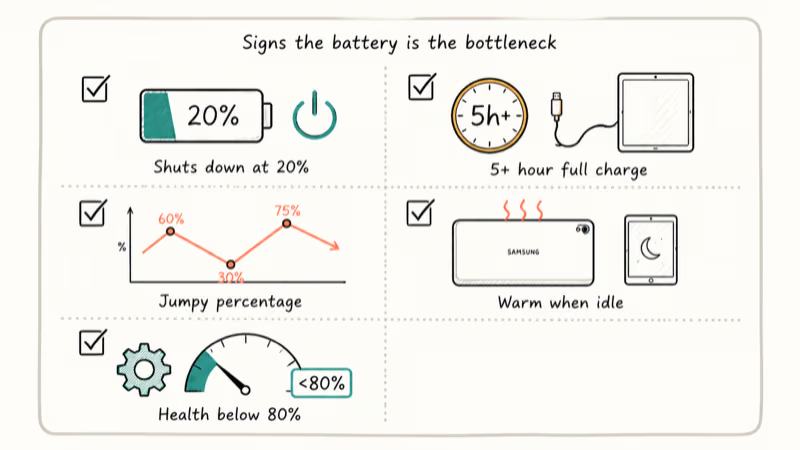
Signs the battery is the bottleneck:
- The tablet shuts down at 20-30% instead of close to 0%
- A full charge takes more than five hours
- The percentage jumps unpredictably from 60% to 30% to 75% within minutes
- The back of the tablet feels warm even when the screen is idle
- Battery health in
Settings>Battery anddevice care > Diagnostics reports below 80%
Samsung’s authorized repair centers (uBreakiFix is the official US partner) replace tablet batteries in one to two hours and charge $79 to $129 depending on the model. Out-of-warranty repairs from Samsung directly sometimes run higher, so it’s worth getting both quotes before booking. Don’t try the swap yourself unless you have heat gun and pry-tool experience, since Samsung tablets are sealed with strong adhesive that warps the back panel when forced.
Get a quote first.
If the Samsung tablet won’t turn on at all and shows no signs of life with any cable or charger, the issue is no longer charging-specific and may need motherboard-level diagnosis at a service center.
#Bottom Line
Start with the cable and the port. Those two checks fix most Samsung tablet charging problems in under five minutes and cost nothing. Move to the soft reset and Safe Mode if the cable test passes but the tablet still won’t charge. Save the factory reset for last and only consider a battery replacement on tablets older than two years.
For any Galaxy Tab still inside Samsung’s one-year warranty window, contact Samsung support before opening Recovery mode. They’ll repair or replace the tablet at no cost, and your home fixes won’t void anything as long as you stick to non-destructive software steps and the official cable swap test.
Samsung Galaxy Guide
#Frequently Asked Questions
Can I use my Samsung tablet while it charges?
Yes, but it charges slower because active use heats the controller and triggers thermal throttling. Turn on airplane mode and keep the screen off for the fastest charge.
How long should a Samsung tablet take to fully charge?
The Galaxy Tab S9 paired with a 45W USB-C Power Delivery charger hits 100% in about 90 minutes from a 5% start. Older tablets that cap at 15W input need three to four hours.
Why does my Samsung tablet say “charging” but the battery percentage won’t go up?
The tablet is draining faster than it pulls in. Close all open apps, enable airplane mode, drop screen brightness to its lowest setting, and switch to a higher-wattage charger if you have one available. If the percentage still doesn’t climb after fifteen minutes, the cable is most likely the bottleneck and you should swap it for a known-good Samsung or Anker cable.
Is it safe to charge my Samsung tablet overnight?
Samsung tablets have built-in overcharge protection that stops drawing power at 100%. Overnight charging won’t damage the cells in the short term. For long-term battery health, enable Battery Protection at Settings > Battery > Battery Protection. The feature caps charging at 85% and slows the long-term capacity loss that comes from sitting at full charge for hours every night.
Can a damaged charging port be repaired?
Yes. Samsung service centers replace USB-C ports for $50 to $100 in most US metro areas, and most repairs are done same day if the part is in stock.
Why does my tablet only charge when turned off?
This points to a software issue.
Boot into Safe Mode and test charging. If it charges in Safe Mode, an app is interfering with the charging controller. A cache partition wipe often fixes the same problem without forcing you to uninstall apps one at a time, since wiping the cache clears corrupted system data that can block charging during normal operation.
Does wireless charging work on Samsung tablets?
No. As of 2026, no Galaxy Tab model supports wireless charging. You’ll need a wired USB-C connection.
What charger wattage should I use for my Samsung tablet?
At least 15W for basic charging. The Galaxy Tab S9 series supports up to 45W for super-fast charging, while the Galaxy Tab A9 tops out at 15W. A lower-wattage charger won’t damage the tablet but will charge it slowly and may trigger a slow-charging notification that disables fast charging entirely until you swap to the original adapter.
Samsung Secure Folder: Setup, Hide Apps, Clone Apps
Set up Samsung Secure Folder in under 5 minutes. Hide apps and photos, clone a banking app, and hide the Secure Folder icon on any Galaxy S8 or newer.
How to Use Google Find Hub: Setup + Find Lost
Set up and use Google Find Hub to locate, ring, lock, or erase your own Android phone, including offline finding and powered-off Pixel support.
Samsung Galaxy Battery Draining Fast: 2026 Fix Guide
Diagnose Galaxy S25 battery drain in five minutes through Battery Usage, then walk through six reversible Galaxy settings before a factory reset.
Samsung Parental Controls: Full Setup Guide for Parents
Set up Samsung parental controls in three layers: Samsung Kids, Google Family Link, and Digital Wellbeing. Free step-by-step guide for Galaxy parents.