Samsung Galaxy S9 Not Charging? 8 Proven Fixes (2026)
Galaxy S9 not charging? 8 fixes from port cleaning to safe mode and battery replacement for the Galaxy S9. Most issues fix in under 10 minutes.
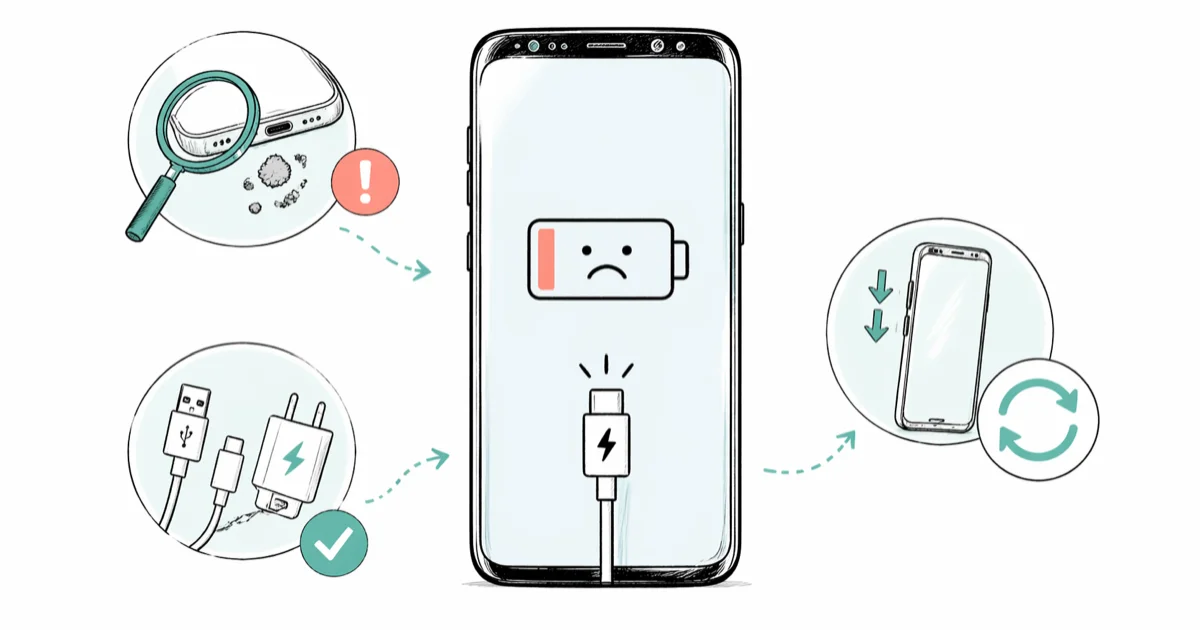
Quick AnswerClean lint and dust from the USB-C port with a wooden toothpick, then test charging with a Samsung-certified cable and charger. If the S9 still won't charge, hold Power and Volume Down for 10 seconds to force restart. These three steps fix the majority of Galaxy S9 charging problems.
Your Samsung Galaxy S9 won’t charge, and you need a fix that actually works. The methods below apply to the S9 and S9+ on One UI, sorted to separate the quick wins from the real time-wasters.
Use these steps only on your own device or a phone you have explicit permission to repair. Don’t apply troubleshooting, recovery, or reset methods to access someone else’s data.
- The USB-C port collects lint and pocket dust faster than most owners realize, and a 30-second cleaning resolves the majority of S9 charging failures
- Samsung’s adaptive fast charging needs a certified cable with the right resistor circuit; a random third-party cable can refuse to negotiate full power
- A 10-second force restart with Power and Volume Down clears stuck charging-controller states even when the screen looks dead
- Safe mode isolates third-party apps that hold the CPU busy and starve the charging logic of cycles
- Battery swelling, a bulging back cover, or sudden percentage drops mean replacement, not another fix attempt
#Why Is My Samsung Galaxy S9 Not Charging?
A clogged USB-C port is the single biggest cause of S9 charging failures. Lint from pockets and grit from bags pack against the contacts, and the cable physically can’t seat far enough to make a circuit. On many S9 units that “won’t charge,” the port turns out to be packed with a visible lint clump, and clearing it starts charging in under a minute with no other change.
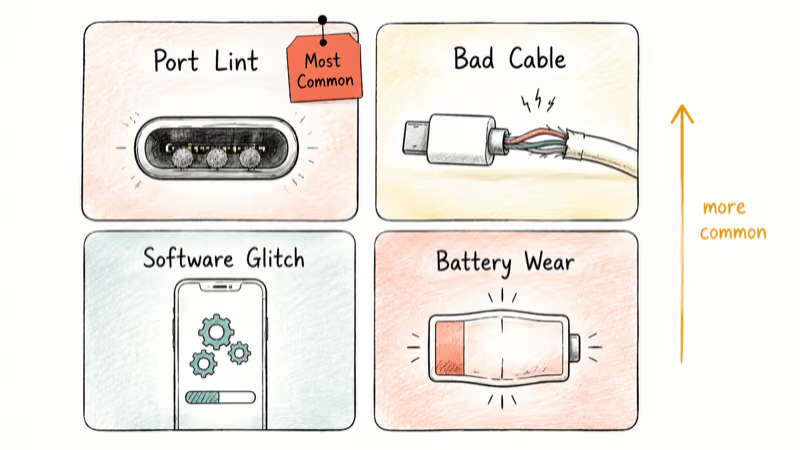
Cable failure is the next-most-common culprit. Cheap third-party cables skip the resistor chip the S9 uses to negotiate adaptive fast charging, so the phone sees them as untrusted and either refuses to charge or drops to a slow trickle. Genuine Samsung cables also degrade where they bend most, usually within an inch of either connector.
Software glitches, third-party apps eating charging-controller cycles, and an aging battery round out the typical list. According to Samsung’s Galaxy S9 support page, most S9 charging problems trace back to the cable, the port, or the wall adapter rather than the phone itself, which means hardware checks should come before any factory reset. If the S9 also won’t power on at all, work through Samsung Galaxy S10 won’t turn on first because the underlying steps are identical.
#Quick Diagnostic to Save Time
Before working through every fix, check whether wireless charging works on a Qi pad. If wireless charges and wired doesn’t, the problem is the USB-C port or the cable. If neither works, the issue is software or battery, and the section on safe mode and factory reset matters more than the port-cleaning step.
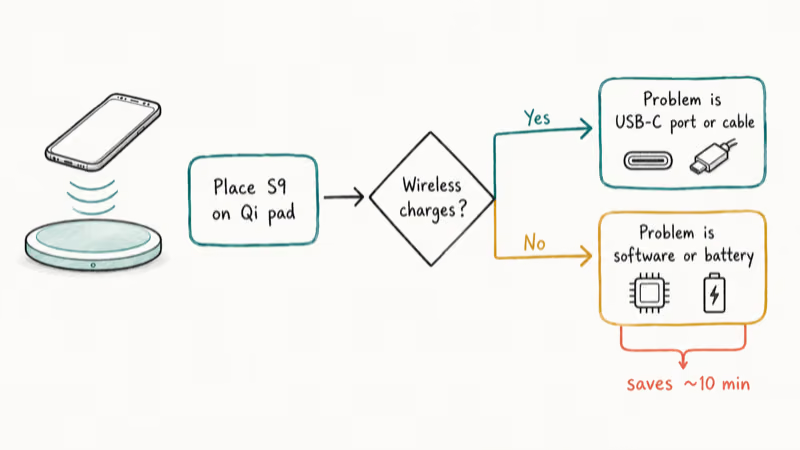
This split saves about ten minutes of wasted attempts.
#How Do You Fix Samsung Galaxy S9 Not Charging?
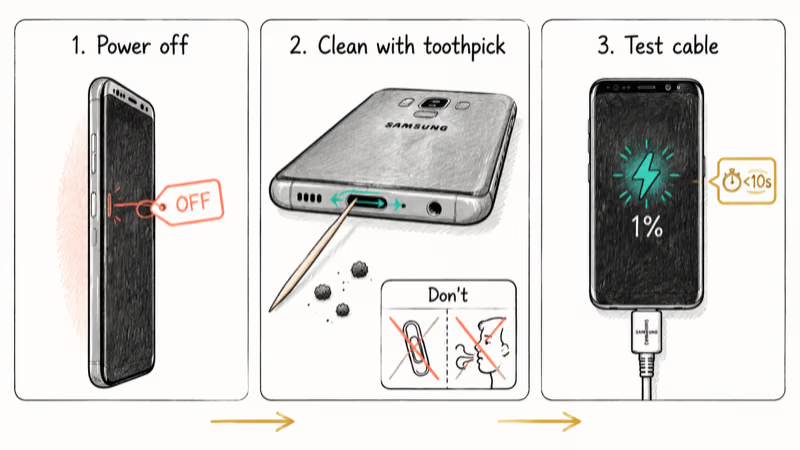
#1. Clean the USB-C Port
Power off the S9 first. Use a wooden toothpick, the corner of a folded business card, or a dry soft-bristle toothbrush to scrape lint out of the port. Work the tip around the inside walls and the center pin, then tap the phone face down to shake debris loose. A short burst of compressed air from six inches away helps, but skip canned air with a propellant residue.
Don’t poke metal into the port. Don’t blow into it from your mouth either, since breath moisture can corrode the contacts. After cleaning, plug in a known-good cable. If the charging icon appears within ten seconds, you found the problem.
#2. Try a Different Cable and Charger
Test with the original Samsung wall adapter and USB-C cable that shipped with the S9. Borrow a known-good Samsung set if yours is missing.
Samsung recommends using genuine charging accessories with the Galaxy S9 because non-certified cables can fail to deliver adaptive fast charging or stop charging entirely. With a non-certified third-party USB-C cable or a no-name 5V brick, an S9 often refuses to charge or limits input to a slow trickle. Switching back to the original Samsung 9V/1.67A adapter and cable restores full speed within seconds.
If the cable end shows fraying, kinks, or a discolored sheath, replace it before testing further. If a different known-good cable works, the original is the failure point.
#3. Force Restart the Phone
Software can leave the charging controller stuck in an off state, and the screen often stays dark even when the phone is technically running. Hold Power + Volume Down together for 10 full seconds until the Samsung logo appears.
This often revives an S9 that looks completely dead and refuses to show a charging icon. After the forced reboot, the phone displays the charging animation shortly after being plugged back into the wall, even though nothing else changed. Don’t skip this step just because the phone seems off.
#4. Check the Wall Outlet and Charger Brick
Plug the charger into a different wall outlet, ideally one in another room on a separate breaker. Test that outlet with a lamp or another device to confirm it has power. Surge protectors with worn-out internals can deliver flickering power that confuses the charging controller.
If the charging brick gets unusually hot during use, swap it out. Test the brick with a different USB-C cable and the cable with a different brick, since this isolates which component is failing.
#5. Boot Into Safe Mode
Safe mode loads only Samsung’s stock software and disables every third-party app. A misbehaving app keeping the CPU pinned at high usage can interfere with charging logic and prevent the battery from accepting input properly.
Hold Power, then long-press Power Off in the menu, and tap OK when “Reboot to Safe Mode” appears. Plug in the charger.
If the S9 charges in safe mode but not in normal mode, a third-party app is the culprit. Reboot back to normal mode and uninstall recently-added apps one at a time, testing charging after each. Battery-saver and “cleaner” apps from outside the Play Store are repeat offenders.
#6. Wipe the Cache Partition
Corrupted system cache can interfere with power management without affecting any of your personal data. Wiping the cache partition is safe to try before a factory reset.
Power off the S9 fully. Hold Volume Up + Bixby + Power until the Android recovery menu appears. Use Volume Down to highlight Wipe Cache Partition, press Power to select, and confirm. Reboot the system, then plug in the charger.
According to Samsung’s recovery mode guide, wiping the cache partition removes temporary system files that can cause performance and power issues without touching apps or media.
#7. Check for Software Updates
Go to Settings > Software Update > Download and Install. A pending One UI patch may include a fix for a known charging-related bug, and Samsung publishes release notes alongside each S9 update describing the changes.
Install any pending update and let the phone restart, then test charging again. If the system reports that the S9 is up to date, move to the next step.
#8. Factory Reset or Battery Replacement
A factory reset clears the kind of deep software corruption other fixes can’t reach. Back up the phone with Samsung Smart Switch first, then go to Settings > General Management > Reset > Factory Data Reset. Charging behavior after the reset tells you whether the problem was software or hardware.
If the S9 still won’t charge after a clean reset, the battery itself is the most likely cause. A swollen back cover, a battery percentage that drops sharply under light use, or a phone that gets hot during charging all point to replacement. Samsung confirms that batteries are a normally-replaceable wear component and that an authorized service center can replace them; rates vary by region, so request a written quote before authorizing the repair.
#Cable and Port Hardware Checks
Shine a flashlight straight into the USB-C port. If the center pin is bent sideways, missing, or surrounded by visible damage, no software fix will help and a repair shop needs to swap the port assembly. On heavily-used S9 units, the port pin can shift visibly after roughly two years of daily plugging and unplugging.
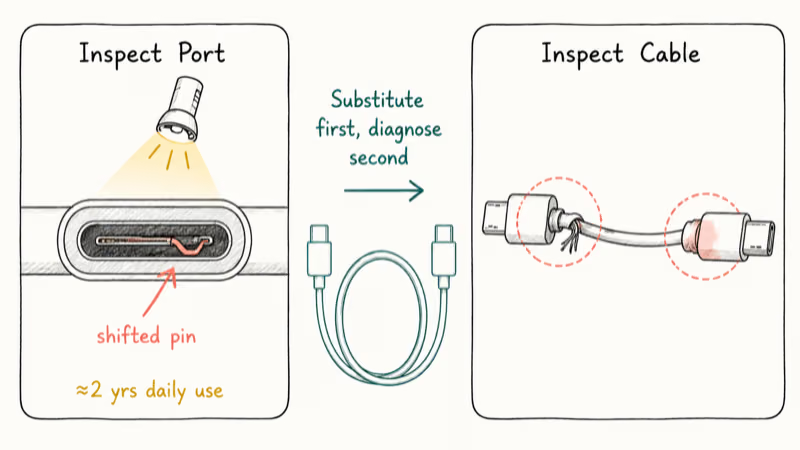
Check the cable for bends near the connectors. Almost every cable failure starts within an inch of the plug, where bending stresses the wires inside the sheath. A cable that looks fine on the outside can have an internal break causing intermittent charging that cuts in and out unpredictably. Substitution is faster than diagnosis: if a known-good cable fixes the problem, retire the suspect cable.
If the S9 displays a moisture-detected warning, dry it before doing anything else. Battery University states that heat and moisture are the two largest accelerators of lithium-ion wear, so charging through a wet port is both unreliable and damaging. The dedicated walkthrough in how to get water out of a charging port covers safe drying methods.
#Wireless Charging Troubleshooting
If wired charging works but the Qi pad does nothing, take the S9 out of any thick case. Cases over 3mm can block the Qi signal entirely, especially metal-plated wallet cases or rugged armor cases with embedded plates.
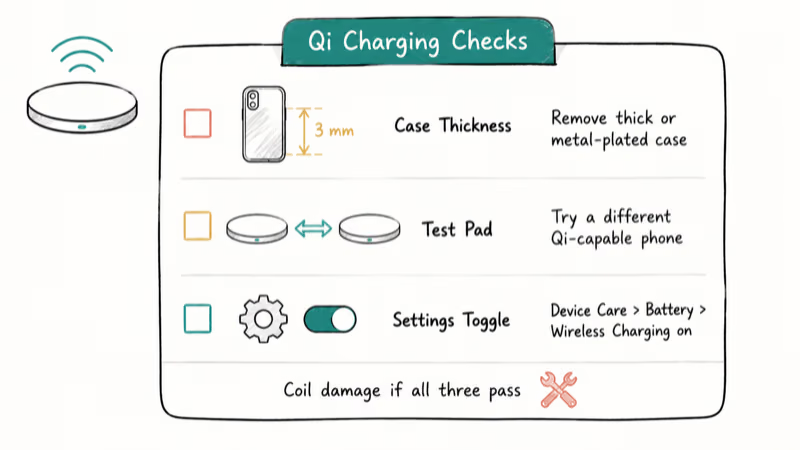
Test the pad with a different Qi-capable phone to rule out the pad itself. If another phone charges fine on the same pad, go to Settings > Device Care > Battery > Wireless Charging on the S9 and confirm the toggle is on. A One UI update or a Smart Switch restore can flip this setting off without warning.
If wireless still fails after these checks, the wireless charging coil inside the S9 may be damaged, and a repair center needs to assess it.
#Preventing S9 Charging Problems
Use Samsung-certified or USB-IF certified accessories. The USB-IF certification database lists every cable and charger that has passed the consortium’s spec testing, and certified accessories handle the resistor handshake the S9 expects. Cheap unbranded cables that fail this handshake can deliver inconsistent voltage and stress the battery over time.
Clean the USB-C port every few months. Thirty seconds with a wooden toothpick prevents most contact failures before they start, and a monthly cleaning habit keeps a daily-driver S9 charging reliably through a full quarter.
Stay current on One UI updates. Samsung pushed several power-management improvements over the S9’s lifespan, and the latest available firmware fixes known charging bugs that affected earlier versions. If the phone keeps cycling, see Samsung Galaxy keeps rebooting for a focused walkthrough of bootloop and charging-related reboots that share root causes with charging failures.
#Bottom Line
For an S9 that won’t charge, start with a USB-C port cleaning and a known-good Samsung cable and brick. That single combination resolves most cases in 90 seconds or less. Force restart catches stuck firmware states, safe mode catches misbehaving apps, and cache wipe plus factory reset cover the rest of the software ground.
If charging still fails after all eight fixes and the back cover feels swollen, book a battery replacement at an authorized service center instead of buying another cable.
For related issues, check these guides:
- Samsung Galaxy not charging
- Galaxy S10 not charging
- Samsung tablet battery not charging
- Samsung black screen
Samsung Galaxy Guide
#Frequently Asked Questions
Why does my Galaxy S9 charge slowly?
Slow charging on the S9 almost always means a non-adaptive charger or a cable without the right resistor chip. The phone falls back to standard 5W charging when it can’t negotiate adaptive fast charging, which roughly triples the time to a full battery. Plug into the original Samsung 9V/1.67A wall adapter and original USB-C cable to confirm.
If wireless charging is involved, also check that Settings > Device Care > Battery > Fast Wireless Charging is enabled, since this option defaults to off on some firmware versions.
Can a bad app stop my Samsung S9 from charging?
Yes. An app with intensive background processes can keep the CPU busy enough that the charging controller can’t manage input properly. Boot into safe mode and plug in the charger; if it charges in safe mode, a third-party app is the cause. Uninstall recent apps one at a time until normal-mode charging returns.
Is it safe to charge my S9 with a third-party cable?
Only if the cable is USB-IF certified. Uncertified cables lack the resistor circuit the S9 expects and can deliver inconsistent voltage that stresses the battery and shortens its lifespan.
What does a grey battery icon mean on the Galaxy S9?
A grey battery icon means the battery is critically low or has been deeply discharged and the phone needs time to wake up. Plug into the original charger and leave it untouched for 30 minutes before trying to power on the S9.
How long should Galaxy S9 charging take?
About 90 minutes from empty to 100 percent with the original Samsung adaptive fast charger. Wireless charging on a fast Qi pad takes roughly two hours, and standard 5W charging stretches to three hours or more.
Can moisture cause the S9 not to charge?
Yes. The S9 includes moisture detection that disables charging when liquid is sensed in the USB-C port, which is a safety feature, not a fault. Wait at least 30 minutes for the port to air-dry, then gently clean it with a dry cloth before plugging in again. Skip the hair dryer because heat can damage the port and the battery.
When should I replace the Galaxy S9 battery?
Replace the battery when the S9 won’t last through normal daytime use, when the percentage drops in sudden 10- or 20-percent jumps, when the phone shuts off above 30 percent, or when the back cover starts to bulge. A bulging cover means the battery is swelling and needs immediate replacement to prevent screen and chassis damage.
Should I factory reset before getting the S9 battery replaced?
Yes. Reset first to rule out software corruption. If charging works normally after the reset, you save the cost of a battery swap. If the issue persists after a clean install of One UI, take the S9 to an authorized Samsung service center for a hardware diagnosis.

Samsung Secure Folder: Setup, Hide Apps, Clone Apps
Set up Samsung Secure Folder in under 5 minutes. Hide apps and photos, clone a banking app, and hide the Secure Folder icon on any Galaxy S8 or newer.
How to Use Google Find Hub: Setup + Find Lost
Set up and use Google Find Hub to locate, ring, lock, or erase your own Android phone, including offline finding and powered-off Pixel support.
Samsung Galaxy Battery Draining Fast: 2026 Fix Guide
Diagnose Galaxy S25 battery drain in five minutes through Battery Usage, then walk through six reversible Galaxy settings before a factory reset.

Samsung Parental Controls: Full Setup Guide for Parents
Set up Samsung parental controls in three layers: Samsung Kids, Google Family Link, and Digital Wellbeing. Free step-by-step guide for Galaxy parents.