Fix Samsung Galaxy Black Screen: 7 Methods That Work
Samsung Galaxy stuck on a black screen? Try force restart, safe mode, cache wipe, firmware repair, and hardware checks before a repair shop.
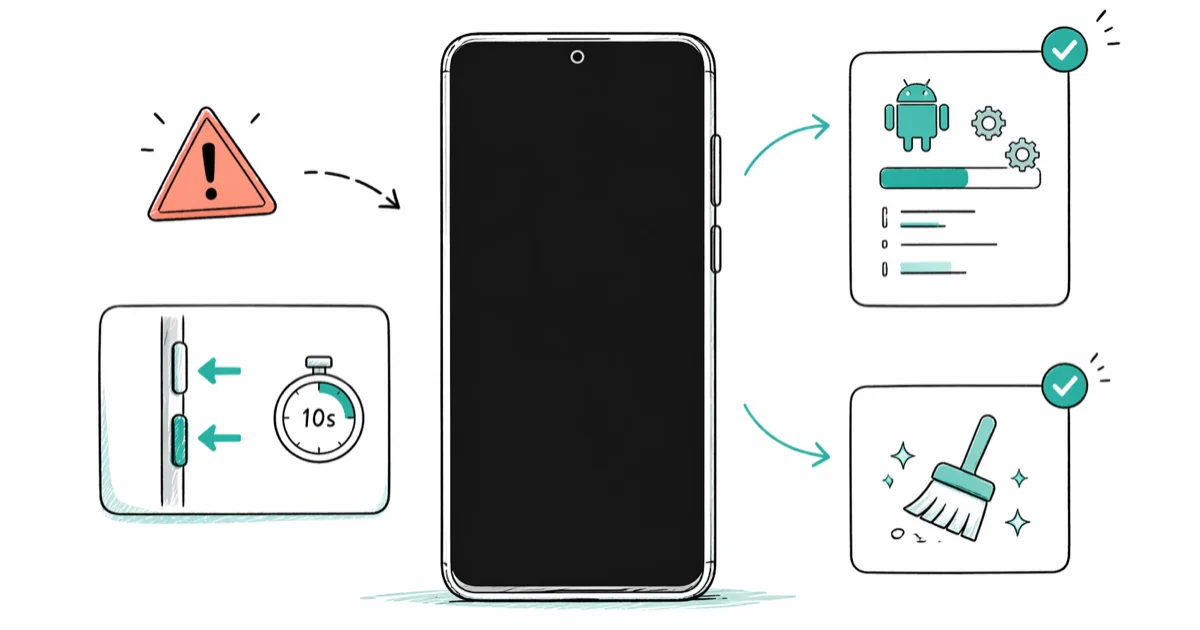
Quick AnswerHold Power plus Volume Down for 10 seconds to force restart your Samsung Galaxy. If the screen stays dark, boot into safe mode to test whether a recent app is crashing the display. These two steps clear the majority of Samsung black screen cases without a repair shop.
A Samsung Galaxy black screen is frustrating, but many software-triggered cases are fixable from home. The order below starts with a force restart, then moves through safe mode, cache wipe, firmware repair, and reset before hardware service.
- Force restart first: hold Power plus Volume Down for a full 10 seconds before releasing
- Safe mode isolates whether a sideloaded or recently updated app is crashing the display
- Wiping the cache partition removes corrupted system temp files without touching photos, contacts, or messages
- A faulty SD card can keep a Galaxy in a black screen boot loop until the card is removed
- Factory reset is a last resort that fixes deep software corruption when safe mode and cache wipe fail
#What Causes a Samsung Galaxy Black Screen of Death?
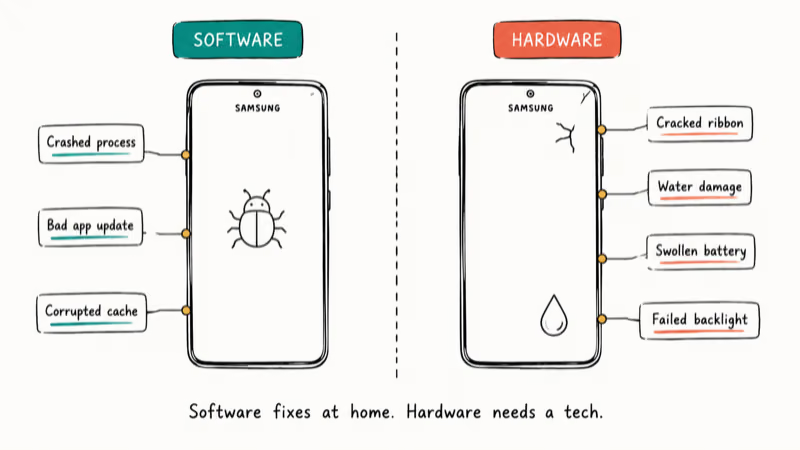
Software bugs cause many Samsung black screens, and many of those are fixable from home. A crashed system process, a misbehaving app after a One UI update, or corrupted cache data can each stop the display driver from initializing while the rest of the phone keeps running normally underneath.
Don’t try these steps on a phone that isn’t yours.
These software steps apply only to your own device, or one you have explicit permission to repair. The legal and privacy boundary is simple: this is repair, not unauthorized access to another person’s data, accounts, or messages. Samsung’s Galaxy support page makes the same distinction.
Hardware accounts for the rest.
A cracked display ribbon, water damage, a swollen battery pressing on the screen connector, or a failed backlight all need professional repair, not a software walkthrough.
According to Samsung’s guide to restarting a Galaxy phone or tablet, you hold Volume Down and the Side button together until the device switches off and comes back on. Keep holding past the point where the screen goes black, because letting go early just wakes it again.
A near-empty storage drive can also crash the display system. When free space drops below 500 MB, Android aggressively kills background tasks to free memory, and on older Galaxy models that pressure occasionally takes the display compositor down with it.
#Step 1: Force Restart Your Samsung Galaxy
Hold Power + Volume Down together for 10 seconds. Don’t release early. The Samsung logo should appear, then the phone reboots normally.
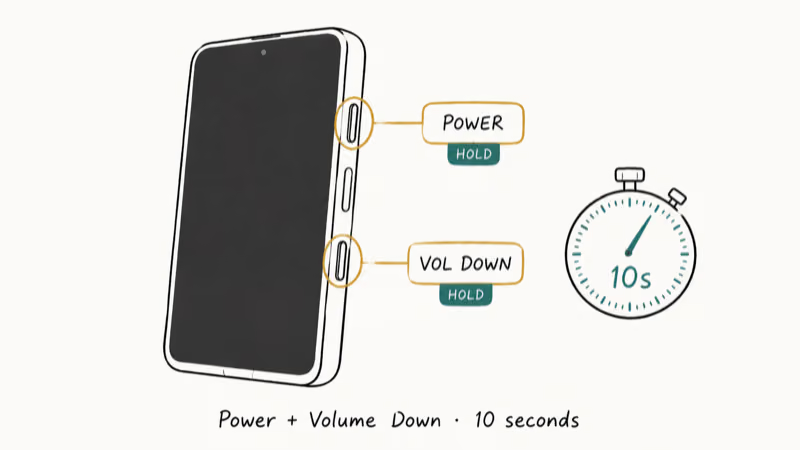
Try this twice before moving on.
If the phone vibrates but the screen stays dark, that’s still a software hang and the next step will help.
#Step 2: Boot Into Safe Mode
Safe mode loads only Samsung’s built-in system apps, with everything you installed yourself temporarily disabled. If the screen comes back on in safe mode, you’ve confirmed that an installed app is causing the crash and not the system itself.
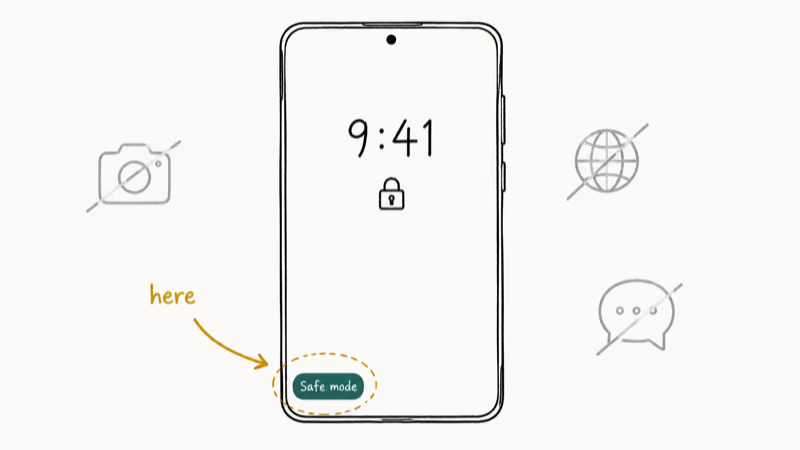
Press and hold Power until the Samsung logo shows. Release Power, then press and hold Volume Down until the phone finishes booting.
Look for the “Safe mode” label in the bottom-left corner of the lock screen.
Once you’re in, uninstall the apps you added in the few days before the black screen first appeared. Restart after each uninstall. The display should stay stable once you remove the troublemaker.
#Step 3: Wipe the Cache Partition
The cache partition stores temporary system files that Android uses to load apps and the launcher faster. When those files get corrupted, the display driver can fail to initialize on boot. Wiping the cache deletes those temp files without touching your photos, contacts, messages, or installed apps.
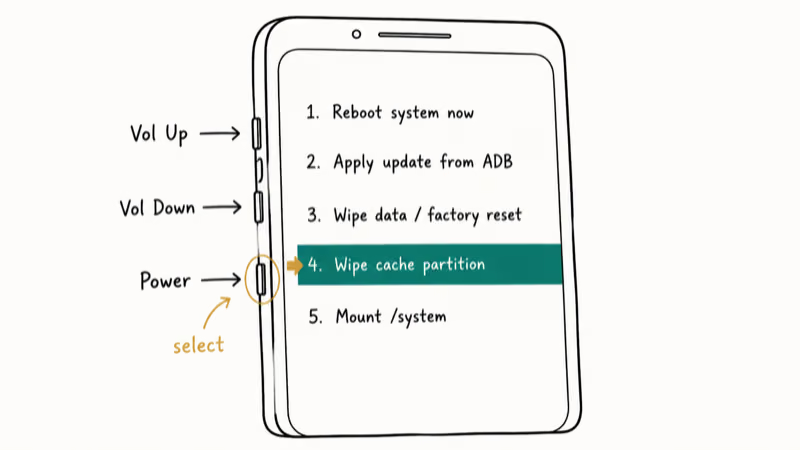
Power the phone off completely. Hold Volume Up + Bixby (or Home) + Power until the recovery menu shows up after about five seconds. The screen displays recovery options in colored text. Use Volume Down to highlight Wipe Cache Partition, then press Power to select.
The wipe finishes in under 30 seconds.
According to Google’s Android source documentation, the cache partition holds non-essential data that the system can rebuild on the next boot. Clearing it’s safe.
When the wipe completes, choose Reboot System Now and watch for the display to come back during the boot animation.
#Step 4: Remove the SD Card and SIM Card
A corrupted SD card can keep a Galaxy stuck in a black screen boot loop. The SIM card is worth pulling at the same time because rare carrier authentication errors can also stall the boot sequence.
Power off the phone first.
Use the SIM ejector pin that came in the box to pop open the tray on the edge of the device, pull both cards out, and wait 30 seconds before the next step.
Power the phone back on. If the screen lights up with both cards out, the SD card is the culprit. Format it on a computer, or replace it.
If the screen stays dark, slide both cards back in and continue to the firmware update step below.
#Step 5: Update to the Latest Firmware
Samsung pushes firmware fixes for display-related bugs in its monthly security update. An outdated firmware version can conflict with newer apps and cause the screen to fail to load after an app update on the phone.
If the screen is partially working, go to Settings > Software Update > Download and Install. Most updates take under five minutes.
If the screen is completely dark, you can still flash the latest firmware over USB. Connect the phone to a computer and open Samsung Smart Switch. Smart Switch detects the phone without needing the display, and pushes the latest firmware as part of its repair flow.
If force restart, Safe Mode, cache wipe, and Smart Switch repair fail, DroidKit is a paid desktop system-repair option to consider before a factory reset; it won’t repair a damaged display.
Some links on this page are affiliate links, which means fone.tips may earn a commission at no extra cost to you.
#Step 6: Factory Reset as a Last Resort
A factory reset wipes every app, setting, and file on the phone and restores it to the same state as a brand-new Galaxy out of the box. It clears persistent system corruption that safe mode and cache wipe can’t reach.
Back up everything first.
Connect the phone to a computer and open Samsung Smart Switch. Smart Switch can pull contacts, photos, messages, and app data even when the display is dead.
Once the backup is verified, power the phone off. Hold Volume Up + Bixby + Power to reach recovery mode. Use Volume Down to highlight Wipe Data / Factory Reset, press Power, and confirm. The reset takes 5 to 10 minutes.
If recovery mode itself won’t load, Smart Switch’s emergency firmware restore can rewrite the system partition over USB without ever needing the screen to work.
#When Is a Samsung Black Screen a Hardware Problem?
Hardware is the likely cause when none of the software steps help. The clues are easy to spot. You hear notification sounds or feel vibrations but see nothing on screen. There’s a faint, ghostly image you can almost make out under a bright light.
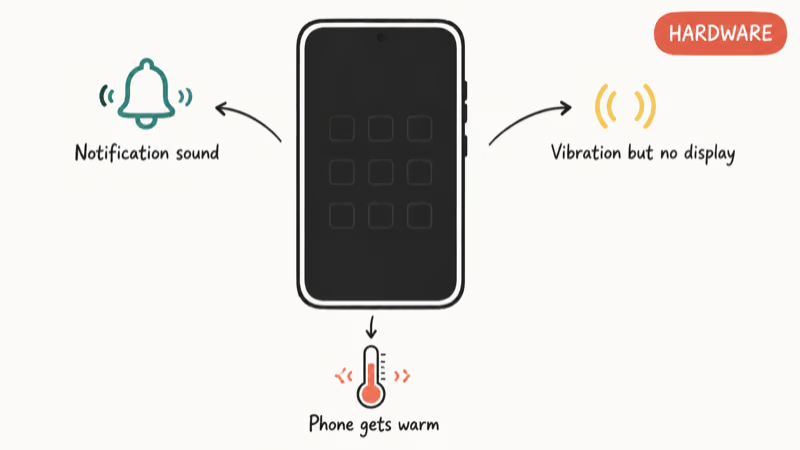
Sometimes the phone gets warm but the display never wakes.
Common hardware causes include a loose display ribbon connector after a drop, a failed backlight, water exposure (even from days ago), and a swollen battery pressing against the inside of the screen.
Contact Samsung Support or visit an authorized service center. If the device is under warranty and the failure is a manufacturing defect, the screen replacement is often free. Out-of-warranty screen repair on most Galaxy models runs between $150 and $350 depending on the panel and the year.
A few related guides may help.
For phones that won’t power on at all, our Samsung Galaxy data recovery guide and Samsung tablet frozen guide cover related troubleshooting paths.
If the device is an older model, the Samsung Galaxy S7 won’t turn on guide walks through the same flow tuned for that hardware.
#Prevent Future Black Screens with These Habits
Keep One UI updated. Once a month, open Settings > Software Update and install whatever’s available. Most display-related bug fixes ship inside Samsung’s monthly security patches, and updates take well under five minutes on most modern Galaxy phones.
Install apps only from Google Play. Sideloaded APKs from random sites bypass Google’s safety scans and ship with conflicts that can crash the system.
Keep at least 1 GB of free storage. When storage drops below 500 MB, Android starts killing background tasks aggressively, and that pressure can destabilize display-related system processes on older Galaxy models.
Restart the phone once a week.
A weekly reboot clears memory leaks that build up across days of heavy use, especially on older Galaxy A-series models.
#Protect Your Galaxy’s Display Hardware
A swollen battery is a five-alarm warning. A bulging battery presses outward on the display connector and can crack the panel from the inside in a matter of weeks. Replace a swollen battery the same week you notice it.
Don’t wait on this one.
Use a case with raised edges that sit higher than the screen. The display ribbon connector is one of the most fragile internal parts of any Galaxy phone, and a quality case absorbs the impact from a drop before it reaches the screen connector inside the case.
According to XDA’s Galaxy S24 teardown analysis, the screen assembly and its ribbon cable are among the most failure-prone subsystems on modern Galaxy phones. A drop case is cheap insurance compared to a $300 screen replacement.
#Bottom Line
For a Samsung Galaxy with a black screen, start with a 10-second force restart of Power plus Volume Down. If that doesn’t help, boot into safe mode to rule out a recent app, then wipe the cache partition. These three steps cover the most common software causes before firmware repair or reset. If the screen stays dark after all three plus a firmware update, the issue is almost certainly hardware and needs a Samsung-authorized repair.
Related Samsung fixes: Samsung keyboard has stopped and Samsung fingerprint not working.
If the phone reboots on its own, the Samsung Galaxy keeps rebooting guide covers that pattern in depth.
Samsung Galaxy Guide
#Frequently Asked Questions
Will a black screen permanently damage my Samsung Galaxy?
No. A software-triggered black screen, where the phone is powered but the display won’t show an image, can’t damage internal hardware on its own.
A hardware-triggered black screen is different. Water damage, a dropped phone with a cracked connector, or a swollen battery can all cause secondary damage if left untreated for weeks. Get any of those checked promptly to avoid motherboard issues.
Why does my Galaxy stay stuck on the Samsung logo and never finish booting?
That’s a boot loop, not a true black screen. It’s usually corrupted system files or a bad app update.
Wipe the cache partition from recovery mode first. If the loop continues, do a factory reset. If even the factory reset doesn’t break the loop, the firmware itself is corrupt and you’ll need a full firmware flash through Samsung Smart Switch at an authorized service center.
Can I recover my data if my Samsung Galaxy screen is completely black?
Yes, if the phone still powers on. Connect it to a computer over USB and open Samsung Smart Switch. Smart Switch detects the device, lets you back up contacts, photos, messages, and app data, and doesn’t need the display to function. If the phone won’t power on at all, home recovery isn’t possible and you’ll need a service center.
What does it mean if I see a steady LED light but the screen is black?
That points to display hardware failure rather than a software hang. The phone is alive and responding, but the panel itself isn’t getting power or signal.
The most common causes are a dead backlight or a disconnected display ribbon cable. Screen replacement is usually the only real fix at that point.
Why does my Galaxy turn on but show a completely black display?
The display ribbon is likely loose or damaged. Drops are the common trigger. The impact can shift the cable that connects the panel to the motherboard, and the rest of the phone keeps working while the screen receives no signal.
Try a force restart first. If you hear notifications or feel vibrations but the screen stays dark, the connector needs professional reseating, or the screen itself needs replacement.
Can water or moisture cause a Samsung black screen?
Yes. Water shorts the display connector and corrodes the power management chip that feeds the panel.
After any water exposure, don’t charge the phone for at least 48 hours and let it dry in a warm, dry spot. Don’t use an oven or direct heat. Once it’s fully dry, try a force restart, and if the screen still won’t come on, take it in. Hidden corrosion can spread to the motherboard if not cleaned by a tech.
Is it safe to factory reset if my Samsung screen won’t work at all?
Yes, the recovery menu uses only the Power and Volume buttons.
Hold Volume Up + Bixby + Power to enter recovery mode. Use Volume Down to navigate, Power to select. Just back up your data first with Smart Switch on a computer, since the reset wipes everything on the phone.
How can I tell if my Samsung black screen is software or hardware?
Boot into safe mode. Press and hold Power until the Samsung logo shows, then hold Volume Down until the phone finishes booting.
If the screen displays normally in safe mode, the cause is a third-party app or a corrupted user-space file, both of which are software-fixable. If the screen stays dark in safe mode, or if recovery mode itself won’t load, the problem is hardware and needs a service center.
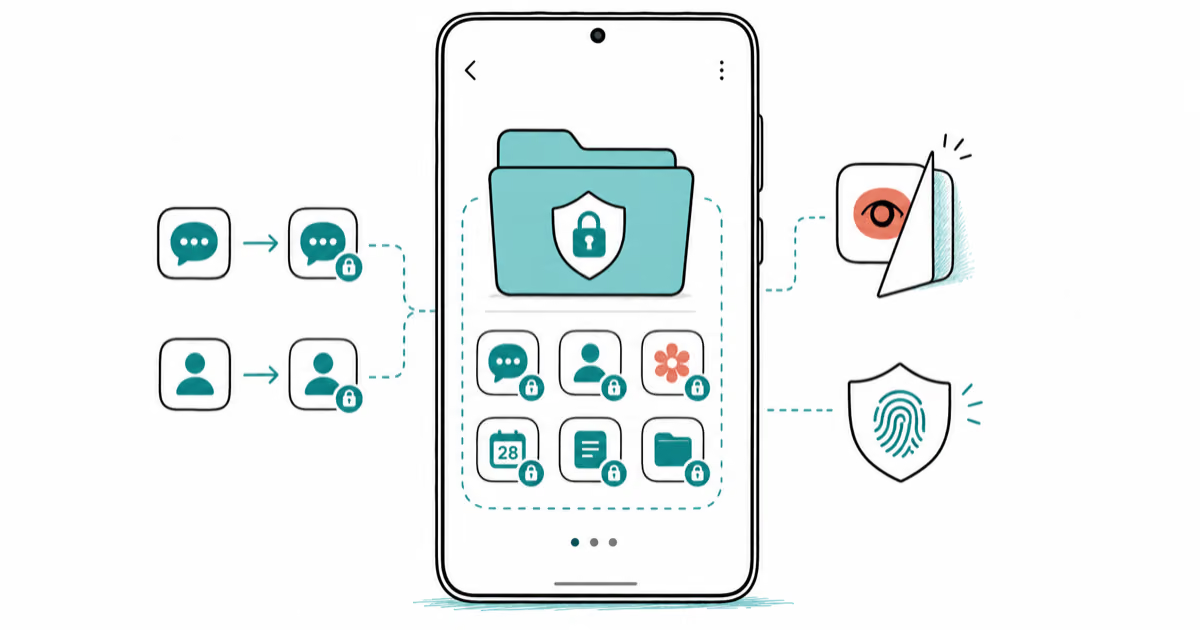
Samsung Secure Folder: Setup, Hide Apps, Clone Apps
Set up Samsung Secure Folder in under 5 minutes. Hide apps and photos, clone a banking app, and hide the Secure Folder icon on any Galaxy S8 or newer.
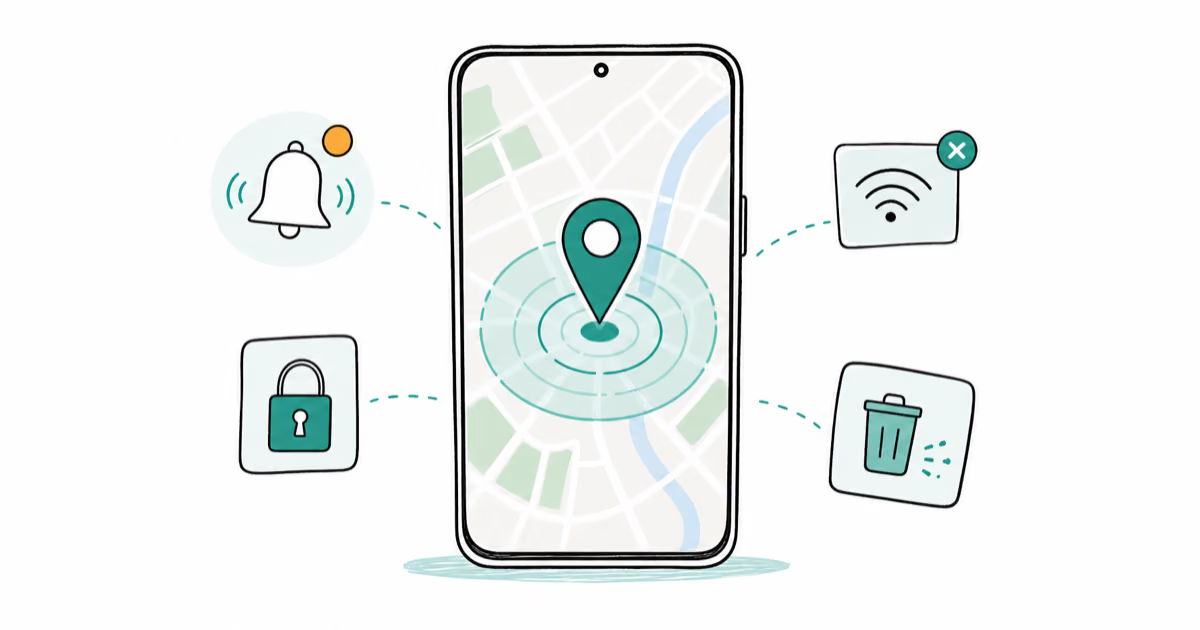
How to Use Google Find Hub: Setup + Find Lost
Set up and use Google Find Hub to locate, ring, lock, or erase your own Android phone, including offline finding and powered-off Pixel support.
Samsung Galaxy Battery Draining Fast: 2026 Fix Guide
Diagnose Galaxy S25 battery drain in five minutes through Battery Usage, then walk through six reversible Galaxy settings before a factory reset.
Samsung Parental Controls: Full Setup Guide for Parents
Set up Samsung parental controls in three layers: Samsung Kids, Google Family Link, and Digital Wellbeing. Free step-by-step guide for Galaxy parents.